Set up fulfillment and shipping
Configure the shipping timeline, message, and fulfillment behavior for a preorder offer.
Last updated
Use this guide to set the shipping timeline and fulfillment behavior for a preorder offer, in the offer’s Shipping section. By the end, customers will see your shipping message on the product page, and Shopify will show the preorder order the way you configured it.
STOQ controls the shipping message, fulfillment timing, holds, and split behavior. Shipping methods and rates, local pickup, and local delivery are controlled by Shopify, not STOQ.
Before you begin
Section titled “Before you begin”| Requirement | Detail |
|---|---|
| An existing preorder offer | Create an offer first, see Set up preorders |
| Paid plan (Lite and above) | Required for per-product timelines, Split fulfillments, Hold all fulfillments, Separate orders, and Separate orders sub-options. Fulfillment statuses (Unfulfilled, Scheduled, On hold) are available on all plans |
| Shopify purchase option | Scheduled requires it to be on. On hold works with or without it (without it, STOQ holds fulfillments at the app level, see Auto-hold without purchase option). Separate orders requires it to be off |
Choose your setup
Section titled “Choose your setup”The Shipping section has three independent choices: how the timeline applies across products, what fulfillment status the preorder item gets, and what happens to the rest of a mixed order.
Shipping timeline mode
Section titled “Shipping timeline mode”- Same timeline for all products (the default): one shipping date or message applies to every product in the offer.
- Different timeline for each product: each variant gets its own shipping date or note, entered per variant in the offer’s Products tab. Requires a paid plan (Lite and above). Scheduled fulfillment status is unavailable in this mode, because Scheduled needs one shared date.
Fulfillment status
Section titled “Fulfillment status”This setting controls only the preorder item; in-stock items in the same order always ship right away.
| Status | What Shopify shows | Becomes fulfillable | Requires purchase option | Available in per-product mode |
|---|---|---|---|---|
| Unfulfilled | Unfulfilled | Immediately | No | Yes |
| Scheduled | Scheduled, then auto-changes to Unfulfilled | On the date you set (specific date or days after purchase) | Yes | No |
| On hold | On hold | When you manually release it | No (works with or without, see Auto-hold without purchase option) | Yes |
For the full setup and flow of each status, see Unfulfilled, Scheduled, or On hold. For help deciding between them, see Choose a fulfillment setup.
Fulfillment options for mixed orders
Section titled “Fulfillment options for mixed orders”For a mixed order (one preorder item plus an in-stock item), choose what happens to the in-stock item. Only one of these can be active at a time, turning one on turns the others off, and all require a paid plan. Each has its own availability by fulfillment status, noted below.
- No option (the default): preorder items follow their fulfillment status; in-stock items ship right away.
- Split fulfillments: available only with Unfulfilled. Splits the order into two fulfillments, in-stock items fulfillable immediately and preorder items later, in one order and one payment. See Split fulfillments for preorders.
- Hold all fulfillments: available with Unfulfilled or On hold. Holds every item in the order, including in-stock items, until you release it. Use On hold instead if you want in-stock items to ship right away while only the preorder waits. See Place the entire order on hold.
- Separate orders (Experimental): available with any fulfillment status, including Scheduled. Moves preorder items into a new order so in-stock items ship from the original order right away. Turns off the Shopify purchase option, which disables deposits and partial payments, and asks for permission to edit orders. See Separate orders for mixed preorders.
What customers will see
Section titled “What customers will see”When Show shipping timeline is checked, STOQ inserts a shipping row into the preorder disclaimer box directly below the Preorder button on the product page, with a small truck icon and your Message text. If Show shipping timeline is off, or the Message field is empty, no shipping row appears at all. The row can also appear in the cart and at checkout if those surfaces are enabled, see Design the preorder widget. Exact position and styling depend on your theme and the appearance settings under Customize.
The variables in your message resolve based on the shipping timeline mode and fulfillment trigger:
| Mode / trigger | {{ date }} |
{{ month_year }} |
{{ year }} |
{{ days }} |
|---|---|---|---|---|
| Same timeline, Unfulfilled | as soon as possible |
as soon as possible |
as soon as possible |
not replaced |
| Same timeline, On hold | to be confirmed |
to be confirmed |
to be confirmed |
not replaced |
| Same timeline, Scheduled (specific date) | full date, e.g. 15 Dec 2025 |
Dec 2025 |
2025 |
not replaced |
| Same timeline, Scheduled (days after purchase) | full date calculated from today + N days | month/year of that date | year of that date | the number N |
| Different timeline for each product | that variant’s Shipping field text (from the Products tab) | not available | not available | not available |
At checkout and on the order confirmation, Shopify’s own screens are used. Right after purchase, the preorder line item’s fulfillment status in Shopify reflects the status you configured below.
Set it up
Section titled “Set it up”-
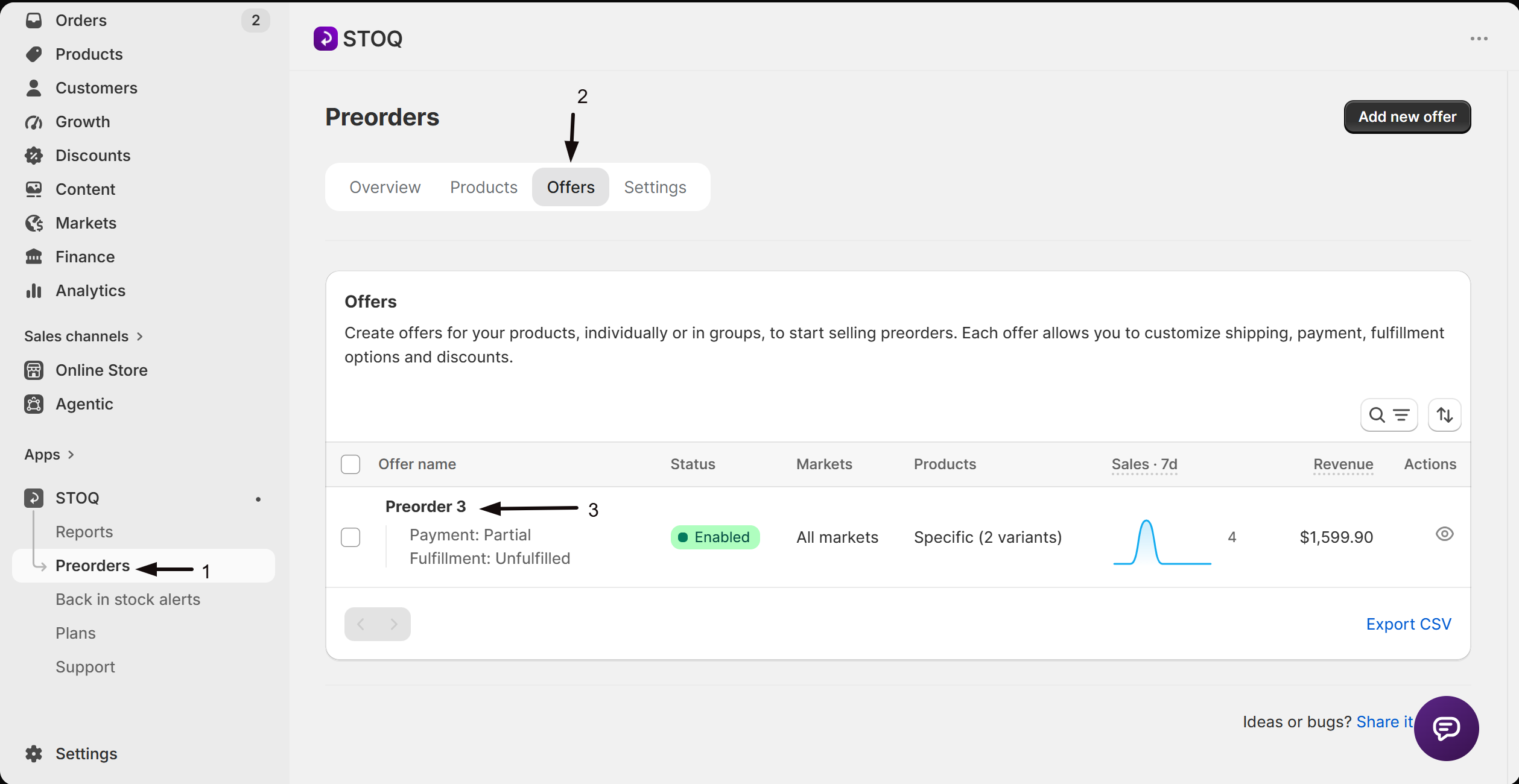
Open Preorders
- In your Shopify admin, open the STOQ app.
- Click Preorders in the left menu bar.
-
Go to the offer
- Click the Offers tab.
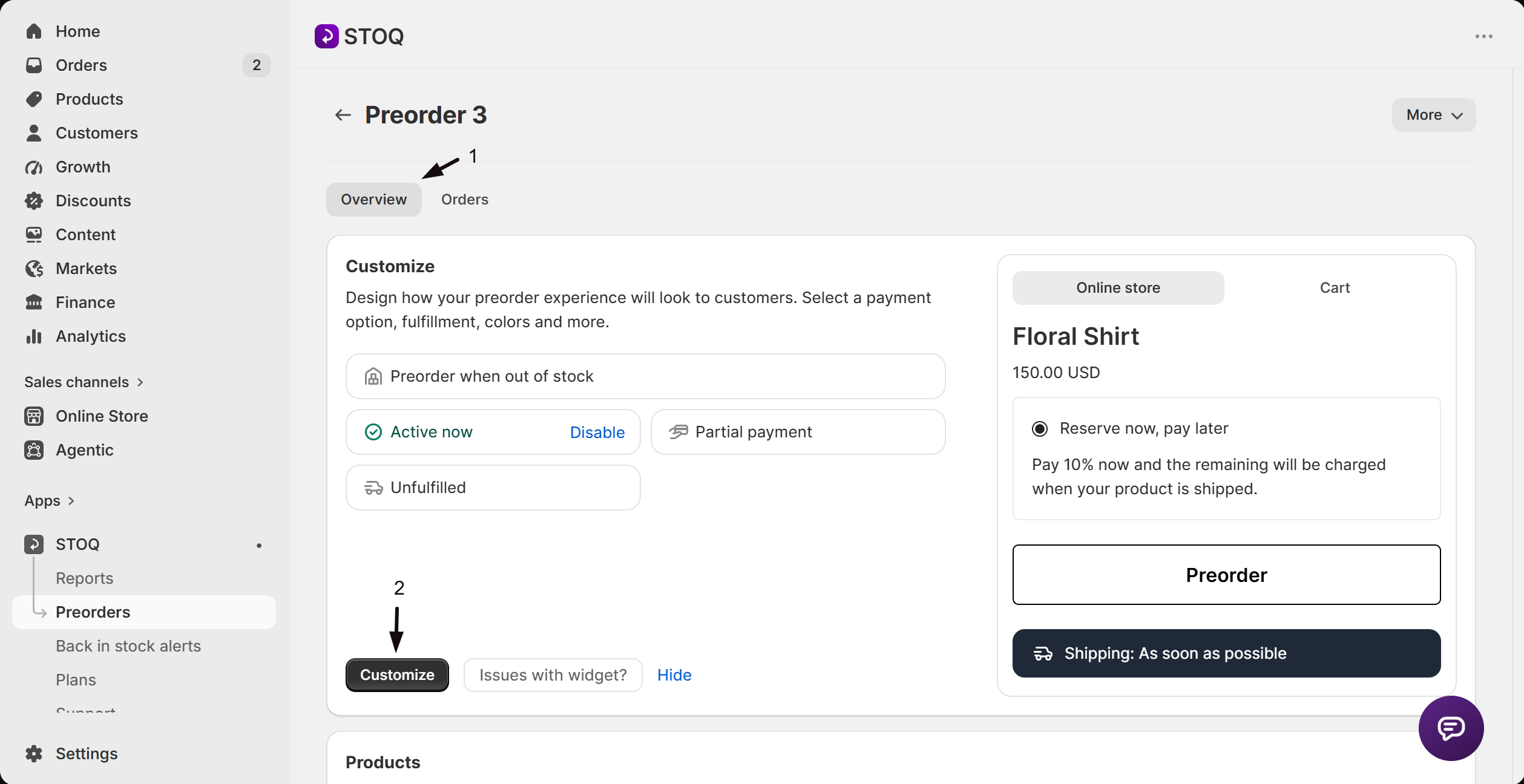
- Click the offer you want to configure (this opens its Overview tab, showing the Customize button, a live preview, and the offer’s Products section).
-
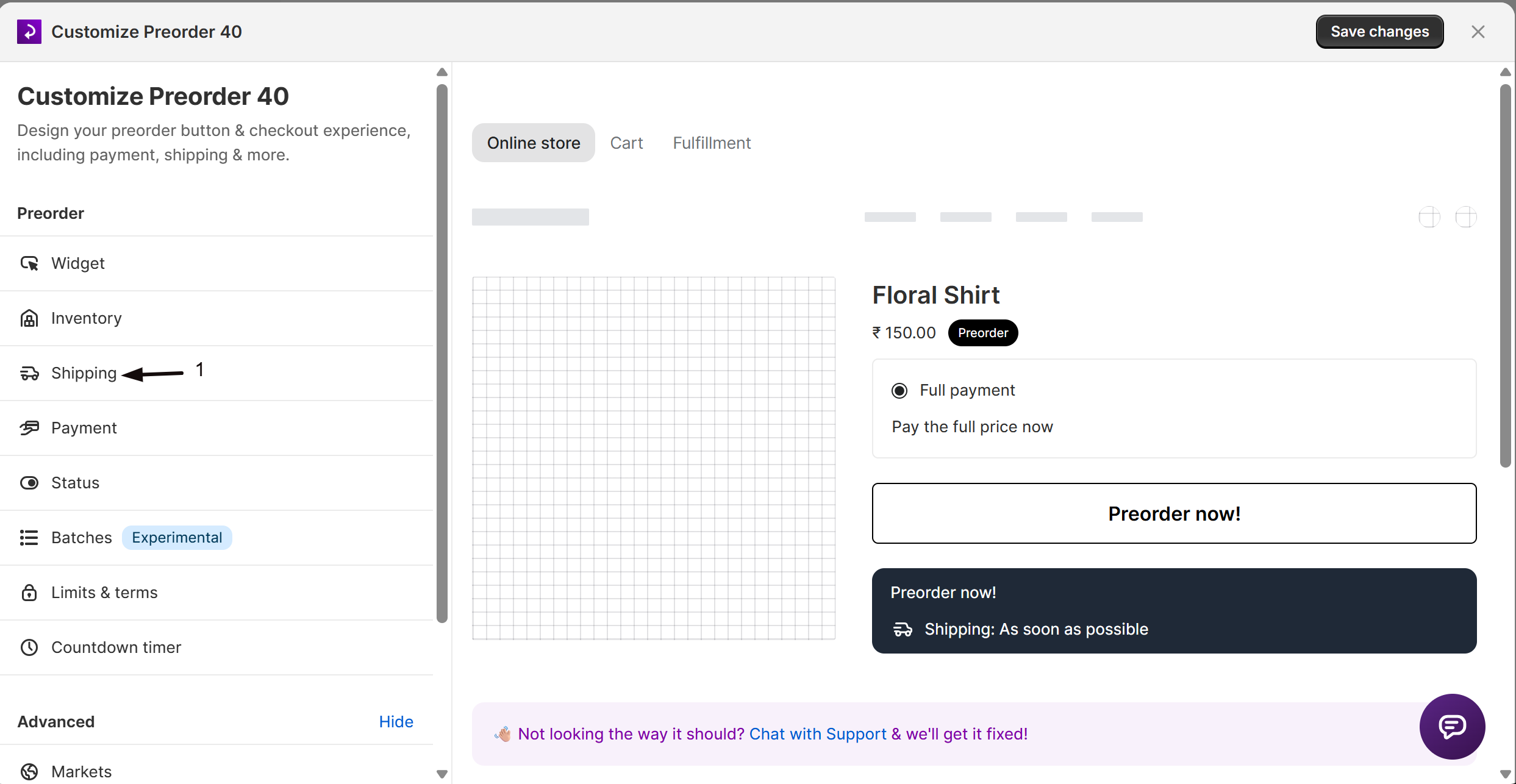
Open Shipping
- Click the Customize button to open the editor.
- In the sidebar, click Shipping.
-
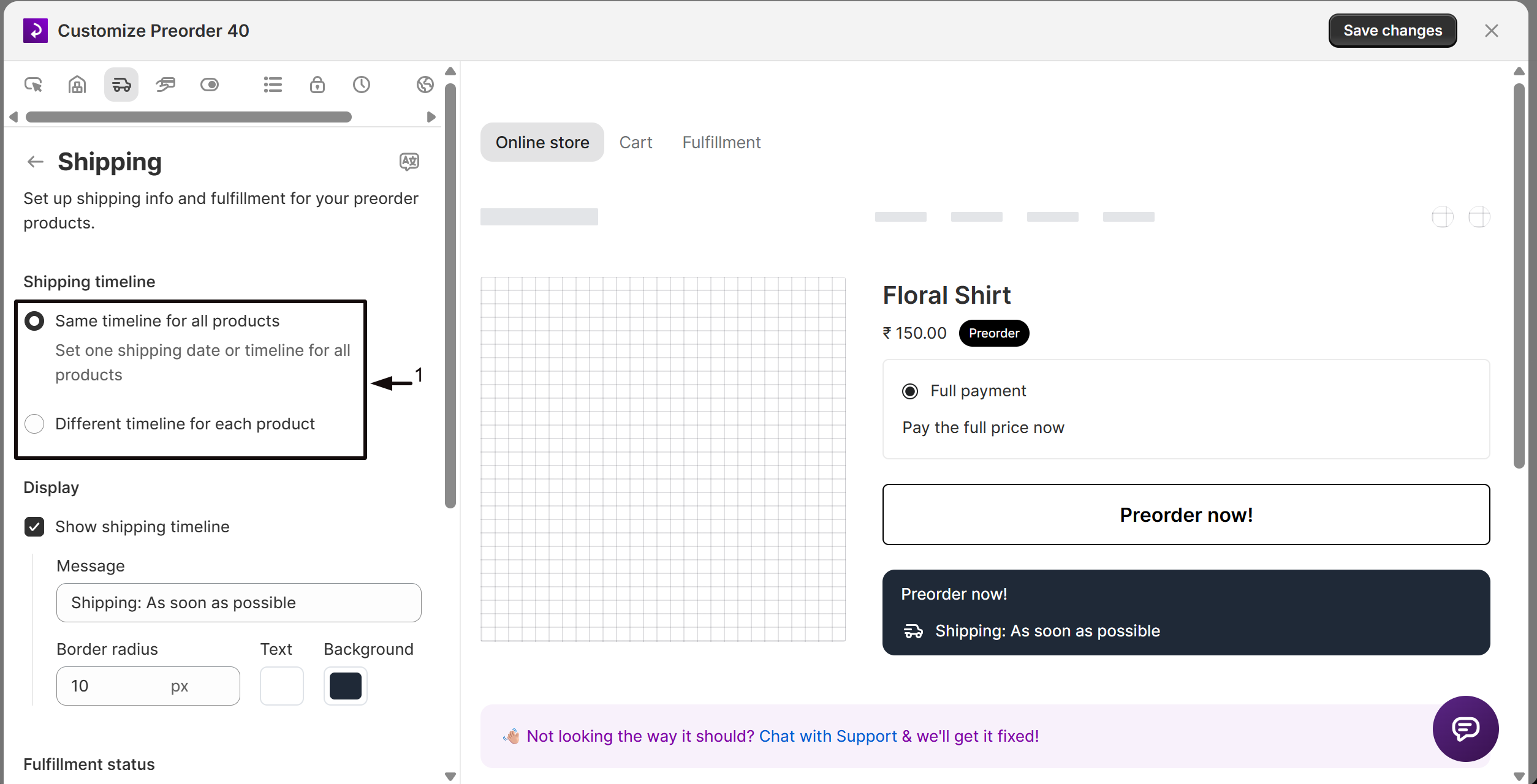
Set the shipping timeline mode
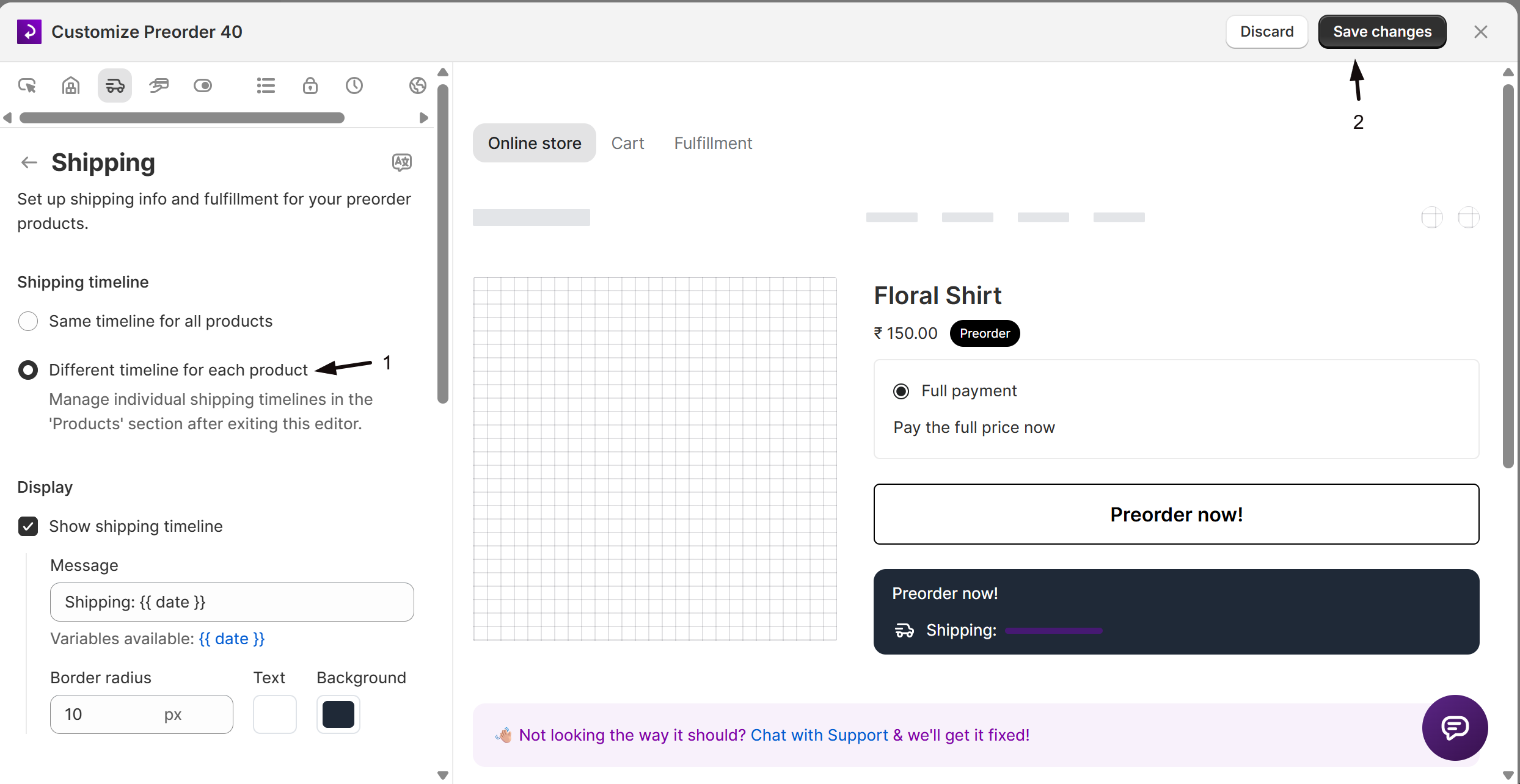
Under Shipping timeline, select Same timeline for all products or Different timeline for each product. See Choose your setup above for how these differ; if you choose the per-product option, save the offer and enter each variant’s shipping info in the Products tab (see below).
-
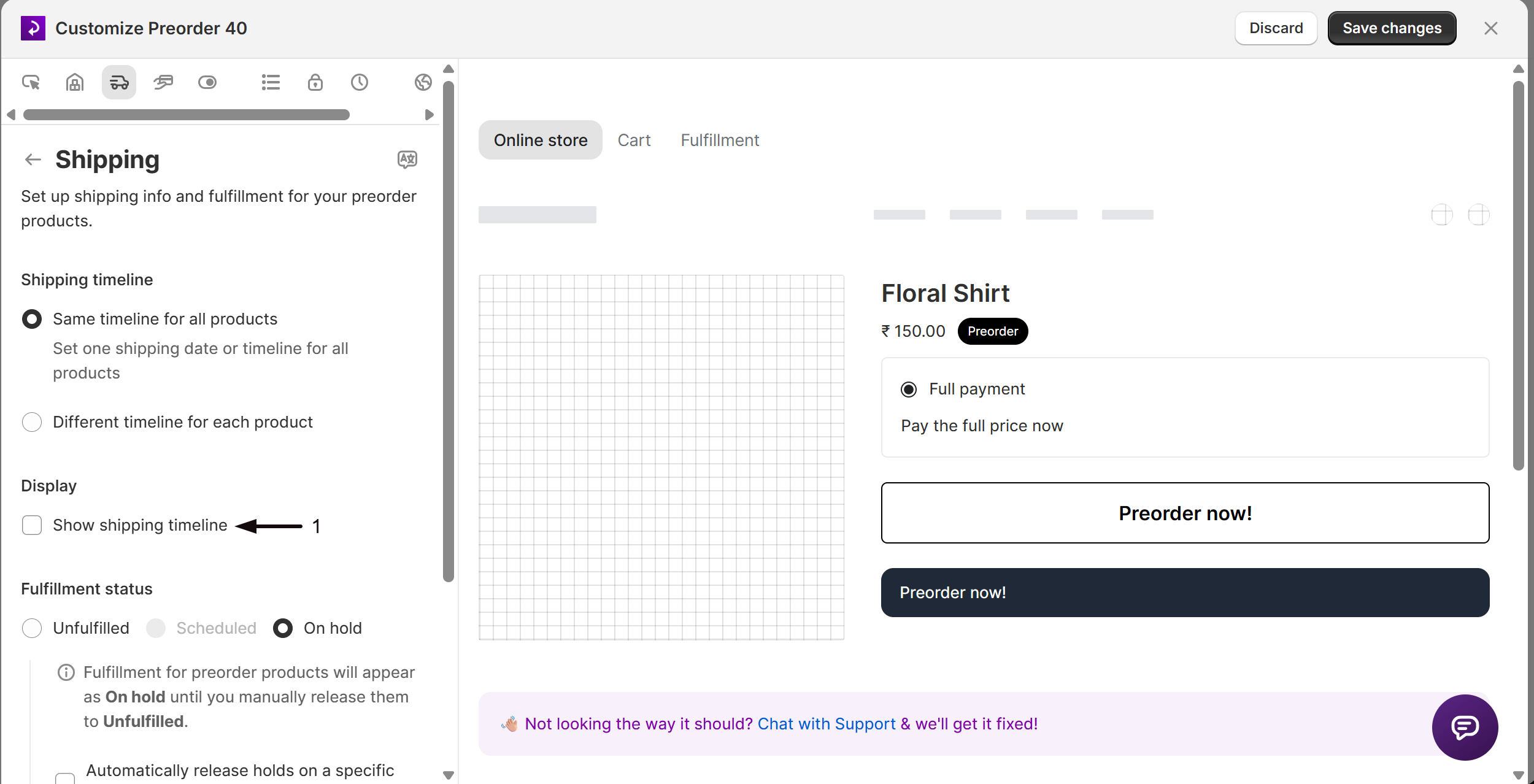
Turn on the shipping timeline display
Under Display, check Show shipping timeline to show a shipping message below the Preorder button on the product page, and in the cart and at checkout when those are enabled.
-
Enter the message
In the Message field, type your customer-facing text, using template variables from the table above to pull dates dynamically, for example
Shipping: {{ date }}. -
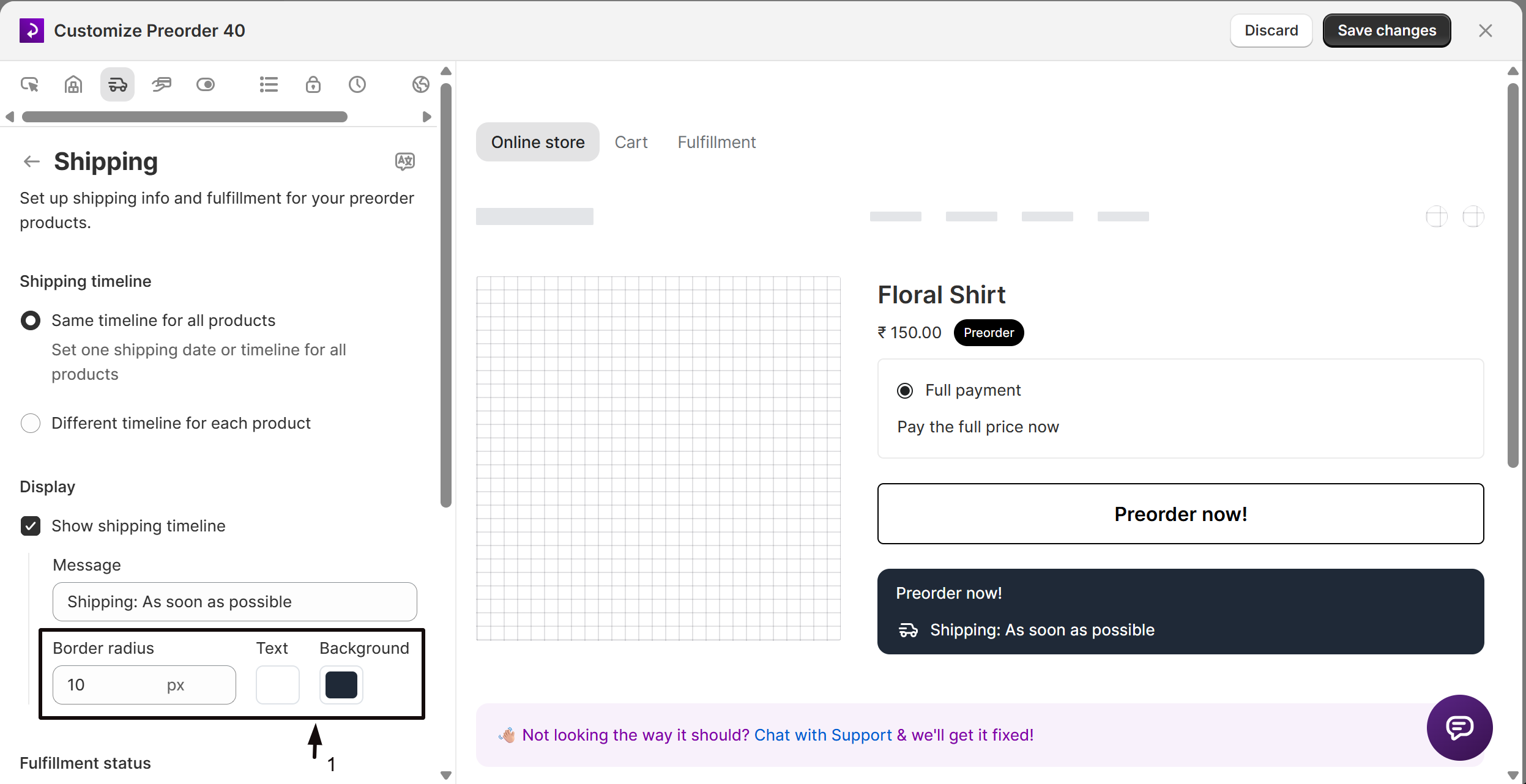
Set the badge appearance
There’s no separate Customize button. Once Show shipping timeline is on, the appearance options appear below it: set the border radius, text color, and background color of the shipping badge.
-
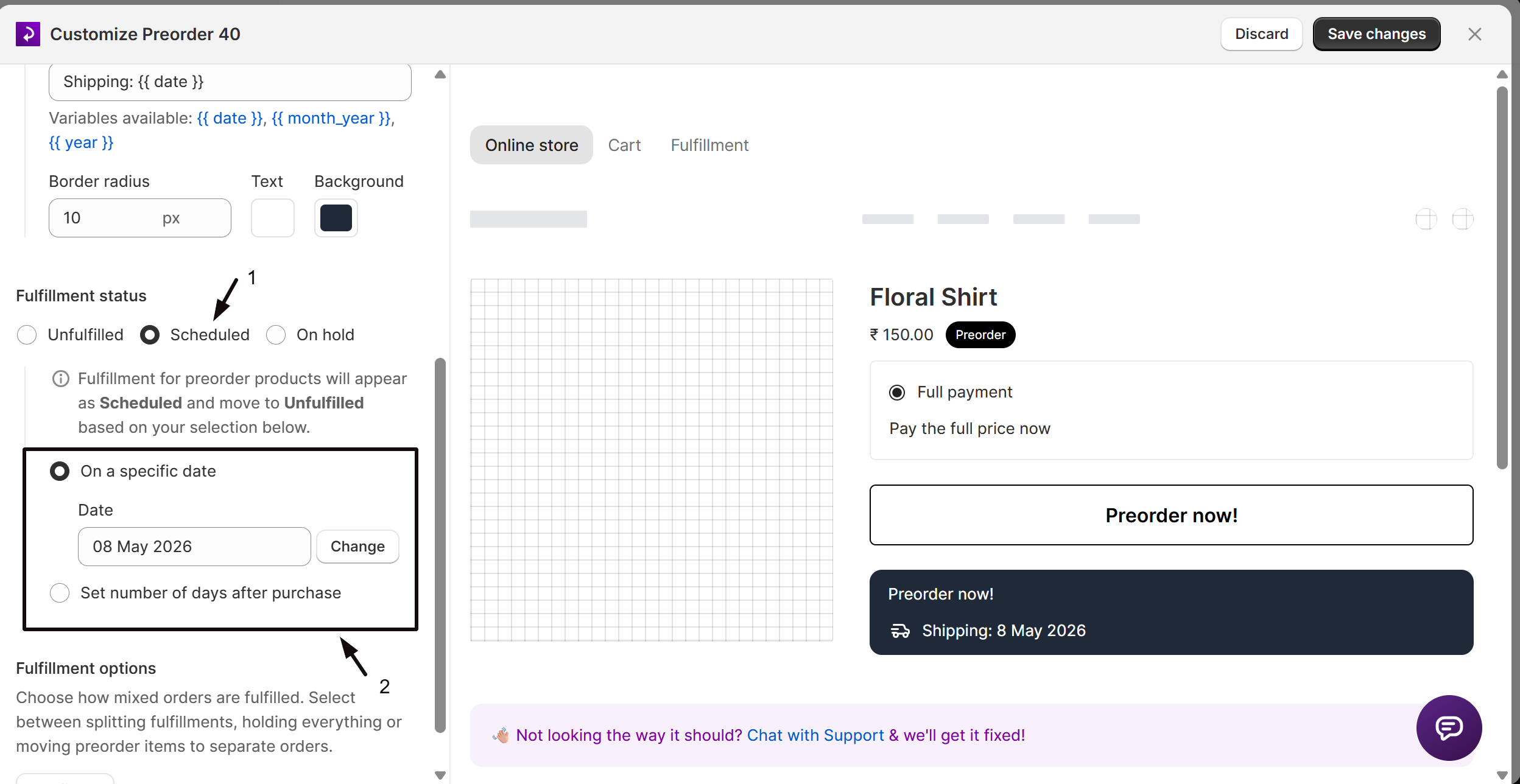
Choose the fulfillment status
Under Fulfillment status, select Unfulfilled, Scheduled, or On hold. If you select Scheduled, also choose a trigger: On a specific date (pick a calendar date) or Set number of days after purchase (enter a number). You can fulfill the order earlier at any time.
-
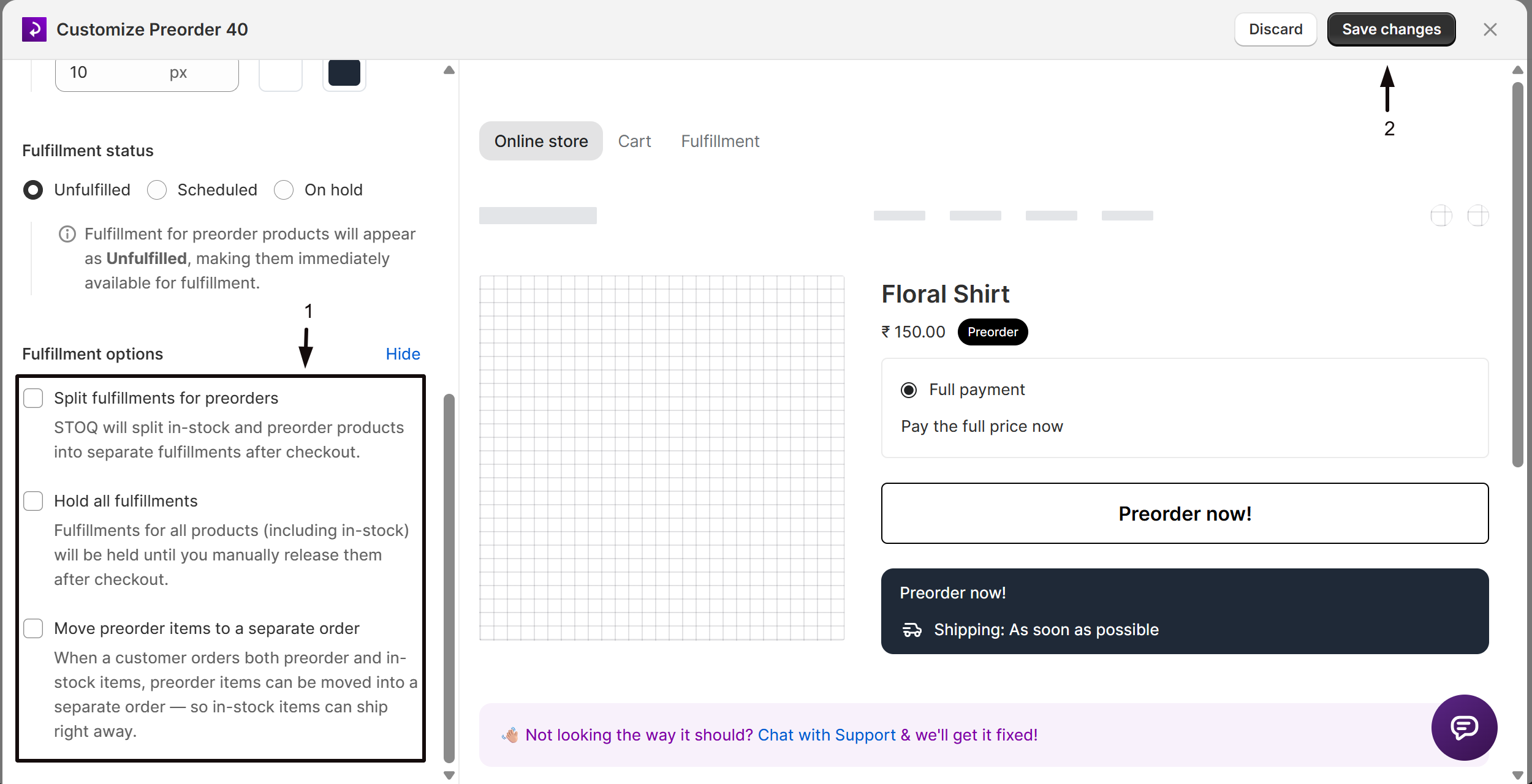
Choose fulfillment options for mixed orders
Under Fulfillment options, click Configure to expand the options, then leave all options off, or turn on Split fulfillments for preorders, Hold all fulfillments, or Separate orders for mixed preorders. If you turn on Separate orders, also configure its sub-settings (see below).
-
Save changes
Click Save changes at the top right of the editor. Changes apply to orders placed after you save; existing orders keep their original fulfillment behavior.
Enter per-variant shipping timelines
Section titled “Enter per-variant shipping timelines”Only needed if you selected Different timeline for each product.
-
Save and exit the editor
- Click Save changes at the top right of the offer editor.
- Exit the Customize editor to return to the offer page.
-
Open the Products tab
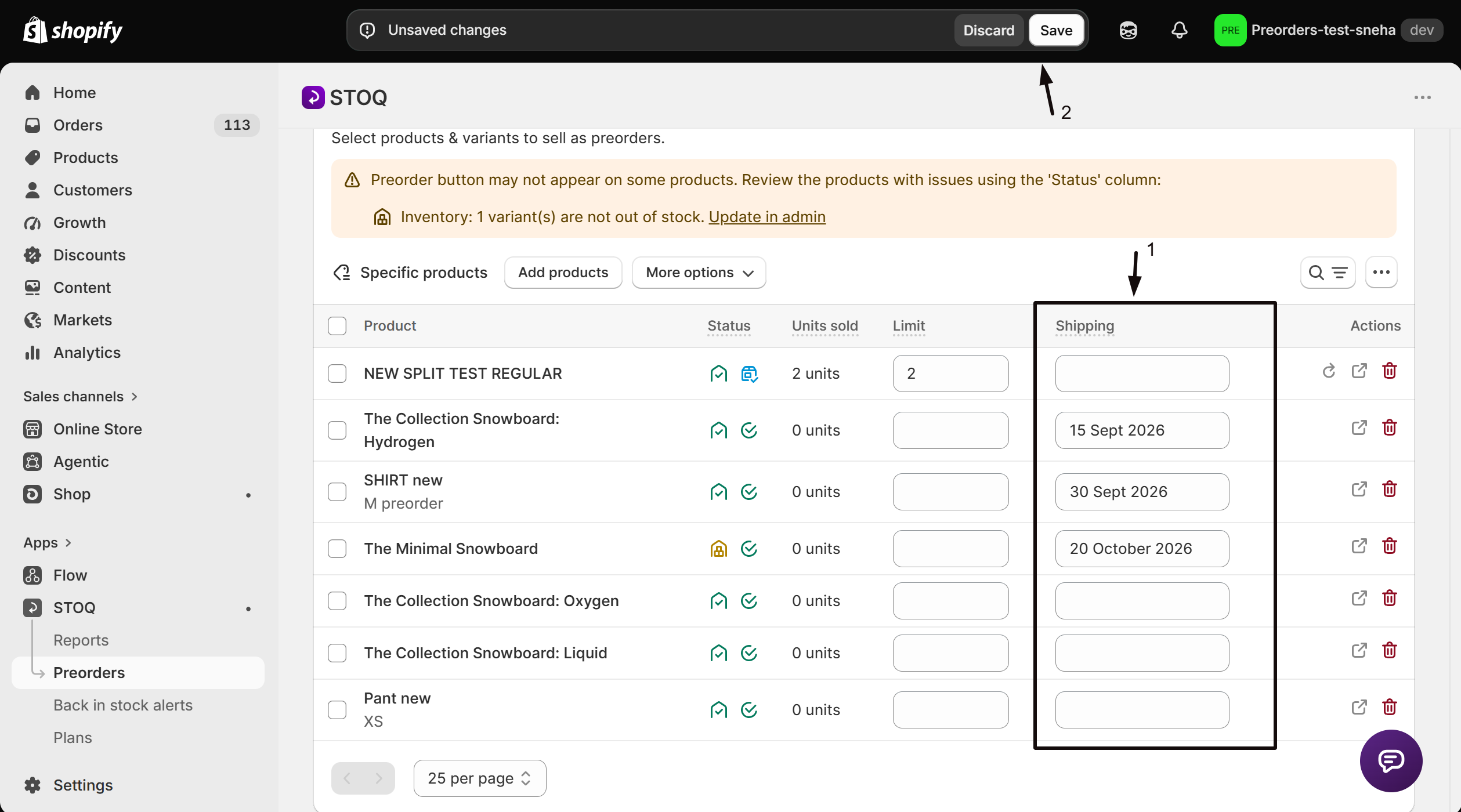
On the offer page, click the Products tab. The Shipping column is pinned and visible.
-
Enter per-variant shipping info
- For each variant, type a shipping date or note in its Shipping field, for example
Ships mid-Marchor4-6 weeks. - Click Save on the top bar.
- For each variant, type a shipping date or note in its Shipping field, for example
Separate orders sub-settings
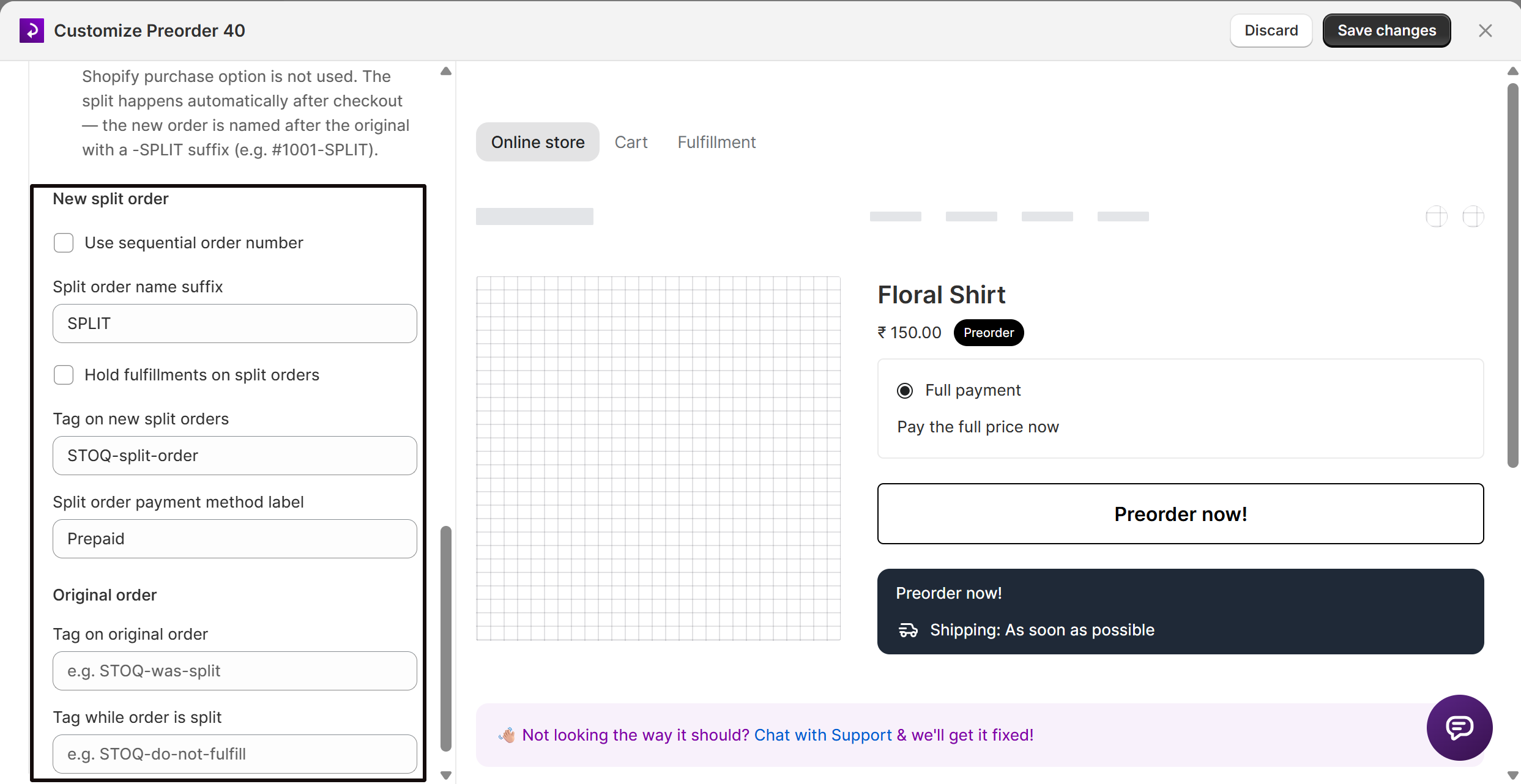
Section titled “Separate orders sub-settings”When you turn on Separate orders, configure:
- Use sequential order number: assigns a new order number instead of the default
-SPLITsuffix (for example,#1001-SPLIT). - Hold fulfillments on split orders: automatically holds the new order’s fulfillments until you release them.
- Tag on new split orders: default
STOQ-split-order. - Split order payment method label: default
Prepaid. This is a label only; no money moves. - Tag on original order: permanent tag marking the order was split. Leave blank to disable.
- Tag while order is split: temporary tag added during the split and removed automatically once it finishes.
Test with a real order before going live, since turning this on changes how STOQ handles payment capture.
Check your setup
Section titled “Check your setup”After saving:
- Place a test order for a preorder product (use a 100% discount code or Shopify’s Bogus Gateway to avoid a real charge).
- Open the order in Shopify admin. Confirm the fulfillment status matches what you set: Unfulfilled, Scheduled, or On hold.
- If you turned on Split fulfillments, place a mixed order (one preorder plus one in-stock item). Confirm two separate fulfillments appear on the order.
- If you turned on Separate orders, confirm a new
-SPLITorder was created for the preorder items. - If Show shipping timeline is on, view the product page on your storefront and confirm the shipping badge appears below the Preorder button with the correct message.
Troubleshooting
Section titled “Troubleshooting”The Shipping column doesn't appear in the Products tab
Make sure Different timeline for each product is selected and you clicked Save in the editor before going to the Products tab. If it’s still missing, confirm the offer is on a paid plan, this mode requires Lite and above.
You can't select Scheduled
It’s unavailable when Different timeline for each product is active, because Scheduled needs one shared date across the offer. Use Unfulfilled or On hold instead, and set each variant’s date in the Shipping column.
The shipping badge isn't appearing on the product page
Confirm these:
- Show shipping timeline is checked under Display.
- The Message field isn’t empty (an empty message causes a validation error on save).
- The Preorder button widget is published on the product page.
You want in-stock items in a mixed order to ship immediately while the preorder waits
Set the fulfillment status to On hold and leave all Fulfillment options off. Don’t turn on Hold all fulfillments, that holds in-stock items too.
Separate orders is disabled
Check that you’re on a paid plan (Lite and above), and that Split fulfillments and Hold all fulfillments are both off first, they’re mutually exclusive.
An order shows paid but you expected it on hold or unfulfilled
Confirm which fulfillment status and options were active when that order was placed, changes only apply to orders placed after you save.
Does changing the fulfillment status or options affect orders I've already placed?
No. Changes apply only to orders placed after you save; existing orders keep the fulfillment behavior they were created with.
What's the difference between On hold and Hold all fulfillments?
On hold (a fulfillment status) holds only the preorder items; in-stock items in the same order ship right away. Hold all fulfillments (a fulfillment option) holds the entire order, including in-stock items, until you release it. Use On hold when in-stock items should ship now, and Hold all when nothing should ship until the preorder is ready.
Can I use {{ date }} in my message with per-product timelines?
Yes, {{ date }} is the only variable available in per-product mode. It’s replaced with the individual variant’s Shipping field value from the Products tab. If a variant has no shipping text set, the variable renders as blank.
Does the shipping message customers see match the fulfillment status?
Yes. The message’s variables resolve based on your fulfillment status and trigger, for example as soon as possible for Unfulfilled, to be confirmed for On hold, or an actual date for Scheduled. See the variable table above.
Why is Separate orders marked Experimental?
It’s a newer option that changes payment capture behavior (it turns off the Shopify purchase option) and requests permission to edit orders. Test it with a real order before relying on it for live traffic.
Related guides
Section titled “Related guides”Thanks for letting us know.
Still stuck? Ask Quinn or chat with support