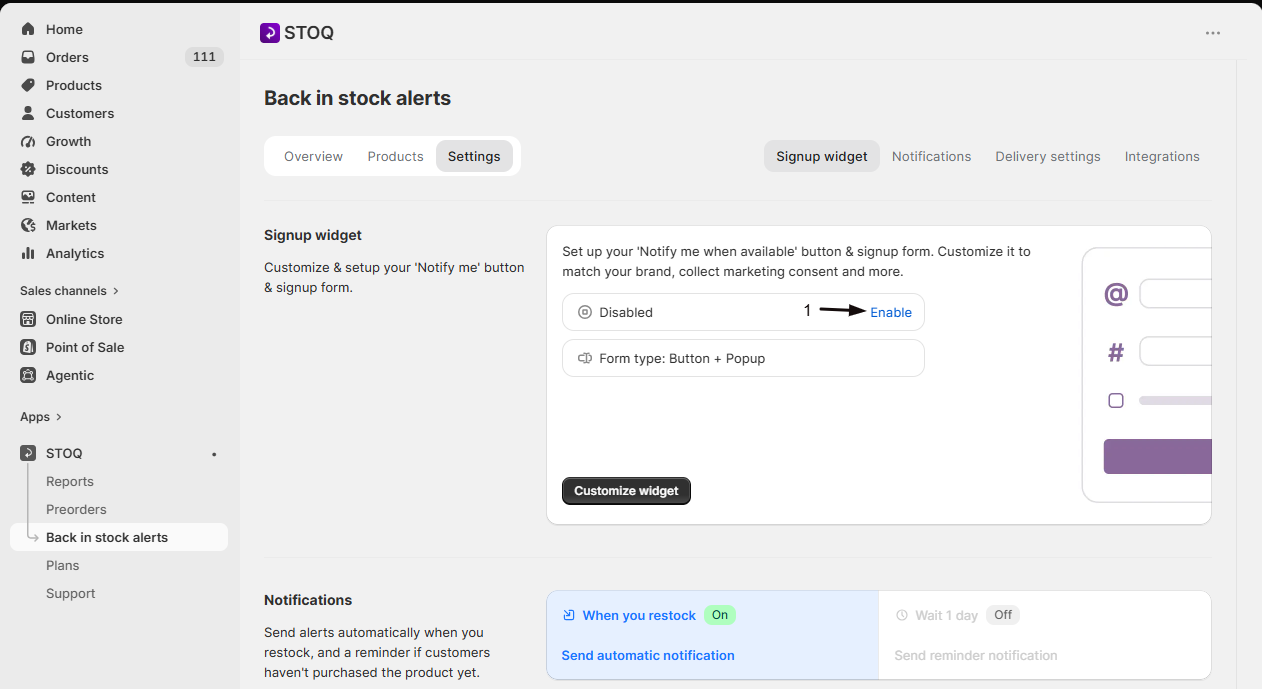
How to enable or disable the “Notify Me” widget
The Notify Me widget is the signup button and form that appears on your storefront when a product is out of stock. You can turn it on or off at any time from the STOQ dashboard. You can also choose how it appears — as a Button + Popup or an On page embedded form. This article covers both ways to enable or disable the Notify Me widget and how to switch between form types.
Understanding the Notify Me widget
The Notify Me widget has two parts:
- The button — A "Notify me when available" button that appears on out-of-stock product pages.
- The signup form — Where customers enter their email or phone number to join the waitlist.
The widget has two form types:
Form type | How it works |
|---|---|
Button + Popup | Customers click the Notify Me button to open a popup where they enter their email or phone number |
On page | The signup form appears directly on the product page without requiring a button click (paid plan feature) |
When the widget is enabled, it shows on out-of-stock products on your storefront. When it is disabled, customers do not see any signup option.
How to enable or disable the widget
There are two ways to turn the Notify Me widget on or off. Both achieve the same result.
Method 1 - From the Signup widget section (quick toggle)
This is the fastest way to enable or disable the widget without opening the full editor.
- In the STOQ dashboard, go to Back in Stock from the left sidebar.
- Click the Settings tab.
- Scroll to the Signup widget section.
- You see the current widget status:
- Active now (green icon) — the widget is enabled
- Disabled (grey icon) — the widget is turned off
- Click the Enable or Disable link next to the status.
- Click Save to apply the change.

Method 2 — From the Customize widget editor
Use this method when you want to enable or disable the widget while also customizing its appearance.
- In the STOQ dashboard, go to Back in Stock from the left sidebar.
- Click the Settings tab.
- In the Signup widget section, click Customize widget.
- The widget editor opens. At the top, you see a toggle for 'Notify me' widget with the description "Let customers register for back in stock alerts on your store."
- Toggle it on to enable or off to disable the widget.
- Click Save to apply the change.


How to switch between Button + Popup and On page
You can change how the signup form appears on your storefront from inside the Customize widget editor.
- Open the Customize widget editor (Back in Stock > Settings > Signup widget > Customize widget).
- Below the widget toggle, you see the current form type displayed as either Button + Popup or On page.
- Click on the form type row to expand the options.
- Choose one:
- Button + Popup — Customers see the Notify Me button and click it to open a popup where they enter their email or phone number.
- On page — The signup form appears directly on the product page. Customers enter their details without opening a popup. This option requires a paid plan.
- Click Save to apply the change.

Verification
To confirm the Notify Me widget is enabled or disabled:
- After saving, visit your online store.
- Navigate to a product that is out of stock.
- If the widget is enabled, you should see the Notify Me button (or embedded form if using On page mode).
- If the widget is disabled, no signup button or form appears on the product page.
- Back in the STOQ dashboard, go to Back in Stock > Settings > Signup widget and verify the status shows Active now or Disabled as expected.

Known limitations
- The On page form type requires a paid plan.
- The On page form may require additional theme-specific setup for some Shopify themes.
- The widget toggle is global — it applies to all products. Use product tags to control visibility on individual products.
- Disabling the widget does not stop outgoing notifications for existing waitlist signups.
- Switching to On page automatically disables the product image option in the signup form.
- Changes require saving before they take effect on the storefront.
Troubleshooting
Problem | Cause | Solution |
|---|---|---|
Widget is enabled but does not appear on the storefront | The STOQ app embed is disabled in your Shopify theme | Go to your Shopify theme editor > App embeds and enable the STOQ app embed |
Widget does not appear on a specific product | The product is currently in stock | The Notify Me widget only appears on out-of-stock products (or variants). Check the product's inventory in Shopify |
On page option is greyed out | You are on the free plan | Upgrade to a paid plan to use the On page form type |
Widget shows on the storefront after disabling | Changes were not saved | Go back to STOQ, confirm the status shows "Disabled," and click Save if you see unsaved changes |
On page form does not display correctly | Theme compatibility issue | Contact STOQ support via in-app chat for help with theme-specific setup |
Widget appears but the form does not open when clicked | JavaScript conflict or theme issue | Check your browser console for errors. Try disabling other apps temporarily to identify conflicts. Contact STOQ support if the issue persists |
FAQs
Q: Does disabling the widget delete existing waitlist signups?
A: No. Disabling the widget only hides the signup button and form from your storefront. All existing waitlist signups are preserved. Customers who already signed up will still receive back in stock notifications when you restock.
Q: Can I disable the widget for specific products only?
A: Yes, but not from the widget toggle. The widget toggle enables or disables the widget globally. To hide the widget on specific products, you can use a product tag to disable the button. Go to Customize widget > Button > Products and set up a disable tag.
Q: What is the difference between Button + Popup and On page?
A: Button + Popup shows a Notify Me button on the product page. When a customer clicks it, a popup opens where they enter their email or phone. On page skips the button and shows the signup form directly on the product page. On page requires a paid plan and may need additional theme setup.
Q: Do I need to save after toggling the widget on or off?
A: Yes. After toggling the widget on or off — from either the Settings page or the Customize widget editor — you must click Save for the change to take effect on your storefront.
Q: Will disabling the widget stop automatic back in stock notifications from being sent?
A: No. Disabling the widget only stops new customers from signing up. Automatic back in stock notifications for existing waitlist signups continue to work as configured. To stop sending notifications entirely, you need to disable restock alerts separately in your delivery settings.
Q: Can I switch from Button + Popup to On page without losing my customizations?
A: Yes. Switching form types does not reset your button text, colors, or other customizations. However, the product image option in the popup is automatically disabled when you switch to On page, since the form is embedded directly in the product page.
Q: Does the Notify Me widget work on collection pages too?
A: The widget toggle controls the product page widget. Collection page buttons are a separate setting. To enable the Notify Me button on collection pages, go to Customize widget > Button > Collection pages and turn it on there.
Q: How do I know if the STOQ app embed is enabled?
A: Go to your Shopify admin > Online Store > Themes > Customize. In the theme editor, open the App embeds section (usually in the left sidebar). Look for the STOQ embed and make sure it is toggled on.
Updated on: 25/04/2026
Thank you!