How to Move Signups From One Product to Another in STOQ
Moving signups from one product to another in STOQ lets you transfer your existing waitlist subscribers to a different product or variant. This is useful when you discontinue a product, create a new listing for the same item, or consolidate signups after merging variants.
STOQ transfers all unsent signup requests from the source product (or variant) to a destination product. After the transfer completes, you can send back-in-stock notifications to those customers for the new product.

Before You Begin
Make sure the following requirements are met before moving signups.
- STOQ is installed on your Shopify store with the app embed enabled.
- The source product has signups in the Current waitlist. Only unsent requests are transferred.
- The destination product exists in your Shopify store. You will select it using the Shopify product picker during the transfer.
- The destination product has exactly one variant selected. STOQ cannot transfer signups to multiple variants at once.
Move Signups From a Product Page
You can transfer signups from any product's notification page in Reports.
Steps to Transfer
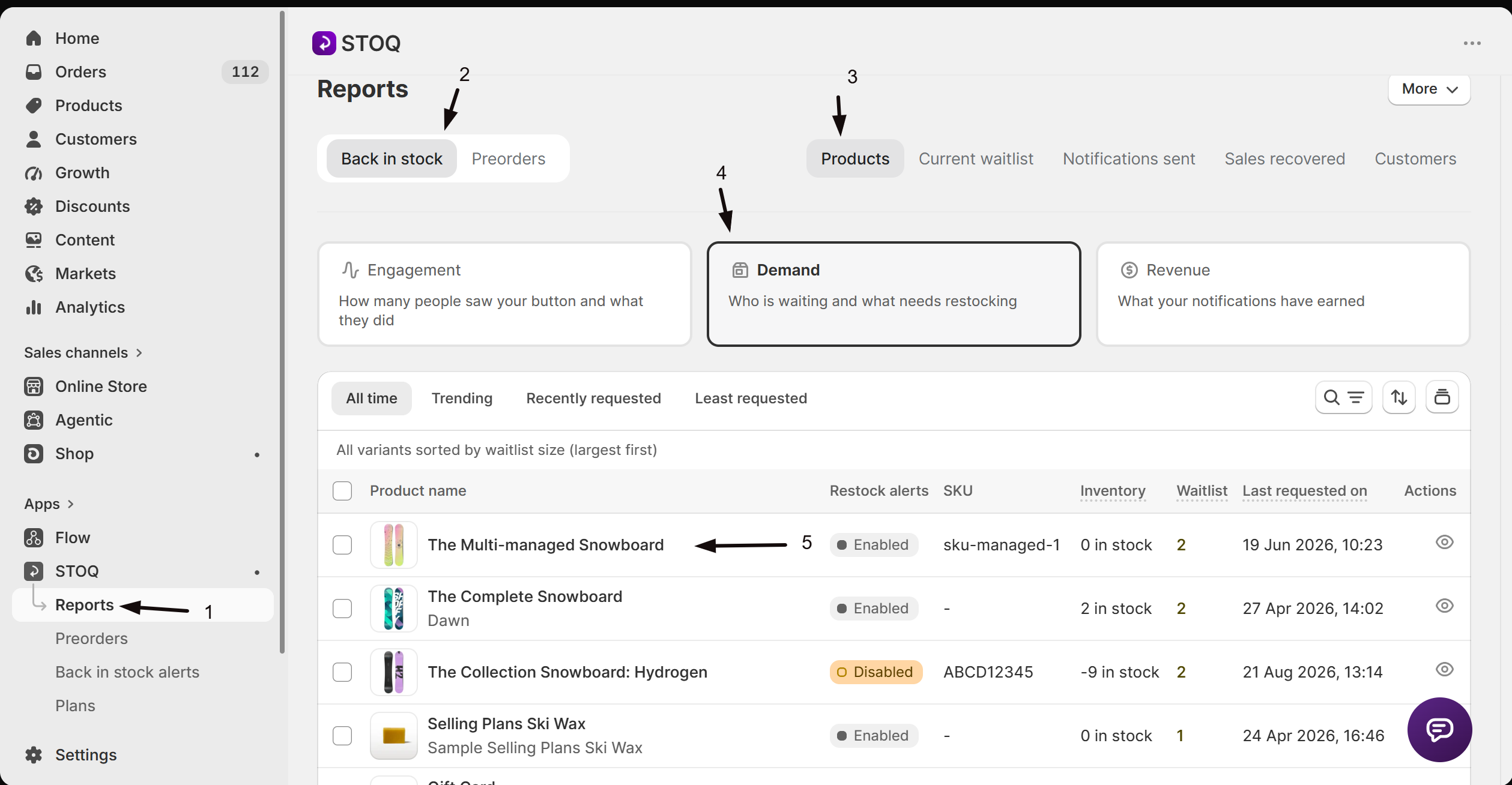
- In your Shopify admin, open the STOQ app.
- Click Reports in the left navigation menu.
- Click the Back in stock main tab.
- Select the Products sub-tab.
- Click on the product whose signups you want to move.
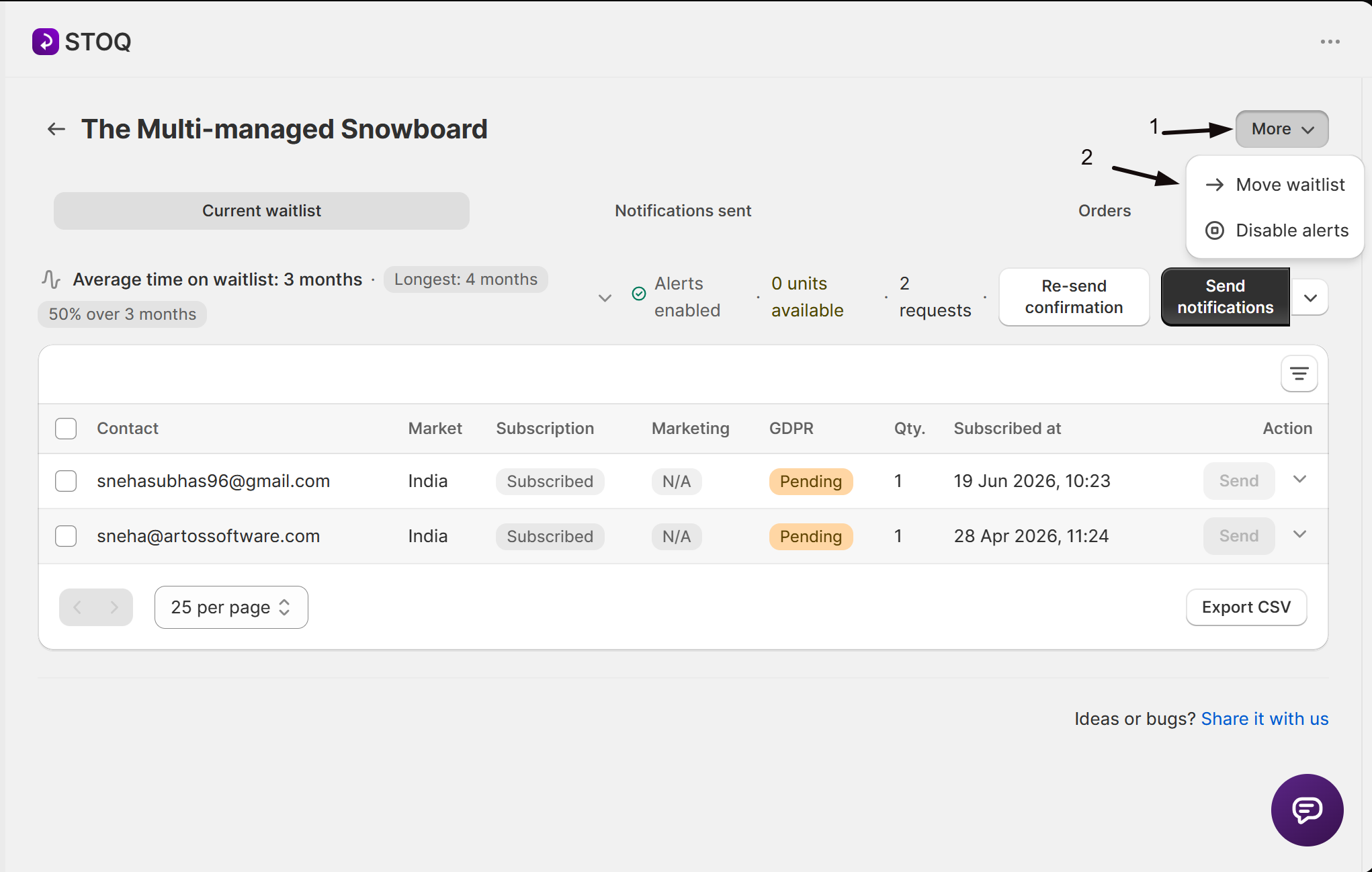
- On the product's notification page, click the More dropdown button in the top-right action bar.
- Click Transfer signups.
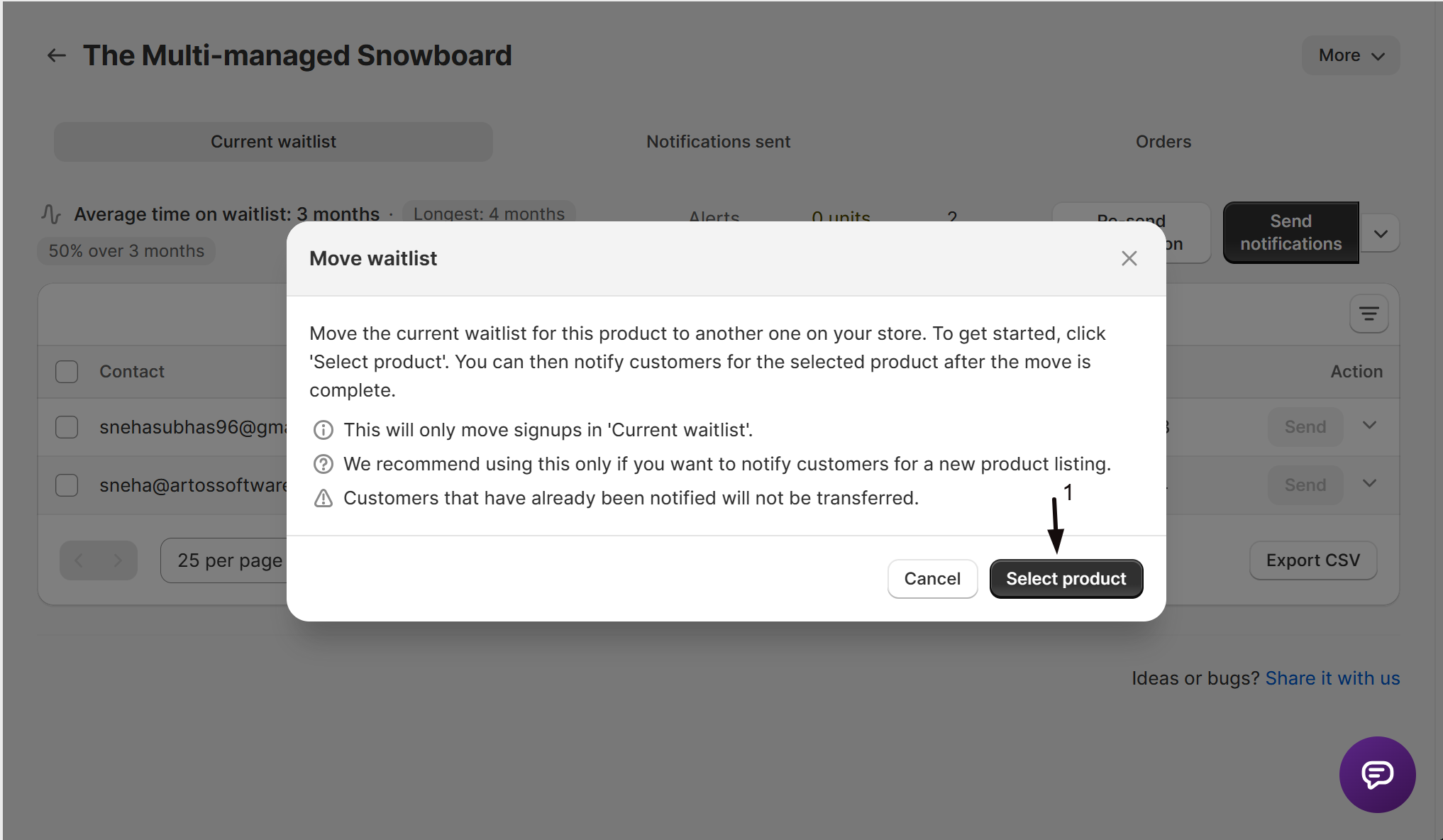
- A confirmation modal appears with the title "Transfer signups" and the following details:
- "Transfer signups for this product to another one on your store. To get started, click 'Select product'. You can then notify customers for the selected product after the transfer is complete."
- Only signups in the Current waitlist will be transferred.
- Customers that have already been notified will not be transferred.
- Click Select product.
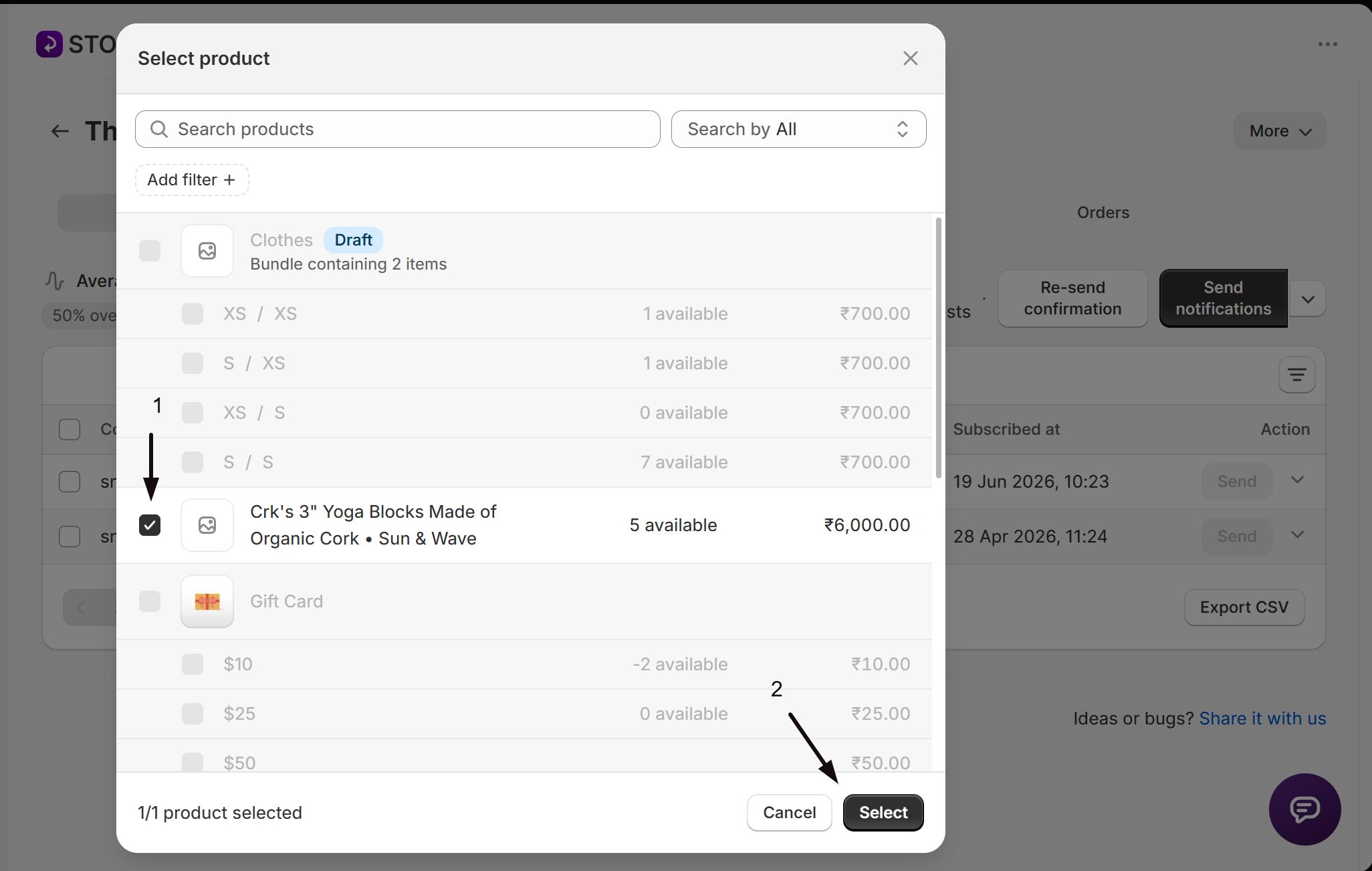
- The Shopify product picker opens. Search for and select the destination product.
- If the destination product has one variant, the transfer begins immediately.
- A toast notification confirms: "Requests moved" (or "Moving in background" for large transfers).
- STOQ redirects you to the destination product's Current waitlist page.


Move Signups From a Variant Page
You can also transfer signups at the variant level.
- In Reports → Back in stock → Products, click on a product.
- Click on the specific variant you want to transfer signups from.
- On the variant's notification page, click the More dropdown button.
- Click Transfer signups.
- Follow the same confirmation and product selection steps described above.
When transferring from a variant, STOQ sends both the source product ID and variant ID, so only signups for that specific variant are moved.
Move Signups for a Deleted Variant
If a product variant has been deleted from Shopify, STOQ shows a banner on the variant's notification page:
The banner includes a Move requests button that opens the product picker directly, skipping the confirmation modal.
Steps for Deleted Variants
- Navigate to the deleted variant's page in Reports → Back in stock → Products → [Product] → [Deleted variant].
- The Variant deleted banner appears at the top of the page.
- Click the Move requests button on the banner.
- Select the destination product in the Shopify product picker.
- The transfer begins and redirects you to the destination product's page.


What Gets Transferred
Understanding what is and is not included in the transfer helps you plan accordingly.
Included | Not Included |
|---|---|
All unsent signup requests in the Current waitlist | Customers who have already been notified (Notifications sent) |
Customer contact information (email, phone) | Notification history from the source product |
Marketing consent and GDPR status | Order attribution data |
Signup date and quantity | Any sent notification records |
Advanced Tips
These tips help you get the most out of the signup transfer feature.
- Transfer before deleting. If you plan to delete a product, transfer its signups first while the product is still active. This avoids the deleted variant workflow.
- Use for product listing refreshes. When you create a new listing for the same item (e.g., new photos, updated description), transfer signups from the old listing to the new one so customers receive alerts when the new listing is restocked.
- Check the destination variant count. The destination product must have exactly one variant selected in the product picker. If it has multiple variants, select just one — STOQ will show an error if you select a product with multiple variants.
- Large transfers run in the background. If you have a large number of signups, STOQ processes the transfer in the background. You will see a "Moving in background" toast. The transfer continues even if you navigate away.
Known Limitations
Keep these constraints in mind when moving signups between products.
- Only Current waitlist signups are transferred. Customers who have already been notified (in the Notifications sent tab) are not moved. Only unsent requests are included.
- You must select exactly one variant. If the destination product has multiple variants, you need to select a single variant. STOQ displays an error: "Signups cannot be moved to multiple variants of a product. Please select one variant to move them to."
- Transfer is one-way. There is no undo option. Once signups are moved, you would need to transfer them back manually by repeating the process in reverse.
- The feature is only available on product and variant pages. You cannot transfer signups from the main Current waitlist or Notifications sent tabs in Reports. You must navigate to the specific product or variant page first.
- Transfer is not available when the waitlist is empty. The More dropdown with the Transfer signups option does not appear if the product has zero total signups.
Troubleshooting
Use the table below to resolve common issues with moving signups.
Symptom | Possible Cause | Solution |
|---|---|---|
"Transfer signups" option is missing from the More dropdown | The product has no signups in the waitlist, or the product/variant was deleted. | Check that the product has at least one signup. For deleted variants, use the Move requests button on the Variant deleted banner instead. |
"Signups cannot be moved to multiple variants" error | The destination product has more than one variant and you selected the product without narrowing to one variant. | In the product picker, select a product with a single variant, or select a specific variant of the destination product. |
"Process could not be completed. Contact support." error | A server-side error occurred during the transfer. | Try again. If the error persists, contact STOQ support via the chat widget. |
Signups still appear on the source product after transfer | The transfer is running in the background for a large dataset. | Wait a few minutes and refresh the page. Background transfers may take some time to complete. |
Transferred signups do not appear on the destination product | The transfer may still be processing, or the signups were already notified. | Refresh the destination product's page. Remember that only unsent requests are transferred — already-notified customers will not appear. |
Cannot find the destination product in the picker | The product may be in draft status or not yet published. | The Shopify product picker shows all products in your store including drafts. Try searching by product name or SKU. |
FAQs
Q : Can I transfer signups from the main Reports waitlist page?
A : No. The transfer feature is only available on individual product and variant notification pages. Navigate to Reports → Back in stock → Products, click on a product, then use the More → Transfer signups option.
Q : What happens to the original product's waitlist after the transfer?
A : After the transfer completes, the source product's Current waitlist is empty (for the transferred signups). STOQ redirects you to the destination product's waitlist page. The source product's Notifications sent history remains unchanged.
Q : Can I transfer signups to a product in a different Shopify store?
A : No. Signups can only be transferred to another product within the same Shopify store. The Shopify product picker only shows products from your current store.
Q : Will transferred customers receive duplicate notifications?
A : No. Only unsent signup requests are transferred. Customers who have already been notified for the source product are excluded from the transfer. After the transfer, customers will only be notified when the destination product triggers a back-in-stock alert.
Q : Can I transfer signups for just one variant of a multi-variant product?
A : Yes. Navigate to the specific variant's page (Reports → Back in stock → Products → [Product] → [Variant]), then use More → Transfer signups. Only signups for that variant will be moved.
Q : Does the transfer happen instantly?
A : For small numbers of signups, the transfer is instant and you see a "Requests moved" toast. For larger datasets, the transfer runs in the background and you see a "Moving in background" toast. Background transfers continue even if you navigate away from the page.
Q : Can I undo a signup transfer?
A : There is no built-in undo option. To reverse a transfer, you would need to go to the destination product's notification page and transfer the signups back to the original product using the same process.
Q : Why does the "Variant deleted" banner show a "Move requests" button instead of "Transfer signups"?
A : When a variant is deleted, STOQ shows a dedicated banner with a Move requests button for quick access. This button skips the confirmation modal and opens the product picker directly, since the context (deleted variant, need to move) is already clear from the banner message.
Updated on: 22/04/2026
Thank you!