
Get alerted about signups and demand
Use this guide if you want to know about waitlist activity without checking Reports yourself. By the end, STOQ can email you every time a customer joins a waitlist, when a product's waitlist reaches a size you choose, or both.
Before you begin
Alert me for every signup requires a paid plan. Alert me when waitlists get large is available on all plans.
What you'll get
- Alert me for every signup: an email each time a customer joins any product's waitlist, sent to the address you set.
- Alert me when waitlists get large: an email only when a product's waitlist reaches a threshold you choose, so you can spot high-demand products worth restocking without watching every single signup.
You can turn on one or both. They're independent settings.
Both alerts are fixed system emails STOQ sends to you as the merchant. You control whether each one is sent and the address it goes to, but their content and wording aren't editable.
Set it up
On a phone, this menu is collapsed. In the Shopify mobile app, tap the STOQ logo at the top of the screen to open it, then choose the section named below. There is no hamburger icon. See Finding the STOQ menu.
Open Waitlist notifications
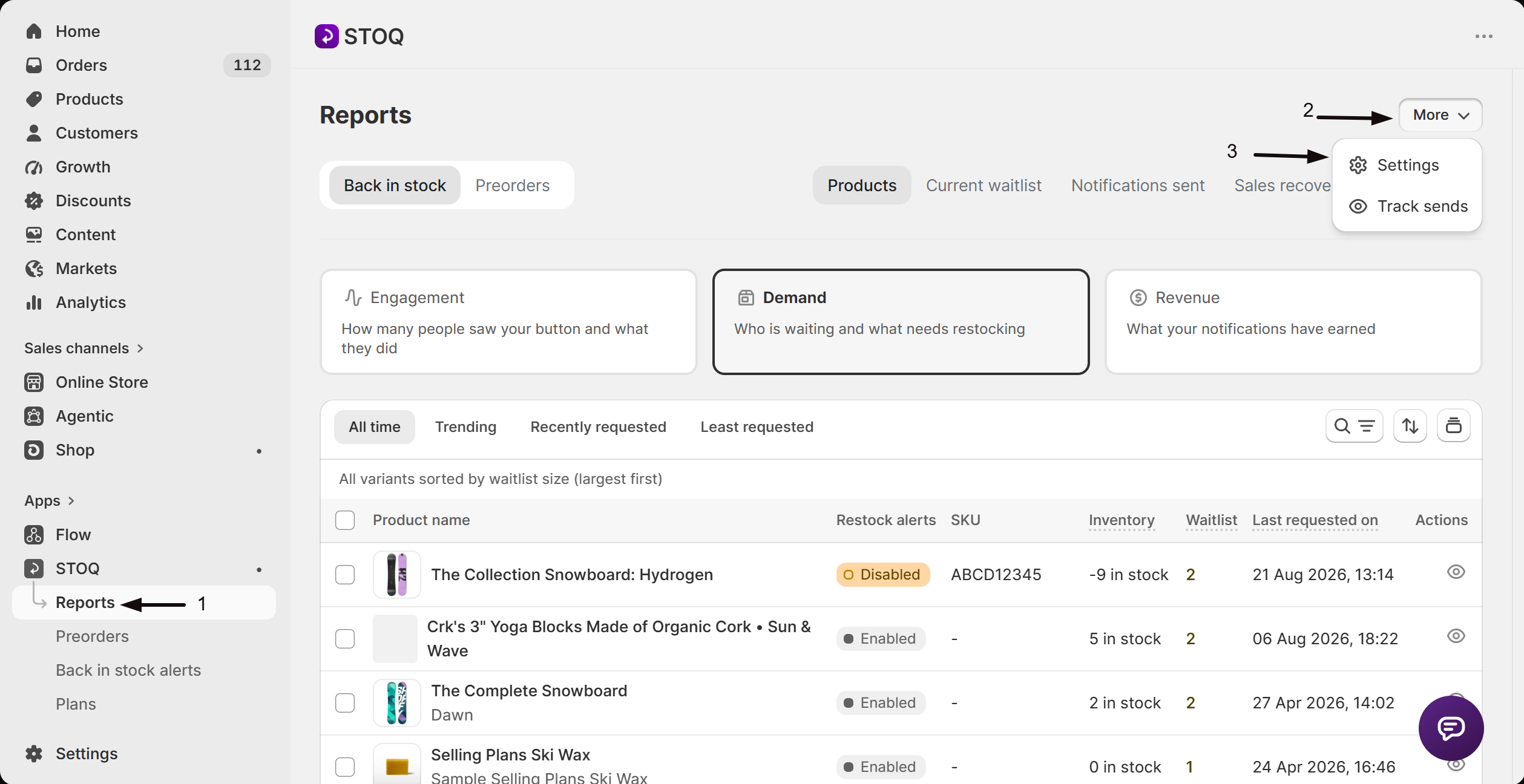
- In the left menu bar of the STOQ app, click Reports.
- Click More in the top right of the Reports page, then click Settings in the dropdown.
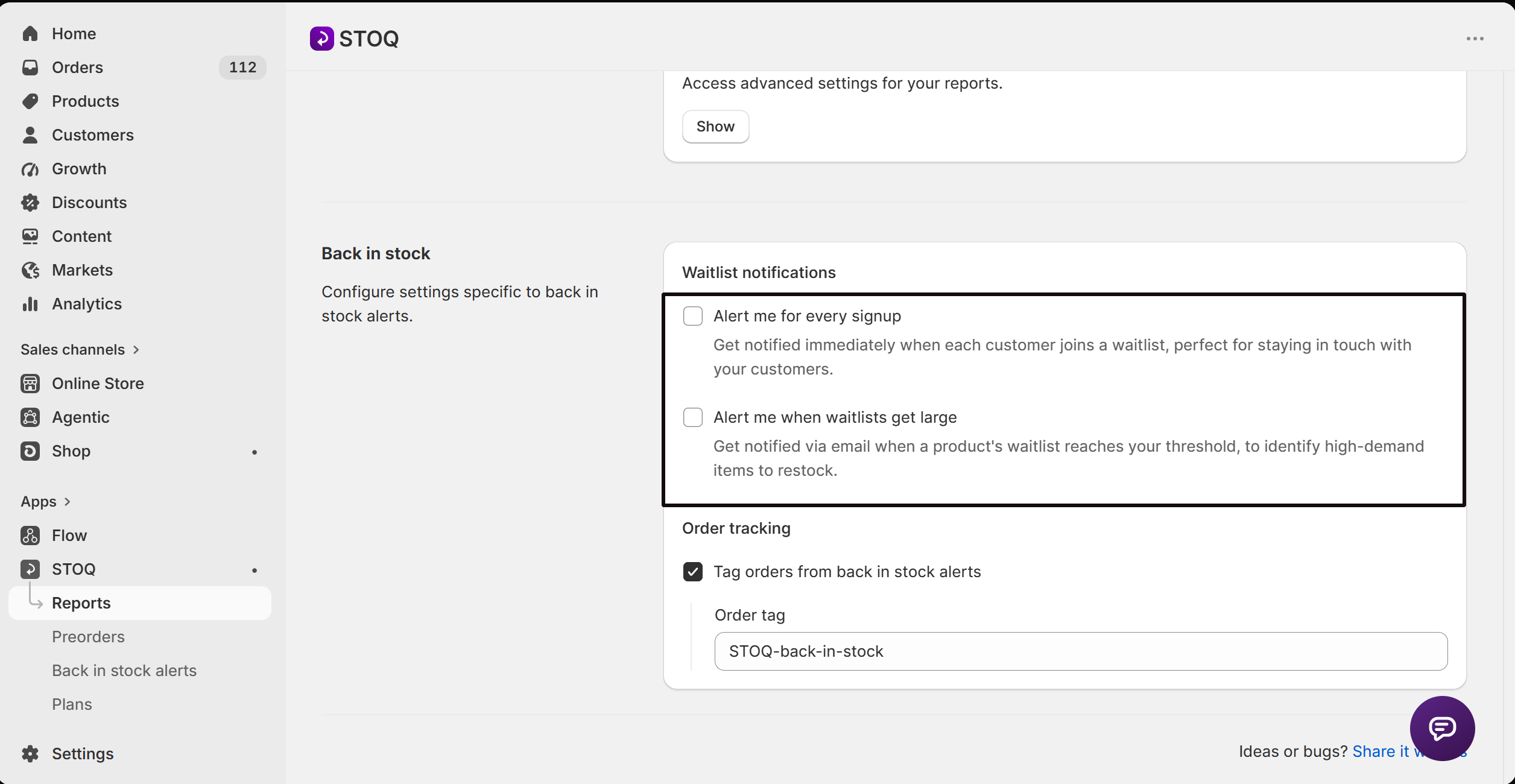
- On the report settings page, find the Back in stock section and its Waitlist notifications heading, where Alert me for every signup and Alert me when waitlists get large live.
Turn on alerts for every signup
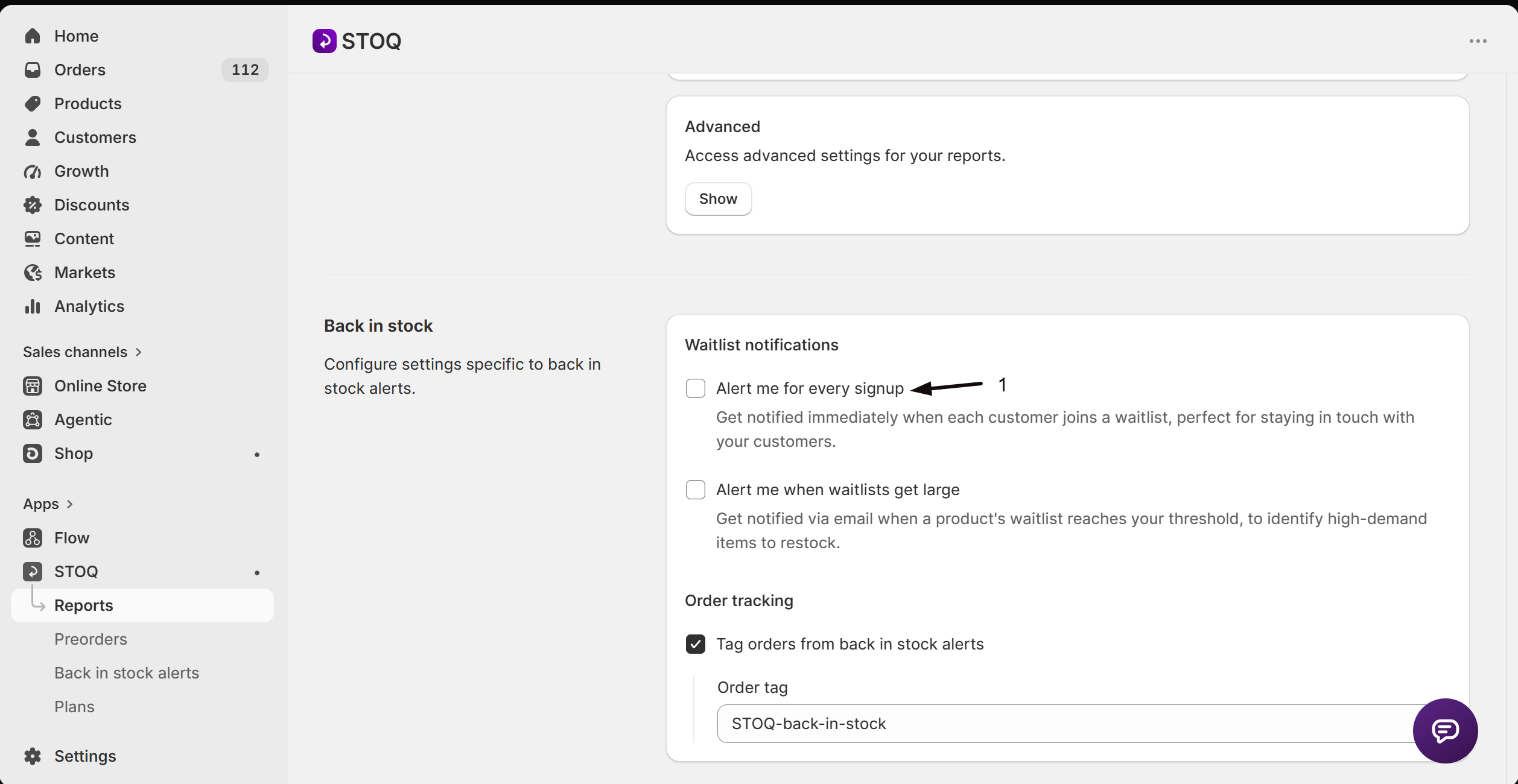
Check Alert me for every signup. This requires a paid plan; if you're on the free plan, click the upgrade prompt next to the setting first. Once it's on, a new Email address to receive alerts field appears. Enter the address you want these emails sent to.
Turn on alerts for high-demand waitlists
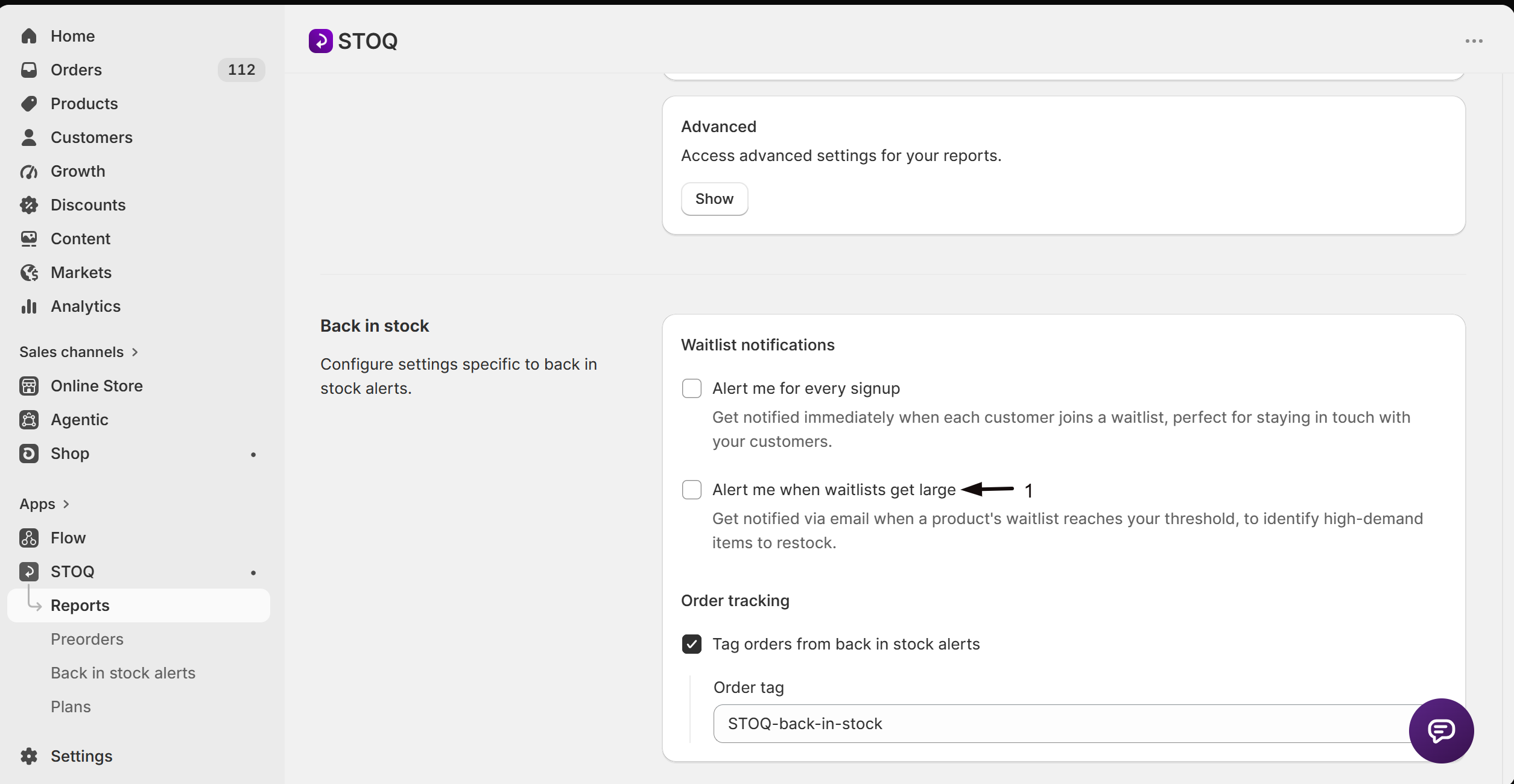
Check Alert me when waitlists get large. A Waitlist threshold field appears, enter the number of signups a product's waitlist needs before you're alerted, for example 10.
Save
Click Save to apply the settings.
Check your setup
Sign up for your own store's waitlist from a test product on your storefront (or use a test customer), then confirm the alert email arrives at the address you set. To test the threshold alert, either lower Waitlist threshold temporarily to match a product's current signup count, or add enough test signups to reach it, then confirm you receive the email.
Troubleshooting
You don't get an email for every signup
Confirm Alert me for every signup is checked and that you're on a paid plan, the checkbox is disabled on the free plan. Also double check the address in Email address to receive alerts.
You don't get a threshold alert
Confirm Alert me when waitlists get large is checked and that the product's waitlist has actually reached your Waitlist threshold number.
Alerts go to the wrong inbox
The two alerts don't have to share an address. Email address to receive alerts only controls the every-signup alert, check it's set to the address you want.
FAQ
Do I have to turn on both alert types?
No. Alert me for every signup and Alert me when waitlists get large are independent, turn on one, the other, or both.
What counts toward the waitlist threshold?
The number of signups on a single product's (or variant's) waitlist. Once it reaches your Waitlist threshold number, you get an alert for that product.
Will I get repeated alerts once a waitlist passes my threshold?
The setting is meant to flag high-demand products worth restocking, it isn't a per-signup counter. If you want to check current waitlist sizes at any time, see them under Reports > Back in stock > Current waitlist.
Can I send these alerts to a different email than my account email?
Yes. Email address to receive alerts for the every-signup alert can be any address you choose, it doesn't have to match your account or store email.
Why is Alert me for every signup greyed out?
It requires a paid plan. Upgrade to unlock it, then set the email address to receive alerts.
Related guides
Overview
Find your way around the Back in Stock alerts section.
Set up back in stock alerts
Turn on alerts and configure the essentials.
Set a minimum restock quantity
Require a restock to reach a set unit count before STOQ sends alerts.
Product eligibility for back in stock alerts
What makes a product and variant eligible to trigger alerts.
