
Turn automatic alerts on or off
By default STOQ watches your inventory and sends the back in stock alert on its own: as the toggle puts it, the notification is sent to your customers automatically when you restock the product from Shopify admin. The Send automatic notification toggle controls that behavior for your whole store.
Turn it off if you'd rather decide when alerts go out and send them yourself from Reports.
Turn it on or off
On a phone, this menu is collapsed. In the Shopify mobile app, tap the STOQ logo at the top of the screen to open it, then choose the section named below. There is no hamburger icon. See Finding the STOQ menu.
Open your notifications
- In the left menu bar of the STOQ app, click Back in stock alerts.
- Click the Settings tab, then open the Notifications sub-tab.

Switch the toggle
The first notification in the sequence is the restock alert. Turn Send automatic notification on or off.
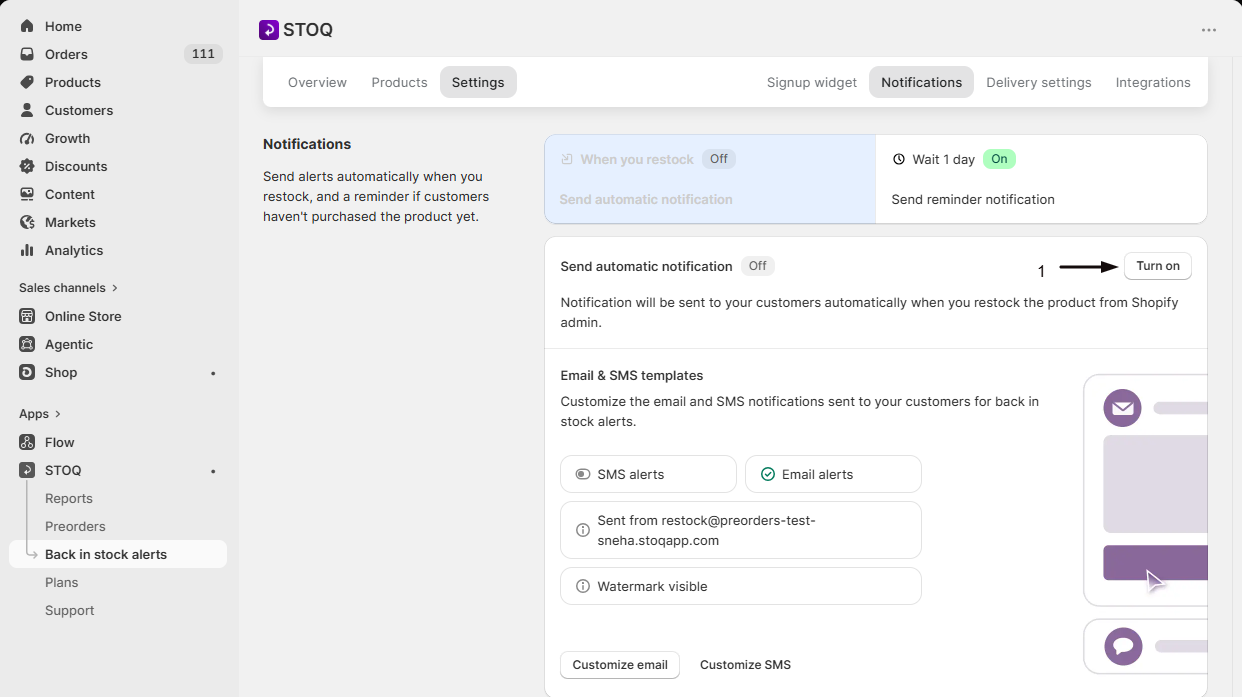
What happens when it's off
- Customers can still join waitlists. Signups keep collecting as normal.
- STOQ stops sending the restock alert by itself when inventory comes back.
- You can still notify people whenever you choose, from Reports. See Send back in stock alerts manually.
Turn it back on any time from the same toggle and automatic sending resumes.
This is separate from Send reminder notification, the toggle on each follow-up stage in the sequence. Turning off the automatic alert doesn't turn off reminders, and vice versa. See Send reminder emails.
Alerts still not sending with it on?
Automatic sending is only the first condition. Any of these can hold an alert back:
| Setting | Why it can stop an alert |
|---|---|
| Minimum restock quantity | You restocked fewer units than the minimum you set |
| Batched delivery | The alert is queued for its batch window rather than sent instantly |
| Locations and markets | The restocked location or the customer's market isn't one you send for |
| Publish alerts | The product isn't published to the Online Store yet |
| Email and SMS channels | The channel that customer signed up on is switched off |
| SMS verification | SMS sending is paused until carrier verification completes |
| Bundle products | Automatic alerts aren't supported for bundle products; a bundle's own inventory doesn't signal a restock. Send those manually from Reports |
FAQ
Does turning it off delete my waitlist?
No. Signups stay on the waitlist and keep collecting. Only automatic sending stops.
Can I still send alerts while it's off?
Yes. Send them yourself in bulk or one at a time from Reports. See Send back in stock alerts manually.
Is this per product?
No. It's a store-wide setting. To control which products show the button in the first place, see Choose which products show the button.
Why does a variant show Disabled in the Alerts status column?
That badge (on Reports > Back in stock > Products, and on a product's page) means automatic back in stock alerts are off for that variant. Three separate things can cause it:
- Alerts were turned off for that specific variant. This is the most common cause, and it's independent of the button. Open the variant's own page (Products tab, then click the variant) and click Enable alerts. See Manage a product's waitlist.
- The variant's button visibility is Always show, which disables automatic alerts as a trade-off for showing the button while in stock. Change it back to Default or When out of stock. See Customize the Notify me widget for specific products.
- This store-wide automatic alerts toggle is off (turned on or off with the steps above).
Check the first cause before the others: a single variant can show Disabled even when the store-wide toggle is on and its button visibility is normal.
Why don't my bundle products send alerts automatically?
STOQ can't send automatic alerts for bundle products, because a bundle's own inventory doesn't get a restock signal from Shopify the way a normal product does. Send those alerts manually from Reports → Back in stock when you restock the bundle. See Send back in stock alerts manually.
What about reminders?
Reminders have their own toggle on each stage of the sequence, so they're managed separately from the automatic restock alert.
Related guides
Send back in stock alerts manually
Notify waitlisted customers yourself instead of waiting.
Send reminder emails
The follow-up stage, managed by its own toggle.
Set a minimum restock quantity
Hold alerts until you restock enough units.
Turn on email and SMS channels
Choose which channels alerts go out on.
