Articles on: Signup popup

Customize popup text

STOQ allows you to customize every text element that appears in your 'Notify me when available' signup form and popup. You can change the header, description, button text, success messages, error messages, and field labels to match your brand voice and language preferences. This ensures a seamless customer experience that aligns with your store's design and messaging.


Access Form Content Settings


To customize the text and content of your signup form, follow these steps to access the Form content settings.


Navigation Steps


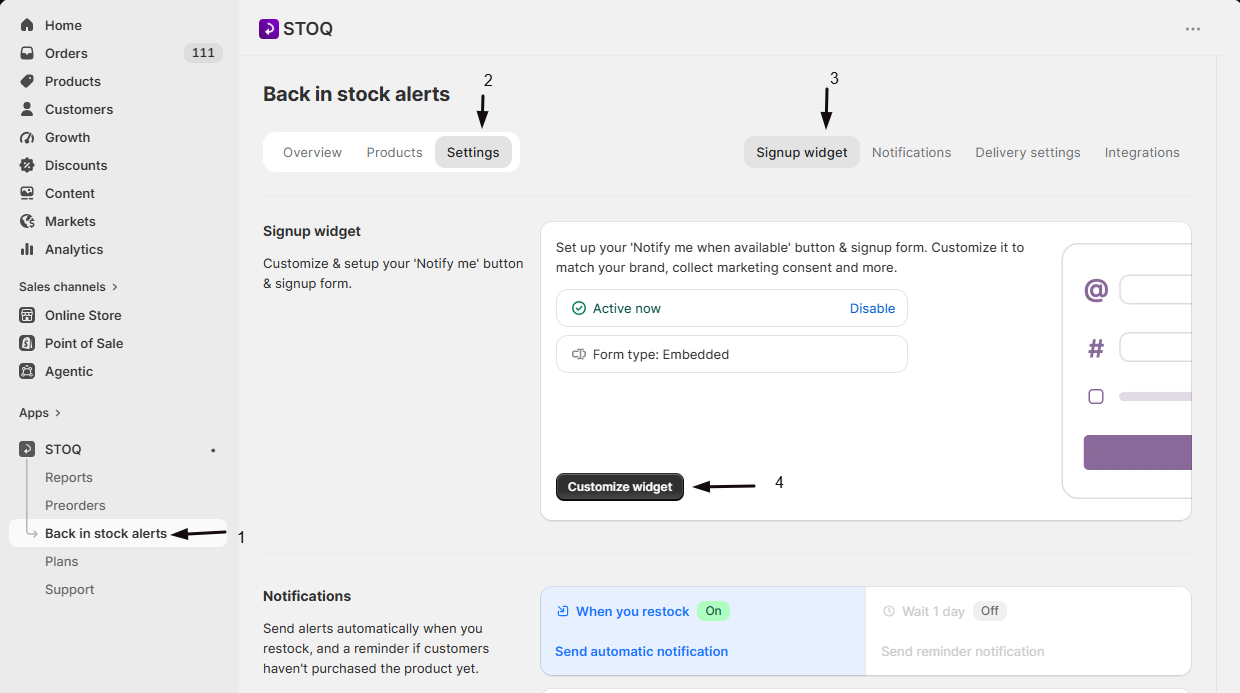
  1. Open the STOQ app from your Shopify admin
  2. Click Back in stock alerts from the left navigation menu
  3. Under the Signup Widget section, click Customize widget
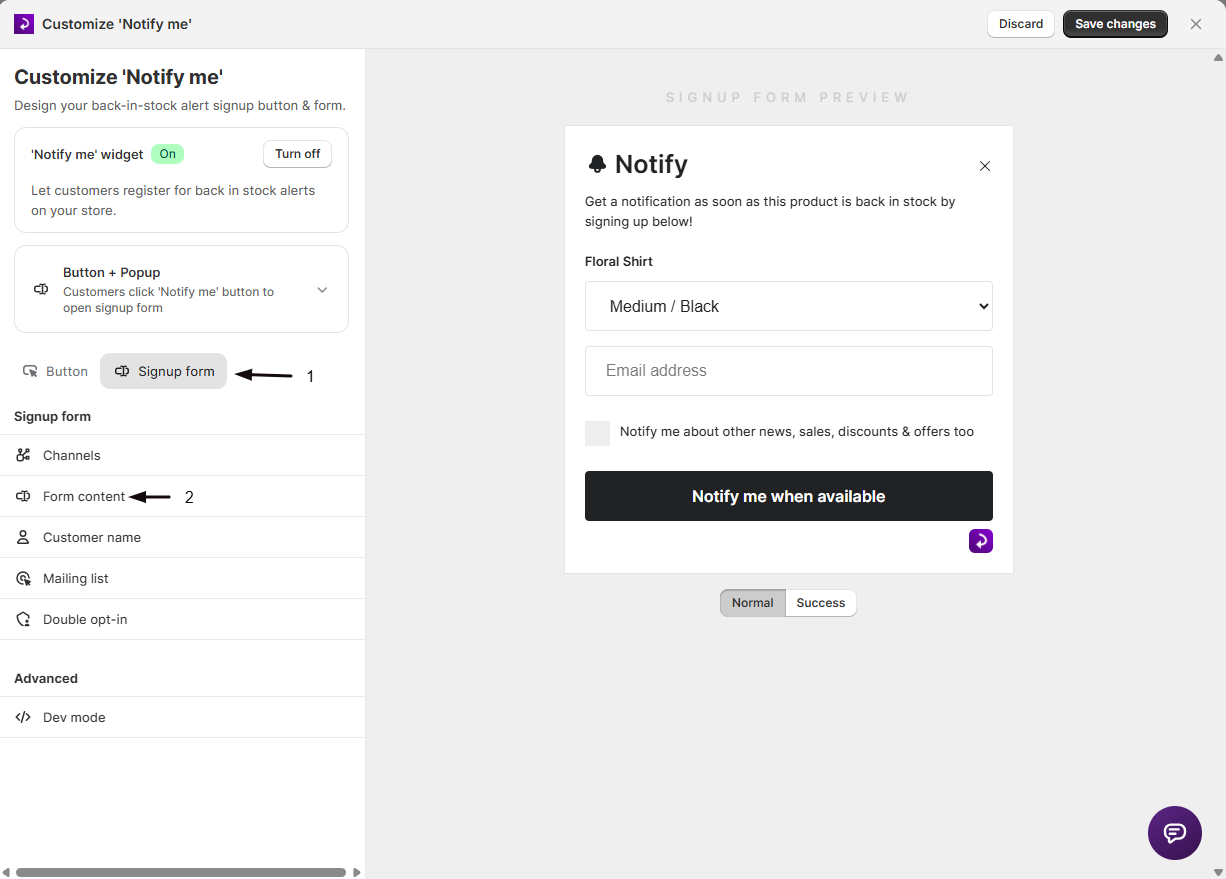
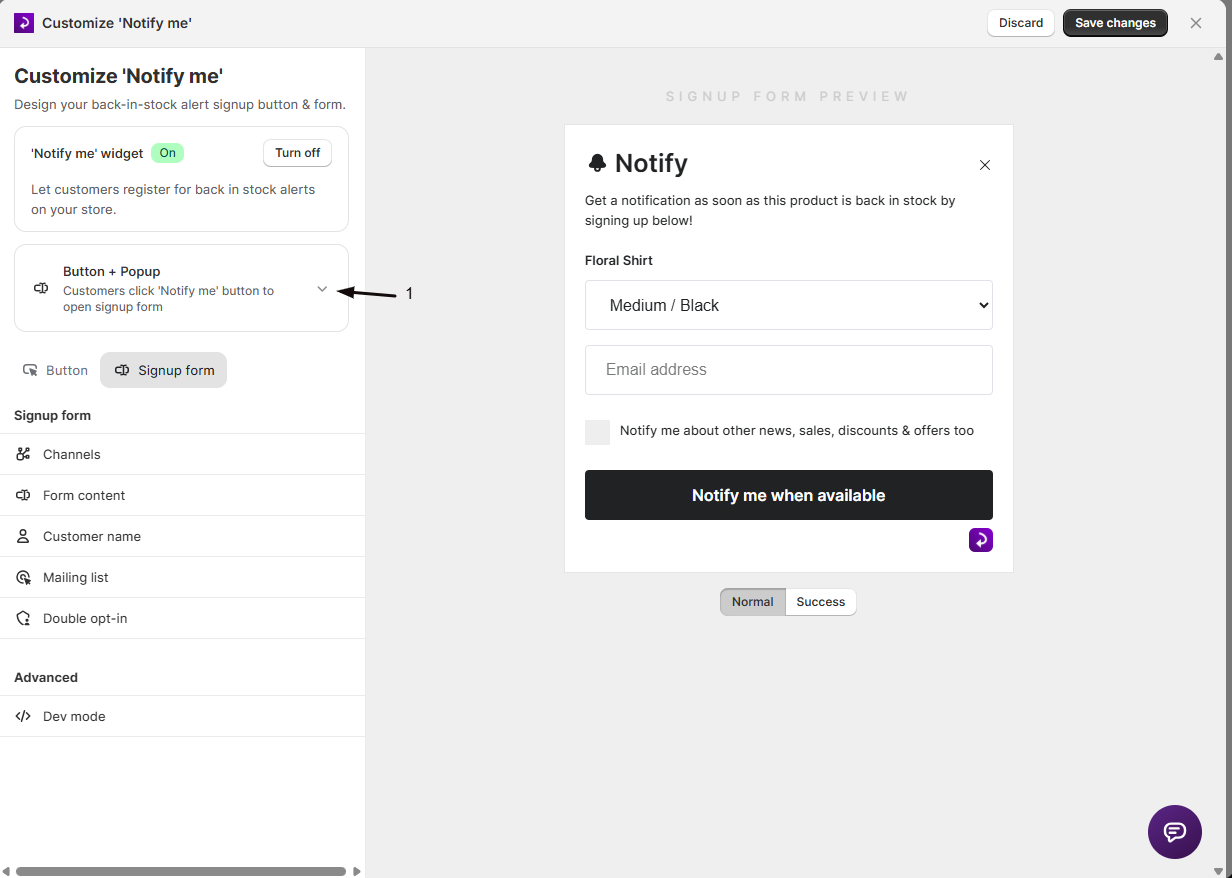
  4. You'll see a preview of your button and form on the right side
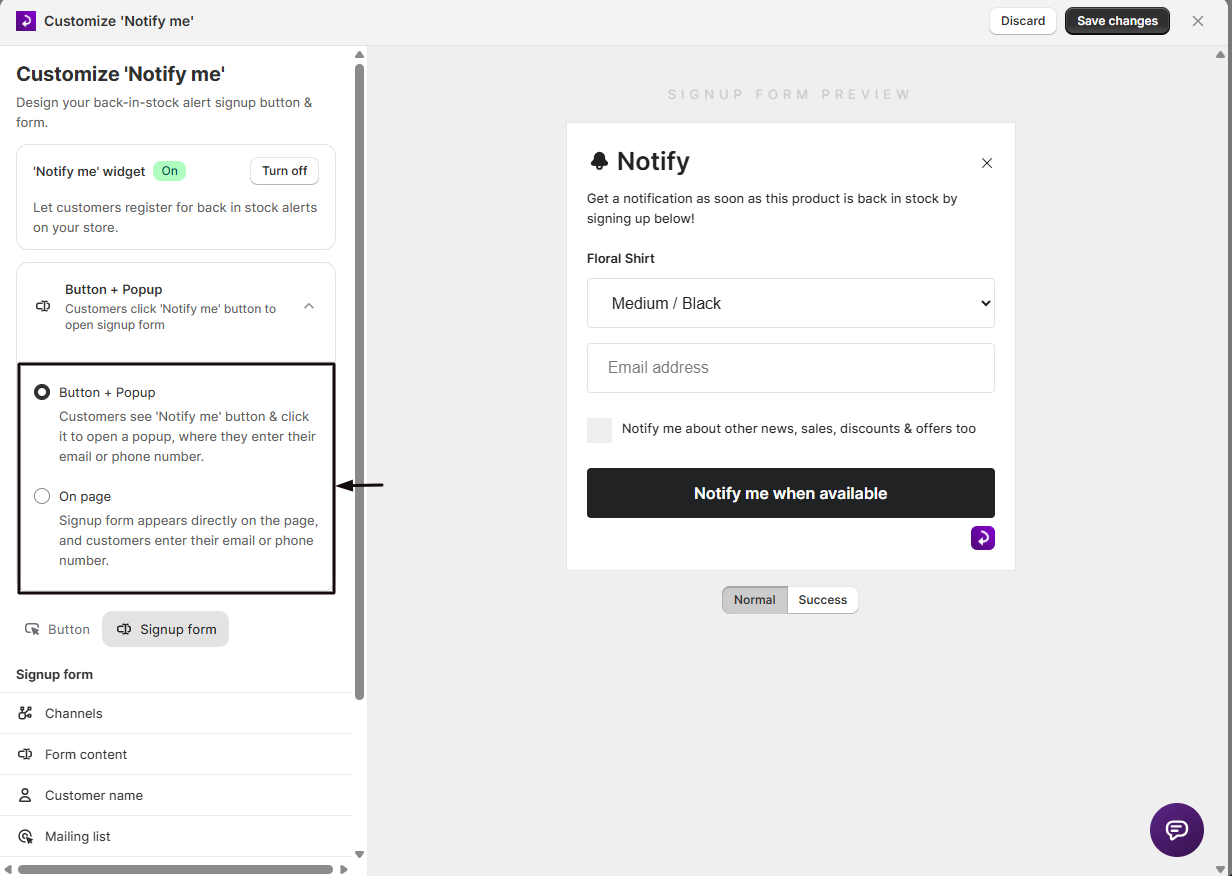
  5. Click the Form tab at the top of the customization panel
  6. Click Form content from the menu options


You'll now see all the text fields you can customize for your signup form.


Main Content Customization


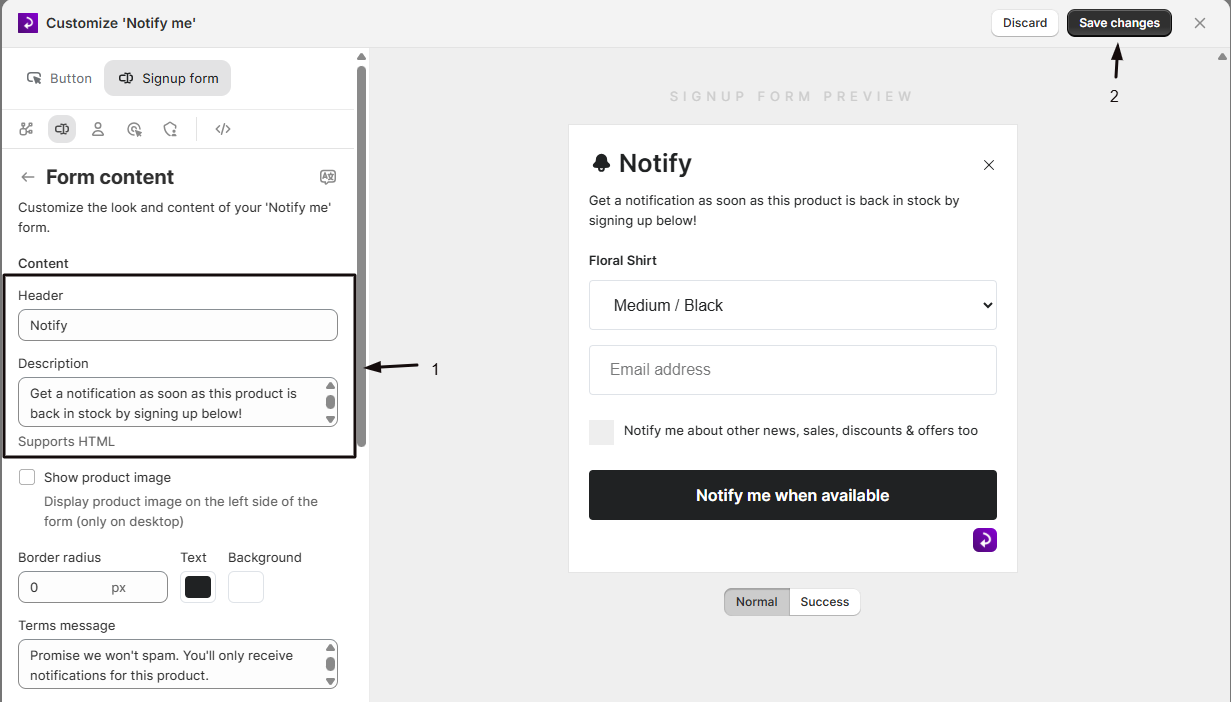
The main content section controls the primary text elements that customers see when they open your signup form.


Header


The header appears at the top of your signup form and is the first thing customers see.


Default text: "Email me when available"


When to customize:

  • To match your brand voice (e.g., "Get notified!" or "Join the waitlist")
  • To use a different language
  • To create urgency (e.g., "Don't miss out!")


Field label: Header


Note: The header field is required and cannot be left empty.


Description


The description appears below the header and provides additional context about the notification signup.


Default text: "Get a notification as soon as this product becomes available again by registering your email address below!"


When to customize:

  • To provide more specific information about your notification process
  • To set expectations about timing (e.g., "We'll email you within 24 hours of restock")
  • To add brand personality
  • To translate to another language


Field label: Description


Tips:

  • Keep it concise (1-2 sentences)
  • Explain the benefit to the customer
  • Mention privacy if relevant (e.g., "We won't spam you")


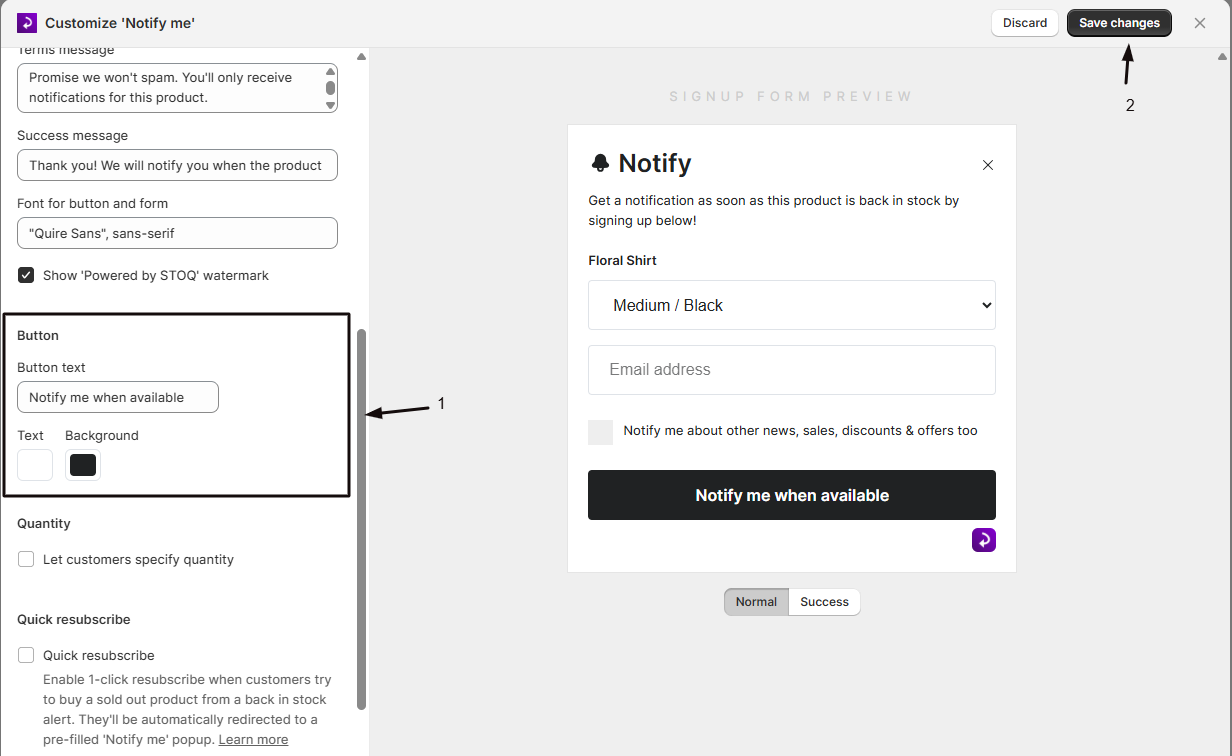
Button Text


The button text appears on the submit button that customers click to register for notifications.


Default text: "Email me when available"


When to customize:

  • To match your call-to-action style (e.g., "Notify me", "Sign me up", "Get alerts")
  • To be more specific about the channel (e.g., "Text me when back" if SMS is primary)
  • To translate to another language


Field label: Button text


Button Colors:


You can also customize the button appearance with two color options:


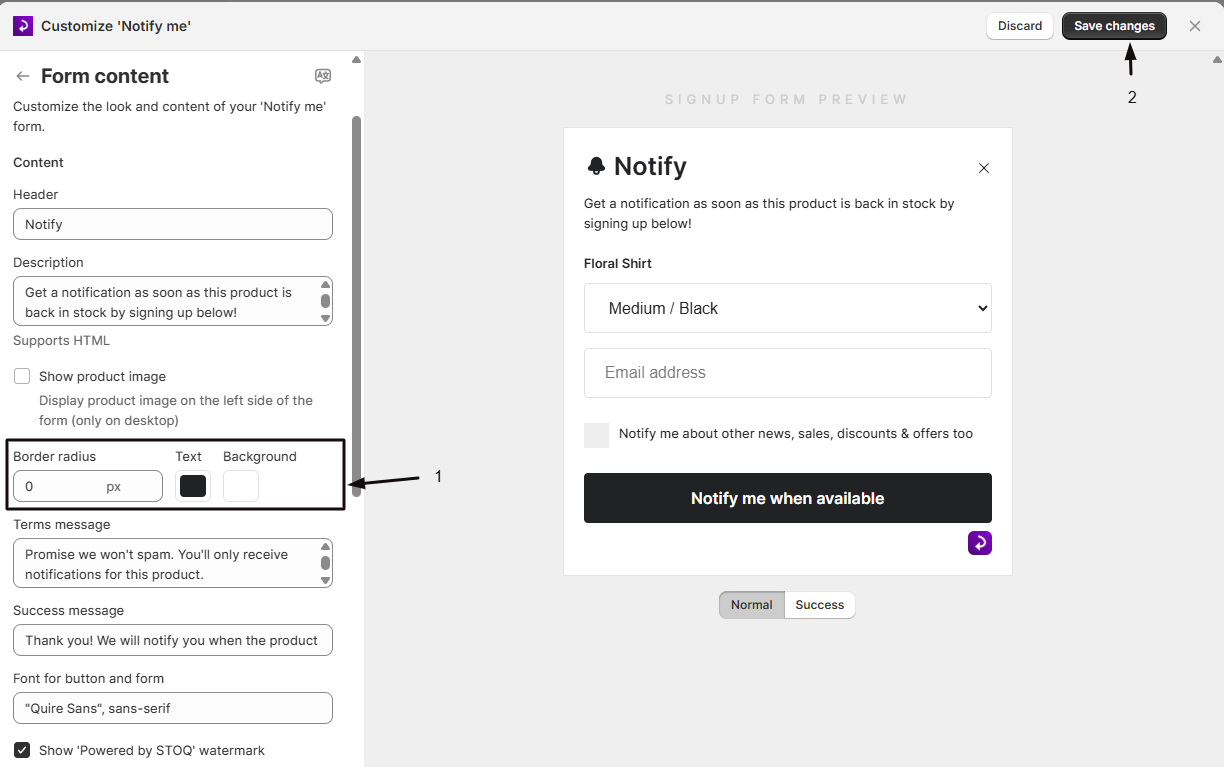
  • Text color: Changes the color of the button text
  • Background color: Changes the button background color


Click the color swatches next to the button text field to open the color picker and select your brand colors.


Terms Message


The terms message appears below the signup fields and typically provides reassurance about privacy and email frequency.


Default text: "Don't worry! We hate spam as much as you do"


When to customize:

  • To link to your privacy policy
  • To explain how often customers will receive emails
  • To provide GDPR-compliant messaging
  • To add brand personality


Field label: Terms message


Examples:

  • "We respect your privacy. Unsubscribe anytime."
  • "By signing up, you agree to our Privacy Policy"
  • "We'll only email you when this item is back in stock"


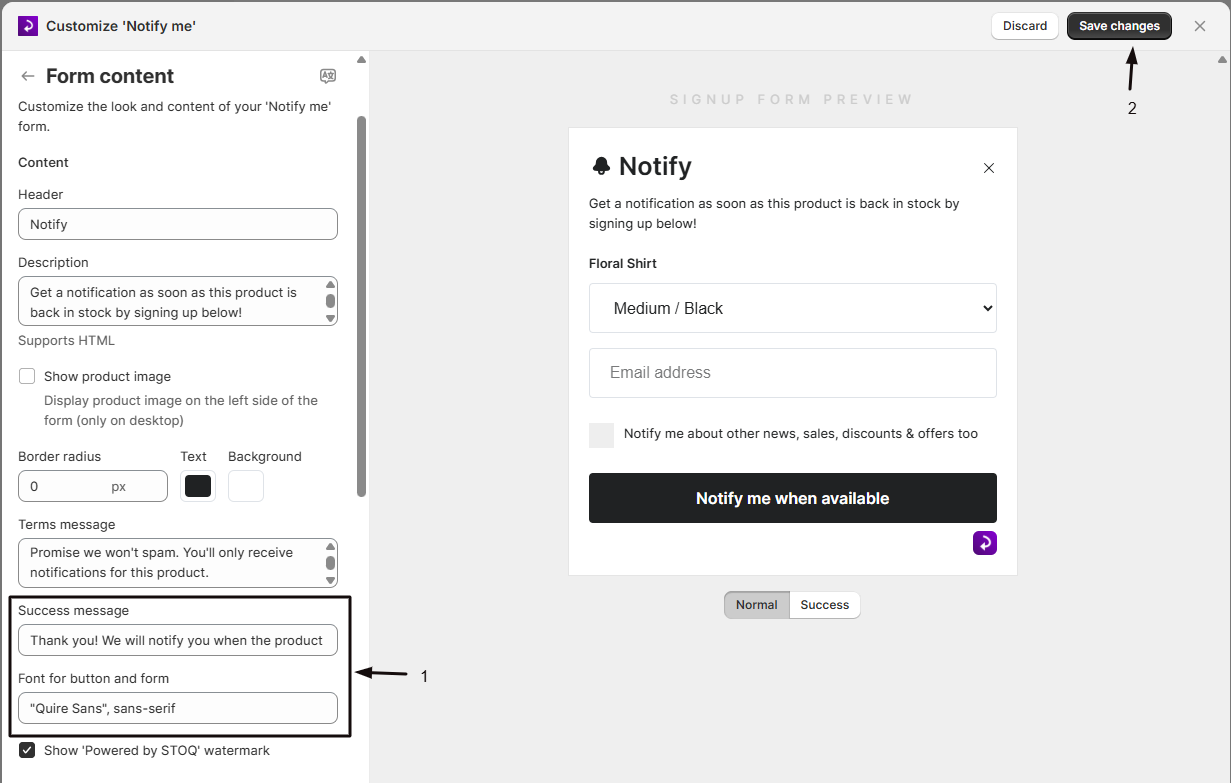
Success Message


The success message appears after a customer successfully submits the signup form.


Default text: "Thank you! We will notify you when the item is available."


When to customize:

  • To set specific expectations (e.g., "You'll receive an email within 24 hours of restock")
  • To encourage additional actions (e.g., "Check out our other products while you wait!")
  • To add brand personality
  • To translate to another language


Field label: Success message


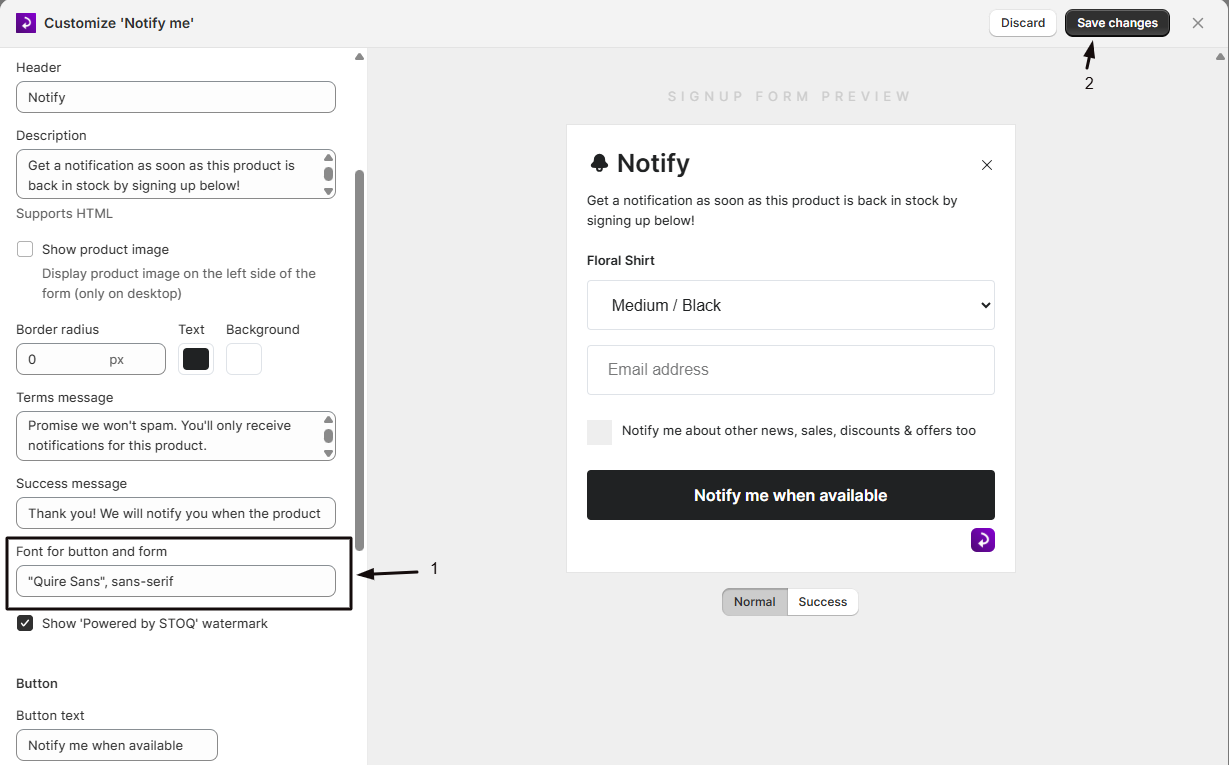
Font Family


The font family setting controls the typeface used for both the button and form text.


Default font: OpenSans


When to customize:

  • To match your store's typography
  • To use a custom brand font
  • To improve readability for your audience


Field label: Font for button and form


Important notes:

  • The font must be available on your website (either a web-safe font or loaded via your theme)
  • Save your changes and visit your storefront to verify the font displays correctly
  • This field is required and cannot be left empty


Tip: Common web-safe fonts include Arial, Helvetica, Georgia, Times New Roman, Courier, and Verdana. If using a custom font, ensure it's loaded in your theme.


Powered by STOQ Watermark


You can choose whether to display the "Powered by STOQ" watermark at the bottom of your signup form.


Default setting: Enabled (watermark visible)


To remove the watermark:

  1. Uncheck the Show 'Powered by STOQ' watermark checkbox
  2. This feature requires a paid STOQ plan


Field label: Show 'Powered by STOQ' watermark


Quantity Field Customization


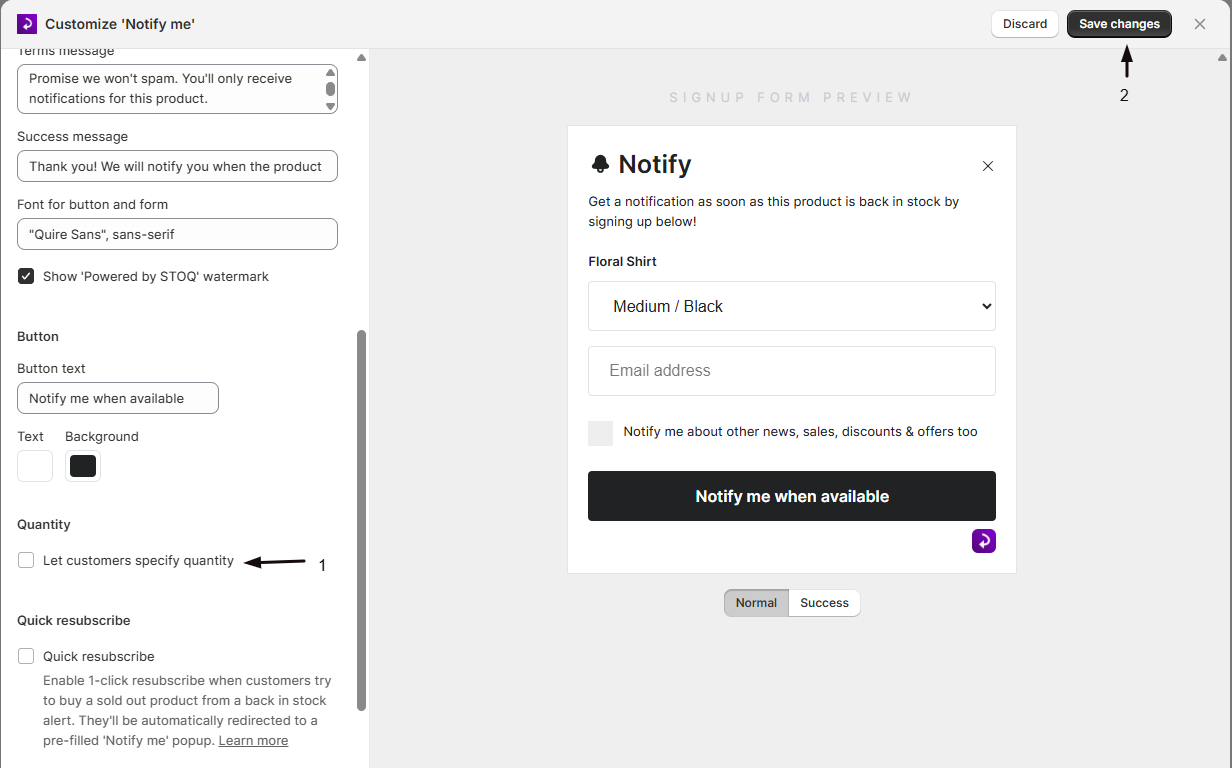
If you enable the quantity collection feature, customers can specify how many units they want to be notified about.


Enable Quantity Collection


Checkbox label: Let customers specify quantity


When to enable:

  • You sell products in bulk
  • Customers frequently order multiple units
  • You want to gauge demand for restocks


Requirements: Paid STOQ plan


Quantity Field Label


When quantity collection is enabled, you can customize the label that appears above the quantity input field.


Default text: "Quantity required"


When to customize:

  • To match your store's language
  • To be more specific (e.g., "How many do you need?")
  • To translate to another language


Field label: Quantity field label


Quick Resubscribe Customization


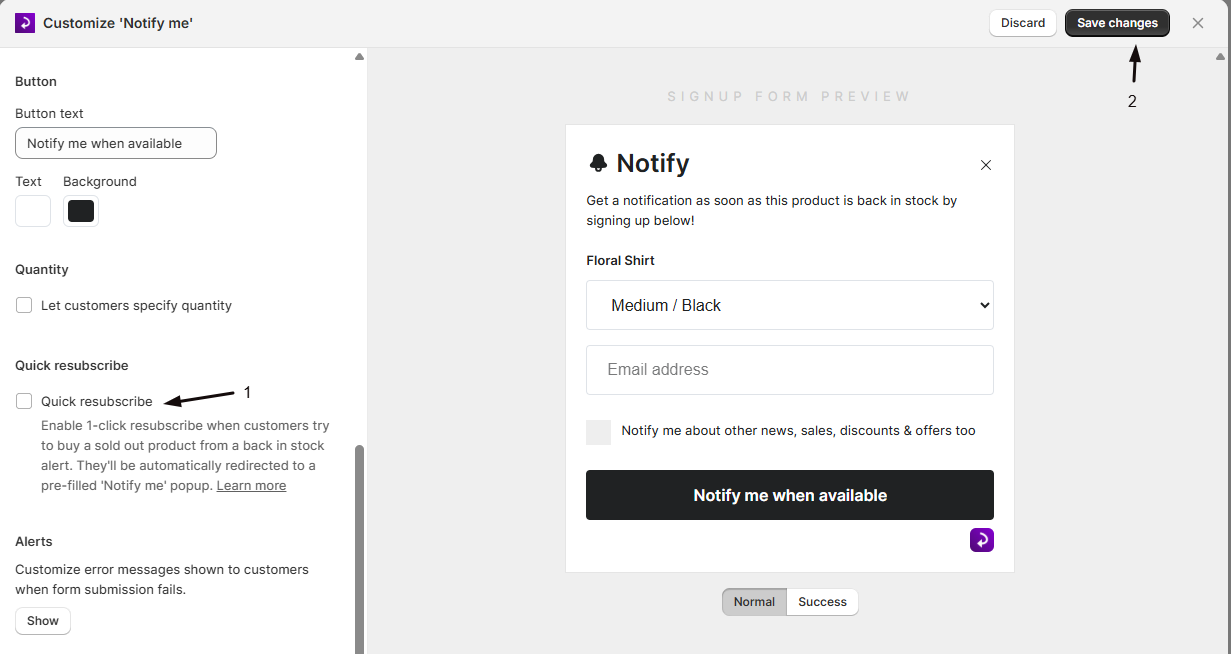
Quick resubscribe allows customers who previously received a back in stock alert to quickly sign up again if they try to buy a sold-out product.


Enable Quick Resubscribe


Checkbox label: Quick resubscribe


What it does: When enabled, customers who click a back in stock alert link for a now-sold-out product will see a pre-filled signup form with their information already entered.


Requirements: Paid STOQ plan


Banner Text


When quick resubscribe is enabled, you can customize the banner message that appears at the top of the pre-filled form.


Default text: "This product is out of stock. Get notified when it's restocked again by entering your details below!"


When to customize:

  • To apologize for the inconvenience
  • To offer alternatives (e.g., "Sorry, this sold out fast! Sign up again to be first in line next time")
  • To translate to another language


Field label: Banner text


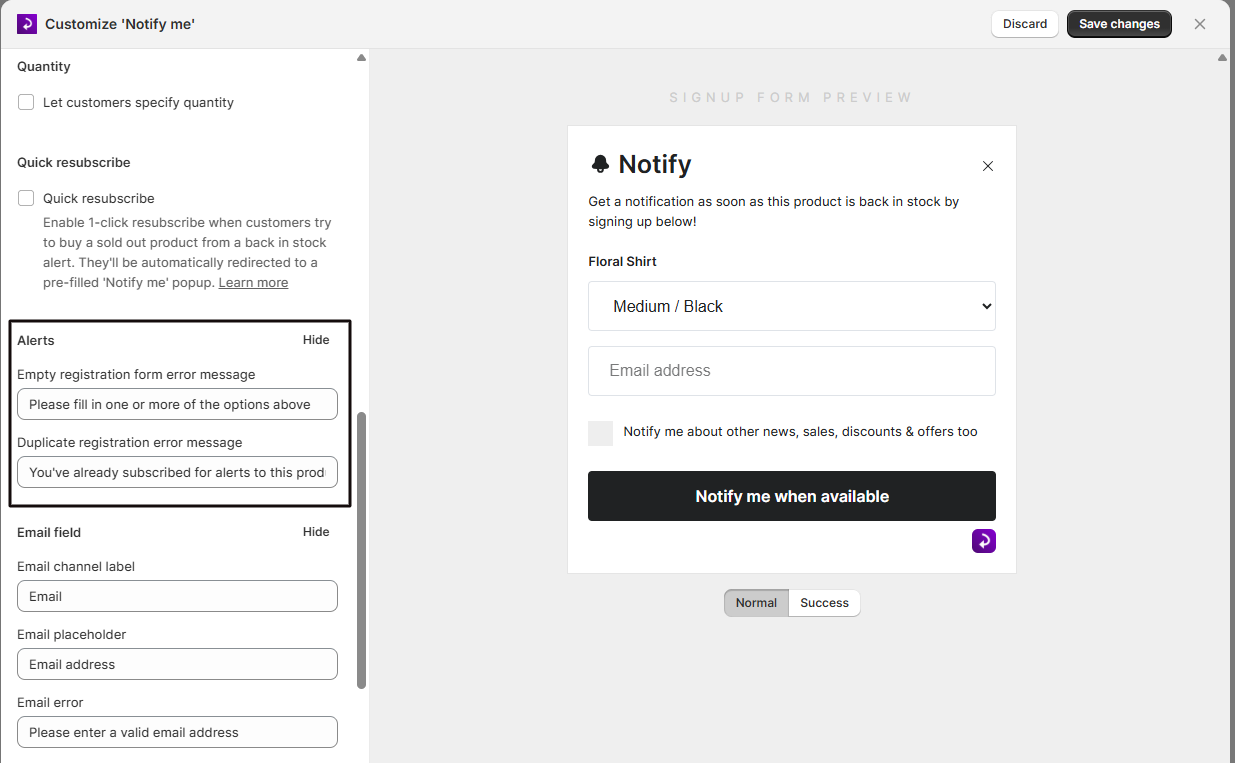
Alert and Error Messages


Error messages appear when customers make mistakes filling out the signup form. You can customize these messages to be more helpful or match your brand voice.


Show/Hide Error Controls


By default, the error message fields are hidden to keep the interface clean. To customize error messages:


  1. Find the Alerts section in Form content
  2. Click the Show button to expand the error message fields
  3. Customize the messages as needed
  4. Click Hide to collapse the section when finished


Empty Registration Form Error


This error appears when a customer tries to submit the form without filling in any fields.


Default text: "Please fill in one or more of the options above"


When to customize:

  • To be more specific about required fields
  • To match your error message style
  • To translate to another language


Field label: Empty registration form error message


Examples:

  • "Please enter your email or phone number to continue"
  • "At least one contact method is required"


Duplicate Registration Error


This error appears when a customer tries to sign up for notifications for a product they're already registered for.


Default text: "You've already subscribed for alerts to this product"


When to customize:

  • To provide additional information (e.g., "You're already on the list! We'll email you when it's back")
  • To suggest alternatives
  • To translate to another language


Field label: Duplicate registration error message


Examples:

  • "You're already signed up! Check your email for confirmation"
  • "We've already got you covered - you'll receive an alert when this is back in stock"


Email Field Customization


The email field allows customers to receive back in stock notifications via email. You can customize the label, placeholder text, and error message.


Show/Hide Email Field Controls


By default, the email field customization options are hidden. To customize email field text:


  1. Find the Email field section in Form content
  2. Click the Show button to expand the email field options
  3. Customize the fields as needed
  4. Click Hide to collapse the section when finished


Email Channel Label


The label that appears above or next to the email input field.


Default text: "Email"


When to customize:

  • To be more descriptive (e.g., "Email address")
  • To match your form style
  • To translate to another language


Field label: Email channel label


Email Placeholder


The placeholder text that appears inside the email input field before the customer types.


Default text: "Email address"


When to customize:

  • To provide an example (e.g., "your@email.com")
  • To be more specific (e.g., "Enter your email here")
  • To translate to another language


Field label: Email placeholder


Email Error Message


The error message that appears when a customer enters an invalid email address.


Default text: "Please enter a valid email address"


When to customize:

  • To be more helpful (e.g., "Oops! That doesn't look like a valid email. Please check and try again")
  • To match your error message style
  • To translate to another language


Field label: Email error


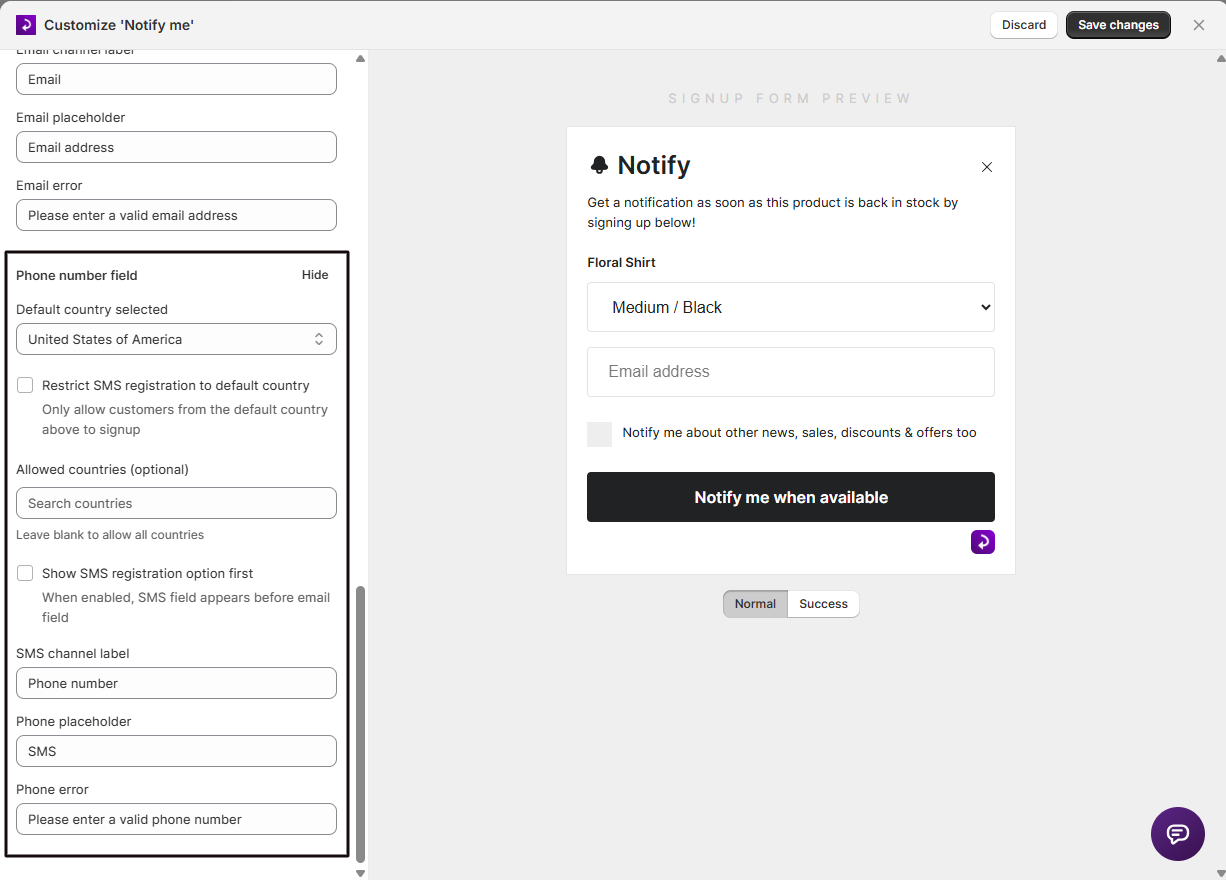
Phone Number Field Customization


The phone number field allows customers to receive back in stock notifications via SMS. You can customize the label, placeholder text, error message, and country settings.


Show/Hide Phone Field Controls


By default, the phone field customization options are hidden. To customize phone field text:


  1. Find the Phone number field section in Form content
  2. Click the Show button to expand the phone field options
  3. Customize the fields as needed
  4. Click Hide to collapse the section when finished


Default Country Selection


Choose which country's phone number format appears by default in the phone field.


Default country: United States (us)


When to customize:

  • Your store primarily serves customers in a specific country
  • You want to make signup easier for your target market


Field label: Default country selected


Available countries: All countries with international calling codes are supported (195+ countries)


SMS Channel Settings


Two additional checkboxes control how the SMS channel behaves:


Show SMS registration option first:

  • When checked, the SMS field appears first (above email)
  • When unchecked, the email field appears first
  • Use this if SMS is your primary notification channel


Restrict SMS registration to default country:

  • When checked, customers can only enter phone numbers from your selected default country
  • When unchecked, customers can select any country from the dropdown
  • Use this if you only send SMS to specific countries


SMS Channel Label


The label that appears above or next to the phone number input field.


Default text: "SMS"


When to customize:

  • To be more descriptive (e.g., "Phone number", "Mobile number")
  • To match your form style
  • To translate to another language


Field label: SMS channel label


Phone Placeholder


The placeholder text that appears inside the phone number input field before the customer types.


Default text: "Phone number"


When to customize:

  • To provide an example (e.g., "(555) 123-4567")
  • To be more specific (e.g., "Enter your mobile number")
  • To translate to another language


Field label: Phone placeholder


Phone Error Message


The error message that appears when a customer enters an invalid phone number.


Default text: "Please enter a valid phone number"


When to customize:

  • To be more helpful (e.g., "Oops! That phone number doesn't look right. Please check and try again")
  • To match your error message style
  • To translate to another language


Field label: Phone error


Preview Your Changes


As you customize the form content, you can see a live preview of your changes on the right side of the screen.


Using the Preview


  1. The preview updates automatically as you type in the text fields
  2. The preview shows how the form will appear on your storefront
  3. Test different text lengths to ensure everything fits properly
  4. Check that colors are readable and accessible


Testing on Your Storefront


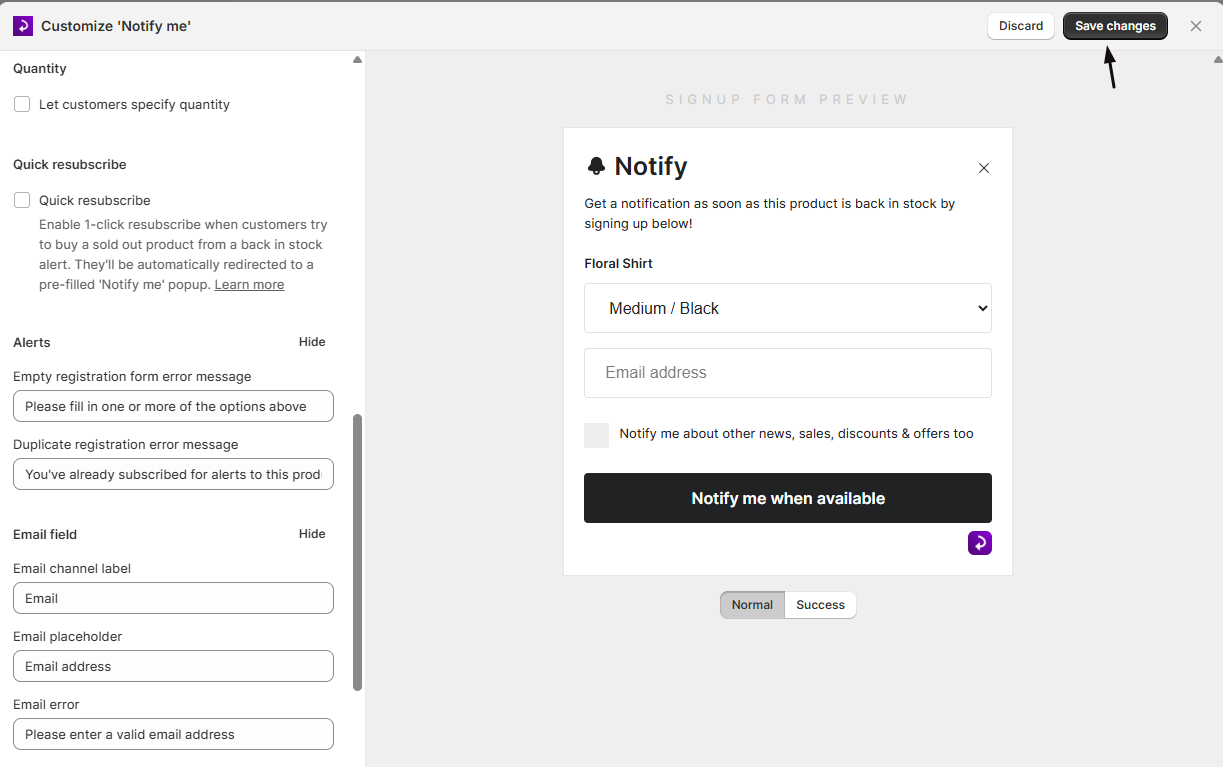
After customizing your form content:


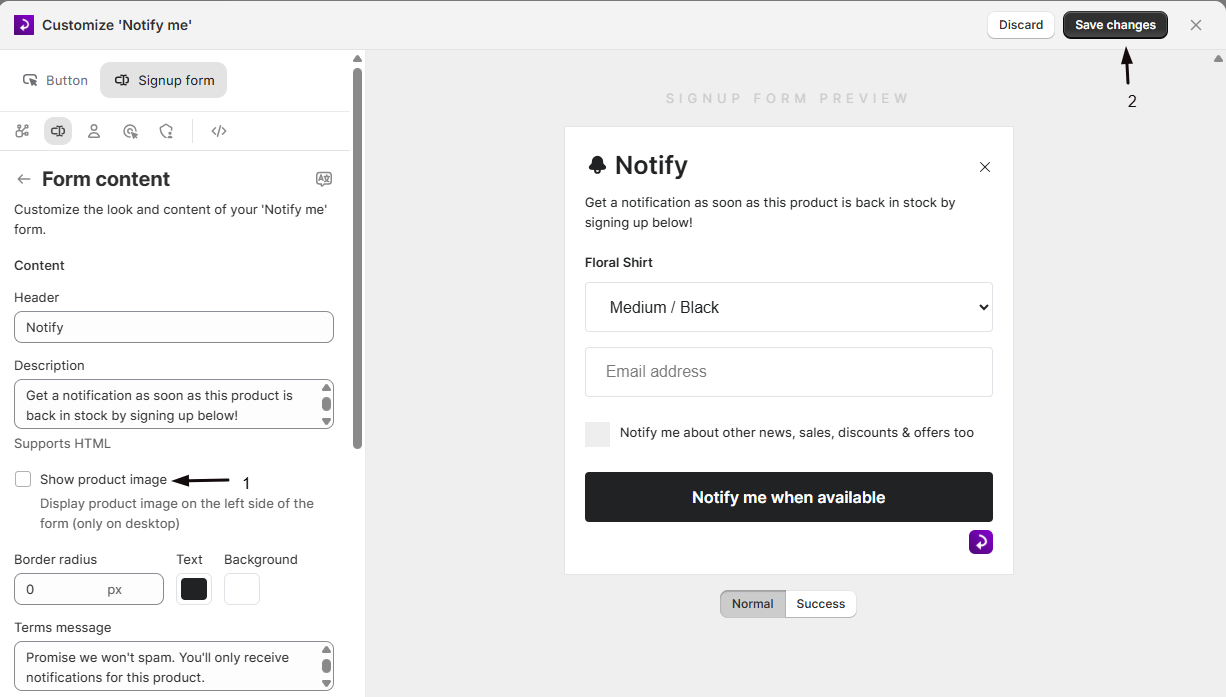
  1. Click Save changes at the top of the page
  2. Wait 5-10 minutes for changes to propagate to your storefront
  3. Visit a product page with an out-of-stock variant in an incognito/private browser window
  4. Click the 'Notify me when available' button to see your customized form
  5. Test the form by submitting a registration to verify all messages appear correctly


Tip: Always test in an incognito or private browsing window to avoid seeing cached versions of your form.


Multi-Language Support


If you serve customers in multiple languages, you can translate all form content using STOQ's built-in translation system.


Accessing Translations


  1. From the Form content page, click the Languages link in the top-right corner
  2. You'll be taken to the translation management page
  3. Select the language you want to translate
  4. Enter translations for all form content fields
  5. Save your changes


Supported Languages


STOQ supports translations for 17+ languages including:

  • English
  • Spanish
  • French
  • German
  • Italian
  • Portuguese (Brazilian and European)
  • Dutch
  • Swedish
  • Danish
  • Norwegian
  • Finnish
  • Japanese
  • Korean
  • Chinese (Simplified and Traditional)
  • Turkish


Note: Translations are automatically detected based on your customer's browser language or your store's language settings.


Best Practices


Follow these best practices to create effective and user-friendly signup forms.


Keep Text Concise


  • Use short, clear sentences that are easy to scan
  • Avoid jargon or overly technical language
  • Get to the point quickly - customers want to sign up fast


Match Your Brand Voice


  • Use the same tone and style as the rest of your store
  • If your brand is playful, make the form text fun
  • If your brand is professional, keep the form text formal


Set Clear Expectations


  • Tell customers when they'll receive notifications
  • Explain what information you'll collect and why
  • Mention if you'll send any additional marketing emails


Test Thoroughly


  • Test the form on desktop and mobile devices
  • Try submitting with valid and invalid information
  • Verify all error messages display correctly
  • Check that success messages are clear and reassuring


Consider Accessibility


  • Use clear, high-contrast colors for text and buttons
  • Ensure button text is large enough to read easily
  • Write error messages that clearly explain what went wrong
  • Test with screen readers if possible


Optimize for Conversions


  • Use action-oriented button text (e.g., "Notify me" instead of "Submit")
  • Keep the description short and benefit-focused
  • Remove any unnecessary friction from the signup process
  • Make the value proposition clear in the header


Known Limitations


While STOQ's form content customization is comprehensive, there are some constraints to be aware of.


  • Font changes require the font to be loaded on your website - custom fonts not included in your theme won't display
  • Some text fields have character limits to ensure proper display on mobile devices
  • The form layout and structure cannot be customized - only the text content can be changed
  • Removing the "Powered by STOQ" watermark requires a paid plan
  • Quantity collection and quick resubscribe features require a paid plan
  • Changes may take 5-10 minutes to appear on your storefront due to caching
  • HTML or special formatting is not supported in text fields - only plain text is allowed
  • The form preview shows approximate styling - actual appearance may vary slightly based on your theme


Troubleshooting


Common issues when customizing form content and how to resolve them.


Symptom

Likely Cause

Fix

Changes don't appear on storefront

Browser or CDN caching

Wait 10-15 minutes, clear browser cache, test in incognito mode

Custom font doesn't display

Font not loaded in theme

Verify the font is included in your theme's CSS or use a web-safe font

Text is cut off on mobile

Text too long for mobile display

Shorten the text or test on actual mobile devices to verify

Error messages don't appear

Form validation not triggering

Test by intentionally entering invalid data (wrong email format, empty fields)

Translations not showing

Browser language doesn't match

Check your browser language settings or test with customers in target markets

Button colors don't match brand

Wrong color codes entered

Use your brand's exact hex color codes and verify in the preview

Success message appears too quickly

Normal behavior

The message displays for 3-5 seconds before closing automatically


FAQs


Common questions about customizing form and popup content in STOQ.


Q: Can I use HTML or formatting in the text fields?

A: No, STOQ form content fields only support plain text. HTML tags, markdown, or other formatting will be displayed as plain text. For links in the terms message, contact STOQ support for assistance.


Q: How do I add my privacy policy link to the terms message?

A: Currently, you can mention your privacy policy in the terms message text (e.g., "See our Privacy Policy for details"), but clickable links require custom development. Contact STOQ support if you need to add a clickable privacy policy link.


Q: Can I have different form content for different products?

A: No, the form content applies to all products in your store. However, you can use STOQ's translation system to show different content based on customer language.


Q: What happens if I leave a field empty?

A: Most fields will use the default text if left empty. However, the header and font family fields are required and must contain text. You'll see an error message if you try to save without filling these required fields.


Q: Can I customize the form for email vs. SMS differently?

A: Yes, the email and phone number fields have separate customization options for labels, placeholders, and error messages. This allows you to tailor the messaging for each notification channel.


Q: How do I test my customized form without affecting customers?

A: Use an incognito or private browsing window to test your form. You can also create a test product that's out of stock and not published to your storefront to test the form privately.


Q: Can I customize the form layout or add custom fields?

A: No, the form layout and structure are fixed. You can only customize the text content, colors, and font. For custom fields or layout changes, contact STOQ support to discuss custom development options.


Q: Will my customizations work with all themes?

A: Yes, form content customizations work with all Shopify themes that support Online Store 2.0 and app embeds. The text content is theme-independent, though the visual appearance may vary slightly based on your theme's styling.


Q: Can I A/B test different form content?

A: STOQ doesn't have built-in A/B testing for form content. However, you can manually change the content and monitor your signup conversion rates in STOQ analytics to see which messaging performs better.


Q: How do I reset form content to default values? A: Clear the text field and leave it empty, then save. The form will automatically use the default text. Alternatively, you can copy the default text from the placeholder text shown in each field.


Updated on: 25/02/2026

Was this article helpful?

Share your feedback

Cancel

Thank you!