Articles on: Signup popup

How to Enable GDPR Double Opt-In for Back in Stock Alerts

DPR double opt-in compliance ensures that customers explicitly confirm their registration before receiving back-in-stock notification emails. When enabled, customers receive a confirmation email with a verification link after signing up, and they must click this link to complete their registration. This feature helps you comply with the General Data Protection Regulation (GDPR) and other privacy laws that require explicit consent before sending marketing communications.


Understanding GDPR and Double Opt-In


The General Data Protection Regulation (GDPR) is a regulation in EU law on data protection and privacy in the European Union and the European Economic Area. If you operate within these regions or serve customers there, GDPR mandates that you obtain explicit consent from customers before sending them any form of electronic communication, including back in stock notification emails.


How Double Opt-In Works


When you enable GDPR double opt-in compliance in STOQ, the registration process works as follows:


  1. Customer signs up: Customer enters their email address in the back-in-stock signup form on your product page
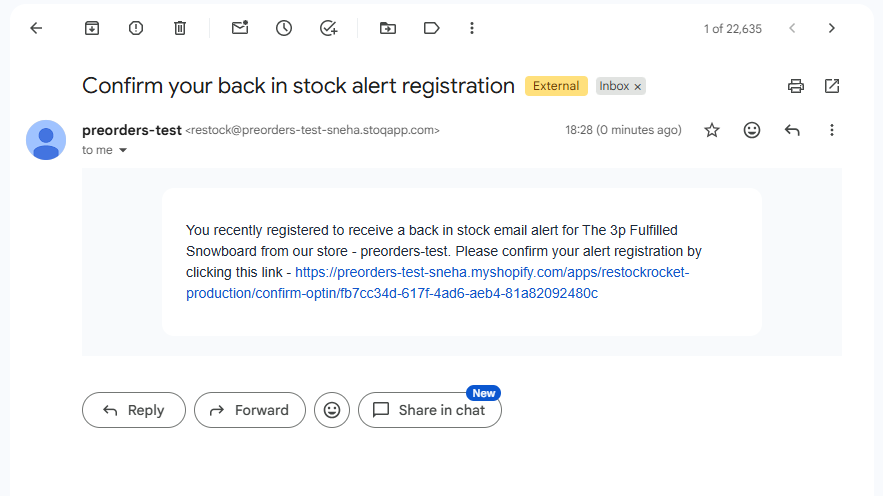
  2. Confirmation email sent: Customer immediately receives an email with a confirmation link
  3. Customer confirms: Customer clicks the confirmation link in the email to verify their registration
  4. Registration complete: Only after clicking the confirmation link will the customer receive back-in-stock notifications


Important: Customers who don't click the confirmation link will NOT receive back in stock alerts, even when the product is restocked.


Access Double Opt-In Settings


To configure GDPR double opt-in compliance settings, follow these steps:


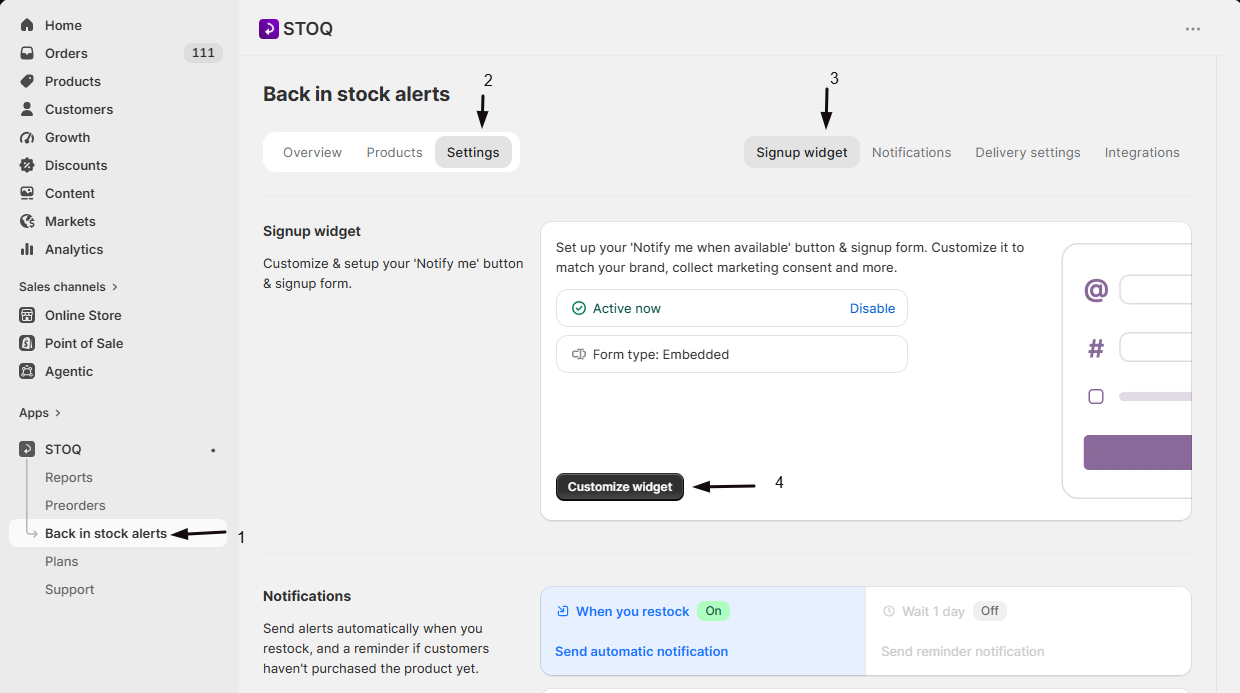
  1. From your STOQ app dashboard, click Back in stock alerts in the left menu
  2. Under the Signup widget, click Customize widget
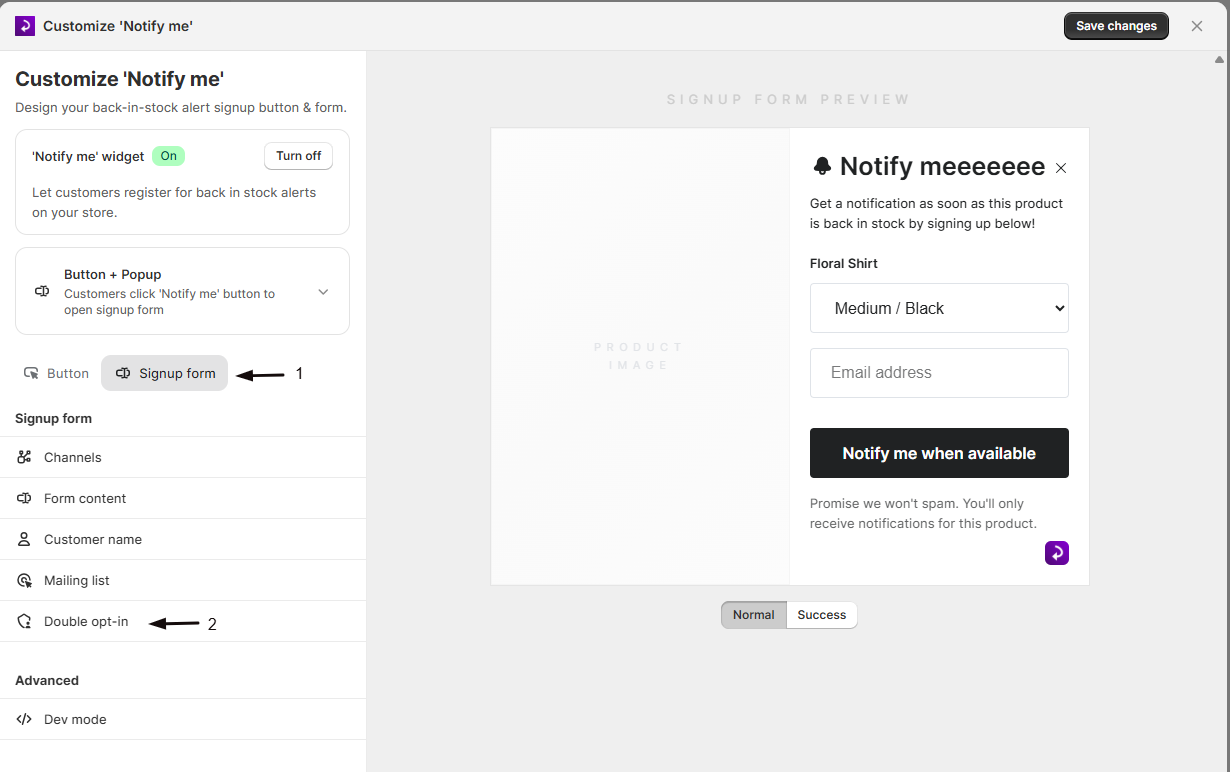
  3. Click the Form tab at the top
  4. In the left sidebar, click the Double opt-in icon (shield with person icon)


You'll now see all the double opt-in settings where you can enable the feature and customize the confirmation email.


Double opt-in navigation


Enable Double Opt-In


To require customers to confirm their registration before receiving back in stock alerts:


  1. Navigate to the Double opt-in settings (see navigation steps above)
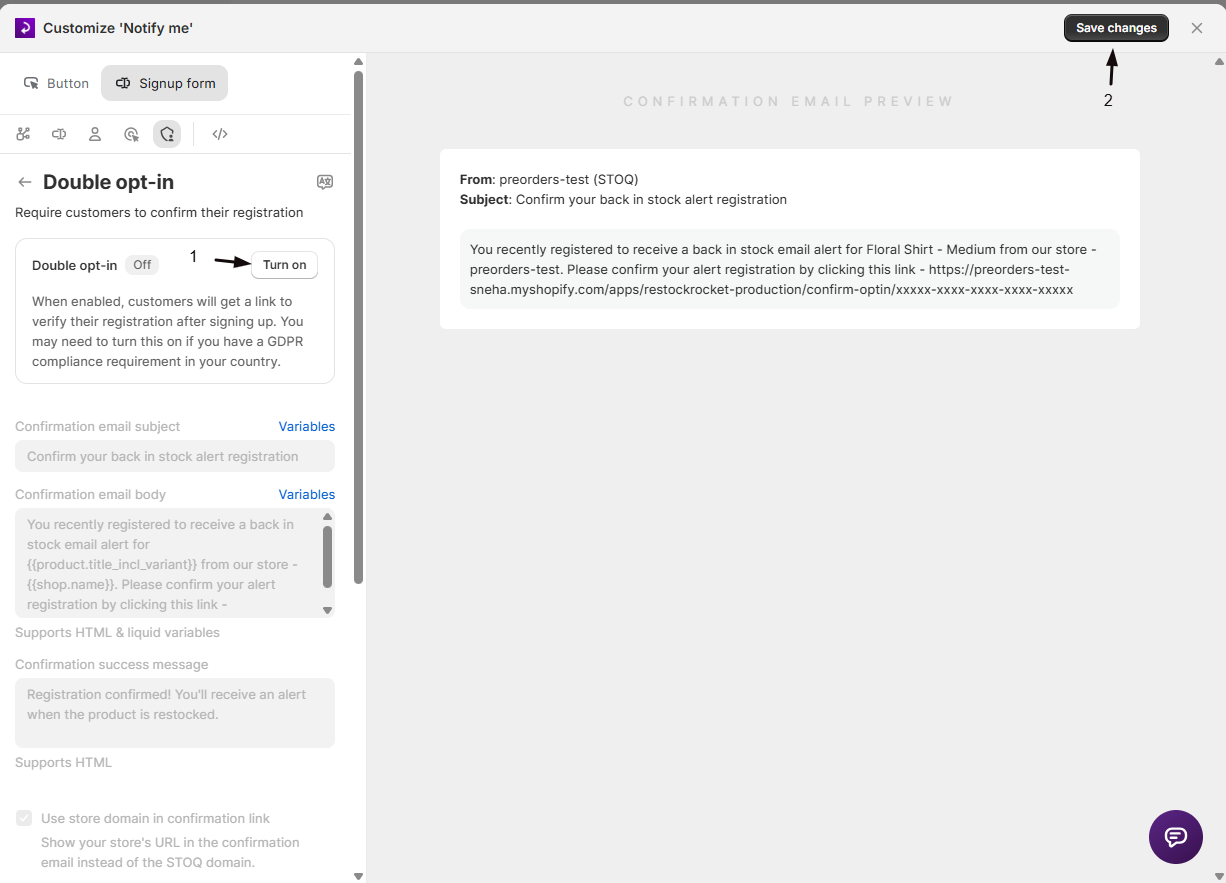
  2. Toggle on the Double opt-in switch
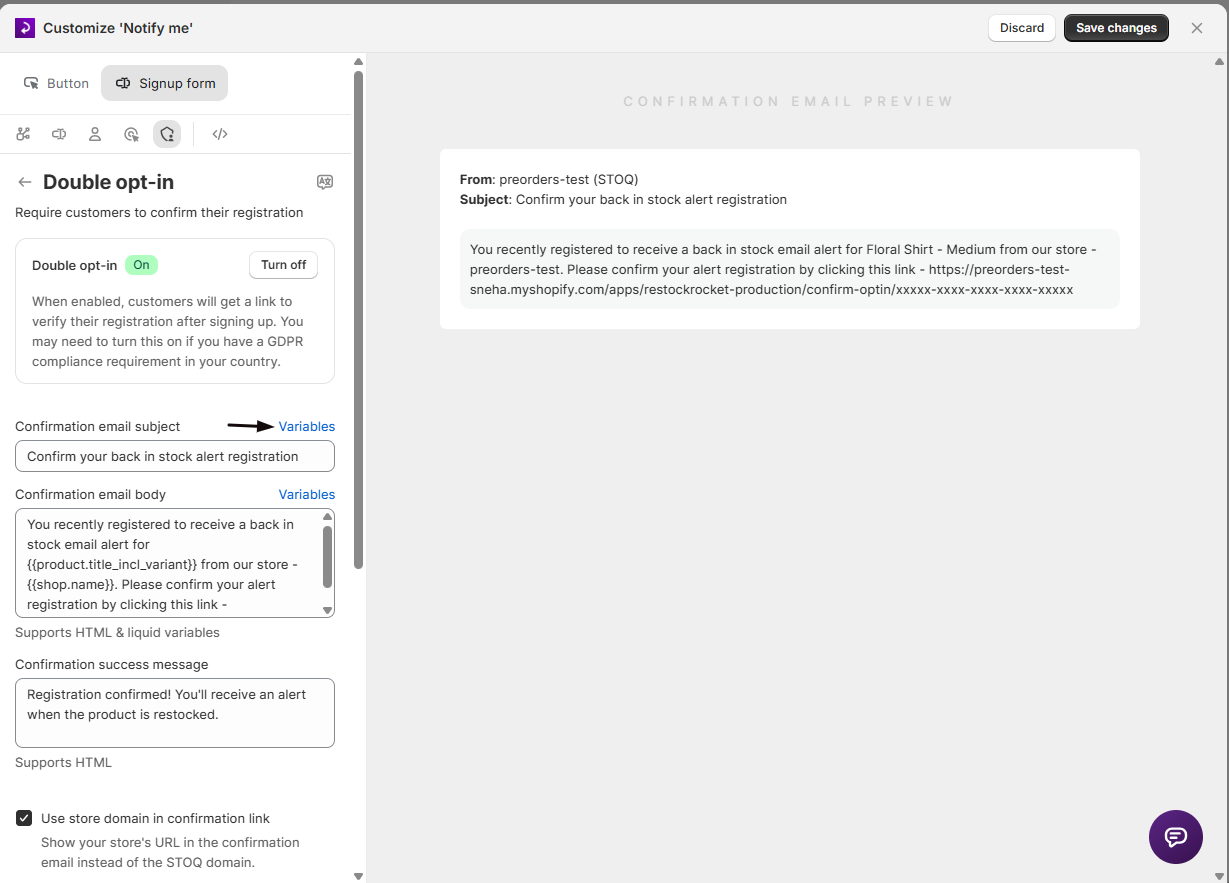
  3. The toggle description explains: "When enabled, customers will get a link to verify their registration after signing up. You may need to turn this on if you have a GDPR compliance requirement in your country."
  4. Click Save in the top right corner


Once enabled, all new registrations will require email confirmation before customers can receive back in stock notifications.


Enable double opt-in toggle


Note: Enabling double opt-in only affects new registrations. Existing registrations created before enabling this feature are automatically considered confirmed.


Customize Confirmation Email Subject


The confirmation email subject line is the first thing customers see when they receive the verification email.


To customize the subject line:


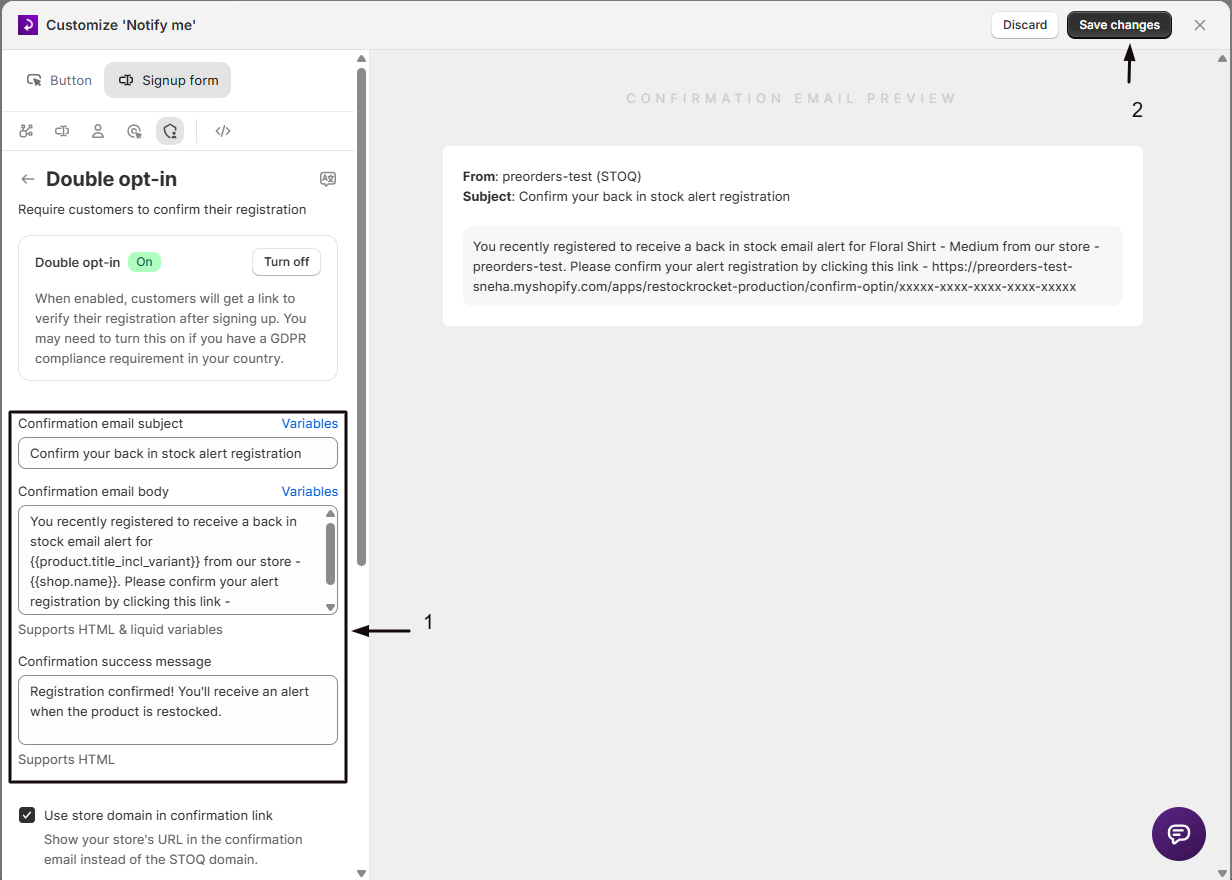
  1. Find the Confirmation email subject field in the Double opt-in settings
  2. Enter your preferred subject line
  3. Use liquid variables to personalize the subject (click Variables link to see available options)
  4. Default placeholder: "Confirm your back in stock alert registration"


Example subject lines:

  • "Please confirm your back in stock alert for {{product.title_incl_variant}}"
  • "{{customer.name}}, verify your registration at {{shop.name}}"
  • "Confirm your interest in {{product.title_incl_variant}}"


Confirmation email subject field


Customize Confirmation Email Body


The confirmation email body contains the message and confirmation link that customers receive.


To customize the email body:


  1. Find the Confirmation email body field in the Double opt-in settings
  2. Enter your preferred email message (supports HTML and liquid variables)
  3. Click Variables link to see available liquid variables
  4. Include the {{request.activation_link}} variable to add the confirmation link
  5. The field supports HTML formatting for styling your email


Available liquid variables:

  • {{customer.name}} - Customer's name (if collected)
  • {{product.title_incl_variant}} - Full product name including variant
  • {{shop.name}} - Your store name
  • {{request.activation_link}} - Confirmation link (required)


Example email body:

<p>Hi {{customer.name}},</p>

<p>Thank you for your interest in <strong>{{product.title_incl_variant}}</strong> at {{shop.name}}!</p>

<p>To complete your registration and receive a notification when this product is back in stock, please confirm your email address by clicking the link below:</p>

<p><a href="{{request.activation_link}}">Confirm my registration</a></p>

<p>If you didn't sign up for this alert, you can safely ignore this email.</p>

<p>Thanks,<br>The {{shop.name}} Team</p>


Tip: Always include the {{request.activation_link}} variable in your email body. Without it, customers won't be able to confirm their registration.


Confirmation email body field


Customize Confirmation Success Message


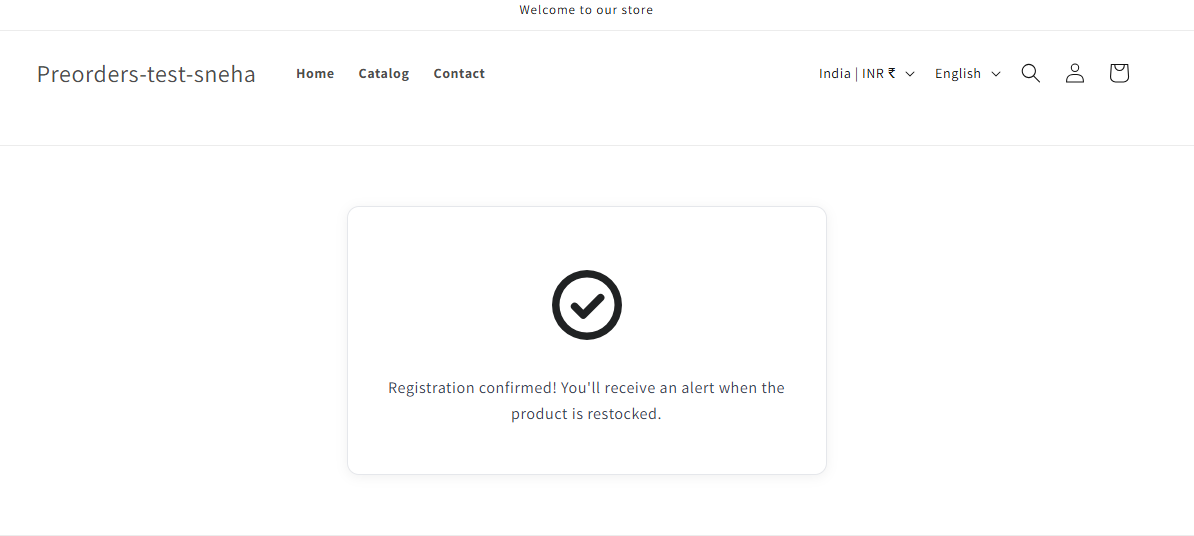
The confirmation success message is displayed to customers after they click the confirmation link in the email.


To customize the success message:


  1. Find the Confirmation success message field in the Double opt-in settings
  2. Enter your preferred success message (supports HTML)
  3. Default placeholder: "Registration confirmed! You'll receive an alert when the product is restocked."
  4. Keep the message clear and reassuring


Example success messages:

  • "Thank you! Your registration is confirmed. We'll email you as soon as this product is back in stock."
  • "All set! You'll be the first to know when {{product.title_incl_variant}} is available again."
  • "Registration confirmed! We'll notify you at {{customer.email}} when this item is restocked."


Note: The success message supports HTML formatting but not liquid variables.


View Confirmation Status in Reports


After enabling double opt-in, you can track which customers have confirmed their registration in your reports.


Current Waitlist Reports


To view confirmation status for pending registrations:


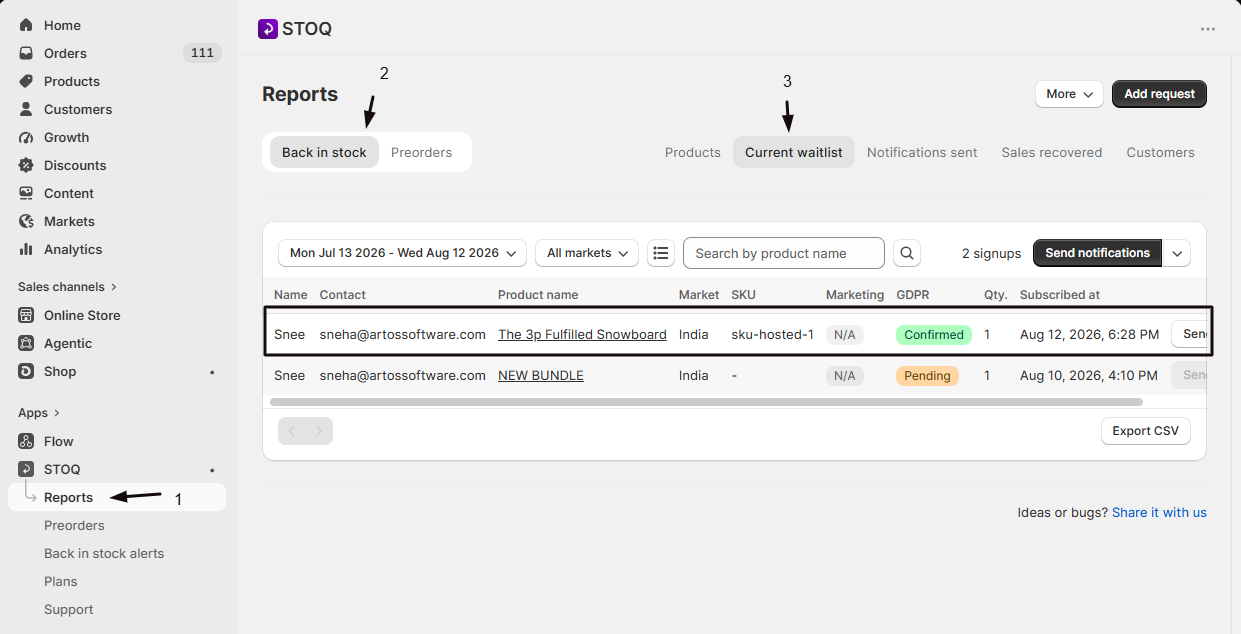
  1. Go to Back in stock alertsReportsCurrent waitlist
  2. Look for the GDPR column in the table
  3. The column shows one of three statuses:
  • N/A (gray badge): Double opt-in is not enabled for your store
  • Confirmed (green badge): Customer clicked the confirmation link
  • Pending (yellow badge): Customer hasn't confirmed yet


Important: Customers with "Pending" status will NOT receive back in stock notifications, even if you manually try to send them. The send button is disabled for unconfirmed registrations.


Sent Notifications Reports


The GDPR column also appears in the "Sent notifications" report, showing the confirmation status at the time the notification was sent. All sent notifications will show "Confirmed" status since only confirmed registrations can receive alerts.


GDPR column in reports


Export Confirmation Status to CSV


When you export your waitlist or sent notifications to CSV, the confirmation status is included in the export.


To export with GDPR status:


  1. Navigate to ReportsCurrent waitlist or Sent notifications
  2. Click the Export button
  3. The CSV file will include a GDPR column (only if double opt-in is enabled)
  4. Values in the column: "Yes" (confirmed) or "No" (not confirmed)


This allows you to analyze confirmation rates, identify customers who haven't confirmed, and maintain compliance records.


Multi-Language Support


All double opt-in text fields support multi-language translations, allowing you to provide confirmation emails in your customers' preferred languages.


To add translations:


  1. In the Double opt-in settings, click the Languages link in the top right
  2. Select the language you want to translate
  3. Translate the confirmation email subject, body, and success message
  4. Save your translations


The confirmation email will automatically be sent in the customer's browser language if a translation is available, or fall back to your default language.


Best Practices


Follow these best practices to maximize confirmation rates and maintain compliance:


Keep Confirmation Emails Clear and Simple


Write clear, concise confirmation emails that explain why customers are receiving the email and what action they need to take. Avoid lengthy explanations or multiple calls-to-action that might confuse customers.


Send Confirmation Emails Immediately


Confirmation emails are sent automatically and immediately after signup. Customers are most likely to confirm their registration within the first few minutes of signing up, so immediate delivery is crucial.


Use Recognizable Sender Information


Ensure your confirmation emails come from a recognizable sender name and email address. Customers are more likely to open and click confirmation links from senders they recognize and trust.


Place the confirmation link prominently in your email body, ideally as a button or clearly formatted link. Don't bury it in paragraphs of text where customers might miss it.


Test Your Confirmation Emails


Before enabling double opt-in for all customers, test the confirmation email flow yourself:


  1. Enable double opt-in in your settings
  2. Sign up for a back in stock alert on your storefront
  3. Check your email inbox for the confirmation email
  4. Click the confirmation link and verify the success message displays correctly
  5. Check that your registration shows "Confirmed" status in reports


Monitor Confirmation Rates


Regularly check your reports to monitor what percentage of customers are confirming their registrations. Low confirmation rates (below 50%) may indicate issues with:


  • Confirmation emails going to spam folders
  • Unclear or confusing email copy
  • Broken confirmation links
  • Email delivery problems


Provide Clear Privacy Information


Include a link to your privacy policy in the confirmation email so customers understand how their data will be used. This builds trust and demonstrates your commitment to data protection.


Use Cases


GDPR double opt-in compliance is essential for various business scenarios:


EU and EEA Compliance


If you sell to customers in the European Union or European Economic Area, GDPR requires explicit consent before sending marketing communications. Double opt-in provides clear proof of consent by requiring customers to actively confirm their registration.


Other Privacy Law Compliance


Many countries beyond the EU have similar privacy laws requiring explicit consent for marketing emails. Double opt-in helps you comply with regulations like:


  • CASL (Canada's Anti-Spam Legislation)
  • CCPA (California Consumer Privacy Act)
  • LGPD (Brazil's General Data Protection Law)
  • POPIA (South Africa's Protection of Personal Information Act)


Reducing Spam Complaints


Double opt-in ensures that only customers who genuinely want to receive notifications are added to your waitlist. This reduces spam complaints and improves your email sender reputation.


Improving Email Deliverability


Email service providers favor senders with low spam complaint rates and high engagement. By ensuring only interested customers receive notifications, double opt-in improves your overall email deliverability.


Building a Quality Waitlist


Customers who take the extra step to confirm their registration are more engaged and more likely to purchase when notified. Double opt-in helps you build a higher-quality waitlist of genuinely interested customers.


###Known Limitations


Be aware of these limitations when using GDPR double opt-in compliance:


Confirmation Emails May Go to Spam


Confirmation emails can sometimes be filtered into spam folders, especially if customers use aggressive spam filters. This can reduce confirmation rates. Ensure your email authentication (SPF, DKIM, DMARC) is properly configured to minimize this risk.


No Automatic Reminder Emails


STOQ does not automatically send reminder emails to customers who haven't confirmed their registration. If you want to remind customers, you'll need to export the list of unconfirmed registrations and contact them manually.


#####Existing Registrations Not Affected


Enabling double opt-in only affects new registrations created after you enable the feature. Existing registrations are automatically considered confirmed and will continue to receive notifications.


Cannot Manually Confirm Registrations


There is no way to manually mark a registration as confirmed in the STOQ admin. Customers must click the confirmation link in the email to complete their registration.


Confirmation links remain valid indefinitely and don't expire. Customers can confirm their registration days, weeks, or even months after signing up.


No Confirmation Rate Analytics


STOQ doesn't provide built-in analytics showing your confirmation rate over time. You'll need to export your waitlist data and calculate confirmation rates manually if you want to track this metric.


The confirmation link URL is automatically generated and cannot be customized. You can only customize the text and HTML around the {{request.activation_link}} variable.


Liquid Variables Limited to Email Body and Subject


Liquid variables are only available in the confirmation email subject and body. The success message field supports HTML but not liquid variables.


Troubleshooting


Common issues and solutions when using GDPR double opt-in compliance:


Symptom

Likely Cause

Fix

Customers not receiving confirmation emails

Emails going to spam folder

Ask customers to check spam/junk folders. Verify your email authentication (SPF, DKIM) is configured correctly.

Confirmation link not working

Link was copied incorrectly or email client broke the URL

Ensure the {{request.activation_link}} variable is included as a proper HTML link: <a href="{{request.activation_link}}">Confirm</a>

Success message not displaying

Browser blocking the page or incorrect URL

Test the confirmation link in an incognito browser window. Contact support if the issue persists.

GDPR column shows "N/A" in reports

Double opt-in is not enabled

Enable the double opt-in toggle in your settings and save changes.

Cannot send notification to customer

Customer hasn't confirmed registration

Customer must click the confirmation link before they can receive notifications. Check the GDPR column in reports to verify status.

Confirmation email has broken formatting

HTML syntax error in email body

Review your HTML code for syntax errors. Test with simple HTML first, then add complexity.

Liquid variables not working

Variable name typed incorrectly

Click the "Variables" link to see the exact variable names. Copy and paste them to avoid typos.

Translations not appearing

Translation not saved or browser language not detected

Verify translations are saved in the Languages section. Test with browser language settings changed.


Still having issues? Contact our 24/7 support team via the chat widget in your STOQ dashboard or email support@stoqapp.com.


FAQs


Q: Is double opt-in required for GDPR compliance?

**A: **Double opt-in is not strictly required by GDPR, but it provides the strongest proof of consent. GDPR requires "freely given, specific, informed and unambiguous" consent. Double opt-in clearly demonstrates that customers actively consented to receive communications. Single opt-in can also be GDPR-compliant if you can demonstrate clear consent, but double opt-in is the safest approach.


Q: What happens to existing registrations when I enable double opt-in?

A: Existing registrations created before you enable double opt-in are automatically considered confirmed and will continue to receive back in stock notifications. Only new registrations created after enabling the feature will require email confirmation.


Q: Can I see which customers haven't confirmed their registration?

**A: **Yes. Go to Reports → Current waitlist and look at the GDPR column. Customers with a yellow "Pending" badge haven't confirmed their registration yet. You can also export the waitlist to CSV and filter by the GDPR column to see all unconfirmed registrations.


Q: How long do customers have to confirm their registration?

A: Confirmation links don't expire, so customers can confirm their registration at any time. However, if the product is restocked before they confirm, they won't receive a notification. They'll need to sign up again after the product goes out of stock.


Q: Can I resend the confirmation email to a customer?

**A: **There is no built-in feature to resend confirmation emails. If a customer didn't receive the confirmation email, they should sign up again on the product page. If they've already signed up, they'll need to wait for the product to go out of stock again before they can re-register.


Q: Do I need double opt-in if I'm not in the EU?

A: While GDPR specifically applies to EU/EEA customers, many other countries have similar privacy laws requiring explicit consent for marketing emails. Even if not legally required, double opt-in is a best practice that improves email deliverability and reduces spam complaints.


Q: Can I customize the confirmation page that appears after clicking the link?

**A: **The confirmation success message can be customized in the Double opt-in settings, but the page design and layout cannot be customized. The success message supports HTML formatting for basic styling.


Q: Will double opt-in reduce my conversion rate?

A: Double opt-in adds an extra step to the registration process, which typically reduces the number of completed registrations by 20-40%. However, customers who do confirm are more engaged and more likely to purchase when notified, often resulting in higher conversion rates from notification to sale.


Q: Can I use different confirmation emails for different products?

A: No. The confirmation email settings apply to all products in your store. You cannot set different confirmation emails for different products. However, you can use liquid variables like {{product.title_incl_variant}} to personalize the email for each product.


Q: Are confirmation emails sent from my store's email address?

**A: **Confirmation emails are sent from STOQ's email infrastructure but use your store name in the sender field. The reply-to address can be configured in your STOQ email settings to use your store's email address.

Updated on: 10/03/2026

Was this article helpful?

Share your feedback

Cancel

Thank you!