Test STOQ on a duplicate or draft theme
Check the Preorder and Notify me buttons on a copy of your theme before you publish it, without touching your live store.
Last updated
Use this guide to try STOQ on a theme that isn’t live yet: a copy of your live theme, or a new theme you’re about to switch to. You’ll check that STOQ is on in that theme, preview it, and test the buttons. Your live store keeps running as it is while you test.
Before you begin
Section titled “Before you begin”- STOQ is installed and set up, with at least one preorder offer or back in stock alert turned on.
- You (or your staff) need the Themes permission in Shopify.
- STOQ’s offers, button text, and design are store-wide, so they apply to every theme. Only the app embed, the switch that loads STOQ on your storefront, is saved inside each theme.
Test STOQ on a copy of your theme
Section titled “Test STOQ on a copy of your theme”-
Duplicate your live theme
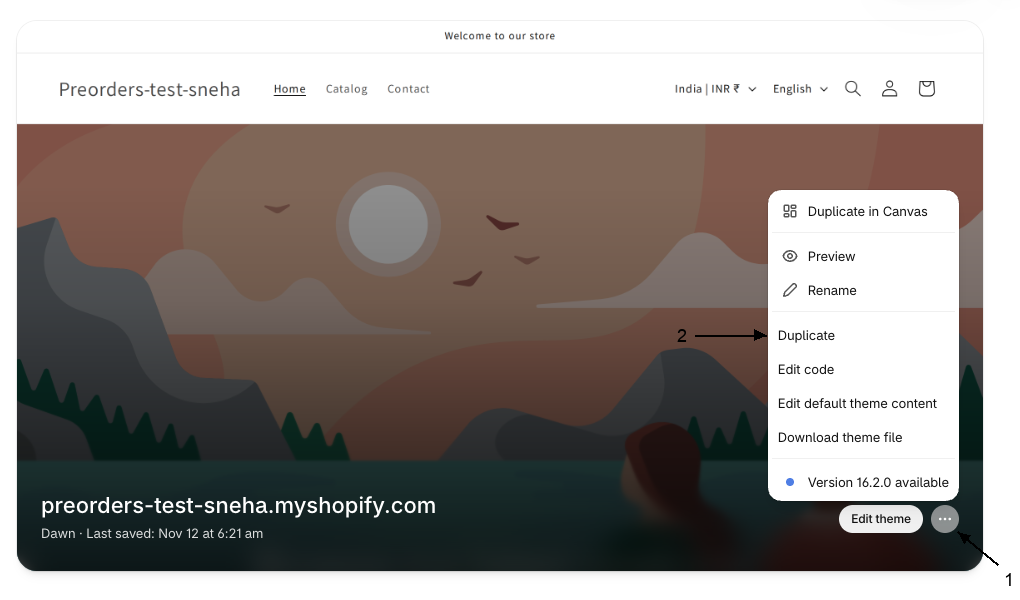
In Shopify admin, go to Online Store > Themes.
- On your live theme, click the … button.
- Click Duplicate.
The copy appears under Draft themes as “Copy of” and your theme’s name. Use Duplicate, not Duplicate in Canvas: a Canvas copy has no App embeds section, so STOQ can’t be turned on from the theme editor.
-
Check STOQ is on in the copy
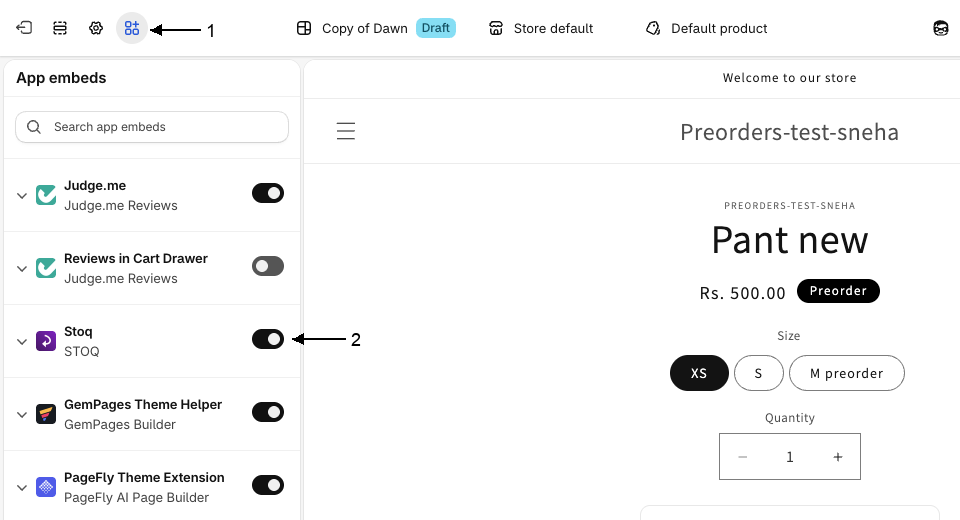
Click Edit theme on the copy.
- In the left sidebar of the theme editor, click the App embeds icon.
- Check that the STOQ toggle is on.
A duplicate keeps your live theme’s app embeds, so STOQ is usually on already. If you’re testing a new theme you added from the Theme Store or uploaded, STOQ starts off: turn the toggle on and click Save. This only changes the draft, not your live theme.
-
Preview the draft theme
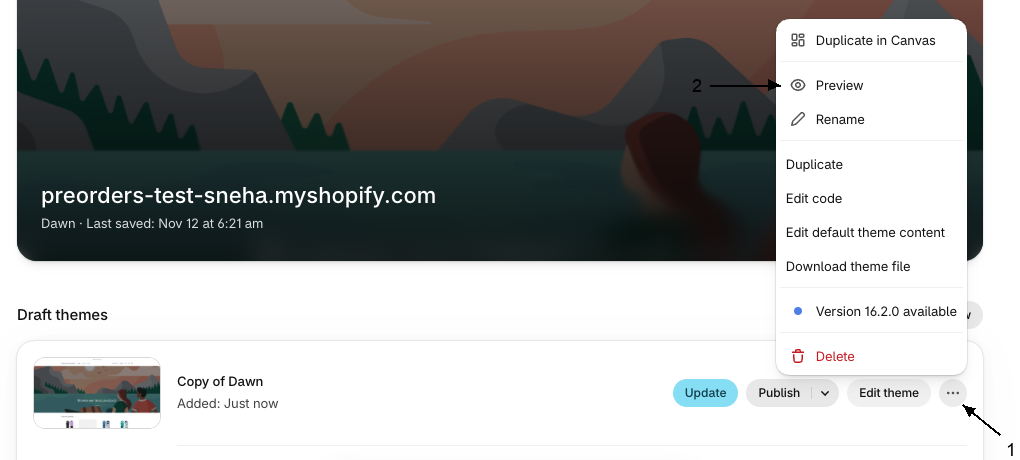
Go back to Online Store > Themes.
- On the draft theme, click the … button.
- Click Preview.
Your storefront opens in a new tab using the draft theme. A bar at the bottom shows the theme’s name with a Draft label.
-
Test the buttons
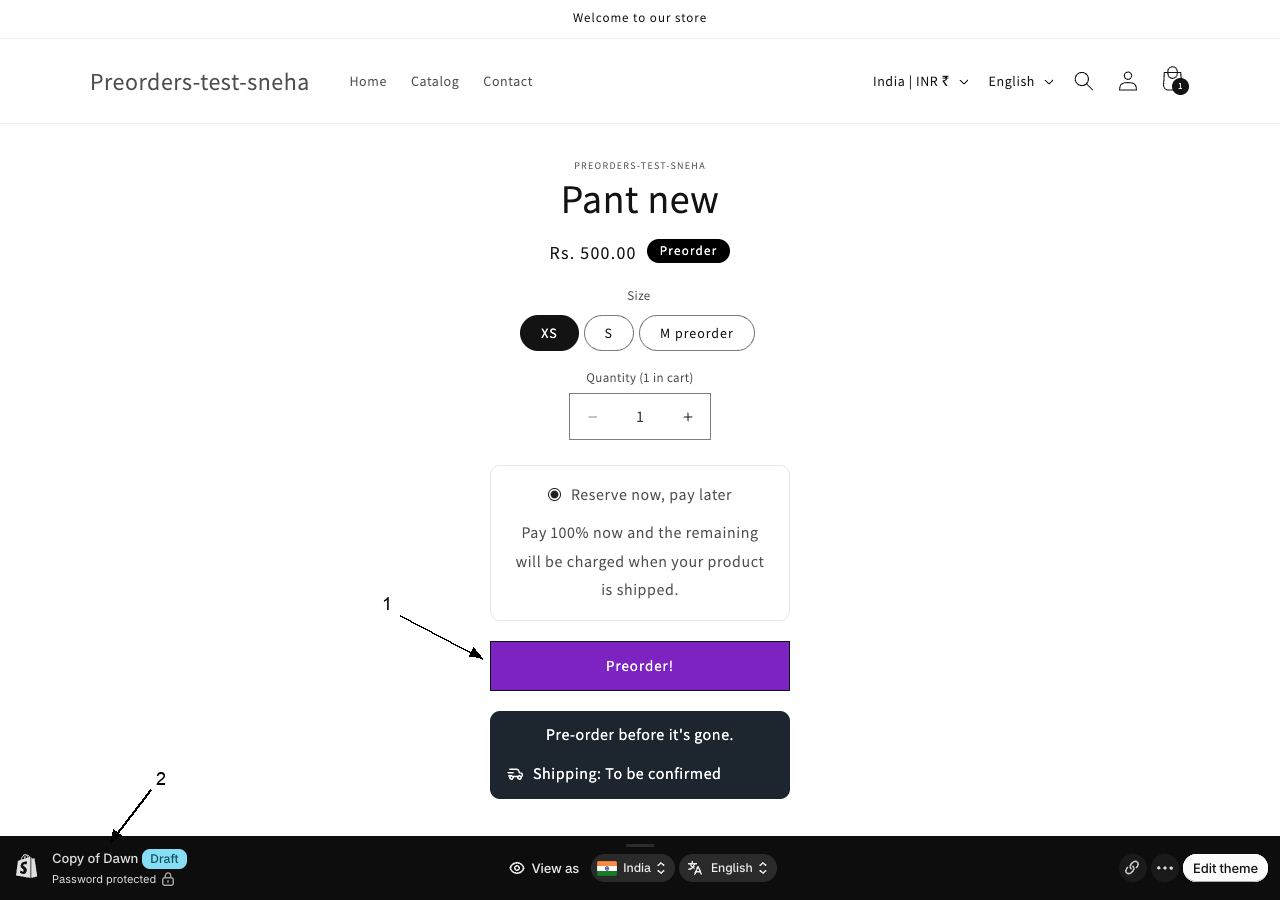
In the preview tab, open a product that has a preorder offer, or a sold-out product for back in stock alerts.
- Check the Preorder or Notify me button shows where you expect, and click it.
- Check the preview bar at the bottom still shows your draft theme.
To go further, place a test order or sign up for an alert from the preview. See Test your offer and Test back in stock alerts. A test order placed from a preview is a real order in your store, so cancel it afterwards.
The theme editor shows STOQ’s buttons too, but clicking there selects parts of the page for editing. Use Preview to click the buttons and go through the cart and checkout.
When you publish the draft
Section titled “When you publish the draft”The app embed is saved in the theme, so if STOQ is on in the draft, it stays on when you publish it. STOQ’s app embed status (the Status card on Home, and the Turn on app embed badge) only checks your live theme. While you test a draft, it keeps showing your live theme’s status. After you publish, it checks the new live theme.
Troubleshooting
Section titled “Troubleshooting”The button doesn't show in the preview
Check STOQ is on in the draft theme:
- Click Edit theme on the draft theme and open App embeds.
- Turn STOQ on and click Save.
- Reload the preview tab.
If STOQ is on and the button still doesn’t show, see Fix Preorder button display problems.
There's no App embeds section in the draft theme
The theme was made with Duplicate in Canvas, or it’s a vintage theme without app embed support. Duplicate your live theme again with Duplicate, or see Turn on STOQ on a Canvas theme.
The preview shows my live theme instead of the draft
The bottom bar is missing or shows your live theme’s name. Open the preview again from Online Store > Themes, using the draft theme’s … button and Preview, and stay in that tab.
The button sits in a different place on a new theme
Different themes lay out the product page differently, so STOQ can attach to a different spot. See Fix Preorder button display problems to move it.
STOQ says the app embed is off, but it's on in my draft
STOQ only checks your live theme. Turn STOQ on in your live theme too, or ignore the badge until you publish the draft.
Does testing a draft theme change my live store?
No. Shoppers keep seeing your live theme. Turning STOQ on in a draft only changes that draft. Your STOQ settings are shared, so a change you make in STOQ while testing applies to your live store too.
Do I need to turn STOQ on again after I duplicate a theme?
No. Duplicate copies the app embeds, so STOQ is on in the copy if it was on in the original. A new theme from the Theme Store, an uploaded theme, or a Duplicate in Canvas copy doesn’t have it.
Will STOQ stay on when I publish the draft?
Yes, if it’s on in the draft. Check App embeds in the draft before you publish. You can also tick Notify me when a theme is published in STOQ to get an email when a new theme goes live. See Back in stock report settings.
Can I test in the theme editor instead of Preview?
You can see the buttons there, but clicks select page elements instead of acting like a shopper. Use Preview to click Preorder or Notify me and to check out.
Related guides
Section titled “Related guides”Thanks for letting us know.
Still stuck? Ask Quinn or chat with support