Set up STOQ by chatting with an AI assistant
Have a connected AI assistant walk you through setting up back in stock alerts or preorders, right in chat.
Last updated
Use this guide if you’d rather set up STOQ by chatting than by clicking around the dashboard. With Claude connected to your store and the STOQ setup skill added, you can ask it to set up STOQ and it walks you through it a few questions at a time, applies your choices for you, and shows you the result live on your store. It takes about 10 minutes.
The guided walkthrough comes from a setup skill you add to Claude once. Connecting Claude on its own lets it read and change your STOQ data; adding the skill is what gives you the step-by-step setup experience described here.
Before you begin
Section titled “Before you begin”| Requirement | Detail |
|---|---|
| Claude connected to your store | Connect Claude to STOQ first. See Connect AI assistants to STOQ. It needs permission to make changes, not just read, so it can apply your choices. |
| The STOQ setup skill | Download it below and add it to Claude (one time). Without it, Claude can still make changes but won’t run the guided walkthrough. |
| STOQ app embed on | The storefront button only appears once STOQ is switched on in your theme. The assistant reminds you if it’s off. See Enable STOQ on your theme. |
| A product to look at | For back in stock, a sold-out product so you can see the Notify me button live. The assistant helps you find one. |
What it sets up
Section titled “What it sets up”You can set up back in stock alerts, preorders, or both. The assistant finishes one before starting the other.
| Feature | What it covers |
|---|---|
| Back in stock alerts | Where the Notify me button sits, which products and pages show it, the button text and colors, your restock email, a real test signup and email, then optional extras (reminder emails, SMS, minimum restock quantity, markets). |
| Preorders | Which products, when the offer goes live, the Preorder button, shipping date and fulfillment, payment or deposit, discount, terms and limits. It builds the offer and links you to it to test. |
Start the setup
Section titled “Start the setup”-
Connect Claude to your store
Connect Claude to STOQ if you haven’t already. See Connect AI assistants to STOQ for the full steps.
-
Add the setup skill to Claude
Download stoq-setup-wizard.skill, then add it in Claude’s own settings for skills (also called capabilities). Where that lives is set by Claude and can move as it updates, so if you can’t find it, check Claude’s own help for adding a skill. You only do this once.
-
Ask it to set up STOQ
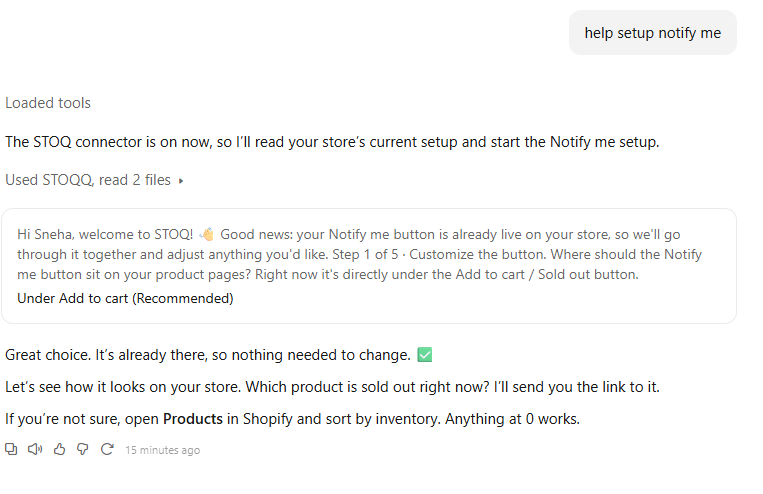
In Claude, say what you want, for example “Help me set up STOQ” or “Set up back in stock alerts on my store”. It reads your store’s current settings, asks whether you want back in stock, preorders or both, and starts the walkthrough.
-
Answer one step at a time
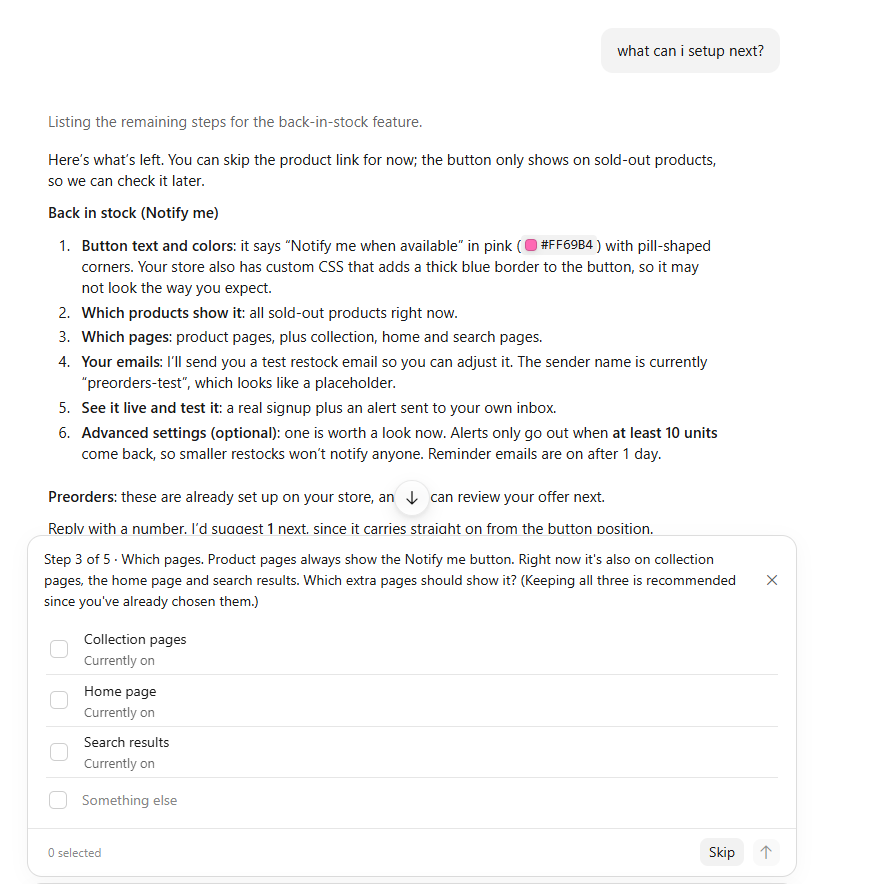
Each step is a short question with a recommended choice. Reply with a number, type what you’d like, or say “use the recommended one”. The assistant applies each answer and confirms it before moving on.
-
Check it live when it links you
At the points where seeing it matters (after the Notify me button’s position, and once a preorder offer is built) the assistant sends you a link to your store so you can confirm it looks right before carrying on.
What you still do yourself
Section titled “What you still do yourself”The assistant does the STOQ settings for you, but a few things can only be done in Shopify or need a one-time step on your side. It tells you when each applies and gives you the exact steps.
| Task | Where | Why the assistant can’t do it |
|---|---|---|
| Turn on the STOQ app embed | Shopify theme editor: Online Store > Themes > Customize > App embeds > switch on STOQ > Save | Only possible in Shopify’s theme editor. |
| Upload your email logo | STOQ: Back in stock alerts > Settings > Notifications > Customize email > Content > Logo | STOQ’s logo upload needs a real file upload the assistant can’t send. |
| Tag products | Shopify: Products > select > Add tags | STOQ doesn’t edit your Shopify products, so if you choose products by tag you add the tag in Shopify. |
| Place a test preorder | Your storefront, with a 100% discount code or Shopify’s Bogus Gateway | A test order needs a real checkout. |
| Turn on SMS alerts | Ask STOQ support | SMS needs a one-time approval from STOQ before it can be switched on. |
How it keeps your store safe
Section titled “How it keeps your store safe”- Tests only go to you. Test signups and test emails use your own email address, never a real shopper’s. The assistant never messages the people already waiting on a product.
- It asks before anything goes live. Turning on a preorder offer, or showing the Notify me button for the first time, happens only after it summarizes what shoppers will see and you say yes.
- It never guesses your money or dates. It always asks you for deposit amounts, charge dates and ship dates, even if you say “use the defaults”.
- It leaves your other settings alone. Existing offers, custom email templates and other products’ settings aren’t changed without asking.
If something won’t work
Section titled “If something won’t work”If the assistant can’t get the Notify me or Preorder button to show after its checks, it’s usually a theme issue it can’t fix from chat. Email support@stoqapp.com or use the live chat in the STOQ app (Support > Chat with us), and mention the product and page you were looking at. See Get help from STOQ.
Do I need the skill, or is connecting Claude enough?
You need both. Connecting Claude lets it read and change your STOQ data; the setup skill is what makes it run the guided, step-by-step walkthrough. Add the skill once from the download above.
Can ChatGPT do this too?
You can connect ChatGPT to make changes and ask questions, but this guided walkthrough is a Claude skill, so the step-by-step setup runs in Claude.
How is this different from Quinn?
Quinn is STOQ’s assistant built into the app, best for one-off changes and questions while you’re in the dashboard. The setup walkthrough runs in Claude with the skill added and guides you through a full back in stock or preorder setup end to end. See Ask Quinn, your AI assistant.
Can it see my sales or customer data?
It works with the STOQ data you approved when you connected it, such as your offers, waitlists and orders. What it can read and change is set by the tool permissions you grant in the assistant and the access you approve in Shopify. See Connect AI assistants to STOQ.
Will it email my waitlist while testing?
No. Every test goes to your own email address only. The actions that alert everyone waiting on a product are never used during setup.
Can I change things afterwards in the dashboard?
Yes. Everything the assistant sets up is a normal STOQ setting, so you can open the STOQ app and change any of it as usual.
Related articles
Section titled “Related articles”Thanks for letting us know.
Still stuck? Ask Quinn or chat with support