Find anything with universal search
Jump to any setting, product, offer, or order in STOQ without clicking through menus.
Last updated
Universal search lets you jump straight to anything in STOQ, a settings page, a product on a waitlist, a preorder offer, or an order, without navigating the menus.
Open search
Section titled “Open search”-
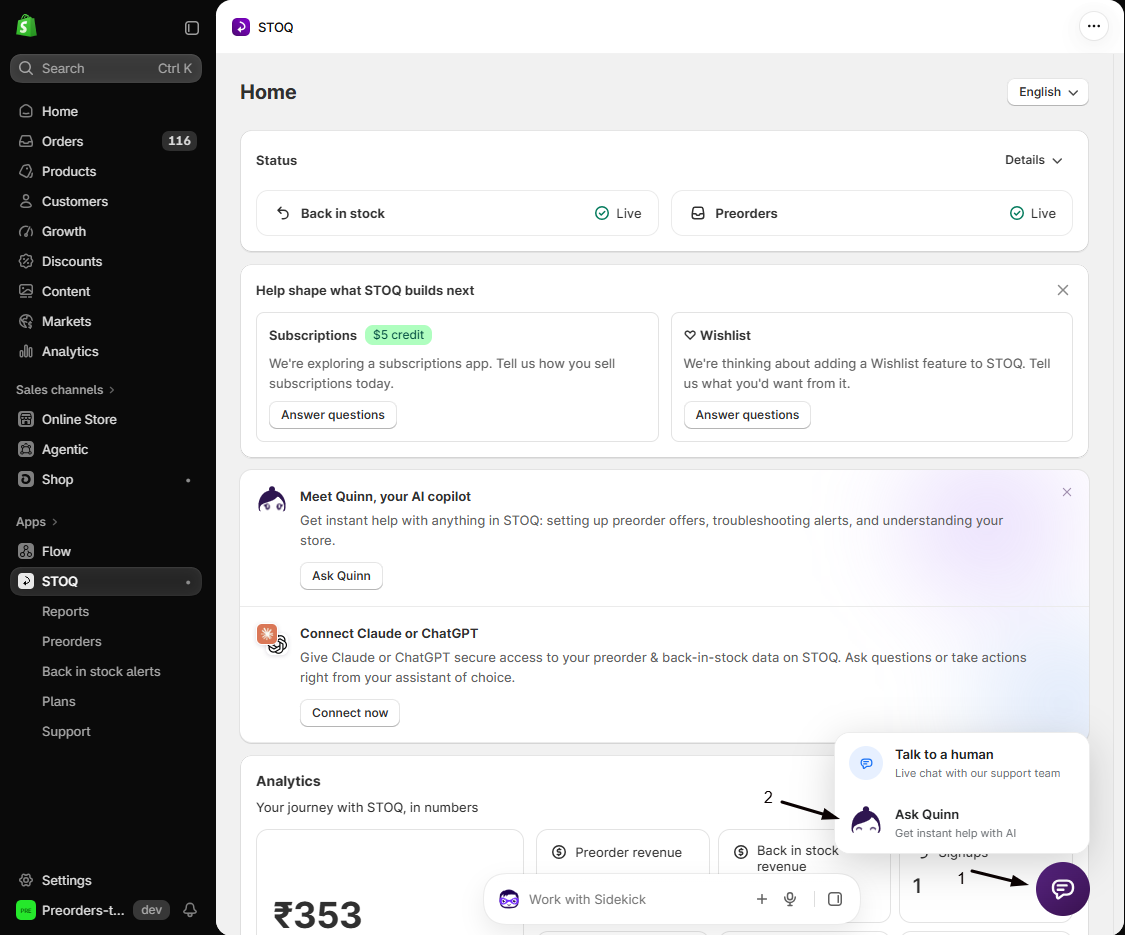
Open Quinn
Click the purple chat icon in the bottom-right corner of any STOQ page, then click Ask Quinn in the menu that opens above it.
-
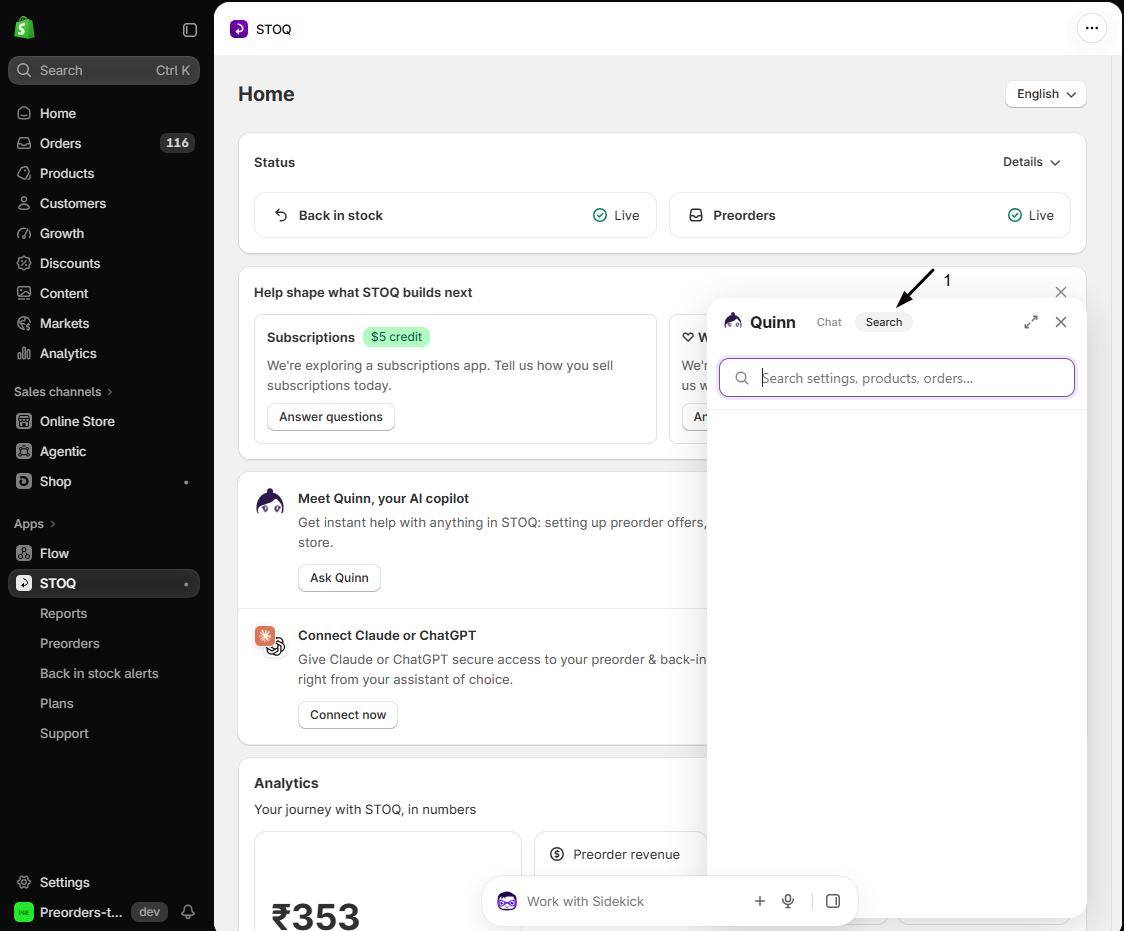
Go to the Search tab
At the top of the Quinn panel, click the Search tab, next to Chat. If you’re in the middle of a conversation, click Home at the top left of the panel first to bring the tabs back.
-
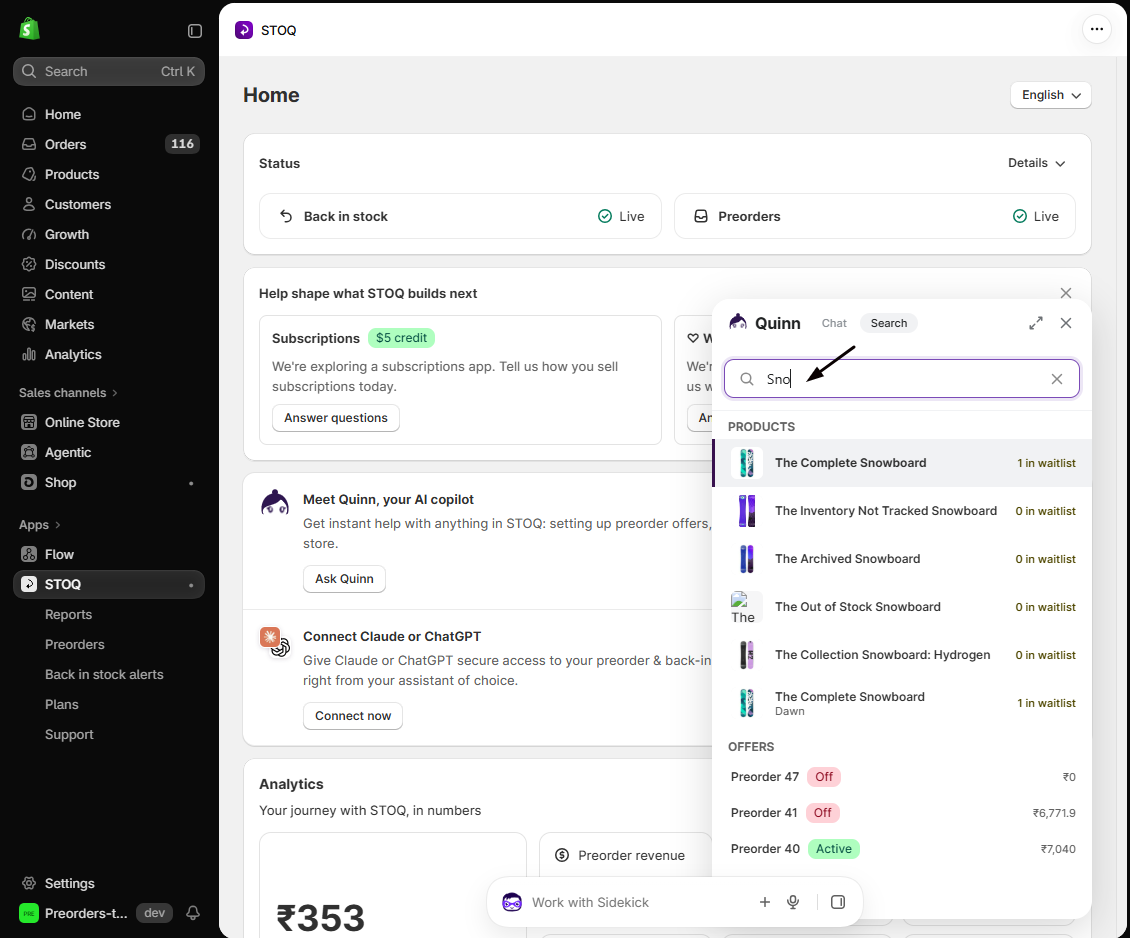
Type at least 3 characters
Results appear as you type. Search is case-insensitive and needs at least three characters.
What it searches
Section titled “What it searches”Search looks across five areas at once, up to five results each:
| Area | Examples |
|---|---|
| Settings & navigation | App pages and features by keyword |
| Products | Products on a back in stock waitlist |
| Product variants | Individual variant options |
| Preorder offers | Offers, with their status |
| Orders | Preorder orders by number, customer name, or email |
- Search an order number, or a customer’s email, to find their order fast.
- Use a feature keyword to jump to the setting instead of hunting through menus.
- The more specific the query, the better the match.
Related guides
Section titled “Related guides”Thanks for letting us know.
Still stuck? Ask Quinn or chat with support