Test your STOQ setup
Run a signup, restock, and alert end to end to confirm STOQ works before customers rely on it.
Last updated
Before you count on STOQ, run through a real signup and alert yourself. This confirms the button shows, signups are captured, and the notification actually sends.
Before you begin
Section titled “Before you begin”- STOQ is installed and the app embed is on. See Enable STOQ on your theme.
- You have a test product you can take out of stock and restock.
- You have an email address (and a phone number if you’re testing SMS).
Test back in stock alerts
Section titled “Test back in stock alerts”-
Take a product out of stock
In Shopify admin, open a test product and set its inventory to 0.
-
Sign up on your storefront
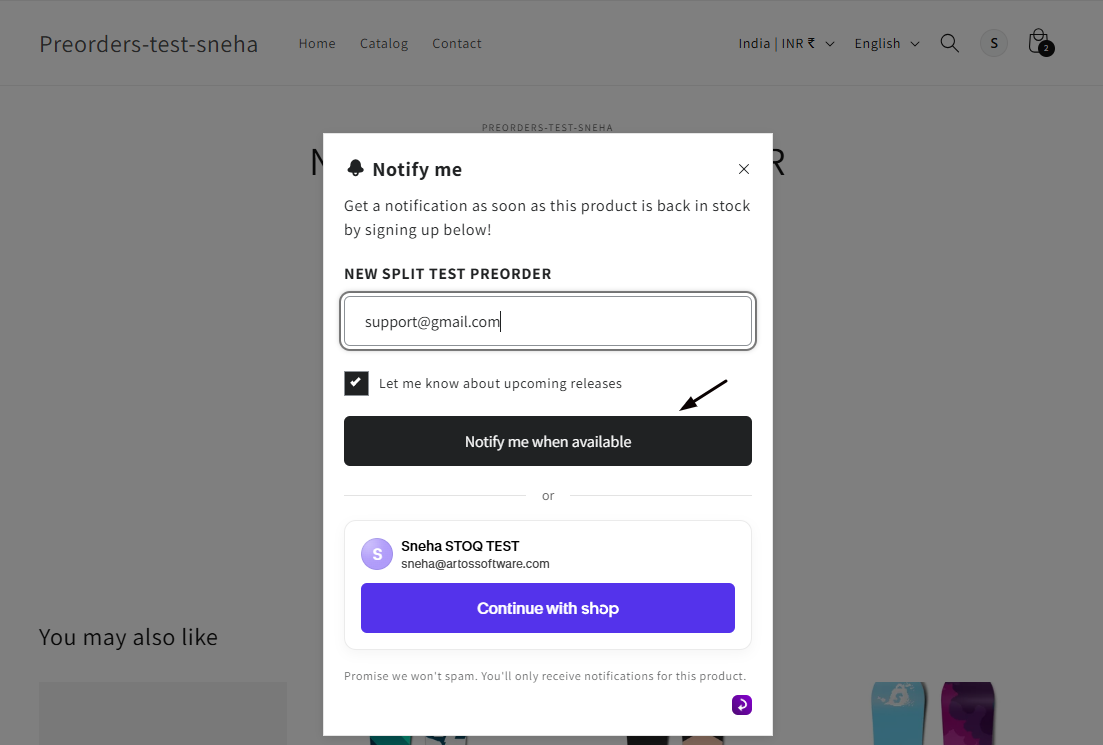
Open the product page, click the Notify me when available button, and sign up with your email. You can also use the onboarding checklist to register directly.
-
Restock the product
Set the product’s inventory back above 0 in Shopify.
-
Confirm the alert arrives
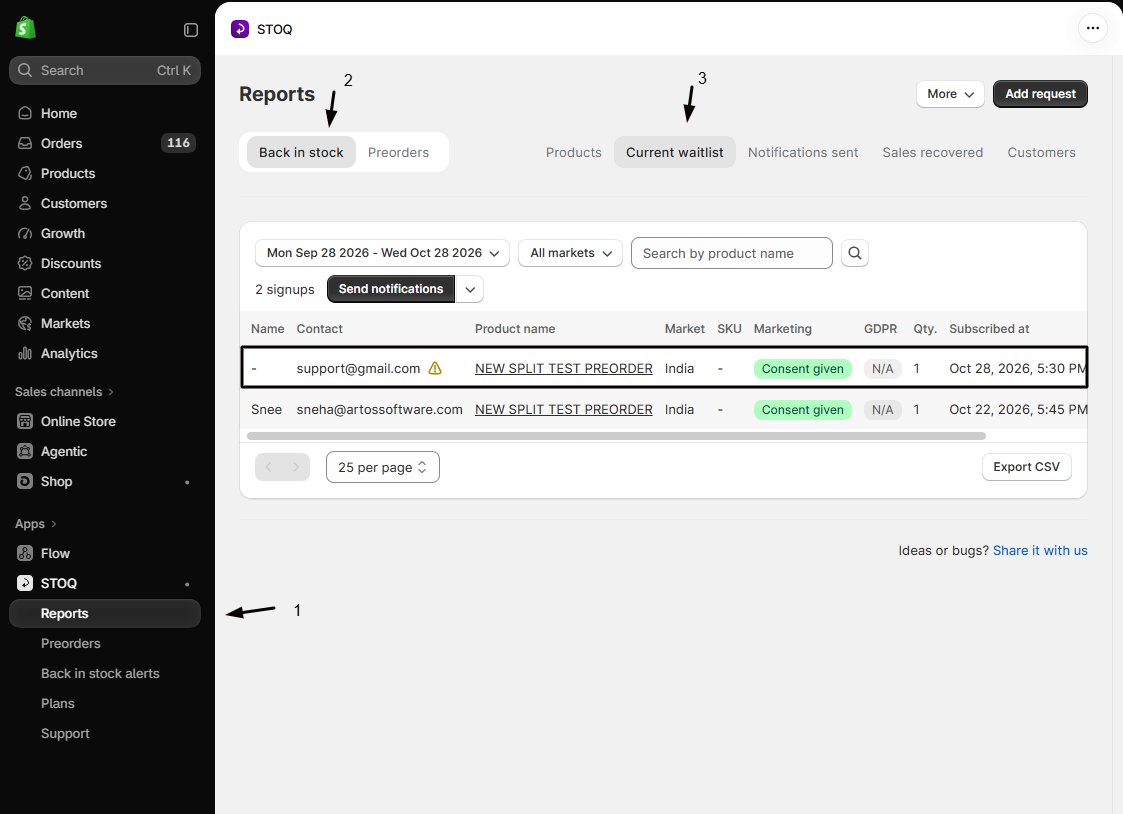
For automatic alerts, check your inbox within a few minutes. For manual sending, go to Reports and send from the waitlist. See Send alerts manually.
-
Check it was logged
In Reports, confirm the notification shows in your notifications history.
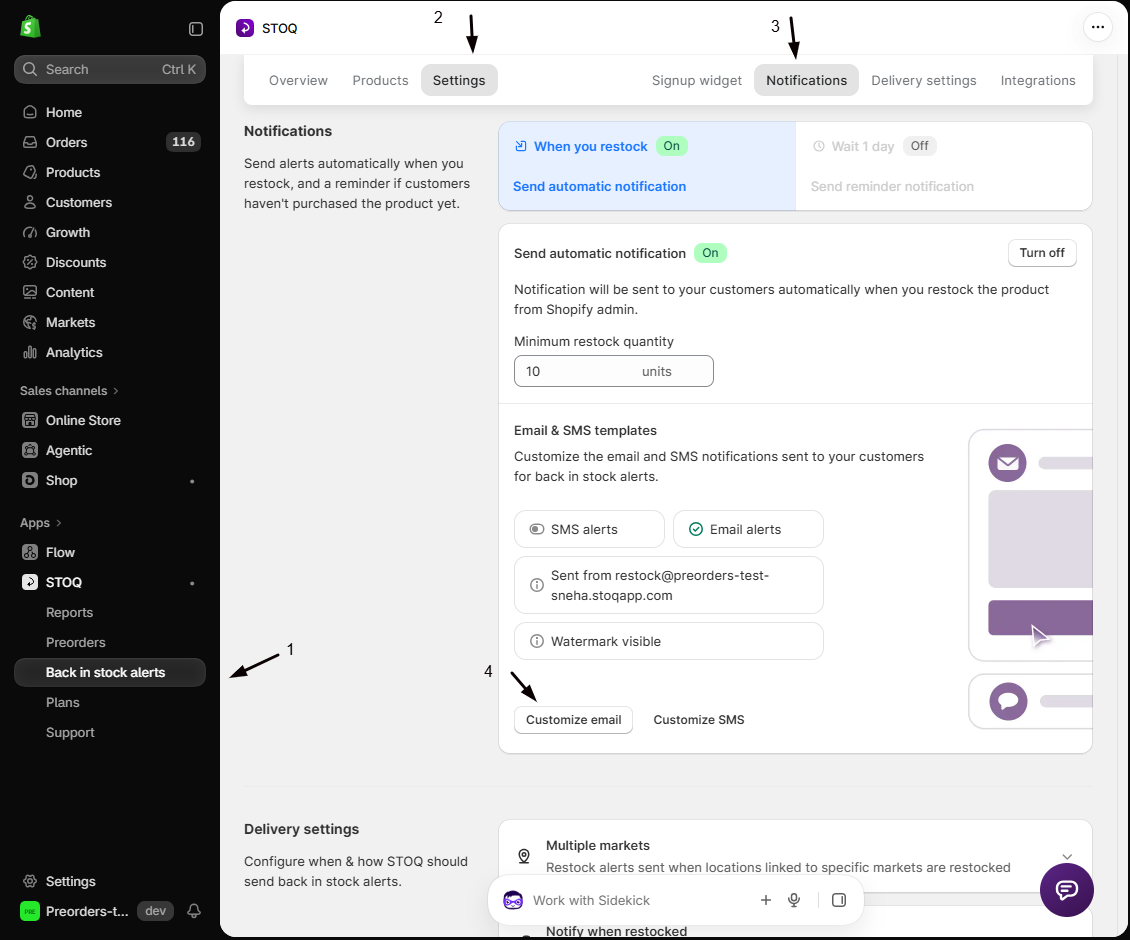
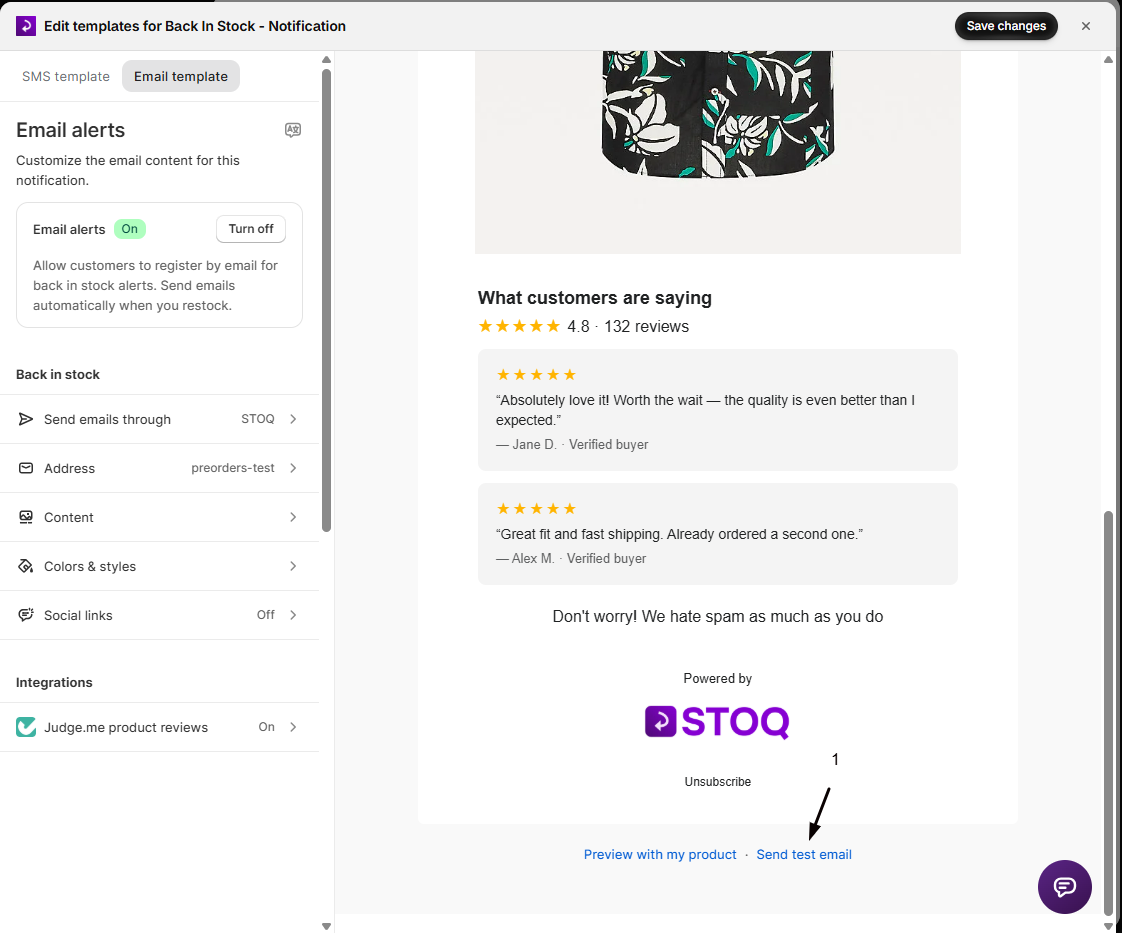
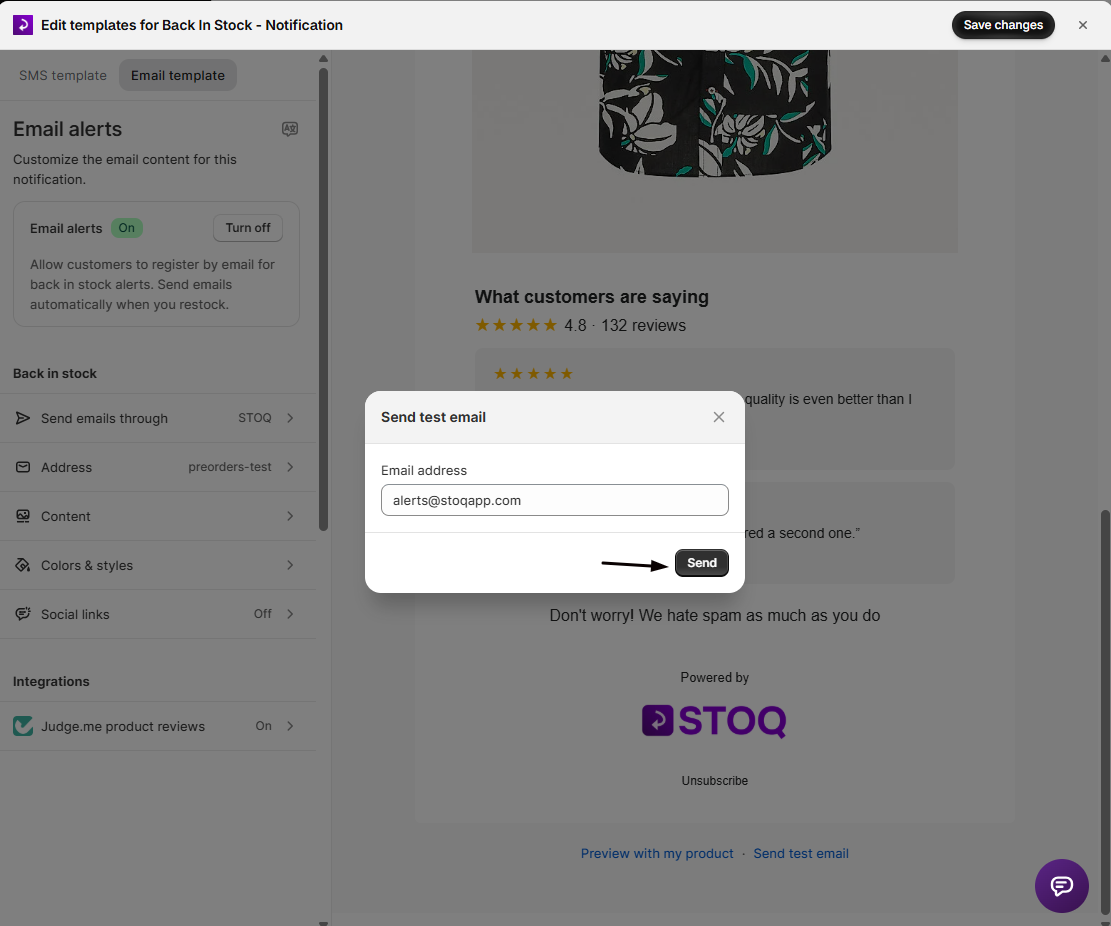
You can also send yourself a test email without restocking: open Back in stock alerts > Settings > Notifications, select the alert, click Customize email, and use Send test email in the preview. See Test back in stock alerts.
Test preorders
Section titled “Test preorders”Place a real preorder on a test product with an active offer and confirm the button, checkout, and confirmation email all behave as expected. See Test your preorder offer.
Good to know
Section titled “Good to know”- Automatic alerts rely on Shopify webhooks and usually arrive within 1 to 2 minutes.
- SMS needs carrier verification before it can send, which can take a few days.
- If you use double opt-in, the signup only completes after the customer confirms by email.
- Password-protected stores can block the storefront button during testing.
Troubleshooting
Section titled “Troubleshooting”The button doesn't show on the product page
Check the app embed is on and the product actually qualifies for the button. See Enable STOQ on your theme.
I signed up but no alert arrived
Confirm sending is set to automatic (or send manually), check spam, and for SMS confirm carrier verification is complete.
Do test signups affect my reports?
Yes, they appear like any signup. Remove your test customer afterward if you want clean numbers. See Manage customers.
Related guides
Section titled “Related guides”Thanks for letting us know.
Still stuck? Ask Quinn or chat with support