Ask Quinn, your AI assistant
Ask Quinn about your offers and waitlists, pull live numbers, and approve changes it suggests.
Last updated
Quinn is the AI assistant built into STOQ. Use this guide if you want quick answers without digging through settings or help articles. By the end, you’ll know how to ask Quinn a question, pull live numbers like waitlist sizes and conversion stats, jump to any page, and approve a change Quinn suggests.
Quinn is in beta (you’ll see a Beta label under its greeting), so it’s improving quickly and can make mistakes. Double-check anything important.
Before you begin
Section titled “Before you begin”- Quinn is built into STOQ, so there’s nothing to install or connect.
- Quinn doesn’t chat on Shopify partner or development stores. Search and Talk to a human still work there.
- The first time someone on your store opens the chat, they accept a short disclaimer (step 3 below). After that, nobody on the store sees it again.
What Quinn can do
Section titled “What Quinn can do”| Ask Quinn to… | For example |
|---|---|
| Explain how STOQ works | “How do partial payments work for preorders?” |
| Pull live numbers | “How many customers are waiting on my top products?” or “How did my preorders do this month?” |
| Take you to a page | “Where do I change the Notify me button color?” |
| Make a change | “Turn on the countdown timer for my newest preorder offer.” |
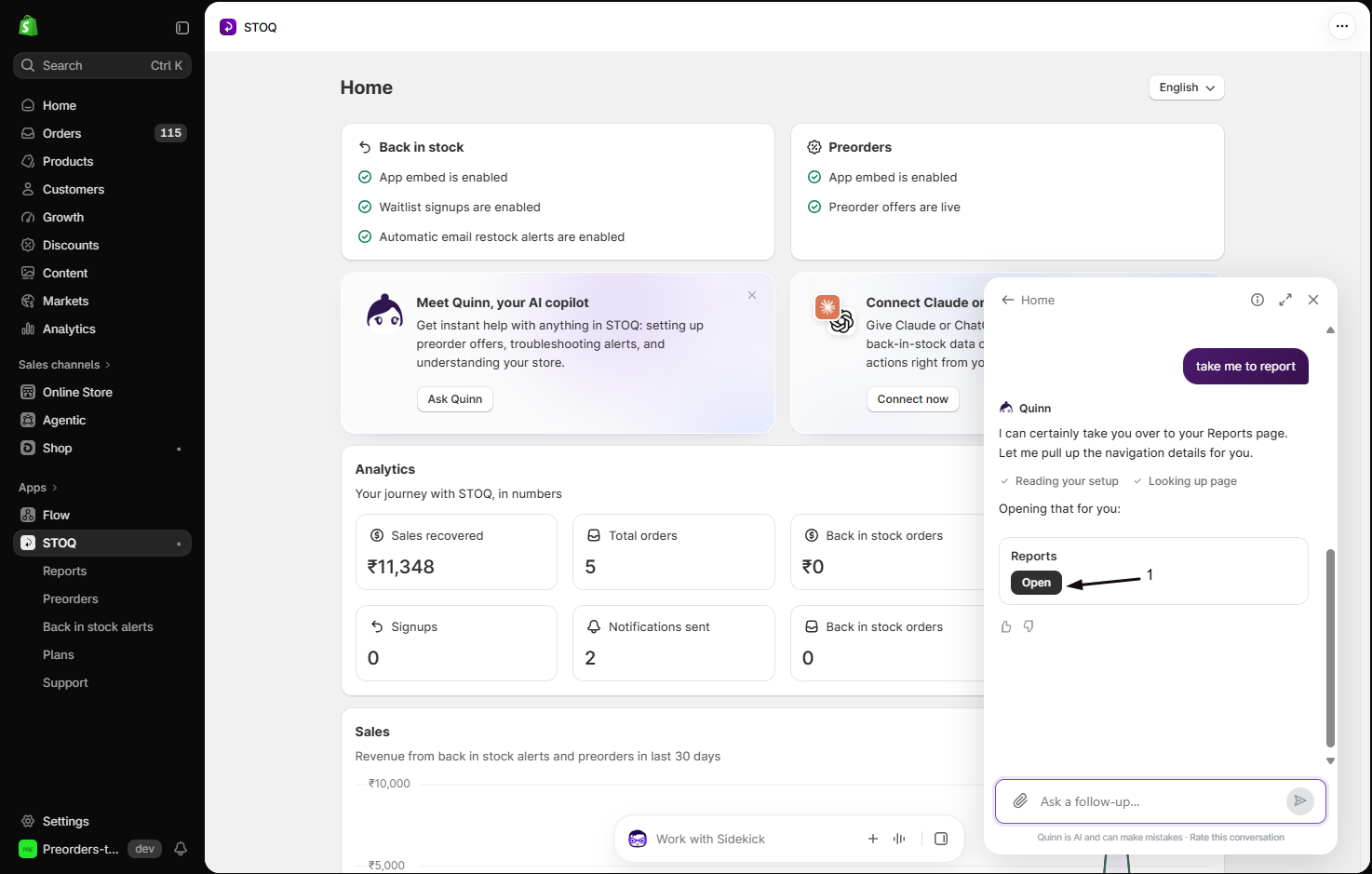
When you ask for numbers, Quinn can answer with a chart. When it points you to a page, it shows a card with an Open button that opens that page.
Open Quinn
Section titled “Open Quinn”-
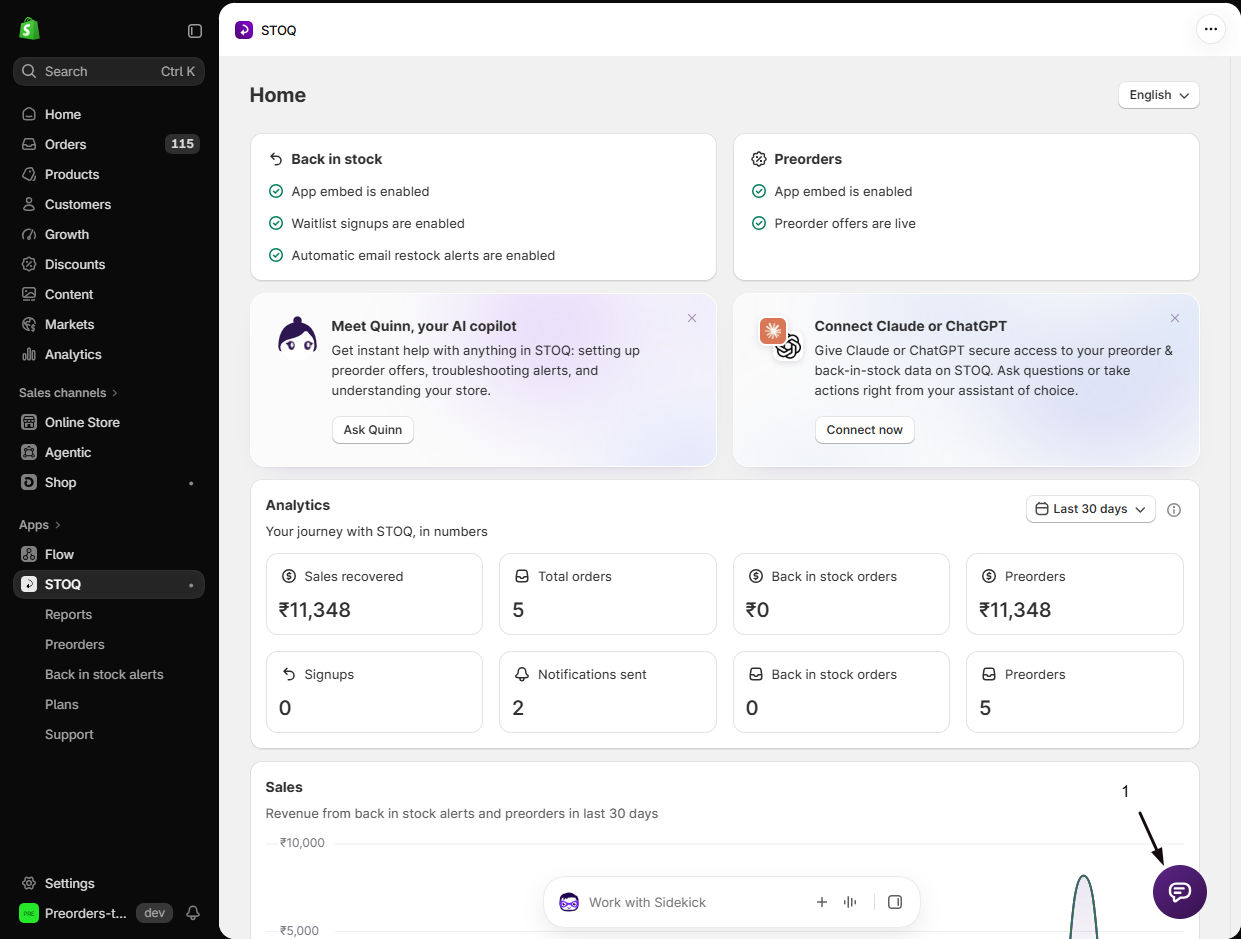
Open the chat menu
Click the purple chat icon in the bottom-right corner of any STOQ page.
-
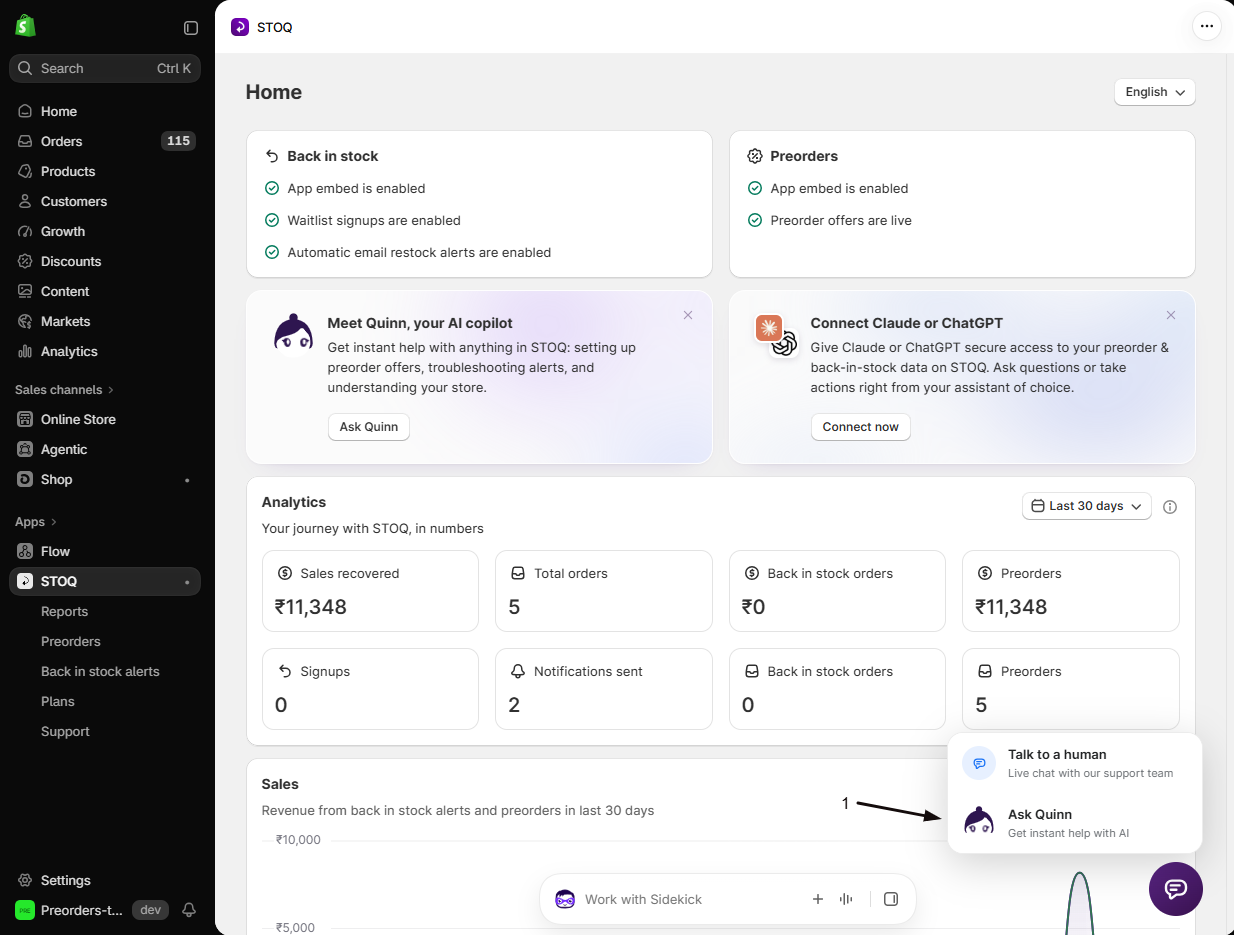
Choose Ask Quinn
In the menu that opens above the icon, click Ask Quinn at the bottom. The Quinn panel opens on the Chat tab.
Talk to a human, for live chat with the support team, is at the top of the menu. If you haven’t finished onboarding, you’ll also see Finish setup in between.
-
Accept the disclaimer the first time
The first time, Quinn lists three things to know: it’s experimental, it can make mistakes, and it sends relevant store data to Anthropic’s Claude Sonnet model to answer you. Click I agree and understand to start.
-
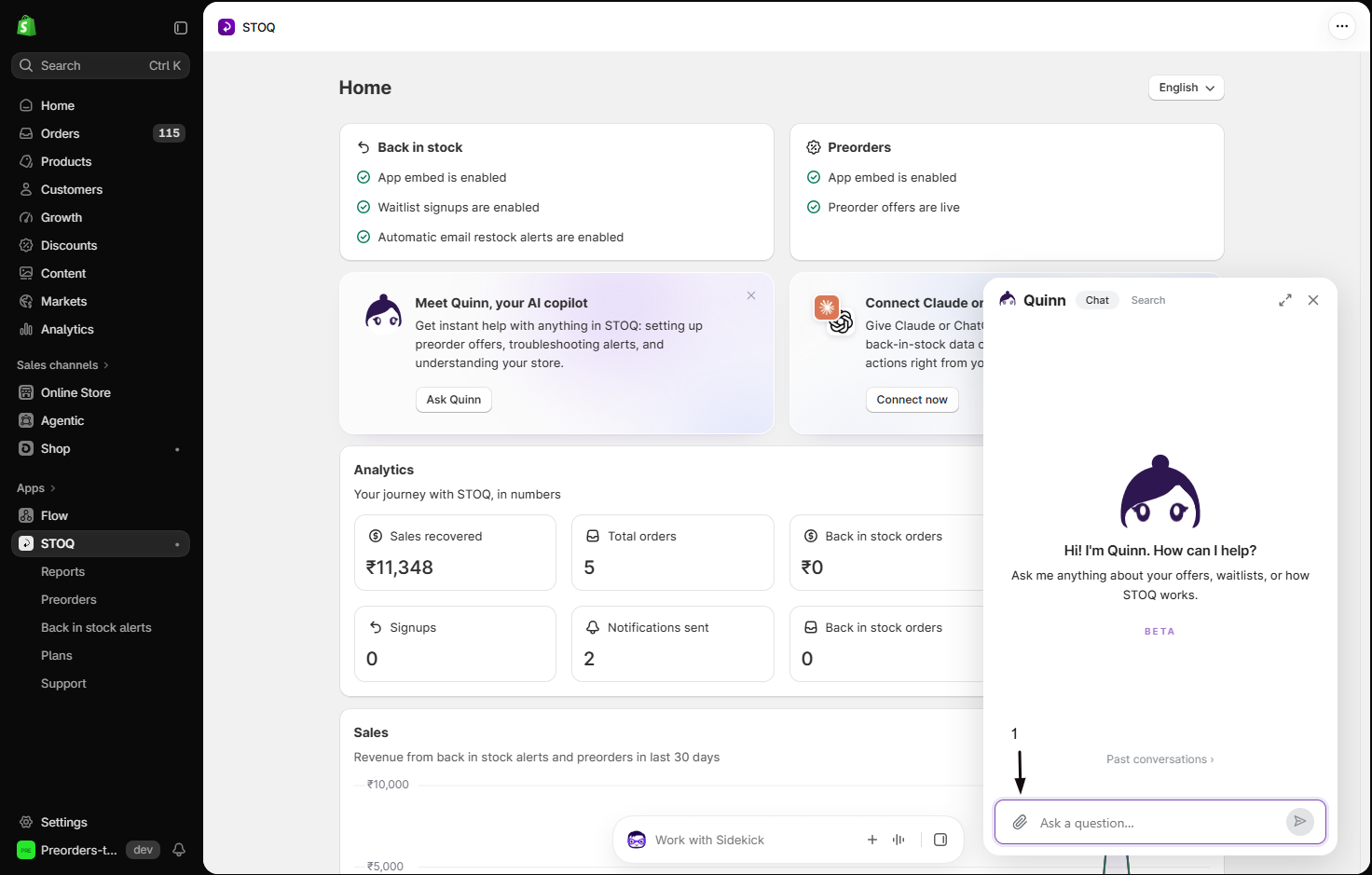
Ask your question
Type in the Ask a question… box at the bottom of the panel, then press Enter or click the send arrow to the right of the box.
To show Quinn what you’re looking at, click the paperclip icon (Attach screenshot) to the left of the box, or paste an image into the box. PNG, JPG, and WebP images up to 5 MB work.
When an answer draws on help articles, a sources link appears under it, such as 2 sources. Click it to see which articles Quinn used.
Other controls in the panel:
- Start a new conversation: click Home at the top left of the panel.
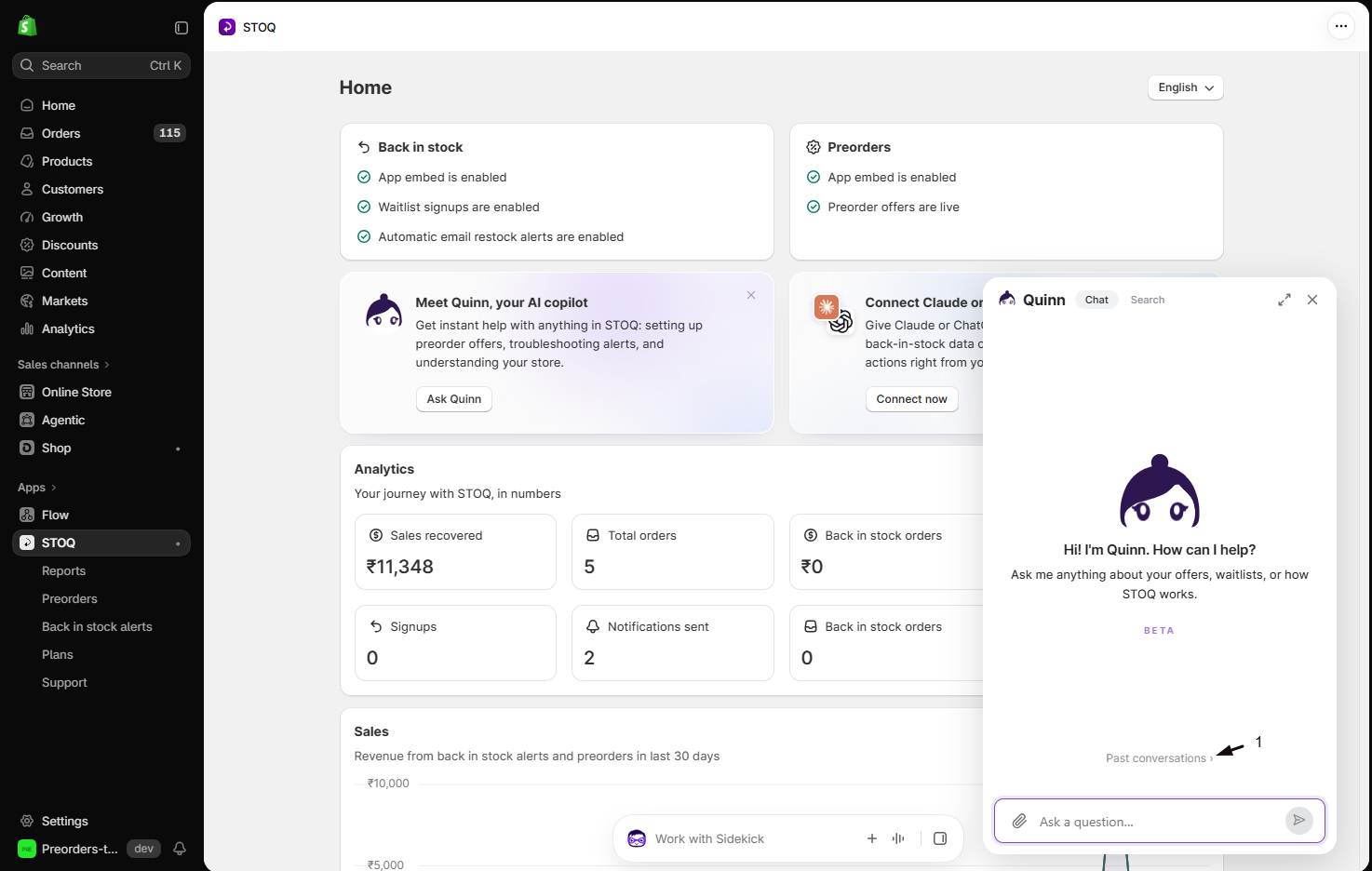
- Reopen an earlier conversation: on the panel’s home screen, click Past conversations at the bottom.
- Make the panel bigger: click the expand icon (Expand) at the top right.
- Close the panel: click the close icon at the top right. Your conversation is kept, and you can find it again under Past conversations.
If Quinn answers while the panel is closed, or after you reload the page, a preview of the reply appears above the chat icon and a badge shows on the icon and next to Ask Quinn. Click the preview, or Ask Quinn in the menu, to open that reply. To hide the preview, click the close icon (Dismiss) on it.
Search from Quinn
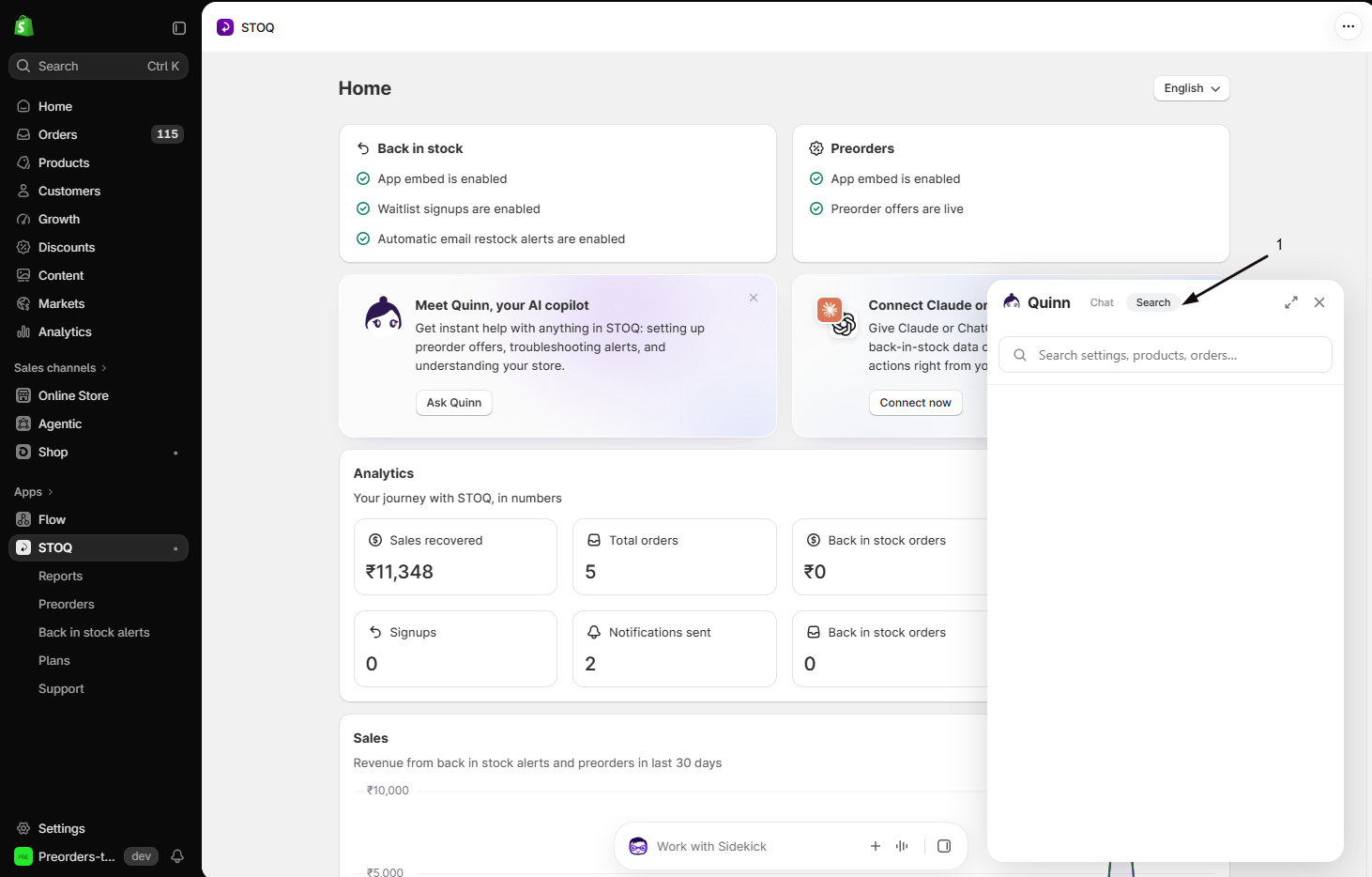
Section titled “Search from Quinn”To jump to a setting, product, offer, or order, click the Search tab at the top of the panel, next to Chat. The tabs show on the panel’s home screen only, so click Home first if you’re in a conversation. See Find anything with search.
Approve a change Quinn suggests
Section titled “Approve a change Quinn suggests”Quinn never changes anything on its own. When you ask it to change a setting, it shows you exactly what will change and waits for you.
-
Ask for the change
Tell Quinn what you want in the Ask a question… box, for example “Change the preorder button text on my newest offer to Pre-order now.”
-
Review the change card
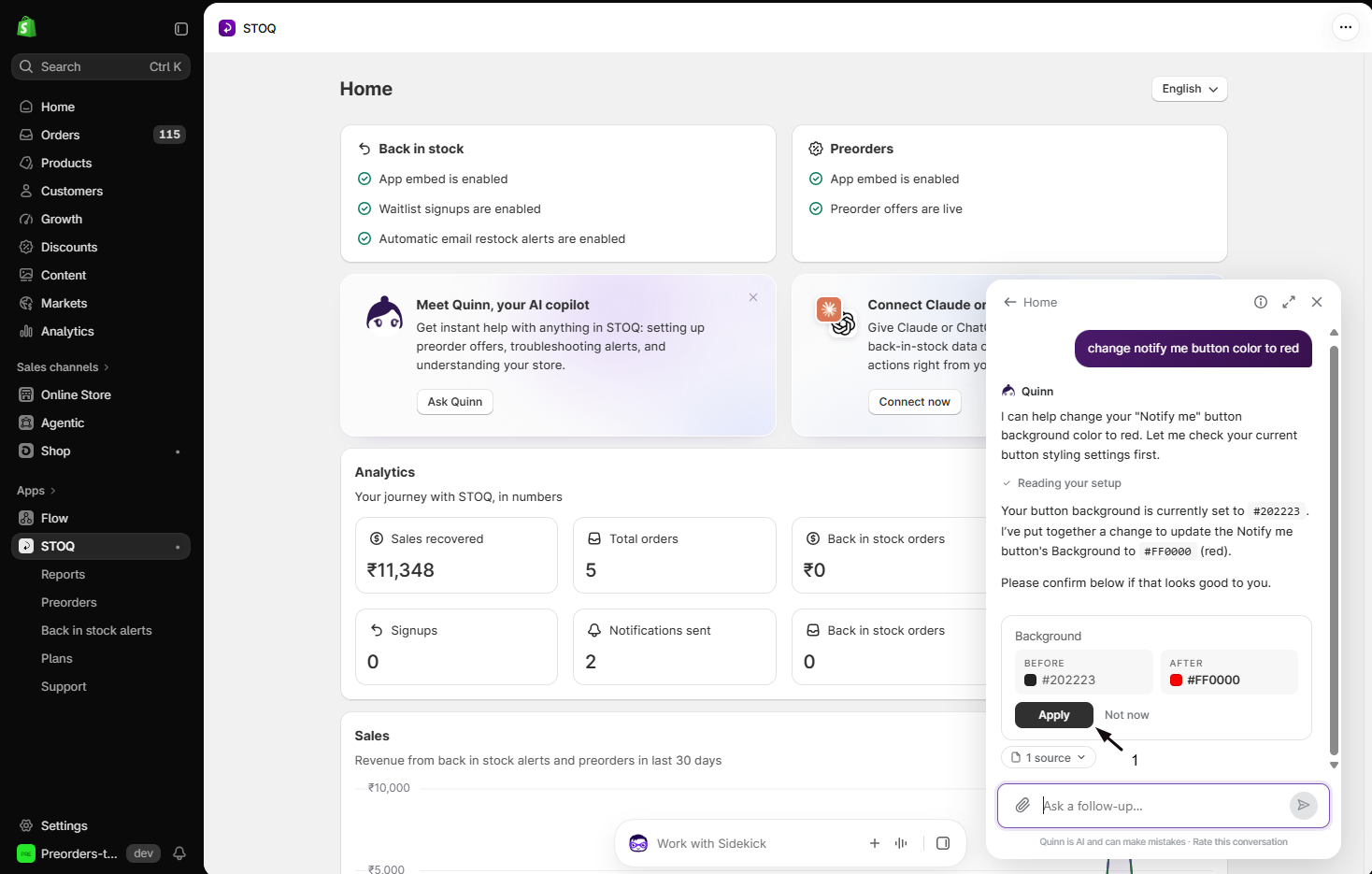
Quinn replies with a card that names the change and lists each setting with its current value, an arrow, and the new value.
To look at the setting first, or to make the change yourself, click Open next to Not now on the card. It takes you to the page where that setting is edited. For an offer change, it opens that offer at the right section. Hover over Open to see the click path, for example Preorders › Offers › “Preorder 1” › Customize › Payment. A few cards, such as actions on a single order, have no single page to open and show no Open link.
-
Apply or dismiss the change
To make the change, click Apply on the card (Apply all with the number of changes when the card lists several at once). For an action that’s hard to undo, or a one-off such as an order action, the button shows that specific action instead and turns red, for example collecting a customer’s balance payment or deleting a waitlist signup.
To cancel, click Not now beside it. The card changes to Dismissed.
-
Save the page if that setting’s page is open
If the page for that setting is already open behind Quinn, such as the offer editor, Quinn fills the change in on the page instead of saving it for you. A Setting updated message appears. Review the change, then click Save changes at the top right of the editor to keep it. On a settings page without an editor, click Save in the bar at the top.
When a change goes through, the card shows Applied and Quinn confirms what it did. The Open link stays on the card after you apply it, dismiss it, or let it expire, so you can go back to that setting later.
Restyle STOQ elements with CSS
Section titled “Restyle STOQ elements with CSS”Ask Quinn to restyle one of STOQ’s own storefront elements, for example “Center the preorder shipping text.” Quinn checks your current custom CSS, then proposes the change on a card. Each row on the card shows one rule in full, labelled Add CSS rule, Replace CSS rule, or Remove CSS rule. The rest of your custom CSS stays exactly as it is.
To apply the change, click Apply (or Apply all with the number of rules when there are several). A card that removes rules has a red Update CSS button instead. Click Not now to cancel.
Your custom CSS is one field shared by preorders and back in stock, and it applies on every storefront page. Quinn only styles STOQ’s own elements, such as the Preorder button, badge, countdown, Notify me button, and signup form. It doesn’t write JavaScript, Liquid, or theme file edits. To write the CSS yourself, see Customize preorder elements with CSS.
Check your change
Section titled “Check your change”After you apply the change, click Open on the change card, or ask Quinn to take you to that setting, and check the new value on the page. For changes customers can see, like button text, open the product in an incognito window.
Rate Quinn’s answers
Section titled “Rate Quinn’s answers”Your ratings and comments go to the STOQ team and help improve Quinn.
-
Rate an answer
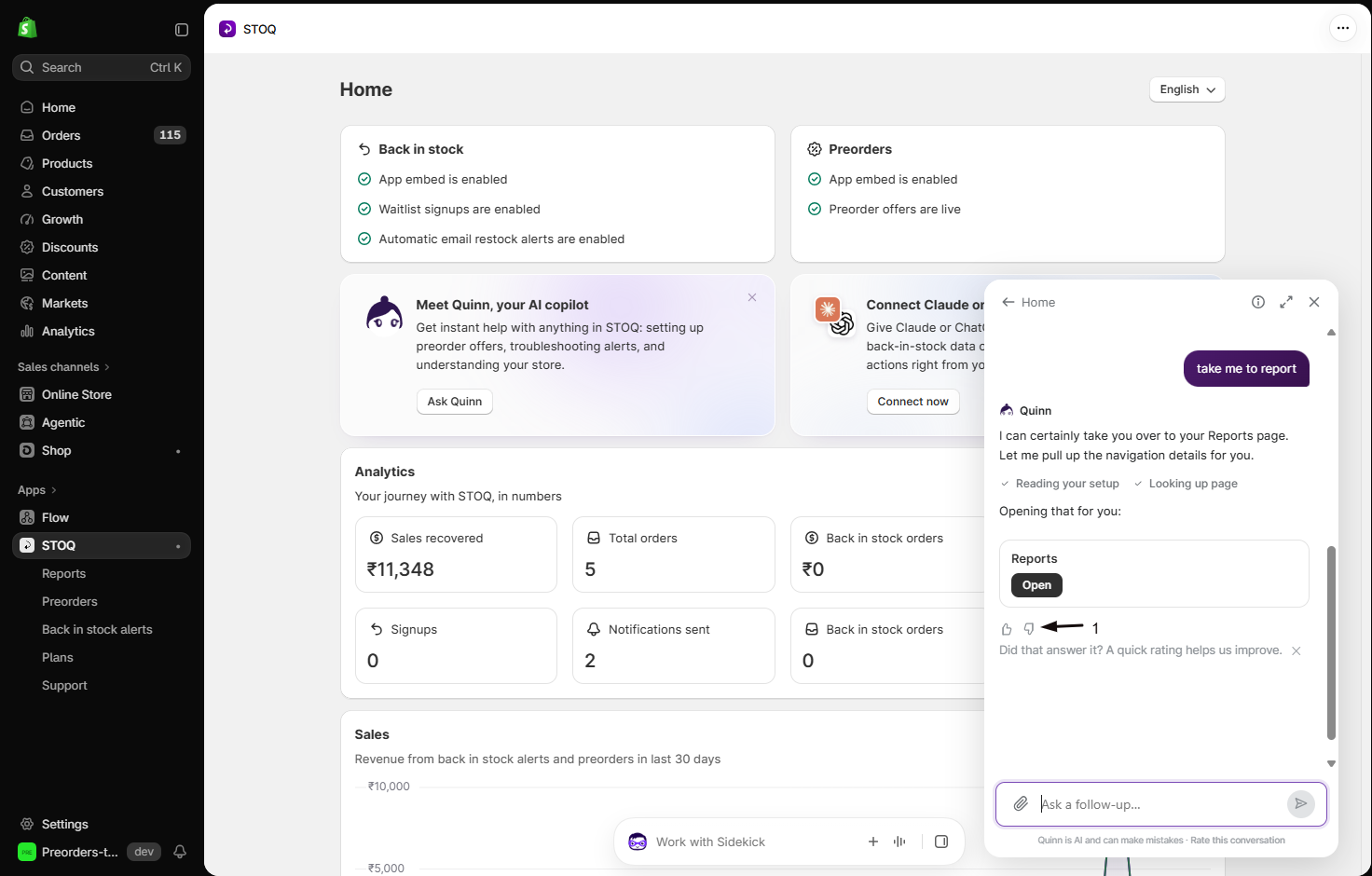
Under Quinn’s latest answer, click the thumbs-up icon (Helpful) or the thumbs-down icon (Not helpful).
-
Add a comment
To say more, click the speech-bubble icon (Add a comment) next to the thumbs, type what helped or what went wrong, then click Send.
-
Rate the whole conversation
Below the message box, click Rate this conversation. Choose Helpful or Not helpful, add a reason if you like, then click Send feedback.
Troubleshooting
Section titled “Troubleshooting”Quinn says it's unavailable on partner and development stores
Quinn doesn’t chat on Shopify partner or development stores, so the message box is turned off. You can still use the Search tab, and Talk to a human in the chat menu. Quinn works as normal on your live store.
Quinn says something went wrong
- Click Home at the top left of the panel and ask again in a new conversation.
- If it keeps happening, close the Quinn panel, click the purple chat icon, and choose Talk to a human. The support team can look into it.
A change Quinn made didn't stick
If that setting’s page was open when you applied the change, Quinn filled the change in on the page without saving it. Open the page again, make the change (or ask Quinn again), then click Save changes at the top right of the editor, or Save on a settings page.
The Search tab is missing
The Chat and Search tabs only show on the panel’s home screen. Click Home at the top left of the panel to get back to it.
Quinn says STOQ is on a hidden copy of the add-to-cart button
When you tell Quinn the Preorder or Notify me button isn’t showing, it opens your live product page and checks which add-to-cart button STOQ attached to. Some themes have more than one copy of that button, for example in a sticky bar, a quick-view window, or a mobile-only duplicate. If STOQ is on a copy shoppers can’t see, Quinn names the visible button and says the button selector is the cause, not your theme. Quinn only says the theme is hiding the button when STOQ is on the visible one.
- For the Preorder button, open the offer’s Advanced settings, turn on Dev mode under Developer settings, and enter the visible button Quinn named in the ‘Add to cart’ button field. This selector applies to all your offers. See Advanced settings.
- For the Notify me button, ask Quinn to fix its placement, or see Advanced placement and custom CSS.
- If you’re not sure which selector to use, click the purple chat icon, choose Talk to a human, and share what Quinn found.
Quinn's answer looks wrong
- Click the thumbs-down icon (Not helpful) under the answer and add a comment so the team can fix it.
- Check the real value on the setting’s page. Ask Quinn to take you there, or use the Search tab.
- For anything critical, close the Quinn panel, click the purple chat icon, and choose Talk to a human.
Will Quinn change my settings without asking?
No. Every change shows up as a card first, and nothing happens until you click Apply on the card. You can click Not now instead to cancel.
Can I make the change myself instead of applying the card?
Yes. Click Open on the card to go to the page where that setting is edited, then change it there and save. Cards for actions on a single order have no Open link.
Can Quinn edit my theme code or add JavaScript?
No. Quinn can change your STOQ custom CSS to restyle STOQ’s own elements, but it doesn’t write JavaScript, Liquid, or theme file edits, and it doesn’t style your theme’s own elements.
What can Quinn change for me?
Quinn can update your preorder offer settings (status, products and variants, payment, shipping, limits, batches, countdown timer, markets, inventory, checkout, POS and B2B, advanced settings, and the widget), turn several offers on or off at once, duplicate an offer, or reset an offer’s storefront text to STOQ’s default translations. It can also update your preorder emails and notification settings, your shop-wide preorder settings (the Preorder button on home, collection, and search pages, markets and locations, and storefront text such as button text and currency format), and your back in stock settings, widget, products, and email templates. If the Notify me button doesn’t show on your product pages, Quinn can also fix its placement. It can add or remove rules in your custom CSS to restyle STOQ’s own storefront elements. It can also manage a single waitlist signup, or run an action on one preorder order: release an on-hold fulfillment, put all its fulfillments on hold, split its preorder items into their own fulfillment orders, open a scheduled fulfillment, reschedule its fulfillment date (and email the customer a shipping update) or balance payment date, or collect the outstanding balance.
Can Quinn connect my integrations?
Quinn can check the status of each integration on the Integrations page, disconnect one, or run a Klaviyo or Postscript setup step such as verifying a flow. To connect an integration, Quinn gives you a link to finish connecting it yourself. Quinn never asks for your API keys: for integrations that use a key, such as Postscript, Mailchimp, or Omnisend, the link opens the place in STOQ where you enter it.
Does a change from Quinn affect existing orders or customers?
It works the same as making the change yourself on that setting’s page, so it follows that setting’s usual rules. If a setting only applies to new orders when you change it by hand, the same is true when Quinn changes it.
What happens to my store data?
To answer you, Quinn sends relevant store data to Anthropic’s Claude Sonnet model. The disclaimer you accept the first time you open Quinn says this too.
How do I reach a real person instead?
Click the purple chat icon and choose Talk to a human for live chat with the support team. If Quinn can’t help with something, it also shows a Talk to a human button under its answer.
Support asked for my conversation ID. Where is it?
Open the conversation in Quinn and click the info icon (Conversation info) at the top right of the panel. The Conversation ID appears. Click Copy to copy it.
Related guides
Section titled “Related guides”Thanks for letting us know.
Still stuck? Ask Quinn or chat with support