Set up STOQ buttons on Pagefly
Make the Preorder and Notify me buttons appear on product, collection, home, search, and custom pages built with Pagefly.
Last updated
STOQ can show the Preorder and Notify me buttons on pages built with Pagefly, but because Pagefly uses its own page structure, it needs a little extra setup to detect your products and place the buttons. There are two setups: the Preorder button on Pagefly product pages, and the buttons on Pagefly collection, home, search, and custom pages. Do the one, or both, that match how you use Pagefly.
Before you begin
Section titled “Before you begin”| Requirement | Detail |
|---|---|
| Online Store 2.0 theme with the app embed on | STOQ’s app embed only works on Online Store 2.0 themes. See Enable STOQ on your theme. |
| The page type turned on in STOQ | Enable each page type under Preorders > Settings > Pages, or the Notify me equivalent. See Show the preorder button on store pages. |
| An active offer or signups | Your preorder offer or back in stock signups are active for the relevant products. |
Product pages
Section titled “Product pages”Pagefly product pages use a custom layout for the buy buttons, so STOQ needs to be told exactly where they are. You add a custom CSS class to the buy-buttons block in Pagefly, then enter that class in STOQ’s Dev mode.
-
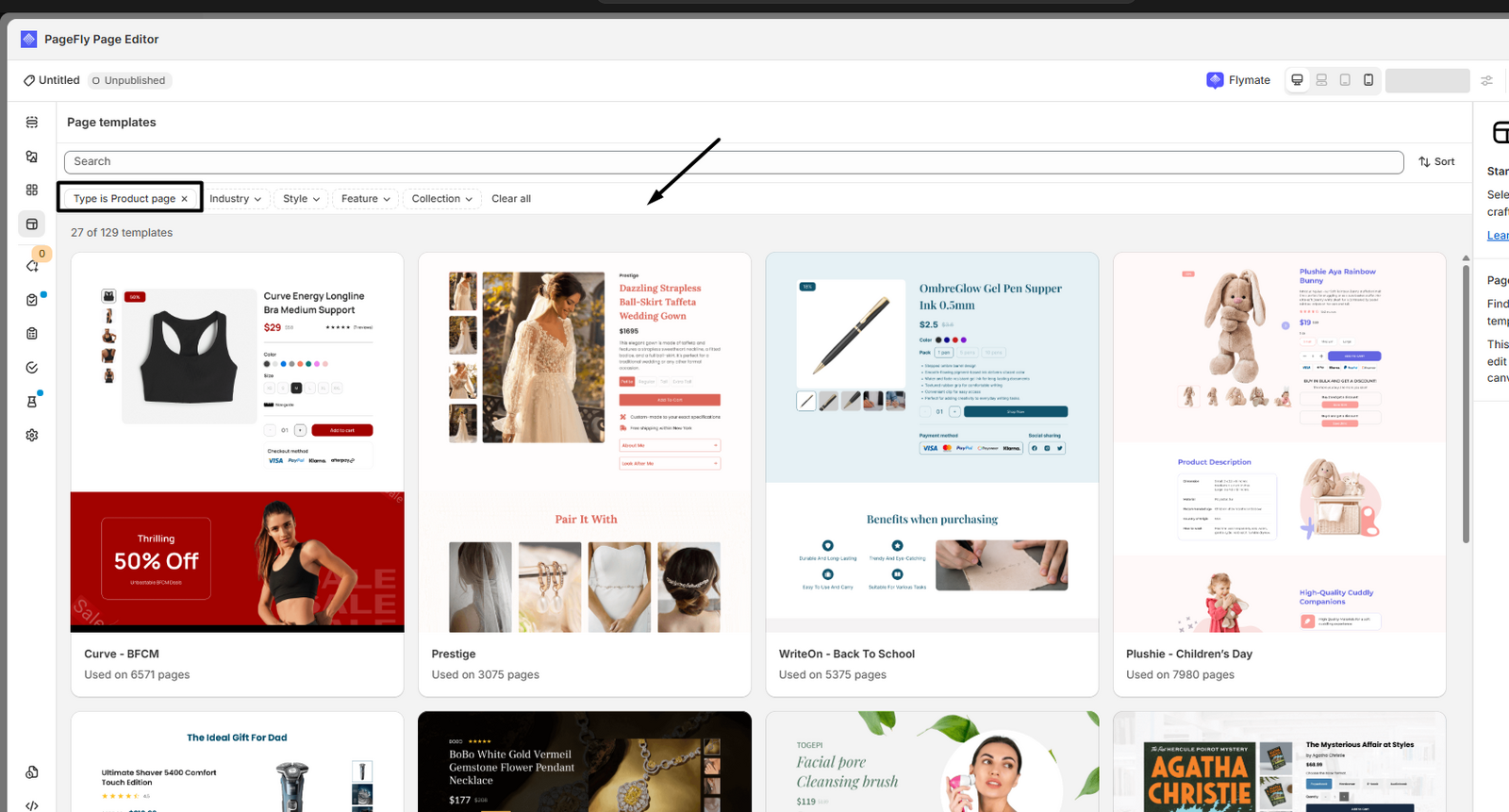
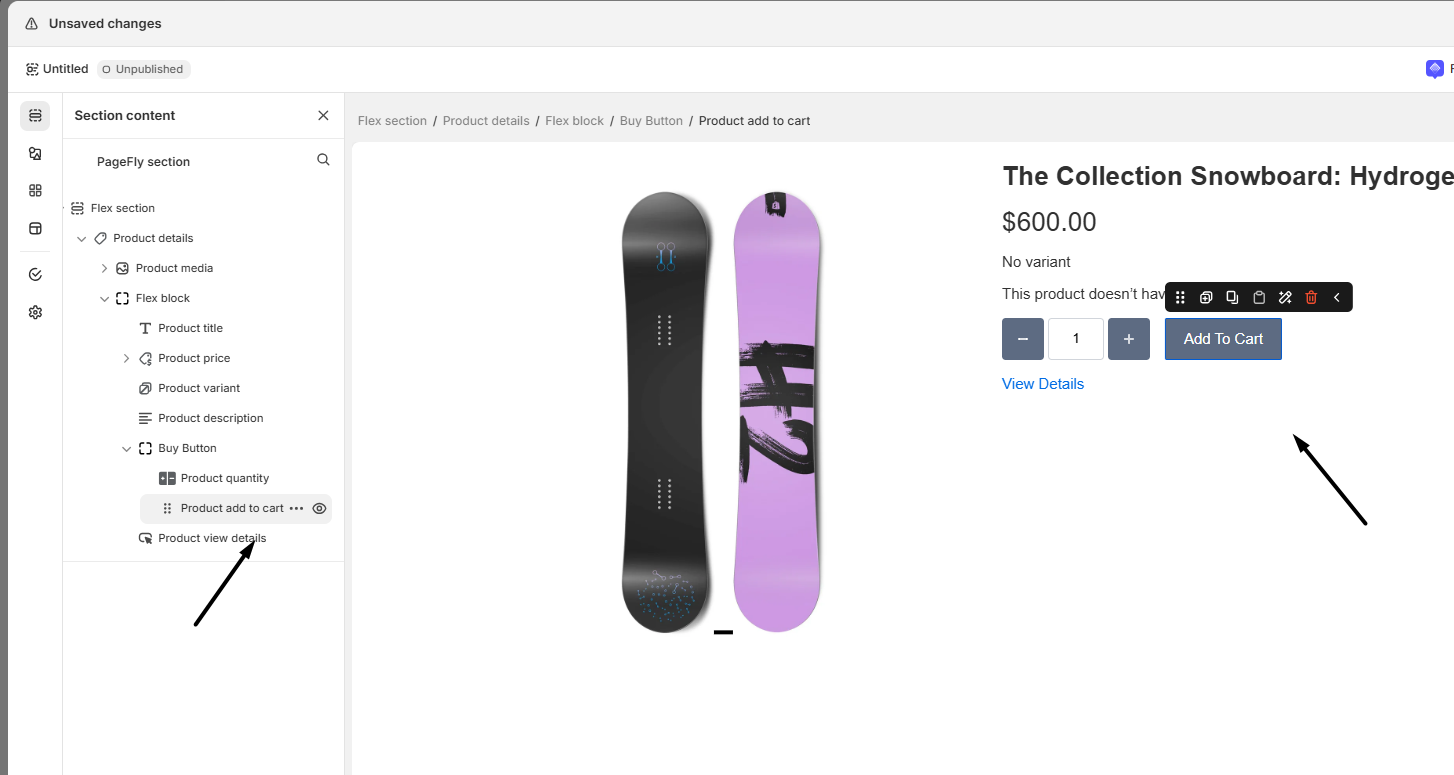
Find the buy buttons block in Pagefly
- Open the Pagefly app in your Shopify admin.
- Go to Sections and open the product page or section you want to configure.
- Expand the tree list on the left until you find the Block that holds the buy buttons and quantity selector.
-
Add a custom CSS class
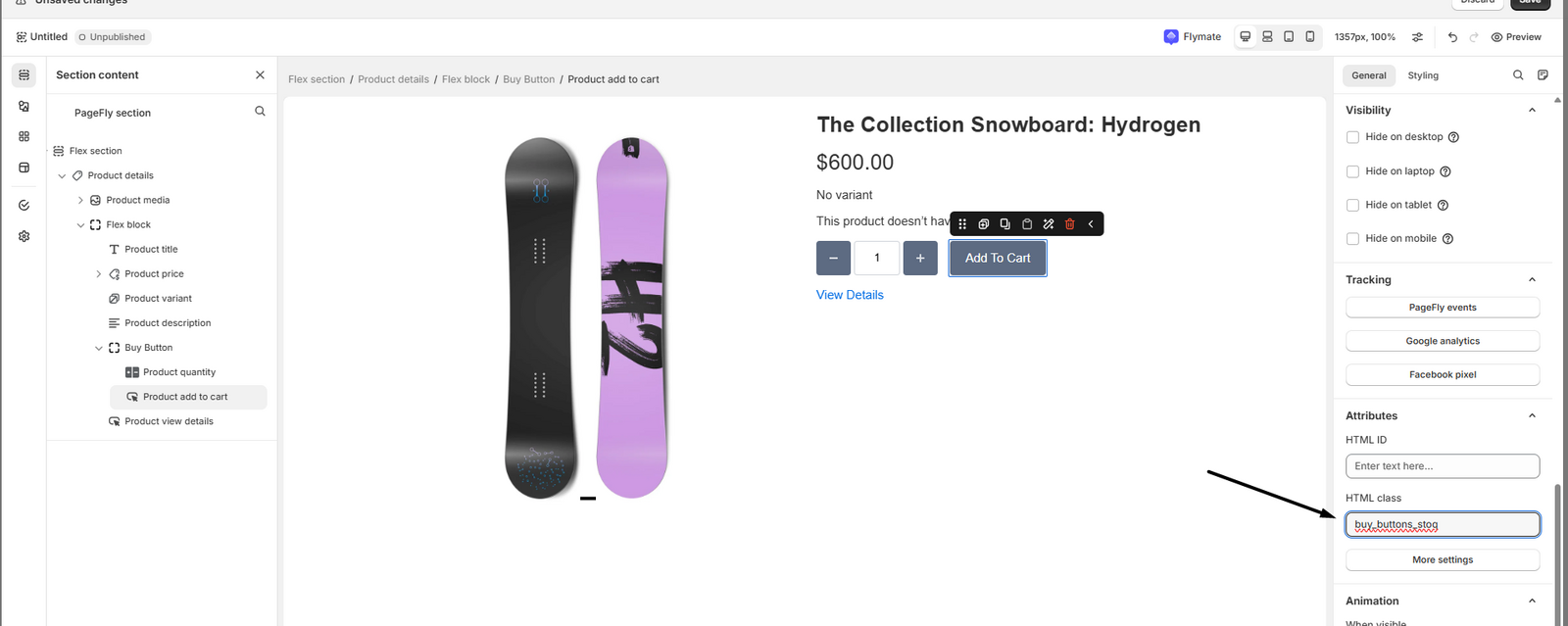
- Select the block that holds the buy buttons.
- On the right panel, scroll to the Attributes section.
- In the HTML class field, enter a class name, for example
buy_buttons_stoq. Use a descriptive name with no spaces (use underscores or hyphens).
-
Save and publish in Pagefly
Click Save, then Publish. Saving alone doesn’t update your live storefront; you must publish.
-
Point STOQ at the class in Dev mode
- In the STOQ app, go to Preorders > Settings.
- Turn on Dev mode.
- In the Form section field, enter the class you added in Pagefly with a dot prefix, for example
.buy_buttons_stoq, then click Save.
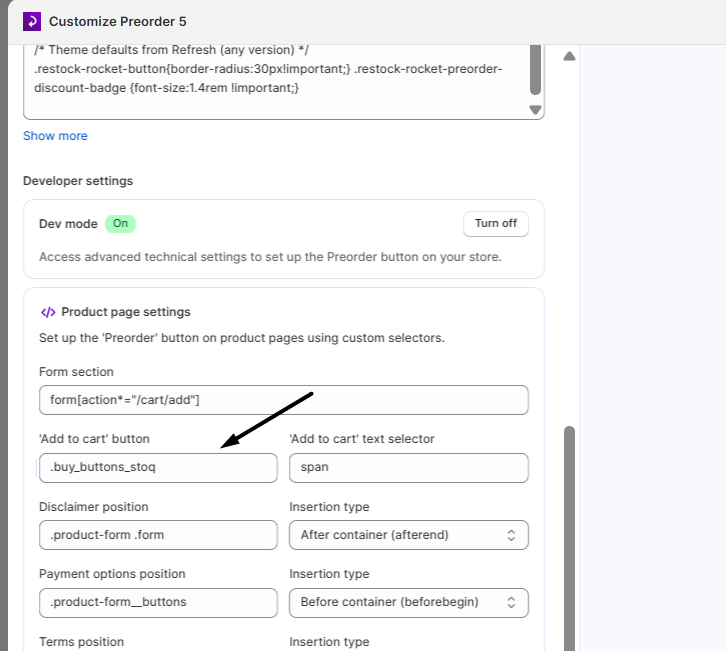
This is a one-time setup. The Preorder button then appears automatically on your Pagefly product pages for any product in an active offer. For every Dev mode field, see Advanced settings, or the Notify me Dev mode guide for the Notify me button.
Collection, home, search, and custom pages
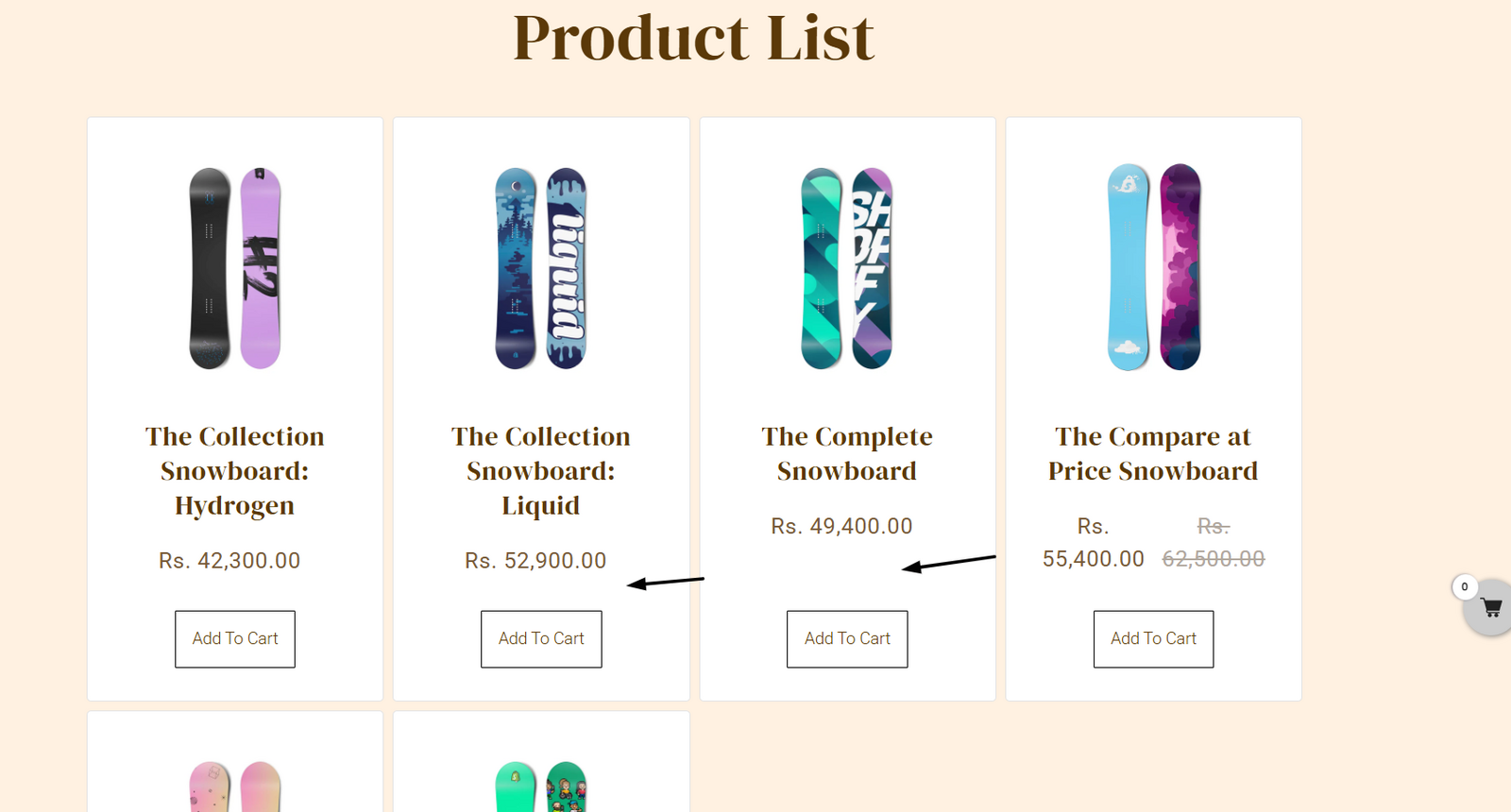
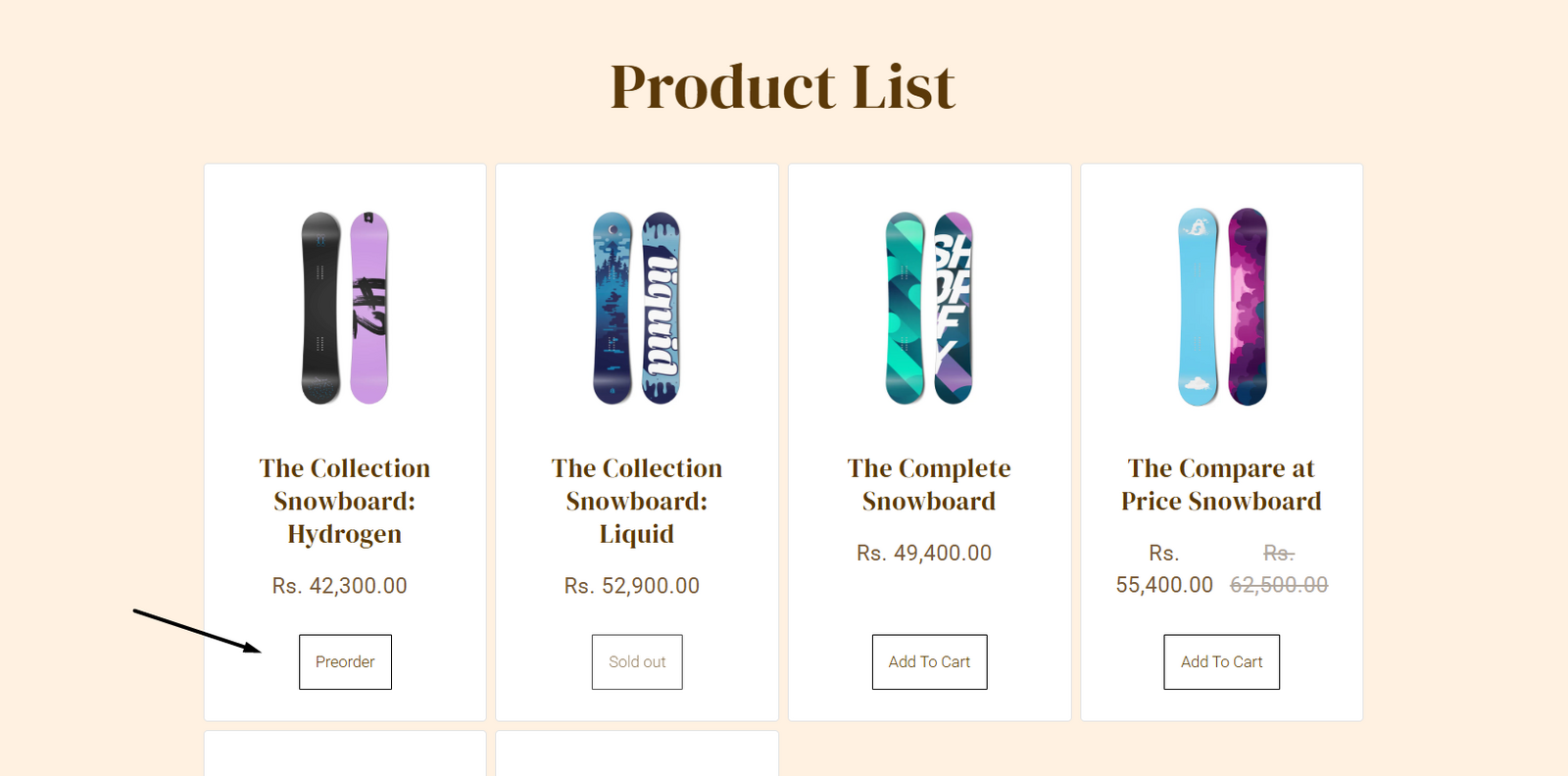
Section titled “Collection, home, search, and custom pages”STOQ detects products on these pages by looking for links (<a> tags) whose URL contains /products/. Pagefly doesn’t add those links by default, so STOQ can’t tell which products are on the page and no buttons appear. The fix is to add a hidden product link block.
STOQ can add the buttons to any Pagefly page that displays products:
- Collection pages: product grids on collection or category pages.
- Home page: featured products, carousels, and product grids.
- Search pages: products shown in search results.
- Custom pages: any landing page or section that lists products.
-
Add a product link block
- Open the Pagefly app in your Shopify admin.
- Go to Sections and open the page or section with your product list.
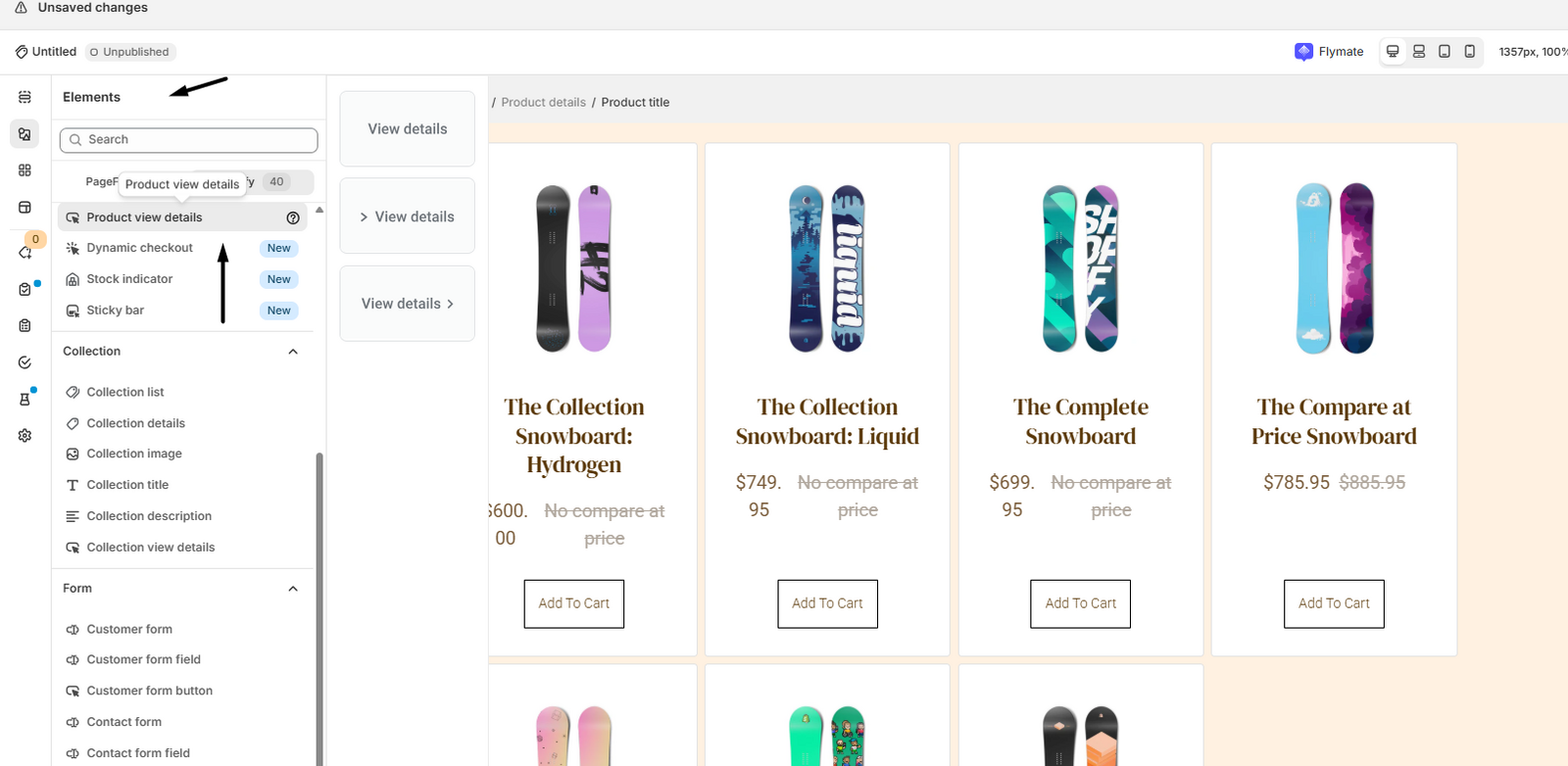
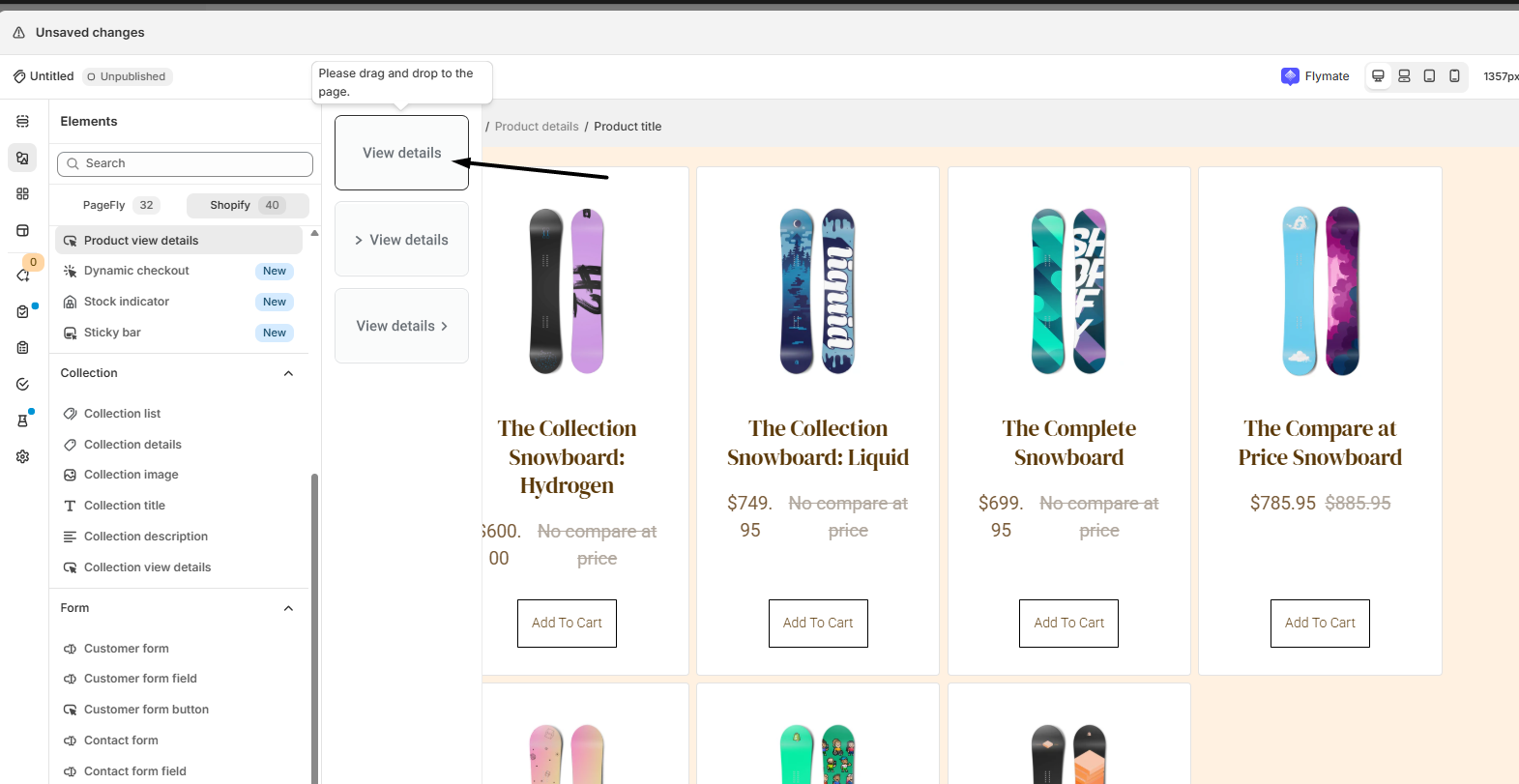
- Click the Elements tab, and under the Shopify tab find the Product view details block.
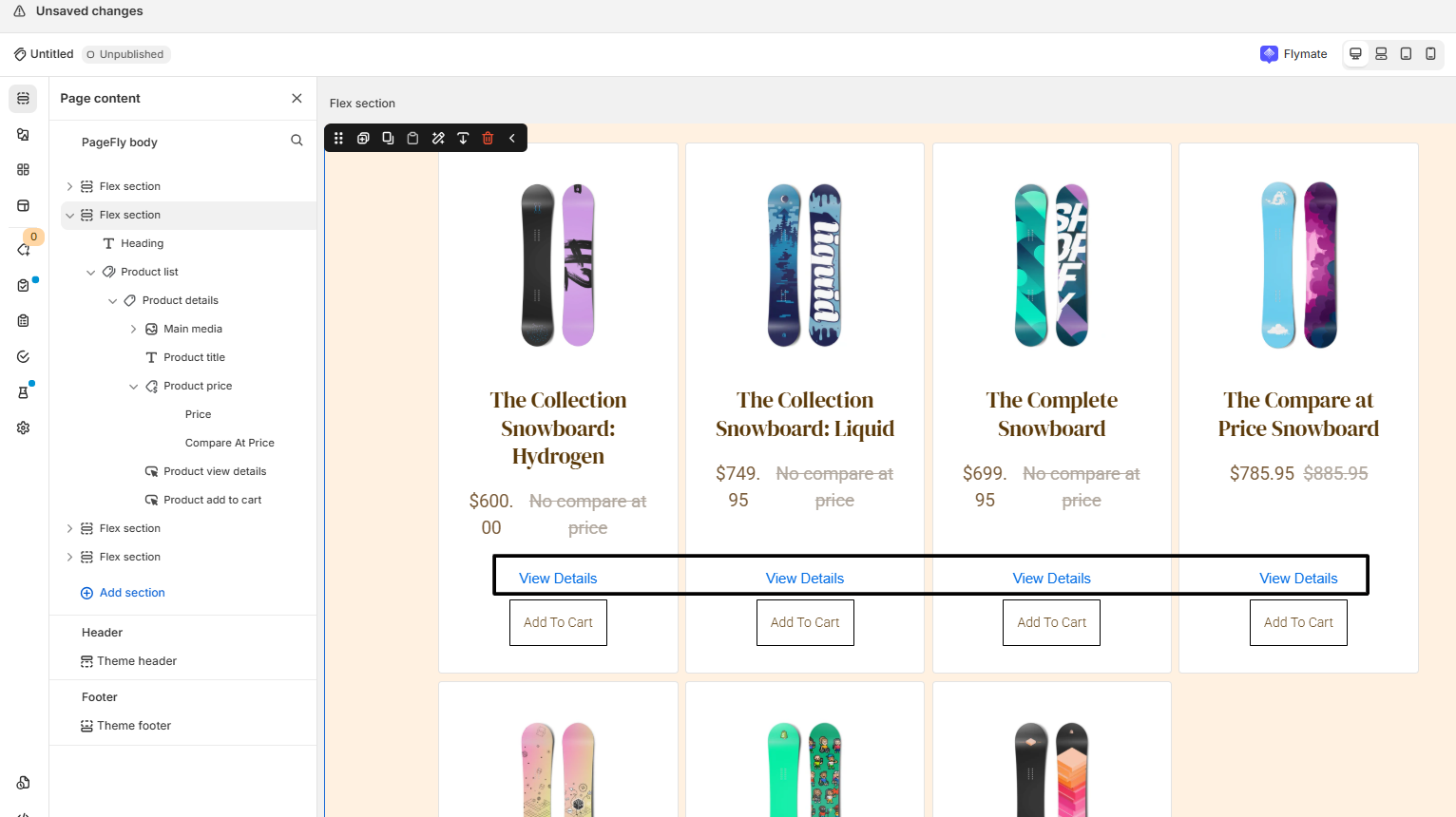
- Drag it into the parent section that holds the product list (the same section as the buy buttons). This adds a
/products/link to each product for STOQ to detect.
-
Hide the block on all devices
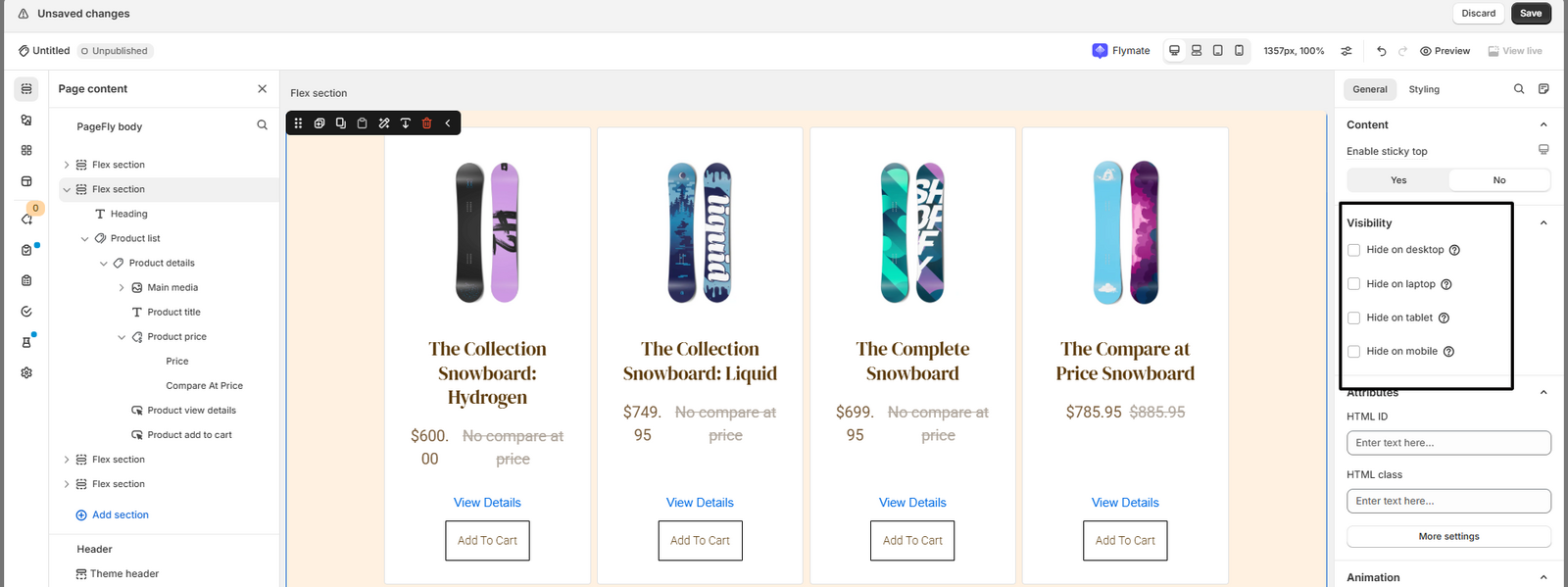
Select the Product view details block in the tree list, then in its settings turn on Hide on desktop and Hide on mobile. The link stays in the HTML for STOQ to read, but customers don’t see it.
-
Save, publish, and verify
- Click Save, then Publish in Pagefly.
- Open the page on your storefront.
- Confirm the Product view details link is hidden and the Preorder or Notify me button now appears on the relevant products.
If the buttons still don’t show, confirm the app embed is on, the page type is enabled under Preorders > Settings > Pages, and the offer is enabled and linked to the products under Preorders > Offers.
Enable Quick Buy and Featured product (optional)
Section titled “Enable Quick Buy and Featured product (optional)”If your Pagefly pages use Quick Buy modals or Featured product sections, the full preorder experience can appear inside them too. These integrations need a one-time setup by the STOQ team, and a paid plan.
-
Open the Pages editor
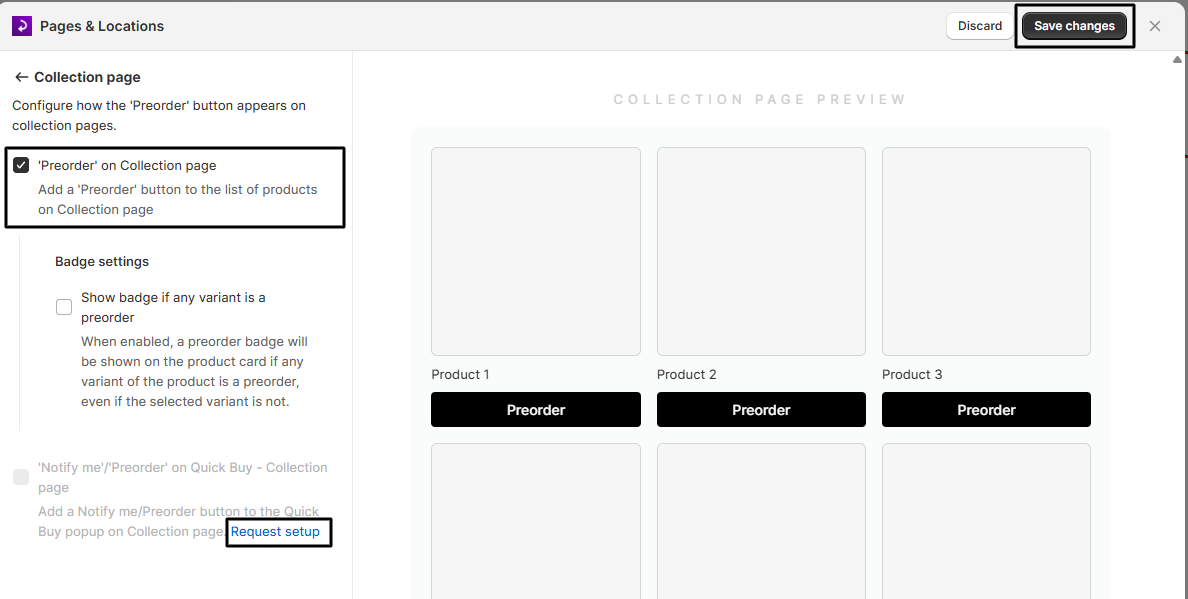
In the STOQ app, go to Preorders > Settings > Pages, then click Customize to open the Pages editor.
-
Request the integration
Under each page type, find the Quick Buy checkbox (the home page also has a Featured product checkbox), then click the Request setup link beneath it.
-
Wait for confirmation
The STOQ team reviews your Pagefly layout and builds the integration for your theme. You get an email and a chat message when it’s ready, and the Request setup link becomes a toggle you can turn on or off.
Quick Buy and Featured product are available on collection, home, and search pages.
Position the button with a stable selector
Section titled “Position the button with a stable selector”If you use Dev mode to place the button, or set a selector for a custom card layout, choose the selector carefully. Pagefly auto-generates dynamic class names that change from one section to the next, so a selector built on them breaks easily.
Instead, target the custom class you add yourself, such as .buy_buttons_stoq on the buy-buttons block, or another stable selector like a data attribute. If you can’t find a stable selector, add your own custom class to the button (or the relevant element) in Pagefly and target that. If STOQ support is helping you, they’ll request collaborator access to add the class for you.
Limitations
Section titled “Limitations”- Product pages need Dev mode. You must turn on Dev mode and enter the custom class from Pagefly in the Form section field.
- Non-product pages need the product link. STOQ relies on
<a>tags with/products/in the URL. If the Product view details block is removed, or a Pagefly update changes the structure, the buttons stop appearing and you re-add it. - Publishing is required. Saving in Pagefly doesn’t update the live storefront; STOQ reads the live page, so you must click Publish.
- Online Store 2.0 is required. STOQ’s app embed only works on Online Store 2.0 themes, regardless of Pagefly.
- Custom product card layouts may need Dev mode. A non-standard card structure can place the button in the wrong spot. Use Dev mode with a stable selector.
Troubleshooting
Section titled “Troubleshooting”No Preorder button on a Pagefly product page
The custom class isn’t set in STOQ. Turn on Dev mode under Preorders > Settings and enter the class, for example .buy_buttons_stoq, in the Form section field, matching the class on the Pagefly buy-buttons block exactly (including the leading dot). Confirm you published in Pagefly.
No buttons on a collection, home, or search page
Check these in order:
- The Product view details block is added to the product list and published.
- The page type is enabled under Preorders > Settings > Pages.
- The app embed is on, and the offer is enabled and linked to the products under Preorders > Offers.
The Product view details link is visible on the page
Its hide options aren’t on. Select the block in Pagefly and turn on both Hide on desktop and Hide on mobile, then publish.
Changes aren't showing on the storefront
Pagefly saved a draft but wasn’t published. STOQ reads the live page HTML, so click Publish in Pagefly to push the changes live.
The button appears in the wrong position
A custom Pagefly layout can misplace the button. Enable Dev mode and set custom selectors, using a stable selector rather than a Pagefly auto-generated class. See Position the button with a stable selector.
The Quick Buy modal doesn't show the preorder button
The Quick Buy integration isn’t set up or isn’t enabled. In the Pages editor, check the Quick Buy toggle. If it still shows Request setup, click it to request the integration.
Do I need to do both setups?
Only if you use Pagefly for both product pages and non-product pages. If your product pages use your theme’s default layout (not Pagefly), you only need the collection, home, search, and custom page setup.
Where do I enter the custom CSS class in STOQ?
Go to Preorders > Settings, turn on Dev mode, and enter the class with a dot prefix, for example .buy_buttons_stoq, in the Form section field. See Advanced settings for all the Dev mode fields.
Why do I need to publish in Pagefly for changes to work?
Pagefly saves a draft when you click Save; the live storefront only updates when you click Publish. STOQ reads the live page, so unpublished changes aren’t detected.
Does this work for both the Preorder and Notify me buttons?
Yes. Both rely on the same product detection. Once STOQ can detect products on the page, both buttons appear based on your offer and alert settings.
Will I need to redo this if I update my Pagefly layout?
Only if you rebuild the section from scratch. Minor edits usually preserve both the custom CSS class and the Product view details block.
Do I need to repeat this on each Pagefly page?
Yes. Each Pagefly section that contains a product list needs the Product view details block added separately.
Does this also work with GemPages or other page builders?
These steps are specific to Pagefly. See Set up STOQ buttons on GemPages for that builder, or contact support for another.
Related guides
Section titled “Related guides”Thanks for letting us know.
Still stuck? Ask Quinn or chat with support