Use STOQ with Shopify Combined Listings
Keep the Notify me and Preorder buttons correct as customers switch between child products in a combined listing.
Last updated
Shopify Combined Listings (a Shopify Plus feature) groups several products onto one product page, where each child product keeps its own inventory, variants, and URL. Without special handling, STOQ would only see the first product loaded and wouldn’t update the button when a customer switches child products. STOQ’s Combined Listings integration fixes that.
Before you begin
Section titled “Before you begin”- Shopify Plus plan (Combined Listings is Plus-only).
- An Online Store 2.0 theme.
- Combined Listings already configured in Shopify, with each child product added to your preorder offer where relevant.
Turn it on
Section titled “Turn it on”-
Open your Integrations
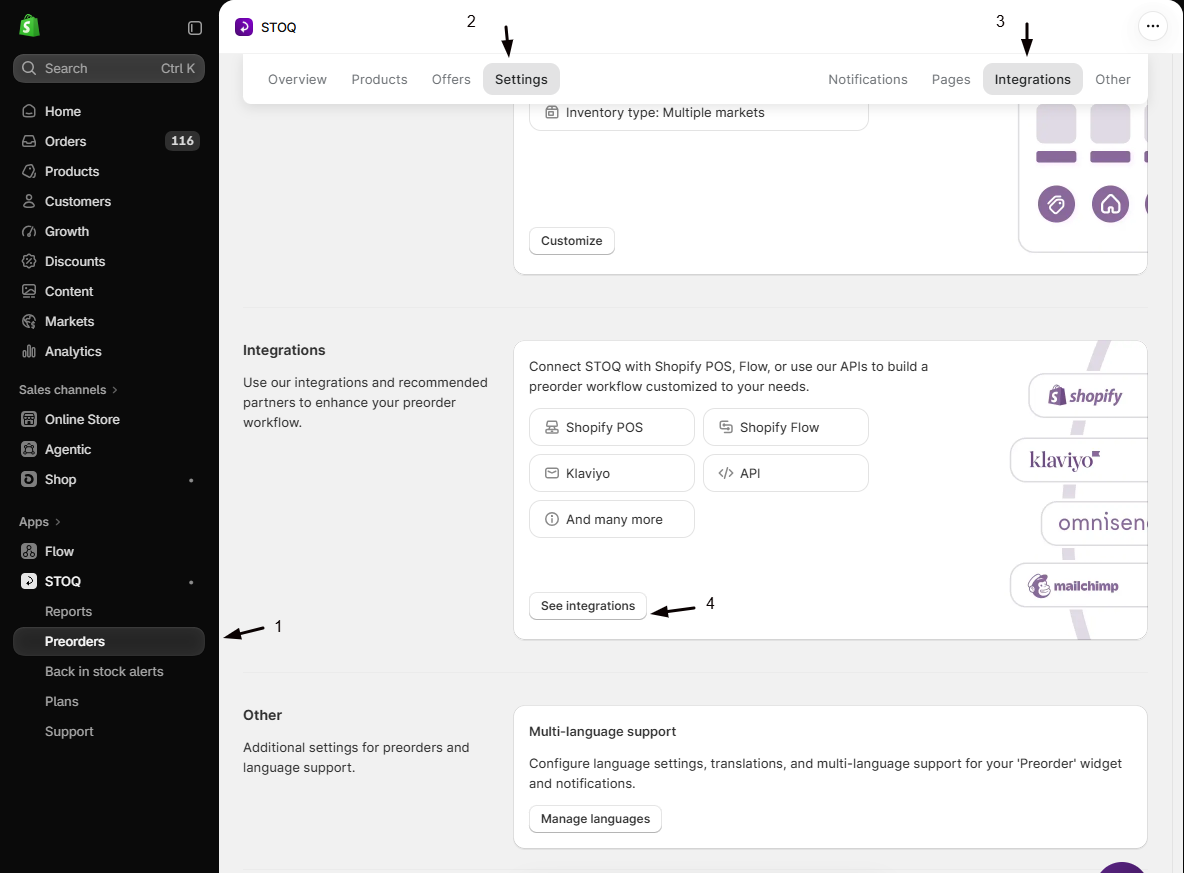
Go to Preorders > Settings, or Back in stock alerts > Integrations, and scroll to the Integrations area.
-
Open Combined Listings
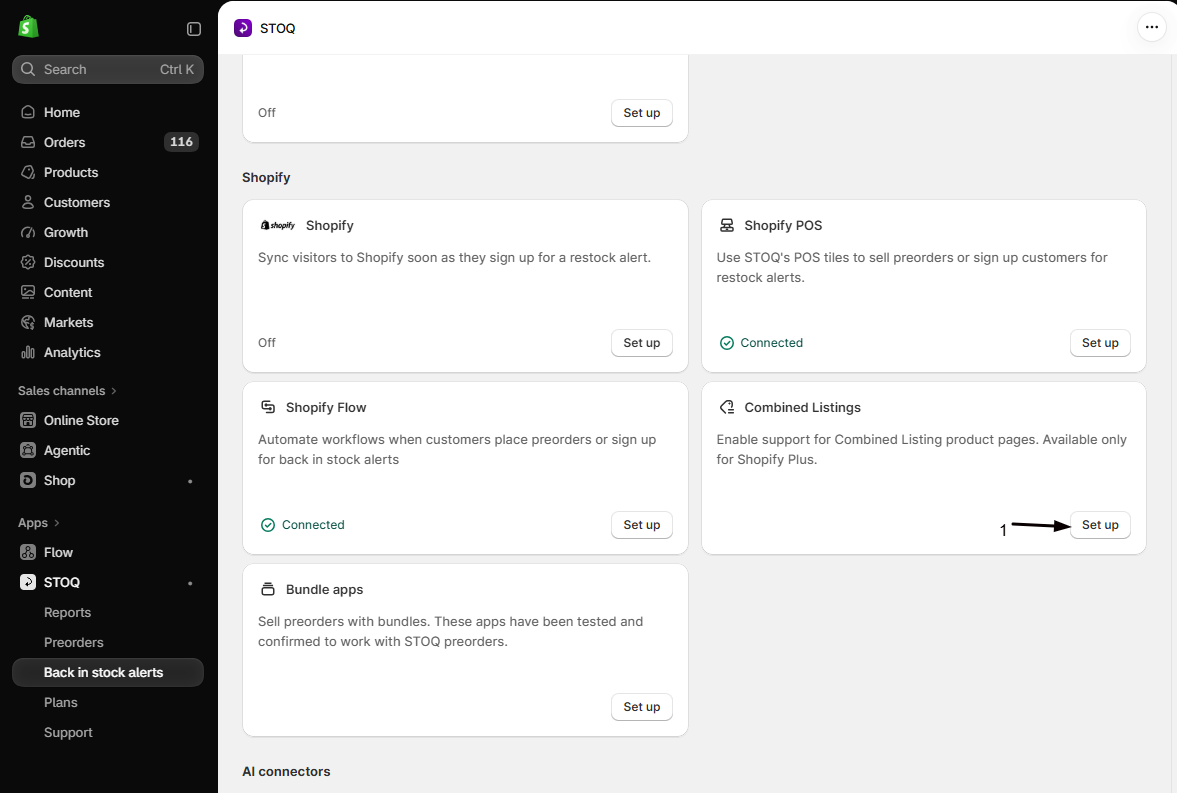
Find the Combined Listings card and click Set up.
-
Request setup
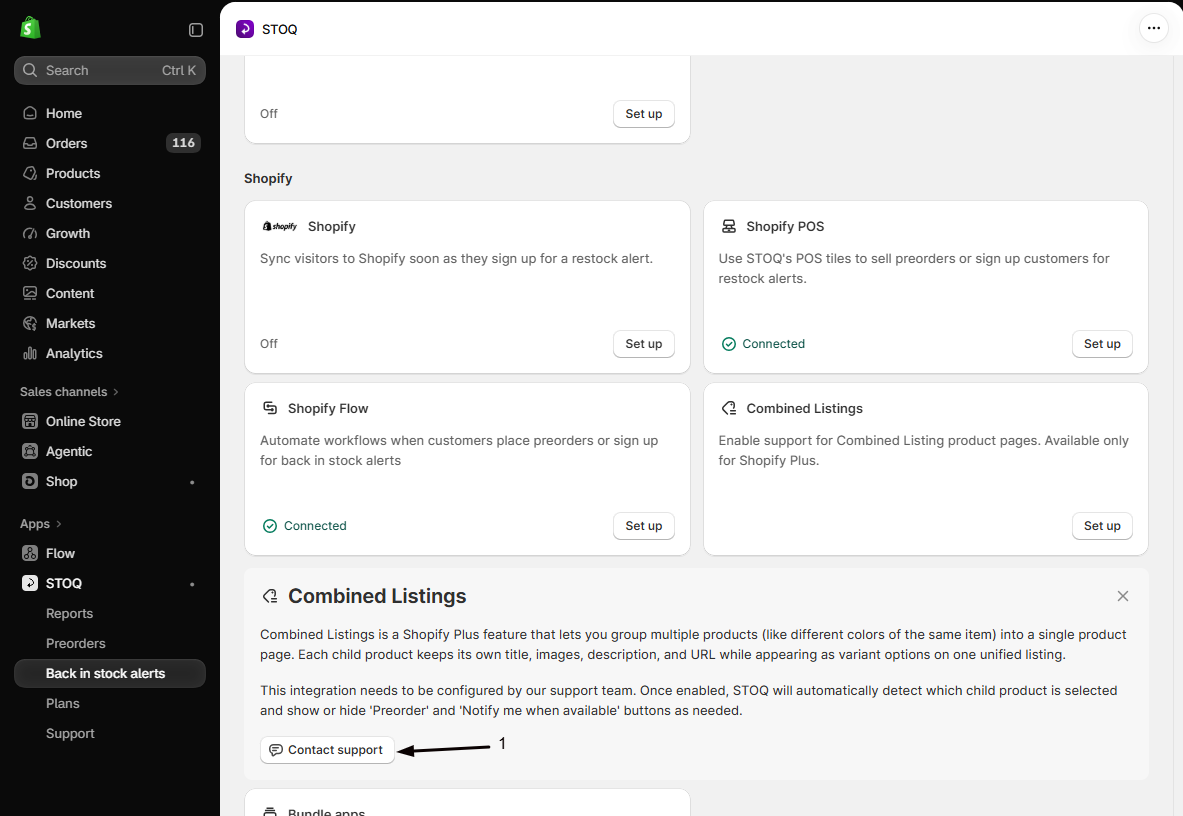
Click Contact support. The STOQ team enables the integration for your store. It’s a one-time setup and works automatically afterward.
What happens after setup
Section titled “What happens after setup”When a customer switches between child products, STOQ detects the change, fetches that product’s inventory and preorder status, and shows or hides the button accordingly. For example, if the Red shirt is on preorder but Blue is in stock, the Preorder button shows for Red and the Notify me logic applies to Blue. It works for both preorders and back in stock alerts. Child products with more than 250 variants have their extra variant data fetched in the background.
Troubleshooting
Section titled “Troubleshooting”The button doesn't change when I switch child products
The integration isn’t enabled yet. Open the Combined Listings card and contact support to set it up.
The button only works for the first product
Some child products aren’t in the preorder offer. Each child is a separate Shopify product, so add them all to the offer.
No button at all
Check the app embed is on. See Enable STOQ on your theme.
The wrong product shows after switching
That’s usually a stale browser cache. Clear it or try an incognito window.
Do I need theme code changes?
No. Once support enables it, it works automatically with no code changes on Online Store 2.0 themes.
Can I enable it myself?
No. It needs backend configuration by the STOQ support team, which is why the card routes you to contact support.
Does it cost extra?
No. It’s included with your STOQ plan.
Related guides
Section titled “Related guides”Thanks for letting us know.
Still stuck? Ask Quinn or chat with support