Check your plan usage and remaining alerts
Read your usage on Home or Plans to see back in stock alerts and preorders against your plan's limits.
Last updated
Your usage shows how many back in stock alerts you’ve sent and how many preorder orders you’ve taken this month, against your plan’s limits. You can see it in two places: the Usage section of the Status card on Home, and the Usage card on the Plans page, which also lets you check past months.
Check usage on Home
Section titled “Check usage on Home”-
Open Home
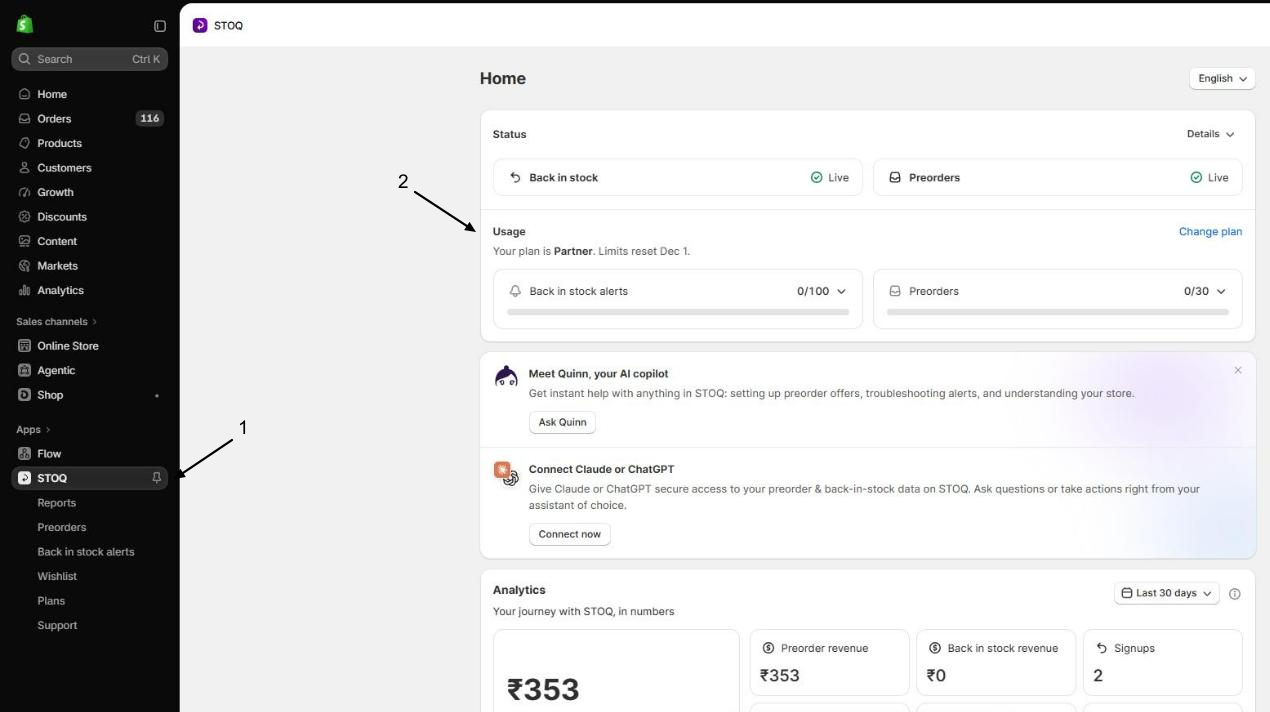
Click the STOQ app in your Shopify admin to land on its Home page.
-
Read the Usage section
At the bottom of the Status card, the Usage section names your plan and the date your limits reset, with the Back in stock alerts and Preorders boxes below. Click Change plan to open Plans. When you’re at or over a limit, the button reads Upgrade plan instead.
Open the Usage card on Plans
Section titled “Open the Usage card on Plans”-
Open Plans
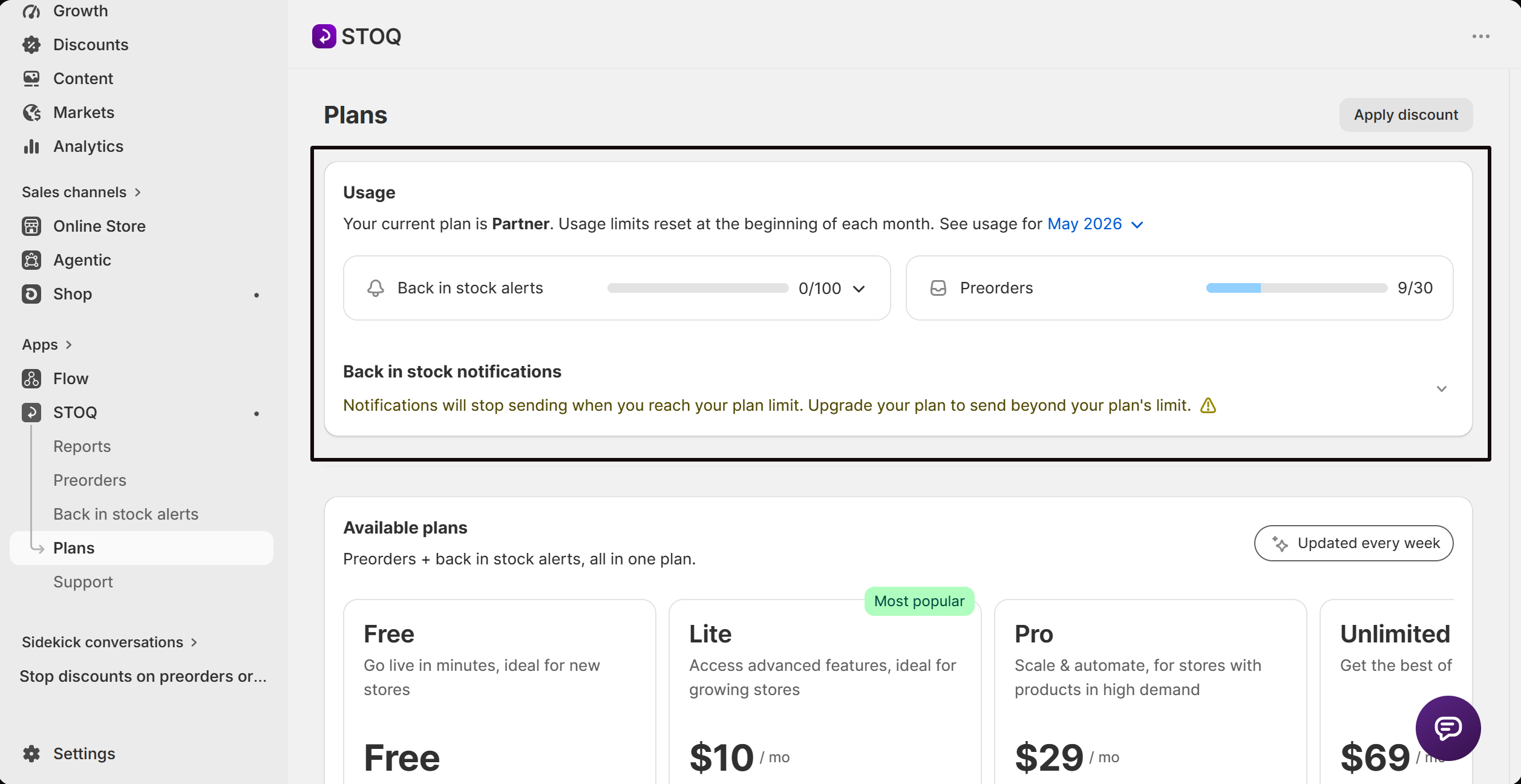
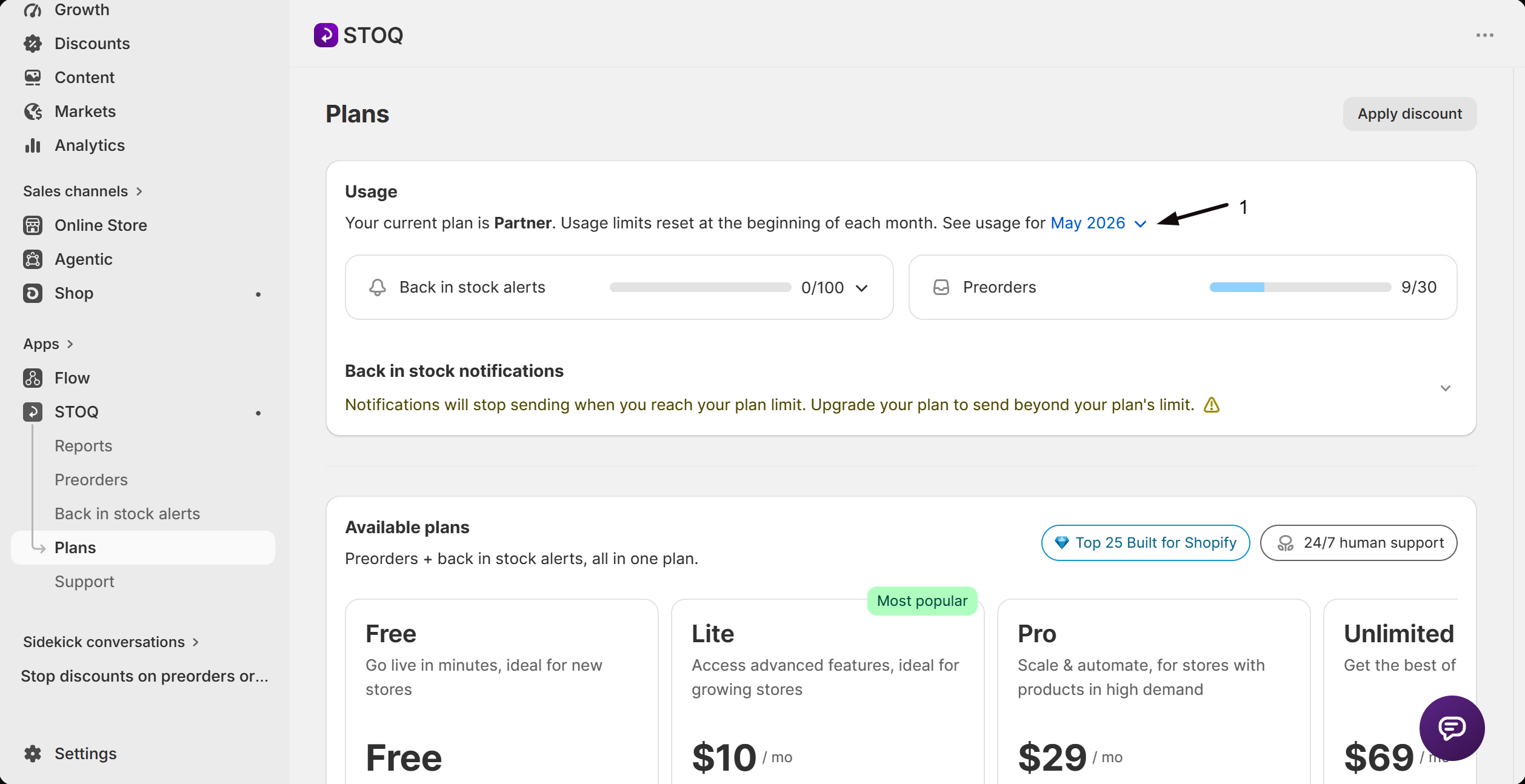
In STOQ, click Plans in the sidebar menu. The Usage card loads at the top of the page.
What the Usage card shows
Section titled “What the Usage card shows”The card header names your current plan and reminds you that usage limits reset at the start of each month. Below it are two boxes side by side:
- Back in stock alerts, a count in the form sent/limit (for example,
128/500) with a bar underneath, covering every restock alert and reminder email or text sent this month. - Preorders, the same count/limit format for preorder orders placed this month. See Preorder plans and billing for how that limit works.
If your plan has no limit for one of them, the limit shows as ∞ and there’s no bar.
The bar turns amber when you’ve used 80% of a limit, or when you’re past it and overage is on. It turns red when you’ve reached the limit and sending stops there.
Read the email vs SMS breakdown
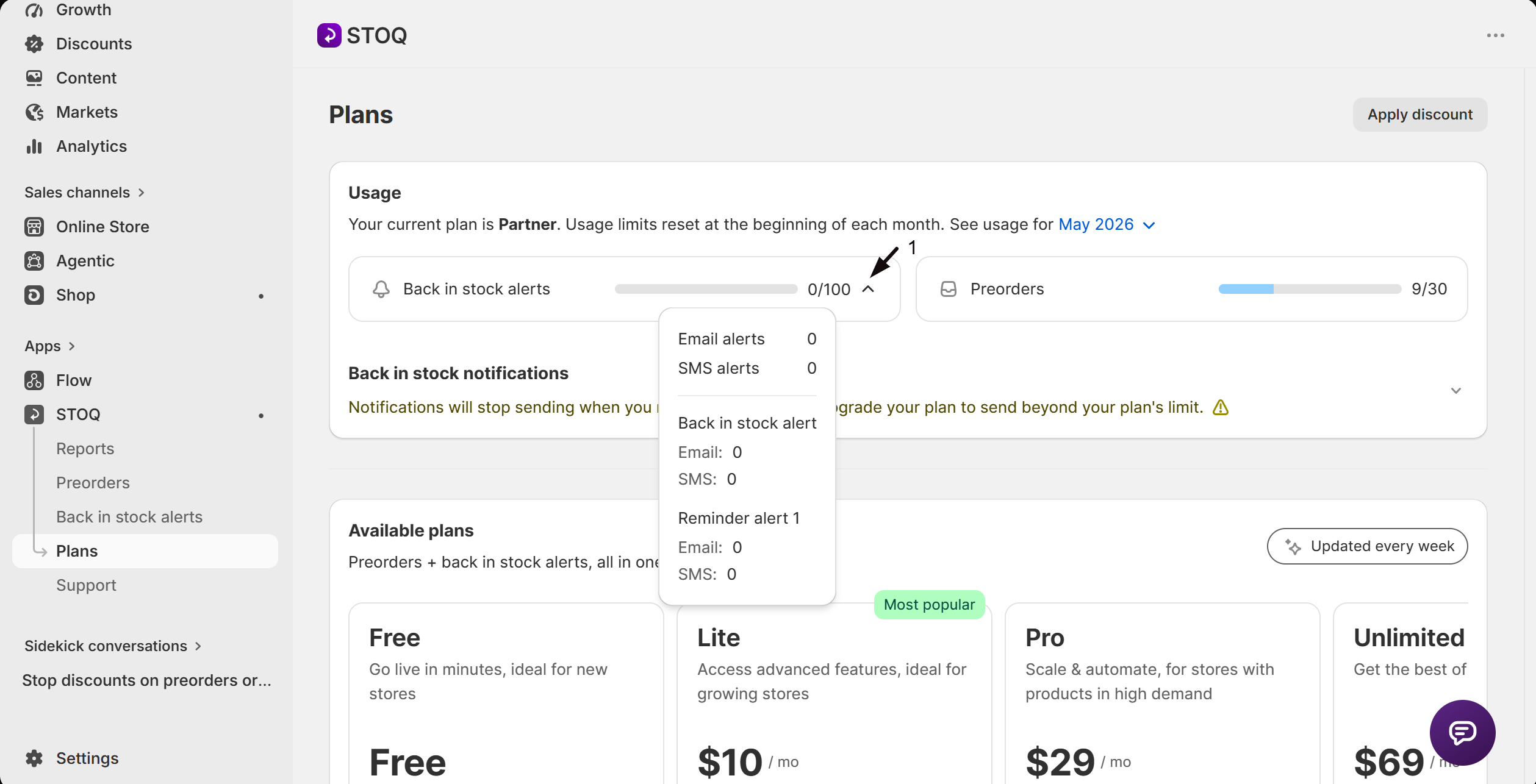
Section titled “Read the email vs SMS breakdown”Click the count next to Back in stock alerts (for example, 128/500) to open a breakdown popover:
-
Email alerts and SMS alerts show the total sent this month for each channel.
-
Below a divider, each notification type, Back in stock alert and Back in stock reminder, lists its own Email and SMS counts.
-
If you’ve sent any text alerts, an SMS segments line reports how many segments were sent this month, with a Learn more link to SMS alert pricing and charges.
-
On a plan that allows overage, Overage alerts shows On with the fee per alert, or Off. Once you’ve gone past your limit, Above plan shows how many alerts went out above it.
-
If sending has stopped at your limit, the popover reads “Alerts stop at your limit.” On a plan that allows overage, Home also shows a Turn on overage alerts link below it, which opens Plans so you can choose how overage is handled.
Read the preorders breakdown
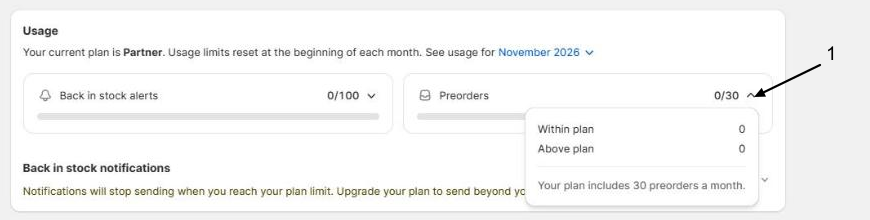
Section titled “Read the preorders breakdown”Click the count next to Preorders to open its breakdown:
- Within plan and Above plan split this month’s preorder orders at your plan’s limit.
- Overage fee shows the fee per order above the limit. On a plan without preorder overage, a line says how many preorders your plan includes a month instead.
- On a plan with no preorder limit, the popover shows the month’s total and “Unlimited on your plan.”
Check usage for a past month
Section titled “Check usage for a past month”On the Plans page, next to See usage for, click the month name to open the month picker. It lists the current month plus the five before it; selecting one reloads the whole Usage card, both boxes and the breakdown popover, with that month’s figures.
How to read remaining alerts
Section titled “How to read remaining alerts”The count/limit shown next to Back in stock alerts (for example, 128/500) is what you’ve sent so far this month over your plan’s monthly limit. Subtract the first number from the second to see how many you have left before you hit the limit, or before overage charges start on a plan that allows them.
What counts toward the back in stock alerts limit?
Every restock alert and reminder email or SMS sent this month, combined into one count. Preorders aren’t included: preorder orders count toward their own limit in the Preorders box.
How do I see email vs SMS separately?
Click the count next to Back in stock alerts (for example, 128/500) to open a popover with the Email alerts and SMS alerts totals, plus a per-notification-type breakdown.
Does checking usage send anything to my customers?
No. The Usage card only reports counts of alerts already sent this month, opening it or the month picker doesn’t send or resend anything.
Can I see usage from a previous month?
Yes, on the Plans page. Click the month name next to See usage for and pick from the current month plus the five before it. Home always shows the current month.
What happens when I go over my plan's alert limit?
It depends on your plan. See Plans for what happens on your plan when you exceed the limit.
Why does my limit show as an infinity symbol?
Your plan includes unlimited back in stock notifications, so there’s no monthly cap to count against.
Related guides
Section titled “Related guides”Thanks for letting us know.
Still stuck? Ask Quinn or chat with support