
Filter alerts by location or market
Use this guide if you want a restock to notify customers only when it happens at certain locations, or, if you sell in multiple Shopify Markets, only when it happens at a location linked to the customer's market. By the end, a restock outside the locations or markets you choose won't send an alert.
This setting only affects the automatic restock notification. It doesn't change who can sign up for alerts: customers can sign up regardless of location or market.
Before you begin
| You need | Why |
|---|---|
| Access to the Back in stock alerts section of the app | Market setup lives under the Back in stock alerts left-menu item, on the Settings tab's Delivery settings sub-tab |
| A paid plan, to turn on location-based or market-based filtering | Both filtering options show an Upgrade prompt on a free plan |
Choose your setup
STOQ's Market setup control decides whether your store is treated as one market or multiple Shopify Markets:
- Single market: you sell in one country or market, and you're using one or more Shopify locations to manage inventory. This is the default for every store.
- Multiple markets: you sell in multiple countries or markets, and you're using Shopify Markets to manage product availability.
If your store has more than one Shopify Market configured but you're still set to Single market, STOQ shows a banner suggesting you switch to Multiple markets.
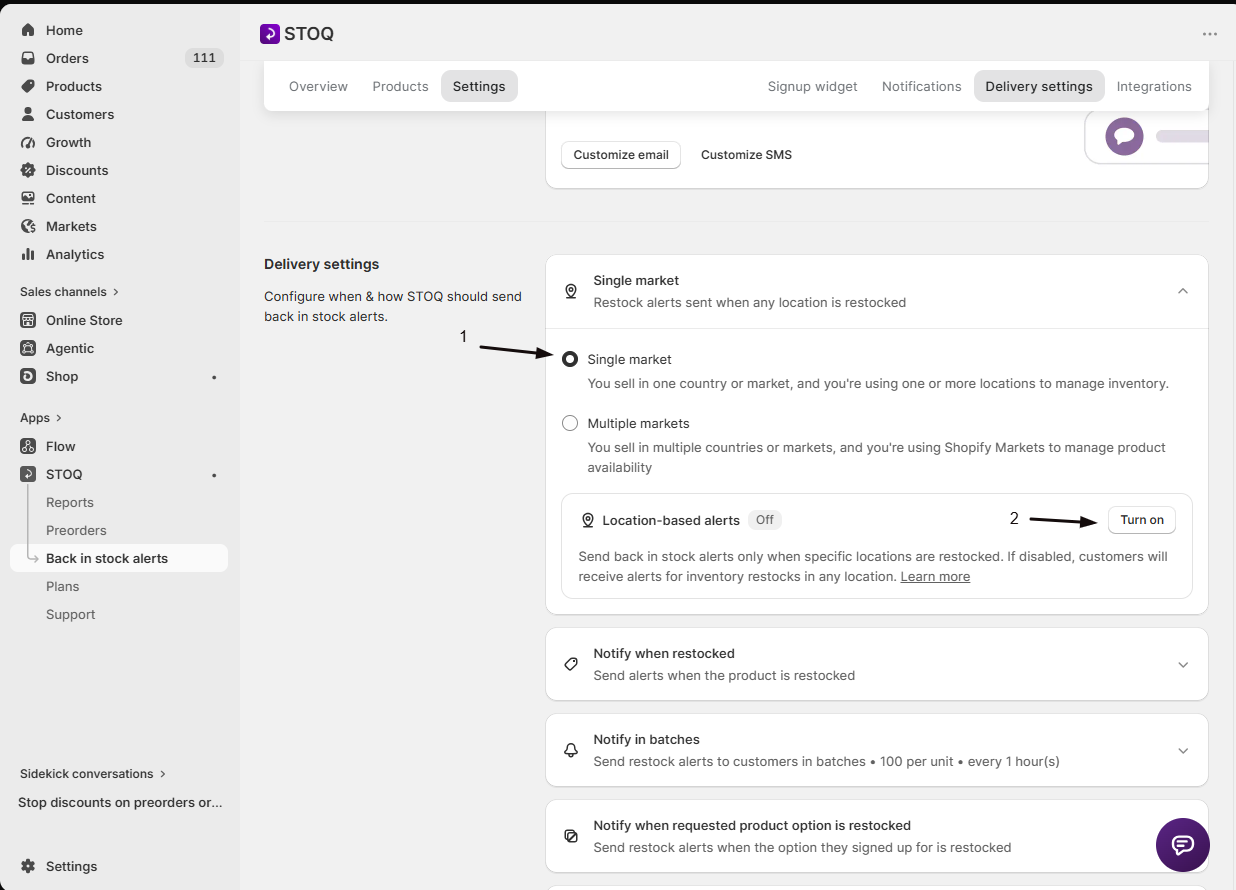
If you're on Single market, a Location-based alerts toggle controls which locations count toward a restock:
- Off (default): customers get an alert when inventory is restocked at any location.
- On: you choose specific locations from a list, and only restocks at those chosen locations trigger alerts. A restock at a location you didn't select is ignored.
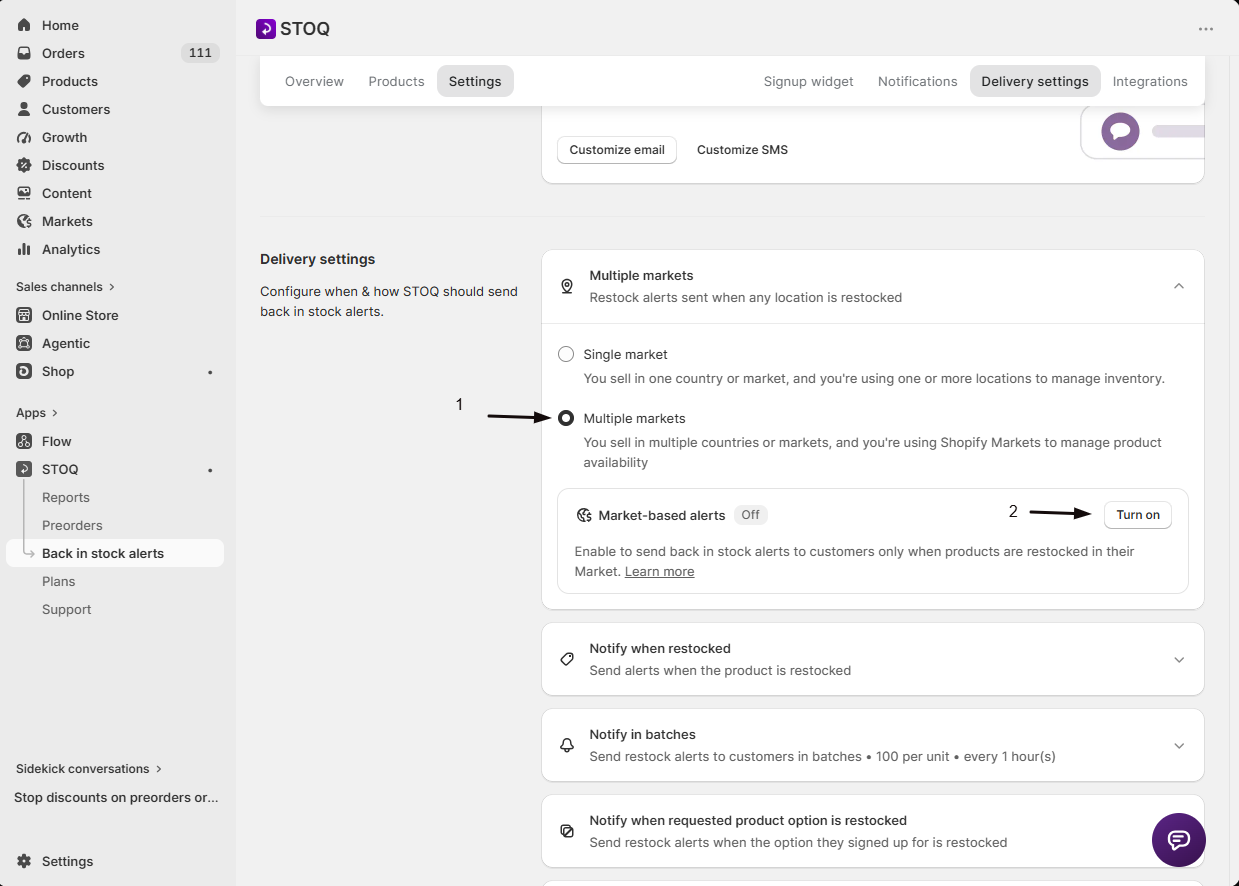
If you're on Multiple markets, a Market-based alerts toggle lets you map each Shopify Market to the locations that fulfill it instead:
- Off (default): customers get an alert when inventory is restocked at any location, regardless of which market they signed up from.
- On: you build a list of market-to-location pairings: select a market, select one or more locations linked to that market, and add the pairing. A customer only gets notified when a location linked to their market is restocked.
What customers will see
Customers see nothing different in the signup form or the alert itself because of this setting: it only controls whether and to whom STOQ sends the alert, not the alert's content. A customer who signed up is either notified or not, based on where the restock happened and how you've configured this section.
Set it up
On a phone, this menu is collapsed. In the Shopify mobile app, tap the STOQ logo at the top of the screen to open it, then choose the section named below. There is no hamburger icon. See Finding the STOQ menu.
Open Delivery settings
- In the left menu bar of the STOQ app, click Back in stock alerts.
- Click the Settings tab.
- Open the Delivery settings sub-tab.
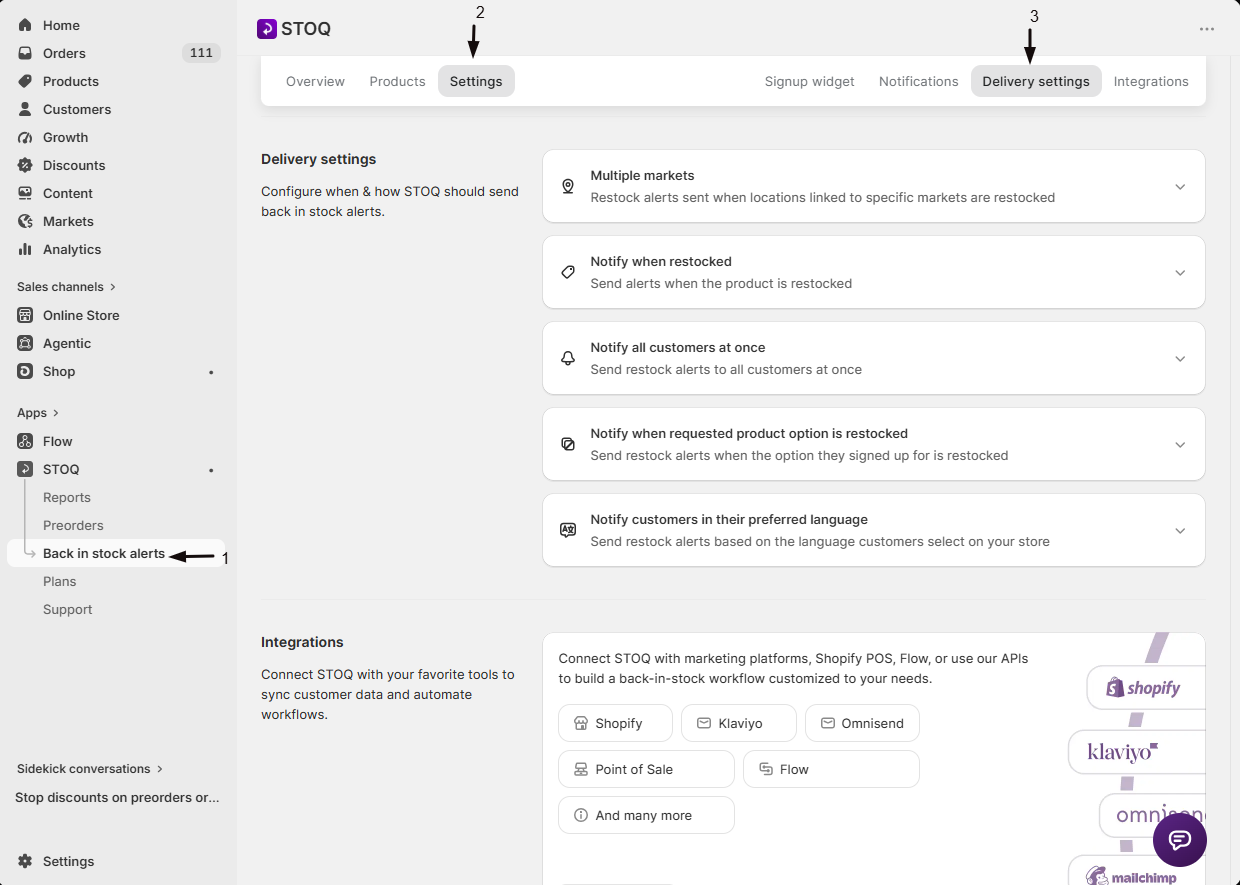
Open the Market setup row
Click the top row of Delivery settings, it summarizes your current setup (for example, "Single market" or "Multiple markets") and expands to show the full controls.
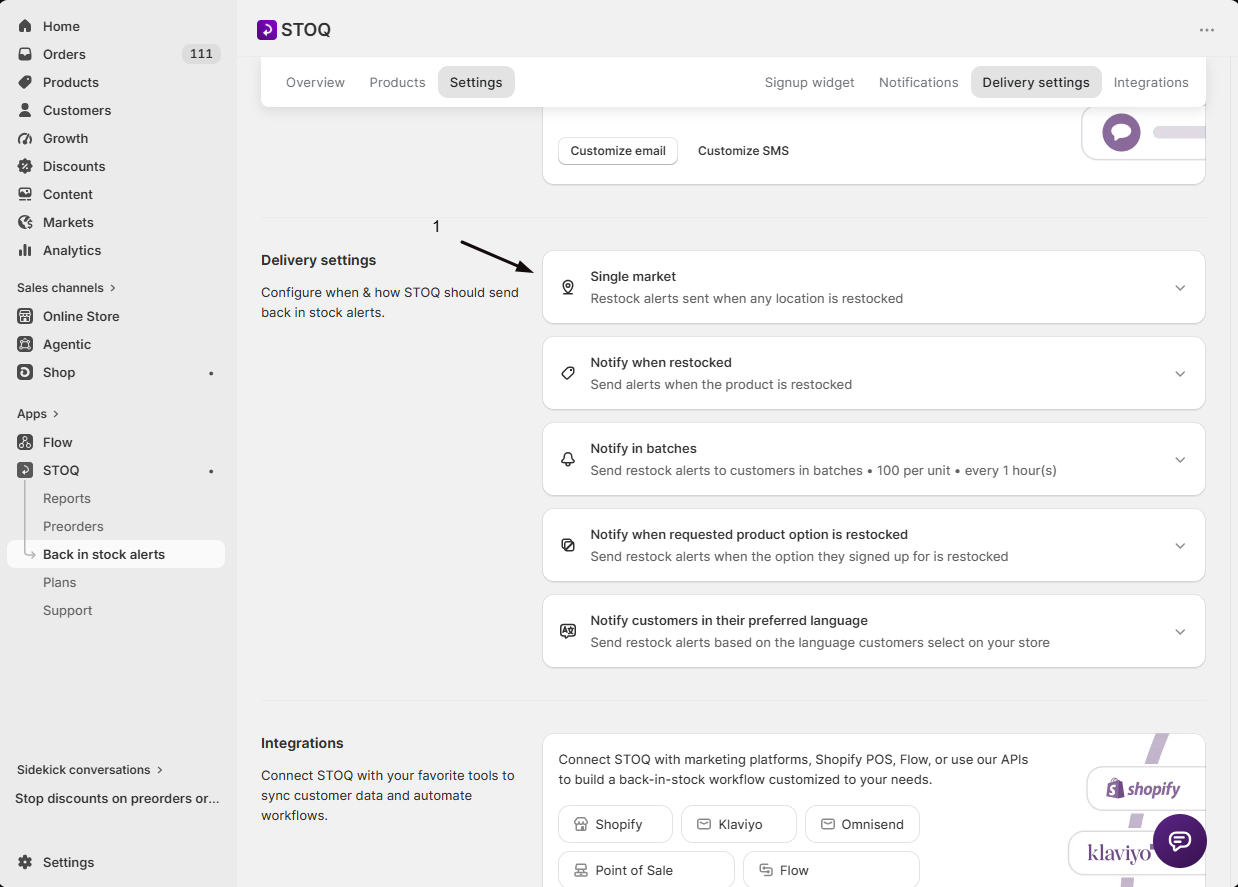
Choose Single market or Multiple markets
Pick the option that matches how you sell. See Choose your setup above for the difference.
Single market: turn on Location-based alerts
Skip this step if you want any location to trigger alerts.
- Toggle Location-based alerts on.
- Click See settings to expand the location list.
- Check the locations that should trigger alerts.
Multiple markets: turn on Market-based alerts
Skip this step if you want any location to trigger alerts regardless of market.
- Toggle Market-based alerts on.
- Select a market.
- Select one or more locations that fulfill orders for it.
- Click Add.
- Repeat for each market you want to map (your mappings are grouped by market in a list, with a remove option next to each location).
You need at least one market-to-location pairing saved before you can turn Market-based alerts on. If you try to enable it with no pairings added, STOQ shows a validation message asking you to add one first.
Multiple markets: choose how alert links open (optional)
Below your market mappings, the Use market-specific product links checkbox sets where the product link in an alert sends the customer. STOQ turns it on automatically when you enable Market-based alerts.
- On: the alert links to the product page for the customer's Market, so they see the right pricing and currency. Keep this on if your store uses Shopify's market URLs.
- Off: customers get your standard product link instead. Turn it off if your store doesn't use Shopify's market URLs.
Save
Save your changes.
Check your setup
- Turn on Location-based alerts (single market) or Market-based alerts (multiple markets) and save.
- Restock a variant at a location that is not in your selected list or market mapping, and confirm no alert sends.
- Restock the same variant at a location that is included, and confirm the alert sends. See Test back in stock alerts for a full walkthrough of test signups and triggering a send.
Troubleshooting
The Location-based alerts or Market-based alerts toggle is greyed out
Both require a paid plan. Upgrade to unlock the toggle.
You have Shopify Markets set up but STOQ still notifies customers regardless of market
Market-based filtering only applies once you switch Market setup to Multiple markets and turn on Market-based alerts, then map each market to its locations. STOQ shows a banner suggesting the switch when it detects more than one Shopify Market on your store.
You get a validation error when turning on Market-based alerts
You need at least one market-to-location pairing saved first. Add a market and its location(s) using Select market, Select locations, and Add, then try enabling it again.
A restock at a specific location doesn't trigger an alert
Check that the location is included in your selected locations (single market) or mapped to the customer's market (multiple markets). A restock at a location outside your selection, or with no market mapping, is ignored.
Limitations
Switching from Multiple markets back to Single market, or turning Market-based alerts off, reverts to notifying for a restock at any location, subject to your Location-based alerts setting if you switch back to Single market.
FAQ
Do I need to do anything if I only sell in one country?
No. Single market is the default, and with Location-based alerts off, restocks at any of your locations trigger alerts as normal. You only need to touch this section if you want to restrict alerts to specific locations.
Does turning on location or market filtering affect customers who already signed up for alerts?
No. It only changes which future restocks trigger a notification. A customer's existing signup isn't removed or changed, they're simply notified or not the next time a restock happens, based on where it occurred.
Can I use both location-based filtering and market-based filtering at once?
No. They correspond to different Market setup choices: Location-based alerts appears only under Single market, and Market-based alerts only under Multiple markets. Switching your market setup type switches which filter is in effect.
Does this affect who can sign up for alerts, or just who gets notified?
Just who gets notified. Location and market filtering only affects which restocks trigger a notification, it doesn't restrict who can use the "Notify me" form or which products they can sign up for.
What does 'Use market-specific product links' do?
It sets where the product link in a back in stock alert sends the customer. When on, which is the default once Market-based alerts is enabled, the link opens the product page for the customer's Shopify Market, so they see the right pricing and currency. When off, customers get your standard product link. Turn it off if your store doesn't use Shopify's market URLs. This checkbox appears only under Multiple markets.
Related guides
Back in Stock Overview
How the Back in Stock alerts feature works end to end.
Set up back in stock alerts
Turn on alerts and configure the essentials.
Minimum restock quantity
Require a restock to reach a set unit count before alerts send.
Back in stock channels
Turn on email and SMS as sign-up and delivery channels.
