
Send alerts in batches
Use this guide if a limited restock tends to sell out before your whole waitlist gets a chance to buy. Batched delivery spreads back in stock alerts out over time instead of sending them all at once, so each group of waitlisted customers gets a real window to purchase before the next group is notified.
Before you begin
Batched delivery requires a paid plan. On a free plan, the batching option is disabled and shows an Upgrade link; upgrading unlocks both batch-sizing methods and the interval control.
Choose your setup
Batched delivery has two settings to decide on: how many customers are in each batch, and how long to wait between batches.
Batch size: per unit of stock or fixed
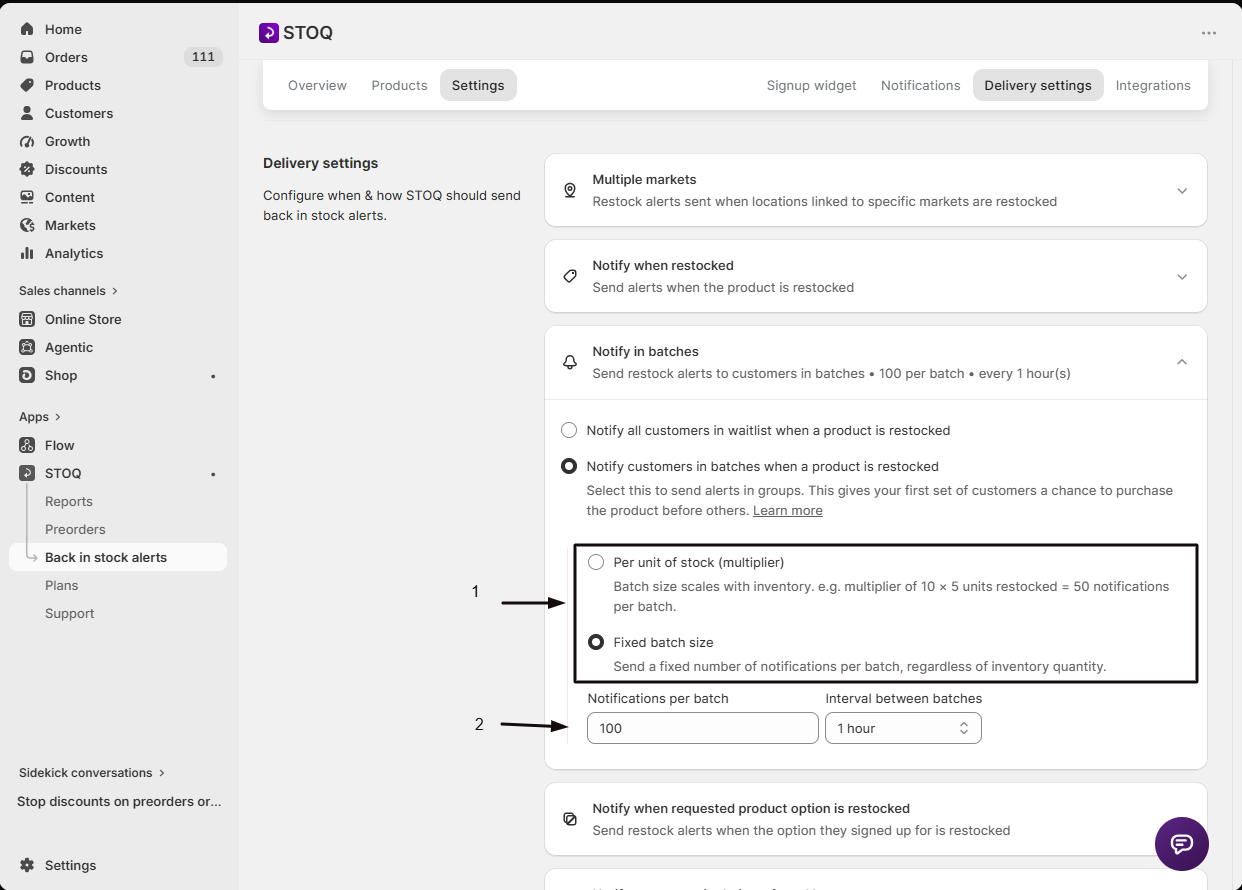
- Per unit of stock (multiplier): batch size scales with the restock. You set a Notification multiplier, and STOQ multiplies it by the number of units restocked, for example a multiplier of 10 with 5 units restocked notifies the first 50 signups. Use this when your restock quantities vary and you want batch size to scale with them.
- Fixed batch size: every batch is the same size regardless of how much inventory came back. You set Notifications per batch directly, for example 100, and STOQ sends to exactly that many waitlisted signups per batch, whether the restock is 5 units or 500. Use this when you want predictable batch sizes.
Interval between batches
Choose 1, 2, or 3 hours between batches. A shorter interval gets your whole waitlist notified faster; a longer one gives each batch more time to buy before the next group is alerted about a product that might sell out.
What customers will see
Customers experience batching as a staggered alert, not a different-looking one: the email or SMS content is the same whether batching is on or off. What changes is timing:
- Customers in the first batch get notified as soon as the restock triggers a send.
- Customers in later batches get notified only after the configured interval has passed, and only if there's still inventory available. STOQ checks stock again before each later batch, same as with any restock alert.
- A customer has no way to see or control which batch they're in: it's simply the order they're waiting in the signup queue.
Batching doesn't reserve inventory for any group. If the restock sells out to earlier batches first, customers in later batches may not get an alert for that restock; they stay on the waitlist for the next one.
Set it up
On a phone, this menu is collapsed. In the Shopify mobile app, tap the STOQ logo at the top of the screen to open it, then choose the section named below. There is no hamburger icon. See Finding the STOQ menu.
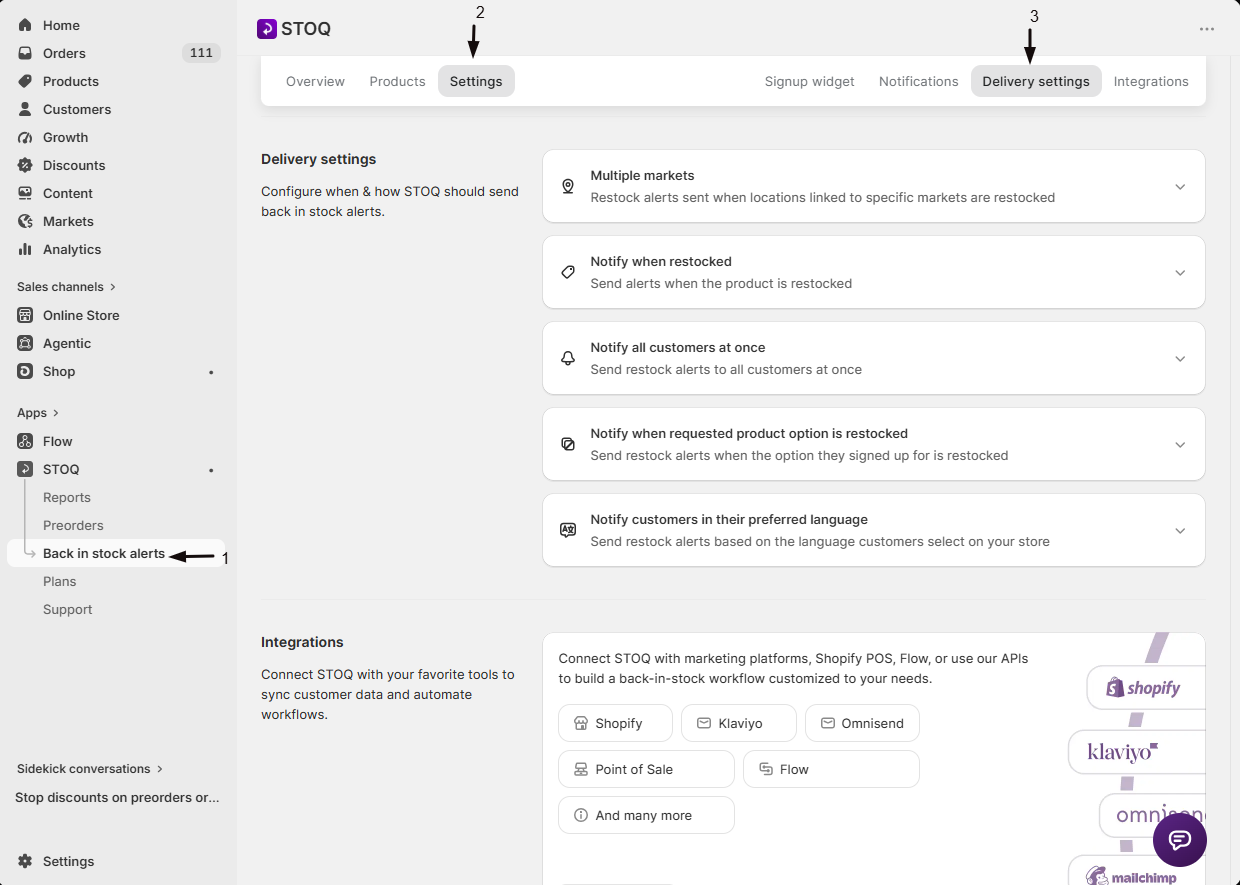
Open Delivery settings
- In the left menu bar of the STOQ app, click Back in stock alerts.
- Click the Settings tab.
- Open the Delivery settings sub-tab.
Turn on batching
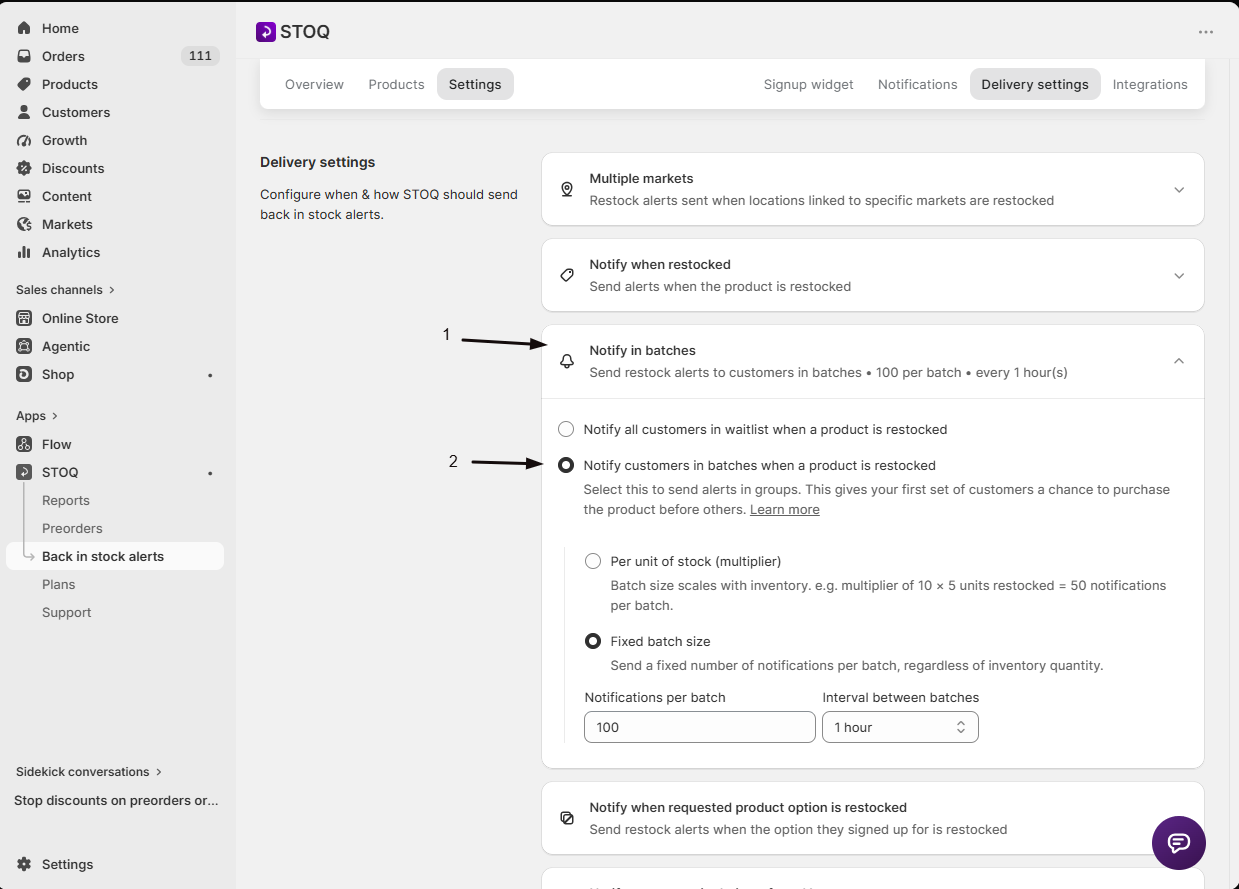
Under the batching option, pick Notify customers in batches when a product is restocked instead of the default Notify all customers in waitlist when a product is restocked.
Set your batch size
Choose Per unit of stock (multiplier) or Fixed batch size, and set the matching number field. See Choose your setup above for which to pick.
Set the interval
Choose Interval between batches: 1, 2, or 3 hours.
Save
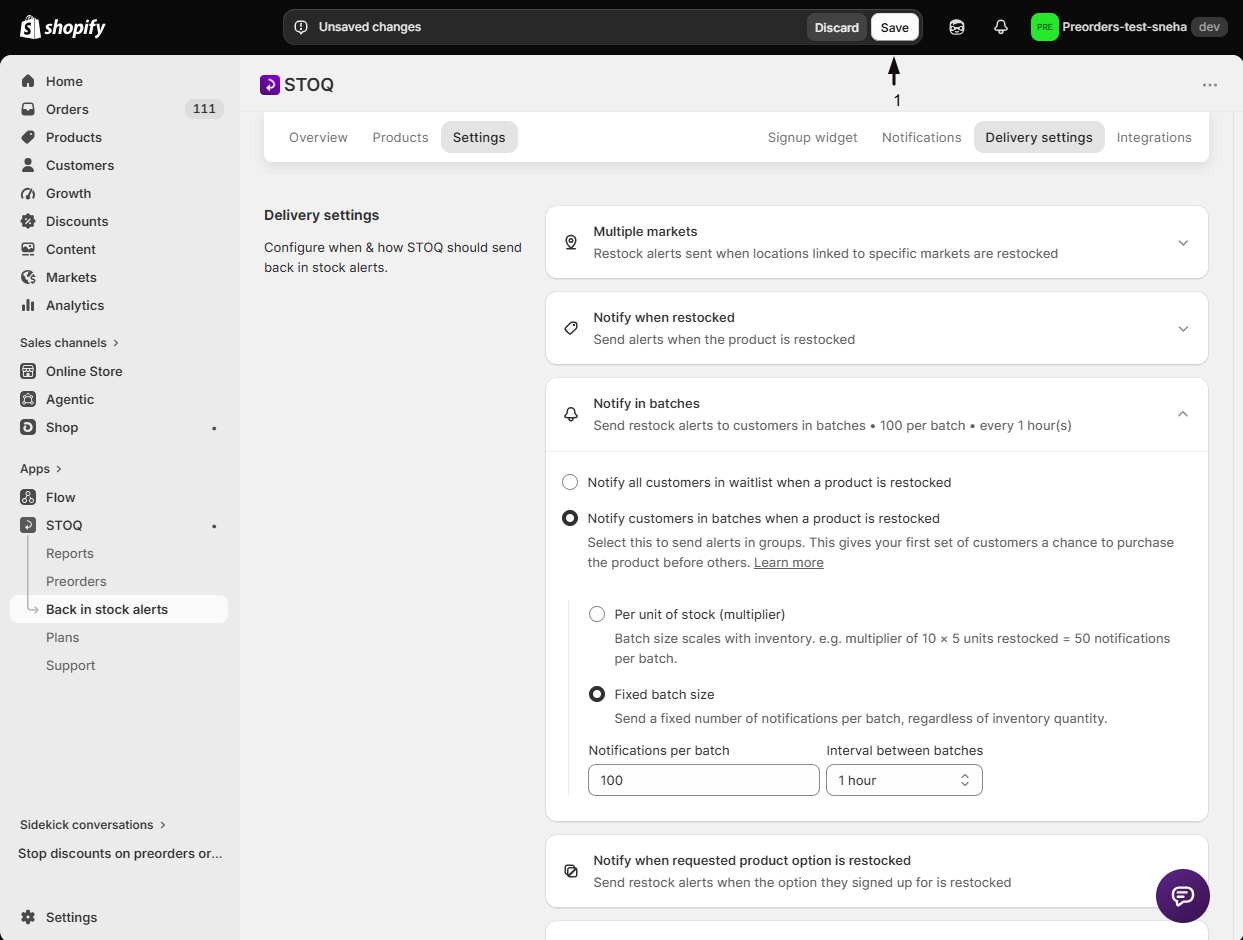
Save your delivery settings. Batching is saved together with the rest of your delivery settings, including location filtering, minimum quantity, and market-based alerts.
Check your setup
After saving, the Delivery settings page shows a summary row for your batching configuration: it reads Notify in batches with a line like "Send restock alerts to customers in batches, 10 per unit, every 1 hour(s)", or Notify all customers at once if batching is off. Confirm the numbers match what you just set, and click the row to expand it again if you need to change anything.
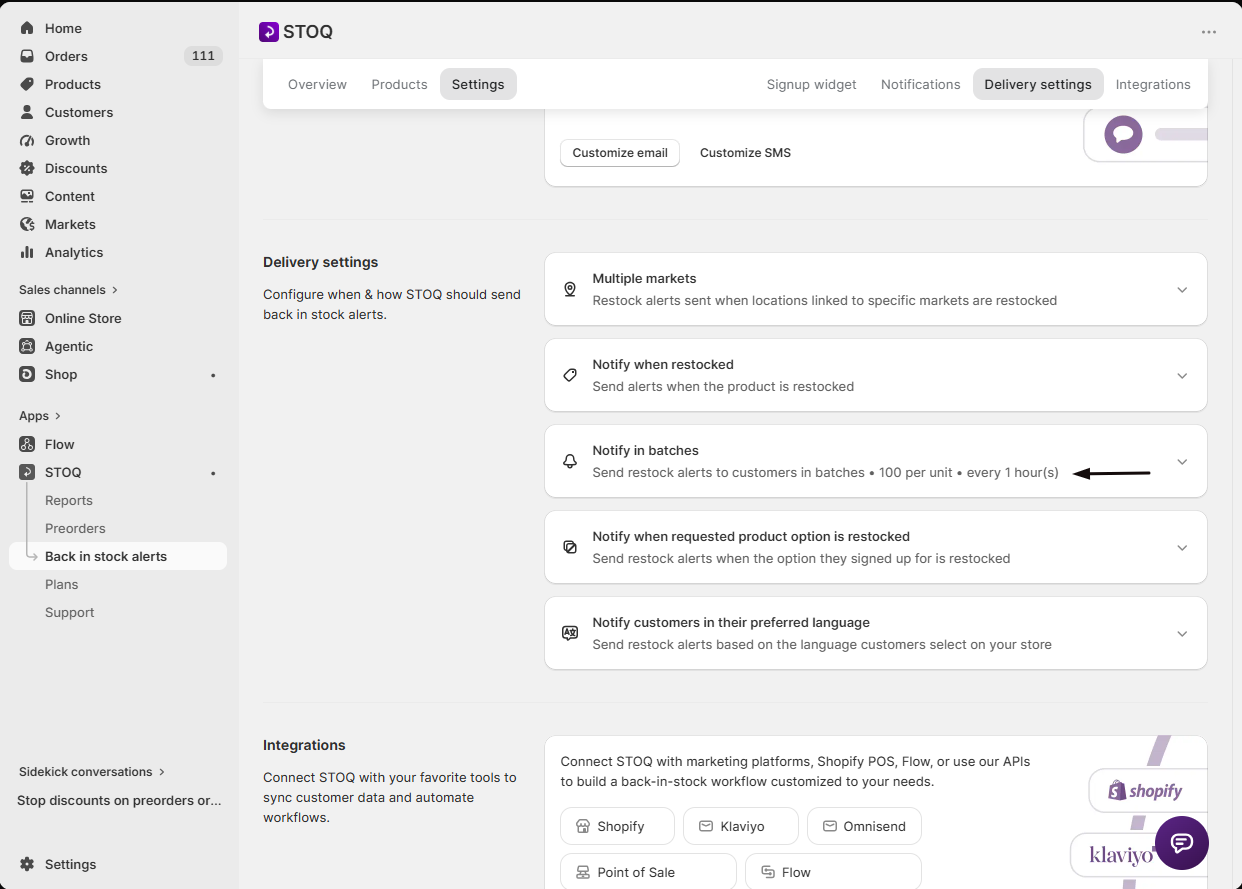
Once a real restock happens, open the notifications report for that product or variant. STOQ shows a note there confirming which mode was used: "Variant was recently restocked. Notifications are being sent in batches" when batching is on, or "...sent to all signups" when it's off.
Troubleshooting
The batching option is disabled
You're on a free plan. Upgrade to unlock both batch-sizing methods and the interval control.
A settings change doesn't affect a send already in progress
STOQ re-reads your delivery settings periodically while a large send is running, so admin changes can take effect partway through. If you're testing, change settings before triggering the restock you're testing with.
A manual or bulk "Notify" action does not respect batching
That's expected. Manual and bulk Notify or resend actions from the notifications report send immediately to everyone selected, regardless of your batching configuration.
Some waitlisted customers never got an alert for a restock
The restock likely sold out to an earlier batch first. Batching doesn't reserve inventory, so later batches can miss out and stay on the waitlist for the next restock.
Limitations
Batching doesn't change your minimum restock quantity setting. STOQ still checks minimum restock quantity before sending any alerts at all; batching only controls how the qualifying send is split up and paced once it's decided to send.
FAQ
Do I need a paid plan to use batched delivery?
Yes. On a free plan, the batching toggle is disabled and shows an Upgrade link. Upgrading unlocks both batch-sizing methods and the interval control.
If I restock only 1 unit with a multiplier of 10, how many customers get notified?
10, the multiplier (10) times the restocked quantity (1). STOQ always sends to at least 1 person in a batch, even if the calculated size comes out very small.
How long does it take to notify my whole waitlist once batching is on?
It depends on your waitlist size, your batch size, and your chosen interval. STOQ sends one batch, waits the selected interval (1, 2, or 3 hours), then sends the next batch, repeating until everyone waiting on that restock has been notified or the process is otherwise interrupted.
Will customers know or be able to choose which batch they're in?
No. A customer has no way to see or control which batch they're in; it's simply their position in the signup queue, and the email or SMS they receive looks the same either way.
Does turning on batching affect restocks I already sent alerts for?
No. Batching only changes how future qualifying restocks are paced; a restock that already finished sending alerts isn't affected retroactively. If you change settings while a large send is currently in progress, STOQ re-reads them periodically, so the change can still take effect partway through that send.
Related guides
Back in stock overview
How the Back in Stock alerts feature works end to end.
Set up back in stock alerts
Turn on alerts and configure the essentials.
Minimum restock quantity
Require a restock to reach a set unit count before alerts send at all.
Back in stock channels
How locations and sales channels affect which restocks count.
Customize the back in stock email notification
Customize the restock email customers receive.
