How to Import customer data to STOQ (or switch from another app)

STOQ lets you bulk-import customer back-in-stock registrations using a CSV file. This is useful when you are migrating from another back-in-stock or waitlist app and want to preserve your existing customer signups, or when you need to add a large number of registrations at once without entering them one by one. The import process uses a Google Sheets template where you fill in customer details and product SKUs, export the sheet as a CSV, upload it in the STOQ app, map the columns to the correct fields, and let STOQ process each row. After processing, STOQ sends you a status report email so you know exactly which rows succeeded and which failed.


Why Import Customer Data


There are several reasons to use the CSV import feature.

  • Migrate from another app without losing data. If you are switching from a different back-in-stock or waitlist app, you can export your customer registrations from that app and import them into STOQ so customers stay on the waitlist.
  • Bulk-add registrations. If you have a spreadsheet of customers who want to be notified about specific products, you can import them all at once instead of adding them individually.
  • Preserve historical signups. Importing lets you bring in registrations with their original signup dates, so your waitlist data remains accurate.
  • Save time. Manually entering hundreds or thousands of registrations is impractical. A single CSV upload handles all of them in one step.


Data You Can Import


STOQ accepts the following fields in a CSV import. Only SKU (or Variant ID) and at least one contact detail (email or phone) are required. All other fields are optional.

Field

Required?

Description

SKU (or Variant ID)

Required

The product variant SKU or Shopify Variant ID. STOQ uses this to match the registration to the correct product variant.

Email

Required (email or phone)

The customer's email address. Used for email back-in-stock alerts.

Phone

Required (email or phone)

The customer's phone number in international format (e.g. +14155551234). Used for SMS alerts.

Email + Phone

Optional

A combined column if your source data has email and phone in one column. STOQ will detect and separate them.

Customer Name

Optional

The customer's name. Stored with the registration for reference.

Market Name (or ID)

Optional

The Shopify market name or numeric market ID. Used if you have market-based notifications enabled.

Quantity

Optional

The number of units the customer wants. Defaults to 1 if not provided.

GDPR Confirmed

Optional

Set to true or 1 if the customer has confirmed GDPR consent. Defaults to false.

Accepts Marketing

Optional

Set to true or 1 if the customer has opted in to marketing. Defaults to false.

Date

Optional

The original registration date (dd/mm/yyyy or mm/dd/yyyy format). If provided, the registration is backdated to this date.

Language

Optional

The customer's preferred language locale code (e.g. en, fr, de). Used for sending notifications in the correct language.


How to Import Customer Data


Follow these steps to import your customer registrations into STOQ.

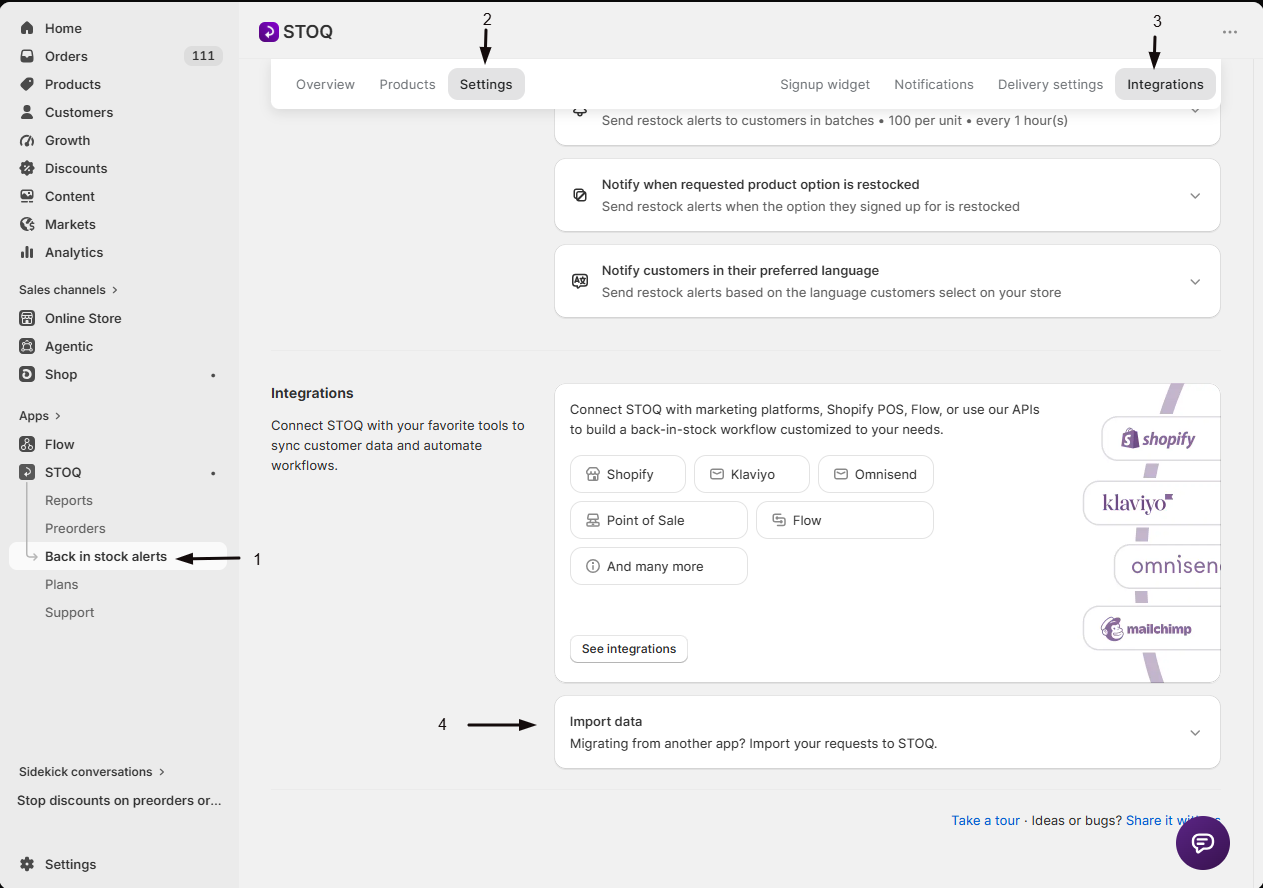
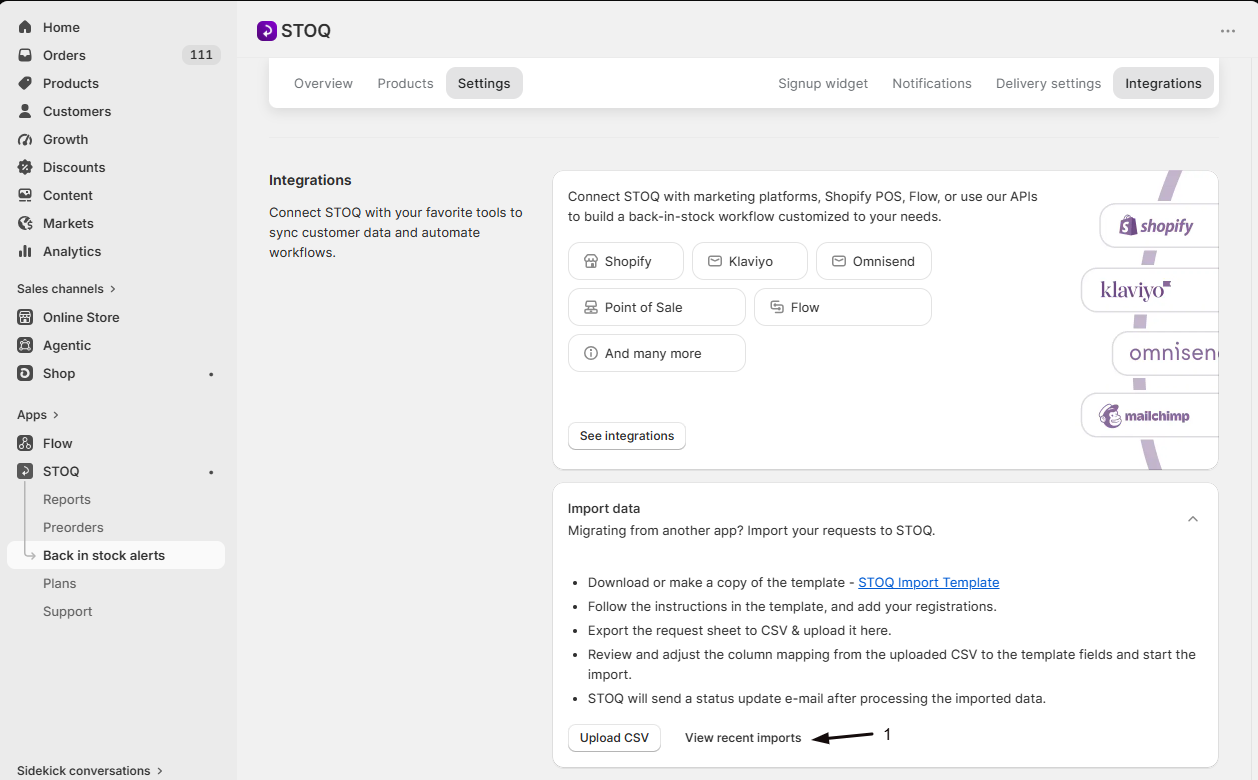
  1. Open the STOQ app in your Shopify admin.
  2. Go to Back in stock alerts from the left menu.
  3. Click the Integrations tab.
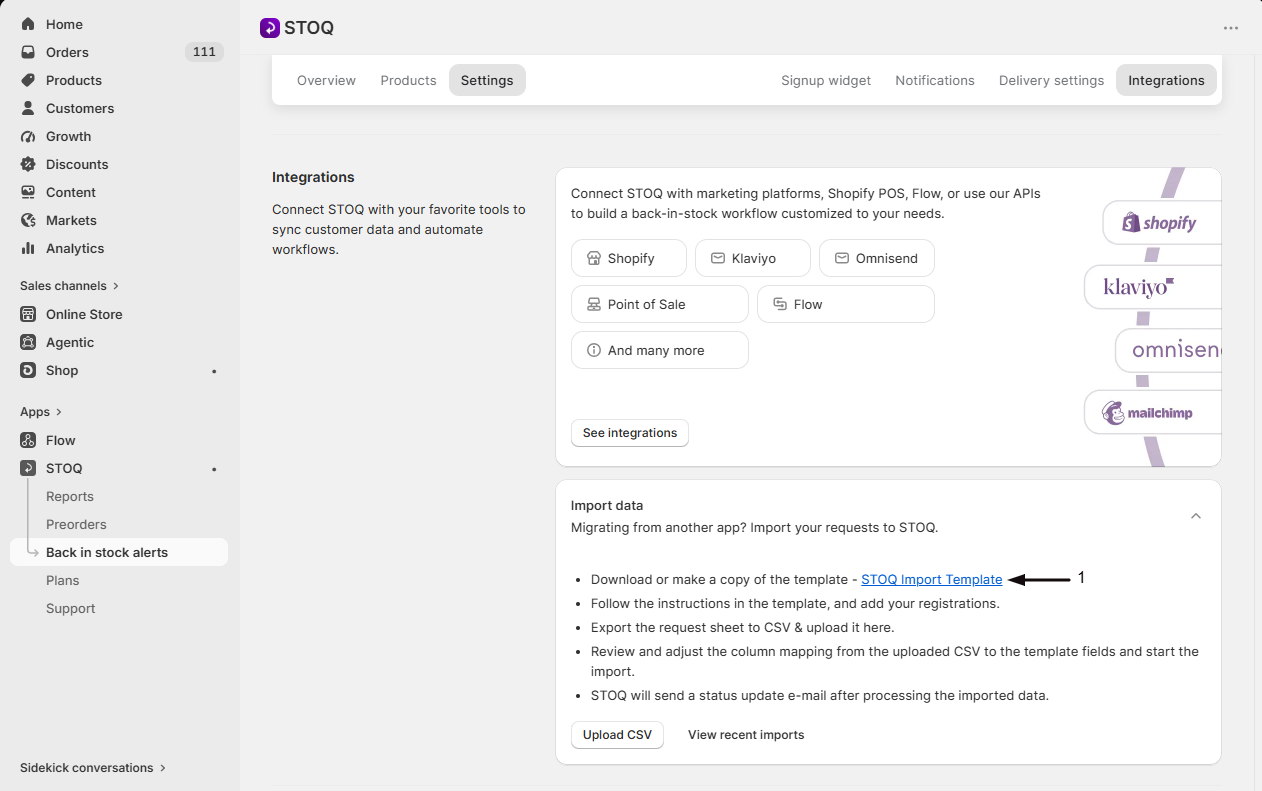
  4. Scroll down to the Import data section and click it to expand.
  5. Click the STOQ Import Template link to open the Google Sheets template.
  6. Make a copy of the template (File > Make a copy in Google Sheets).
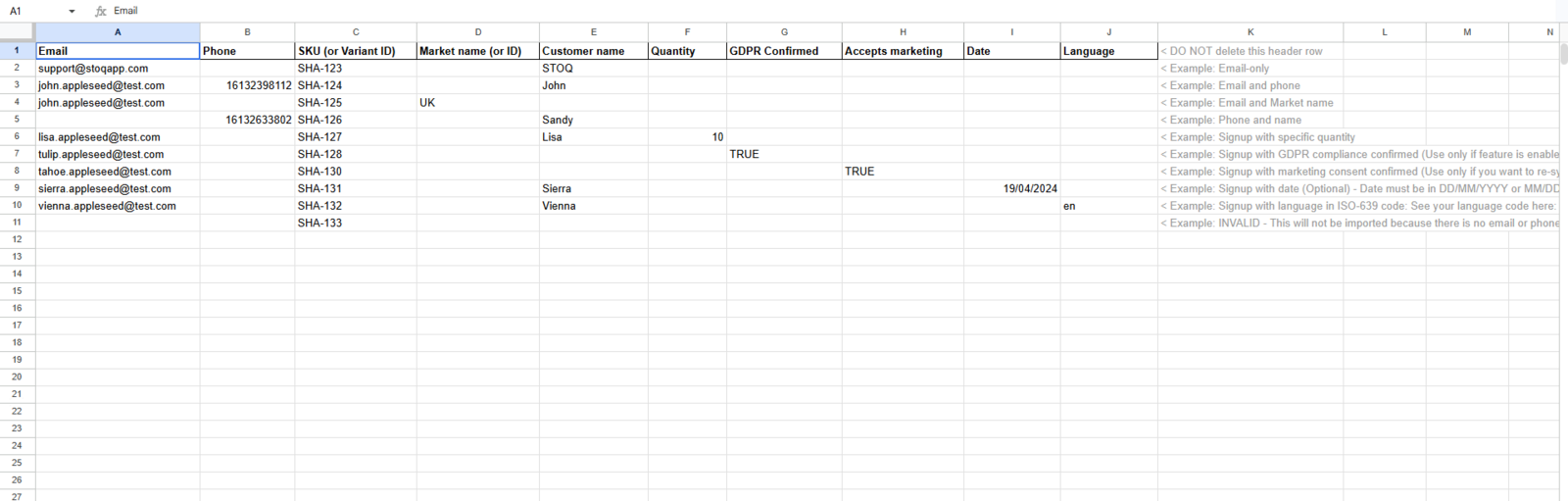
  7. Read the Instructions sheet in the template for guidance on how to fill in the data.
  8. Switch to the Registrations sheet and add your customer data:
    • Enter the SKU (or Shopify Variant ID) for each product variant.
    • Enter the customer's email and/or phone number.
    • Fill in any optional fields (customer name, market, quantity, GDPR, etc.) as needed.
  1. When finished, export the Registrations sheet as a CSV file (File > Download > Comma Separated Values (.csv)).
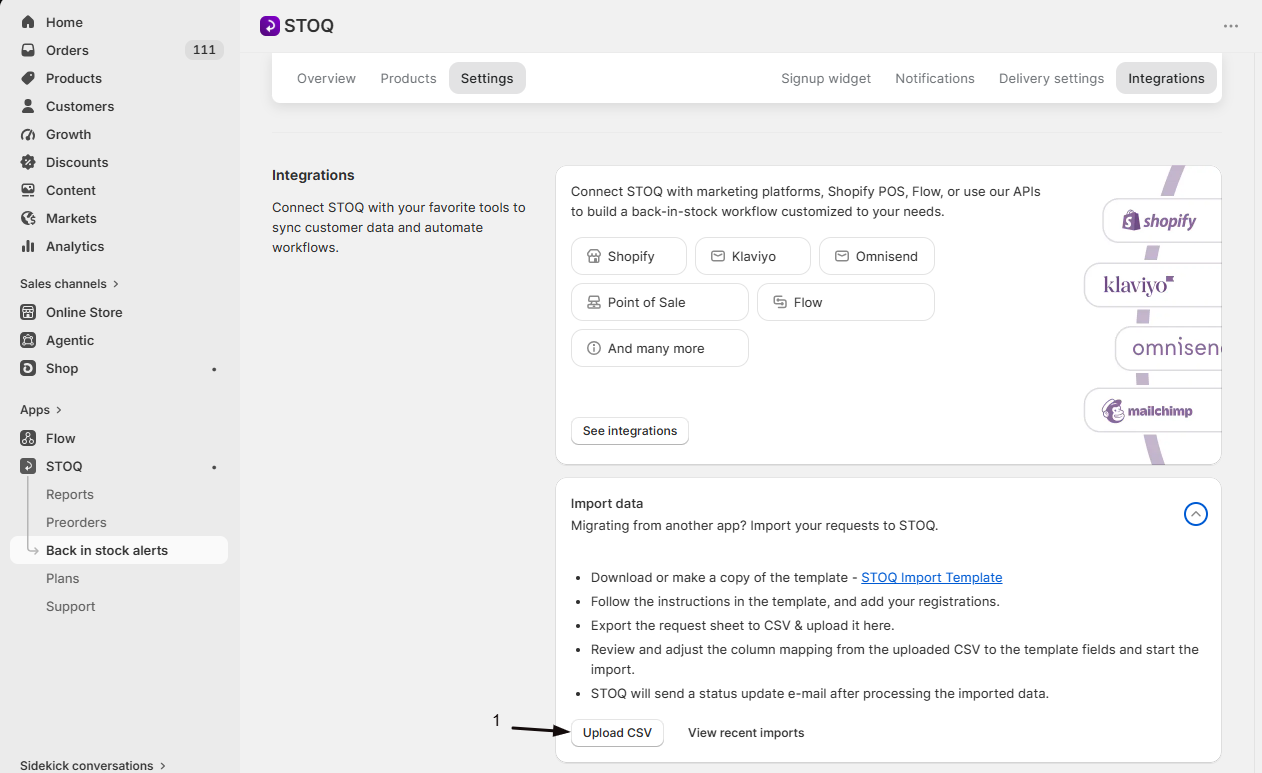
  2. Go back to the STOQ app and click Upload CSV in the Import data section.
  3. Drag and drop your CSV file into the upload area, or click to browse and select it.
  4. STOQ displays a Preview & map screen showing your CSV columns. Review the column mapping:
    • STOQ auto-maps columns based on header names. Verify each mapping is correct.
    • Use the dropdown next to each column to change the mapped field if needed.
    • Toggle Ignore for any columns you do not want to import.
    • Ensure all required fields (SKU and at least one contact field) are mapped.
  1. Select a date format (dd/mm/yyyy or mm/dd/yyyy) if you included a Date column.
  2. Click Start import to begin processing.
  3. A banner confirms the import is in progress. You can track progress on the import card that appears below.
  4. Once processing is complete, STOQ sends a status report email to your account email with the results — how many rows succeeded and how many failed, along with error details for any failures.


How to Switch from Another App


If you are migrating from a different back-in-stock or waitlist app, follow these additional steps before importing.


  1. Export data from your current app. Most back-in-stock apps allow you to export customer registrations as a CSV. Download this file.
  2. Match columns to the STOQ template. Open the exported CSV and the STOQ Import Template side by side. Copy your data into the Registrations sheet, making sure the SKU, email/phone, and any other fields line up with the correct columns.
  3. Verify SKUs match your Shopify products. STOQ looks up each SKU in your Shopify store to find the matching variant. If the SKU from your old app does not match a variant SKU in Shopify, you can use the Shopify Variant ID instead.
  4. Upload and map columns. Follow the import steps above. STOQ's column mapping interface lets you map your CSV columns to the correct template fields even if the column headers differ from the template.
  5. Review the status report. After the import completes, check the email for any failed rows. Common failures include SKUs that do not match any variant in your store, or customers who are already registered for that variant.


How to Track Import Progress


After uploading a CSV, you can monitor the import status directly in the app.


  1. The import card shows the file name, status badge (Pending, In Progress, Complete, or Failed), and a progress bar while processing.
  2. Counts are displayed for Pending, Total, Success, and Failed rows.
  3. Click Get status report to request a detailed report email at any time.
  4. Click View recent imports to see all past imports and their results.


Known Limitations


Keep these points in mind when importing data.


  • Each row must include a valid SKU or Variant ID and at least one contact detail (email or phone). Rows missing these fields will fail.
  • If a customer is already registered for a specific variant in STOQ, the import row for that customer-variant combination will be marked as failed with the message "Customer already in waitlist for variant."
  • Phone numbers should be in international format (e.g. +14155551234). If a phone number cannot be parsed, the row will fail.
  • The import processes rows sequentially. Large imports (thousands of rows) may take several minutes to complete.
  • If a SKU does not match any product variant in your Shopify store, the row will fail with "Variant missing" error. Double-check that SKUs in your CSV match the SKUs in Shopify, or use the numeric Shopify Variant ID instead.
  • Market names must exactly match the market name configured in your Shopify admin. If a market name is not found, the row will fail.
  • STOQ suppresses threshold notification emails during an active import to prevent flooding your inbox. Normal threshold notifications resume after the import completes.
  • The Date column supports only dd/mm/yyyy and mm/dd/yyyy formats. Other date formats may not parse correctly.


Troubleshooting


Problem

Solution

Import rows fail with "Variant missing"

The SKU in your CSV does not match any variant in your Shopify store. Verify the SKU is correct in Shopify admin under Products > [Product] > Variants. Alternatively, use the numeric Shopify Variant ID instead of the SKU.

Import rows fail with "Customer already in waitlist for variant"

The customer (email or phone) is already registered for that variant in STOQ. This is expected if you re-import data. No action needed — the existing registration is preserved.

CSV upload shows "An error occurred while processing the CSV"

Ensure the file is a valid .csv file (not .xlsx or .xls). Open it in a text editor to verify it has comma-separated values and proper formatting.

Column mapping does not auto-detect my columns

STOQ auto-maps based on common header names (e.g. "email", "phone", "sku"). If your headers are different, manually select the correct template field from the dropdown for each column.

Phone number rows fail

Phone numbers must include the country code (e.g. +1 for US/CA, +44 for UK). Numbers without a country code may fail to parse.

Did not receive the status report email

Check your spam folder. The email is sent to your STOQ account email after the import finishes. If the import is still in progress, wait for it to complete. You can also click Get status report on the import card.

Import shows validation warnings before starting

STOQ pre-validates your CSV and warns about rows with issues (invalid contacts, missing variants, bad dates). You can proceed with the import — invalid rows will be skipped — or fix the issues and re-upload. You can also download an error CSV to see exactly which rows have issues.


FAQs


Q: What file format does the import accept?

A: STOQ accepts CSV (.csv) files only. If your data is in an Excel spreadsheet (.xlsx), open it in Google Sheets or Excel and export/save it as a CSV file before uploading.


Q: Can I import both email and phone registrations in the same CSV?

A: Yes. You can include both an Email column and a Phone column in the same CSV. STOQ determines the notification channel (email or SMS) based on which contact detail is provided. If only email is provided, the registration is created for email alerts. If only phone is provided, it is created for SMS alerts.


Q: What happens if I import the same customer twice for the same variant?

A: The second import row will fail with the message "Customer already in waitlist for variant." The original registration is preserved and unaffected. This is safe — it simply means the customer is already on the waitlist.


Q: Should I use SKU or Variant ID?

A: Either works. STOQ first checks if the value is a numeric Variant ID. If it is, STOQ looks up the variant directly. If it is not numeric, STOQ treats it as a SKU and searches for a matching variant. Use whichever identifier is easiest for you to obtain from your data source. If you have issues with SKU matching, try using the Shopify Variant ID instead.


Q: Can I import registrations for products that are currently in stock?

A: Yes. The import creates waitlist registrations regardless of the product's current stock status. These customers will be notified the next time the variant goes out of stock and comes back in stock.


Q: How long does an import take?

A: It depends on the number of rows. Small imports (under 100 rows) typically complete within a minute. Larger imports (thousands of rows) may take several minutes as STOQ processes each row individually and verifies the variant in your Shopify store.


Q: Can I cancel an import that is in progress?

A: There is no cancel button in the app once an import has started. If you need to stop an import, contact STOQ support via live chat. Rows that have already been processed will remain in your waitlist.


Q: Where is the STOQ Import Template?

A: The template is a Google Sheets document. You can access it by clicking the STOQ Import Template link in the Import data section under Back in stock alerts > Integrations. Make a copy of the template before editing it.


Q: Do imported registrations trigger back-in-stock alerts immediately?

A: No. Imported registrations are added to the waitlist. Customers will only receive alerts when the product variant is restocked (goes from 0 to 1+ units in stock) and automatic alerts are enabled. STOQ also suppresses threshold notification emails during the import to prevent unnecessary alerts.


Q: Can I import data for preorders?

A: The back-in-stock import is for waitlist registrations only. Preorders have a separate import template and process available under the Preorders section in STOQ.


Updated on: 14/04/2026

Was this article helpful?

Share your feedback

Cancel

Thank you!