
Set order rules: per-order limits, terms, and mixed carts
Use this guide to set per-order minimums and maximums, require customers to accept terms, and block mixed carts on a preorder offer. By the end, customers see the terms checkbox, per-order limit, or mixed-cart rule you configure on the product page.
To cap the total units a variant can preorder (the quantity limit that stops preorders when reached), see Set preorder quantity limits instead. This article covers the other rules in the same Limits & terms section.
Before you begin
| Requirement | Detail |
|---|---|
| Active preorder offer | You need at least one offer. See Set up preorders. |
| Paid plan (some features) | Per-order limits, the mixed-cart block, and the "Accept terms" checkbox each require a paid STOQ plan. |
What customers will see
Once limits are set, the storefront widget on the product page reflects them automatically, so there's nothing extra to publish. Exact placement depends on your theme, since the widget inserts itself relative to the add-to-cart button (or a custom selector you configure in Design preorder widget).
| Element | When it appears | What the customer sees |
|---|---|---|
| Acknowledgement checkbox | Require customer to accept terms is enabled | A checkbox with your terms text, placed above the preorder button. If Disable button until terms are accepted is on, the preorder button stays disabled until the box is checked. |
| Mixed-cart error | Don't allow mixed cart orders is enabled | If the customer tries to combine this preorder item with non-preorder items, they see your customized error message rather than completing the add-to-cart action. |
| Per-order min/max | Per-order limits are set | Enforced by the widget on the product page only; Shopify's native quantity selector and checkout don't display or enforce these limits. |
The acceptance checkbox and per-order limits apply only on the product page, never in Shopify checkout. Checkout only reflects what made it into the cart, such as the line item property recording terms acceptance if you enabled Record when customer accepted terms.
Set it up
On a phone, this menu is collapsed. In the Shopify mobile app, tap the STOQ logo at the top of the screen to open it, then choose the section named below. There is no hamburger icon. See Finding the STOQ menu.
Open Limits & terms
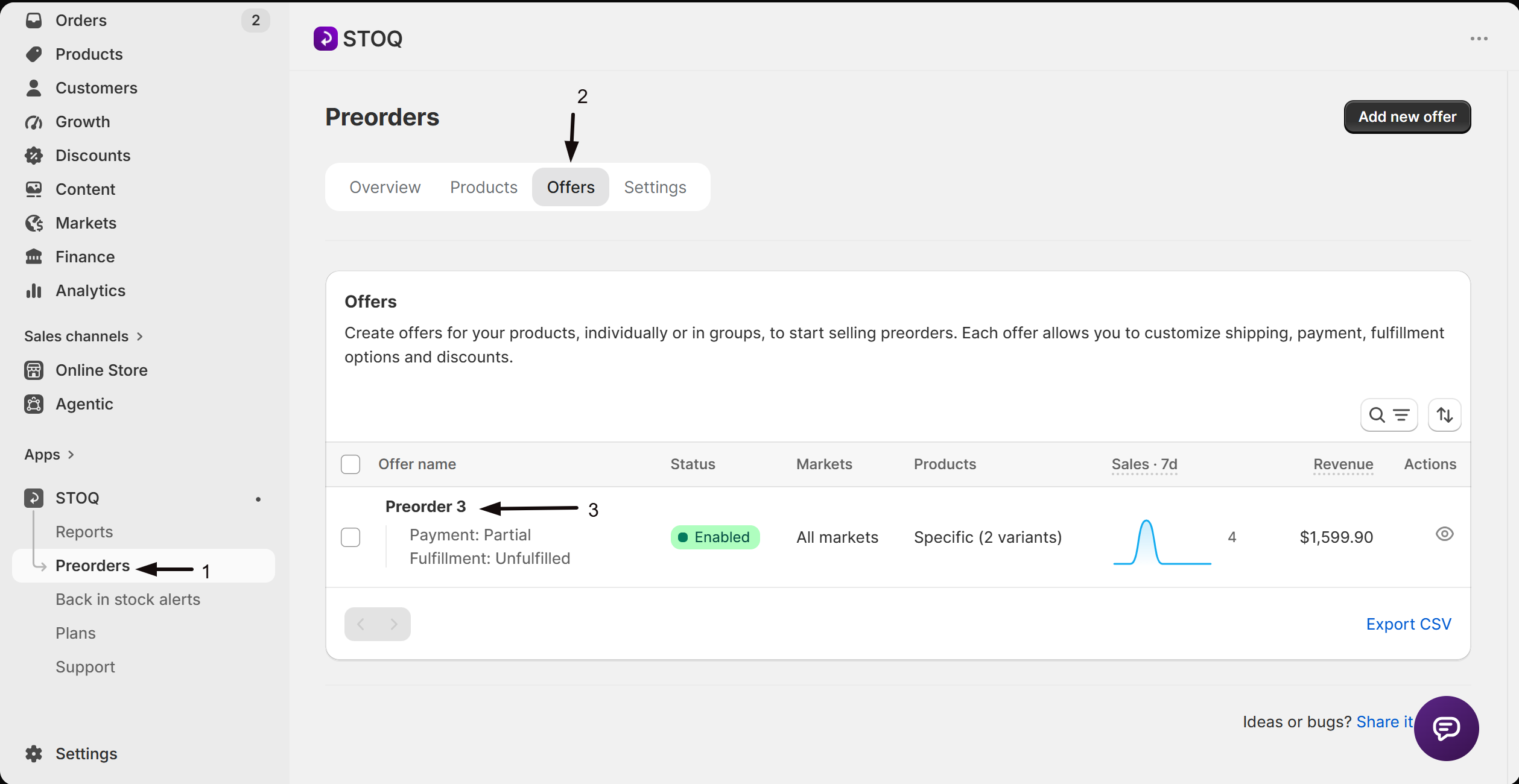
Go to your preorder offer
- In the left menu bar of the STOQ app, click Preorders.
- Click the Offers tab.
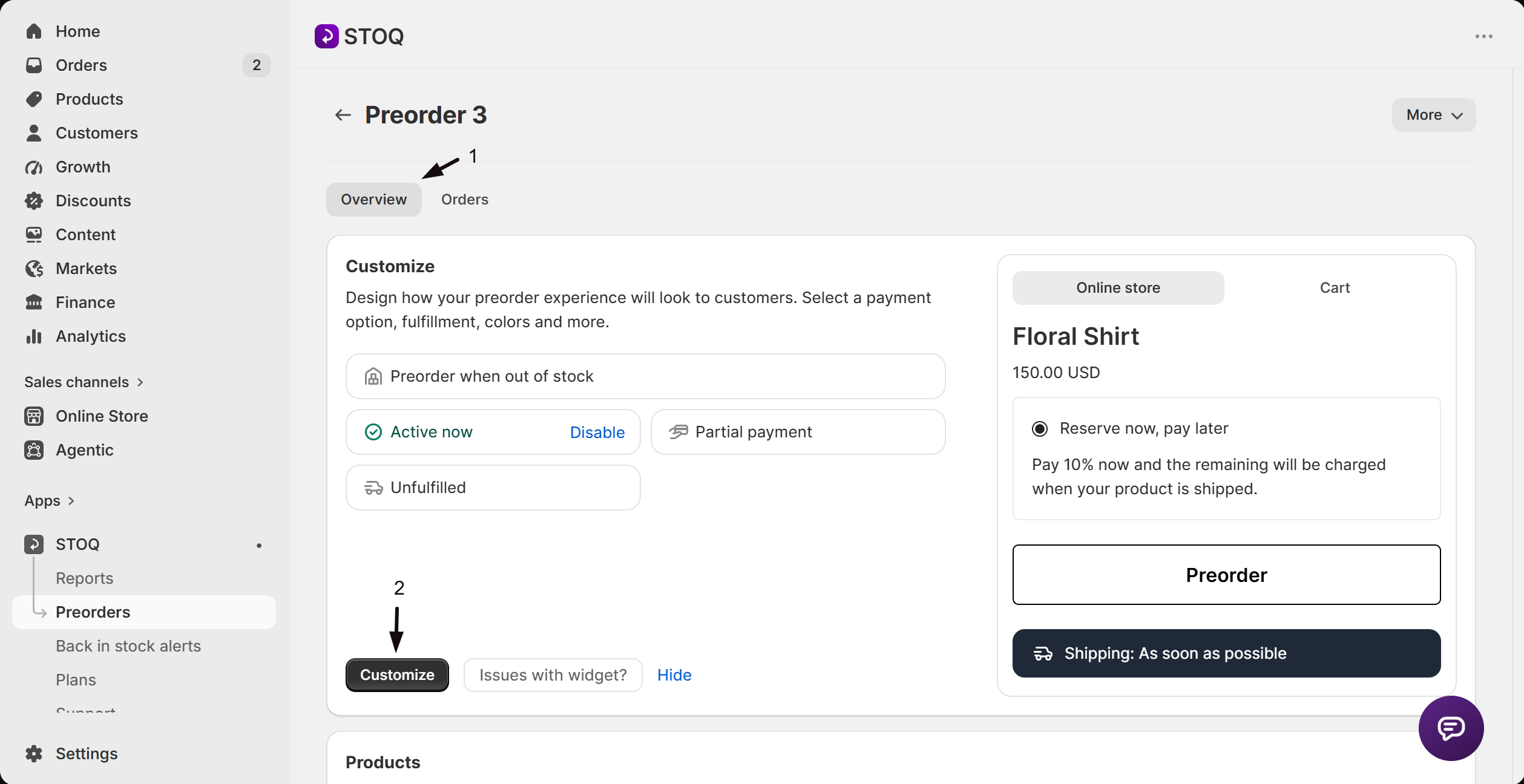
- Click the offer you'd like to configure. Its Overview tab opens, showing the Customize button, a live preview, and the offer's Products section.
Open the Limits & terms section
- Click the Customize button to open the editor.
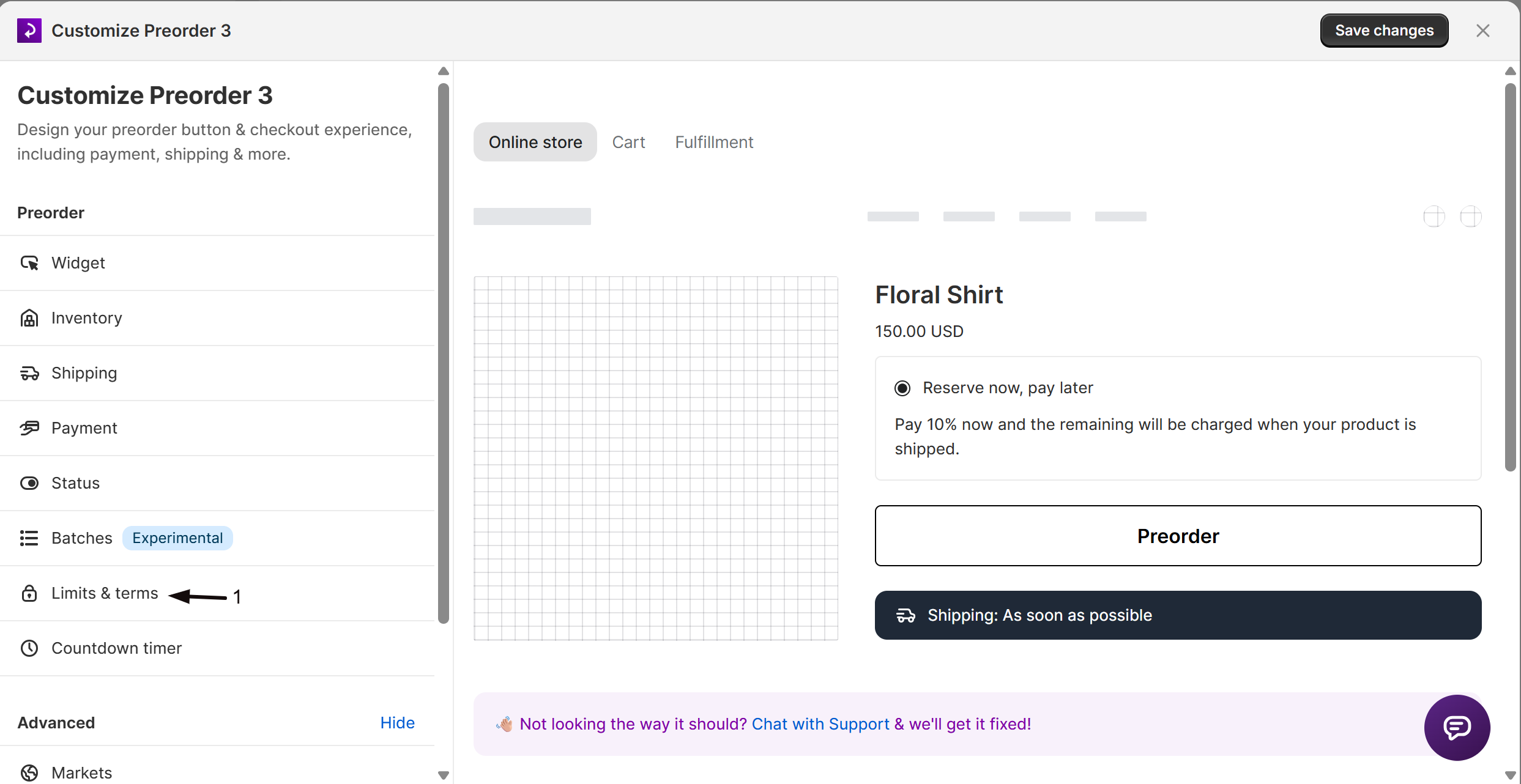
- In the sidebar, click Limits & terms.
Require customers to accept terms
Enable the acknowledgement checkbox
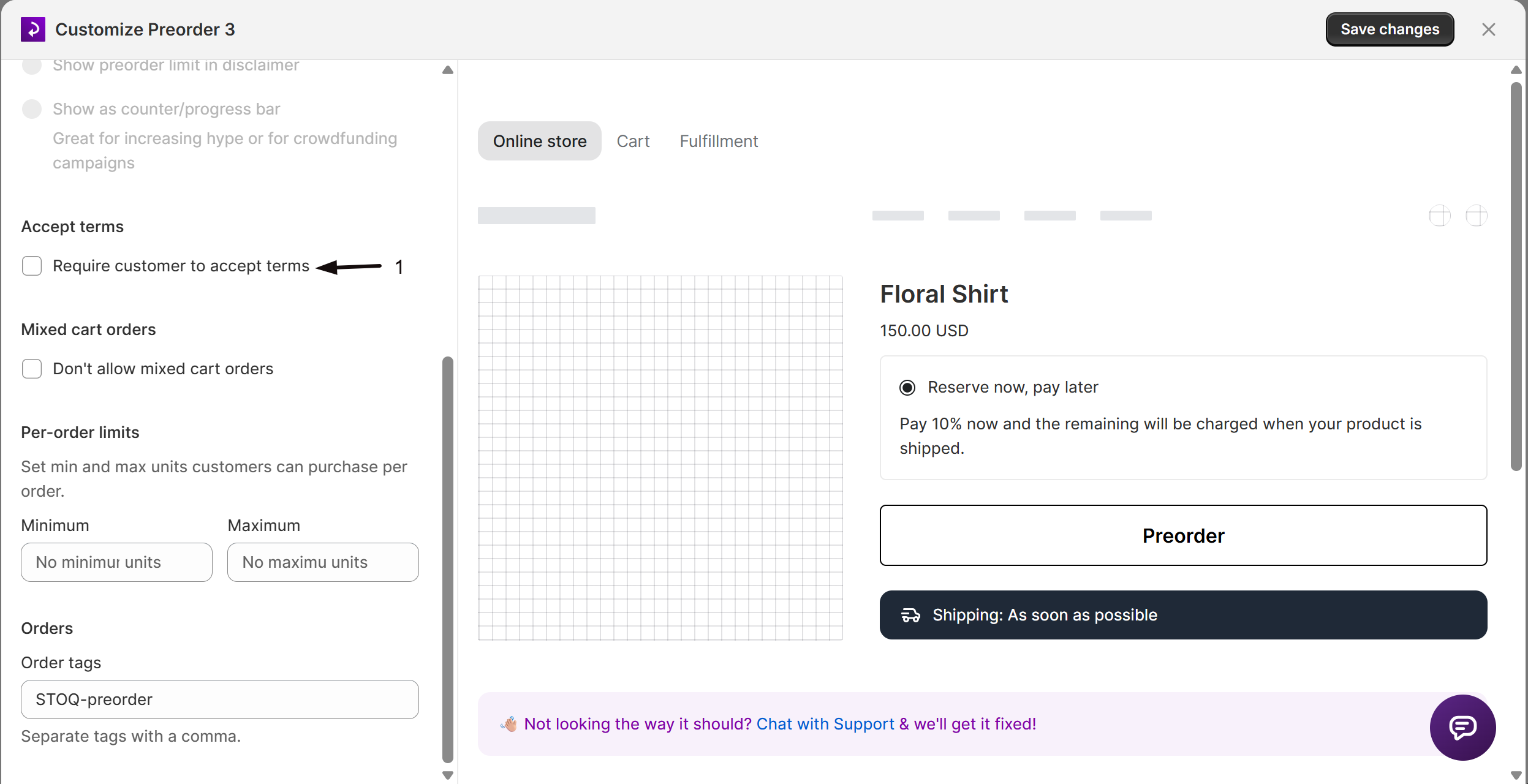
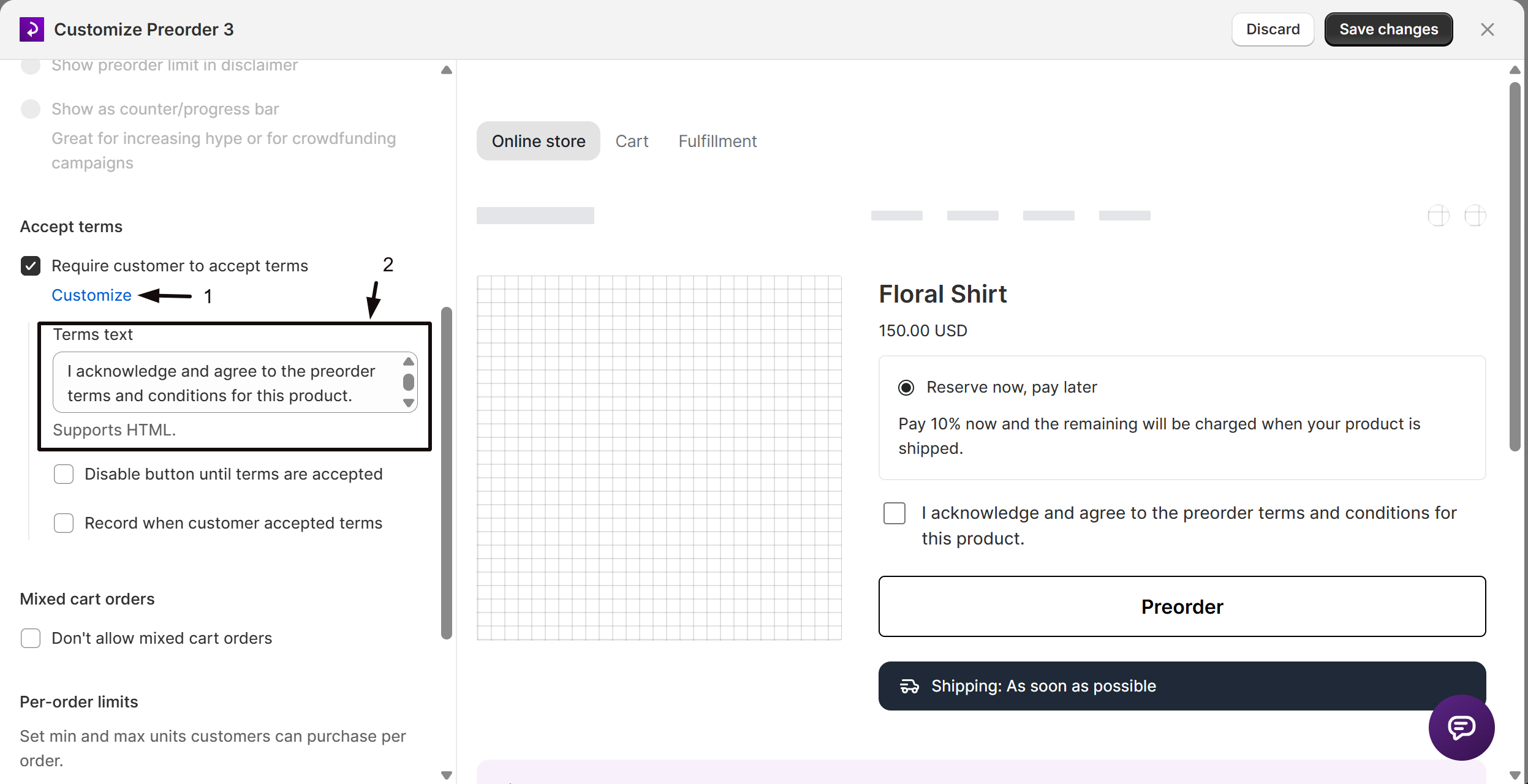
Under Accept terms, enable Require customer to accept terms. When enabled, a checkbox appears on the storefront that customers must tick before adding the item to their cart.
Customize the terms text and options
Click Customize to:
- Edit the Terms text shown inside the checkbox label. Supports HTML.
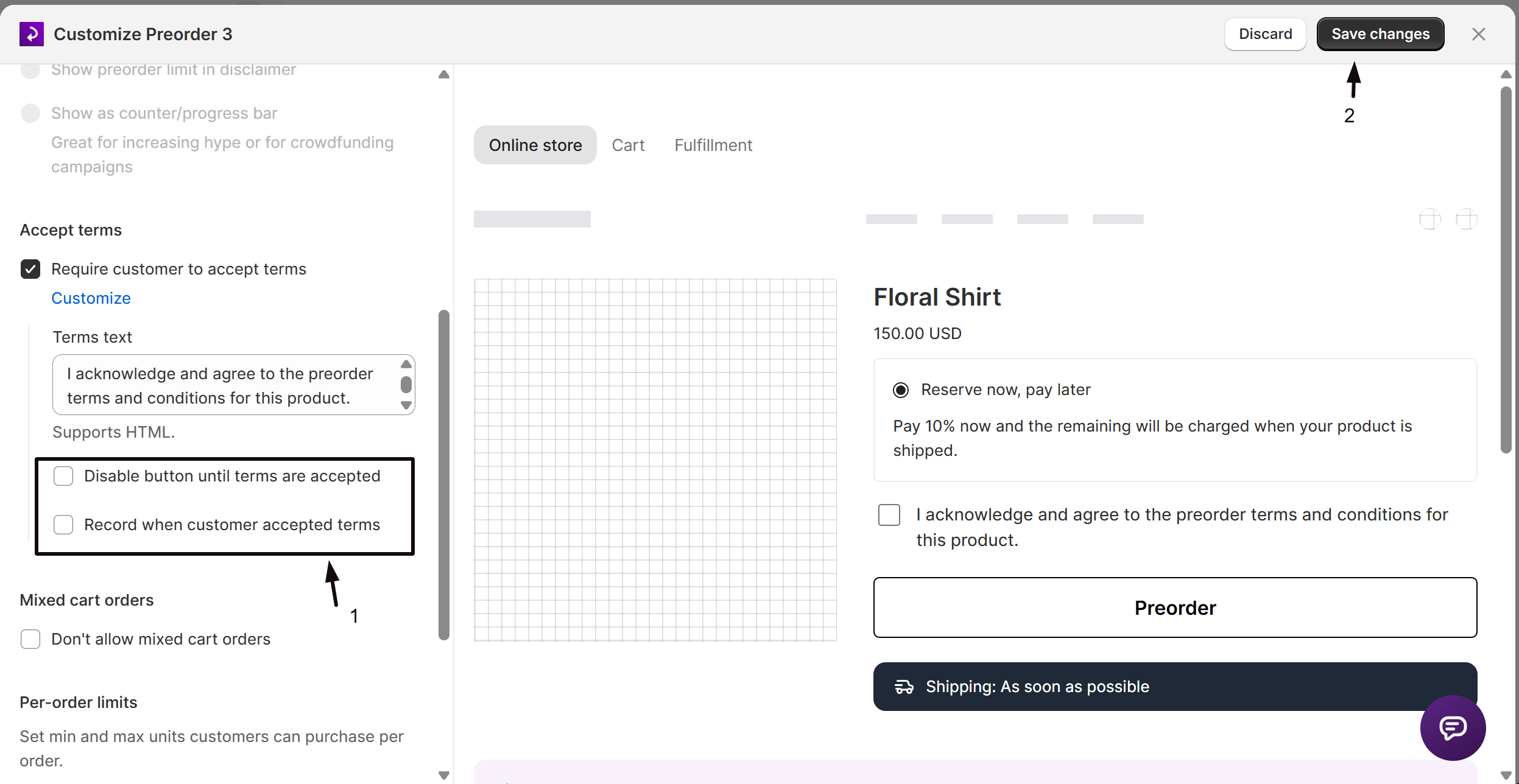
- Enable Disable button until terms are accepted: keeps the preorder button greyed out until the customer checks the box.
- Enable Record when customer accepted terms: stamps the date and time the customer accepted onto the order as a line item property. Click Customize on this sub-option to change the label (default:
Terms accepted at).
Block mixed-cart orders
A "mixed cart" is a cart that contains both a preorder item from this offer and regular (non-preorder) products. The restriction applies to this offer only; a variant linked to a different offer without the restriction can still be mixed.
Enable the mixed-cart restriction
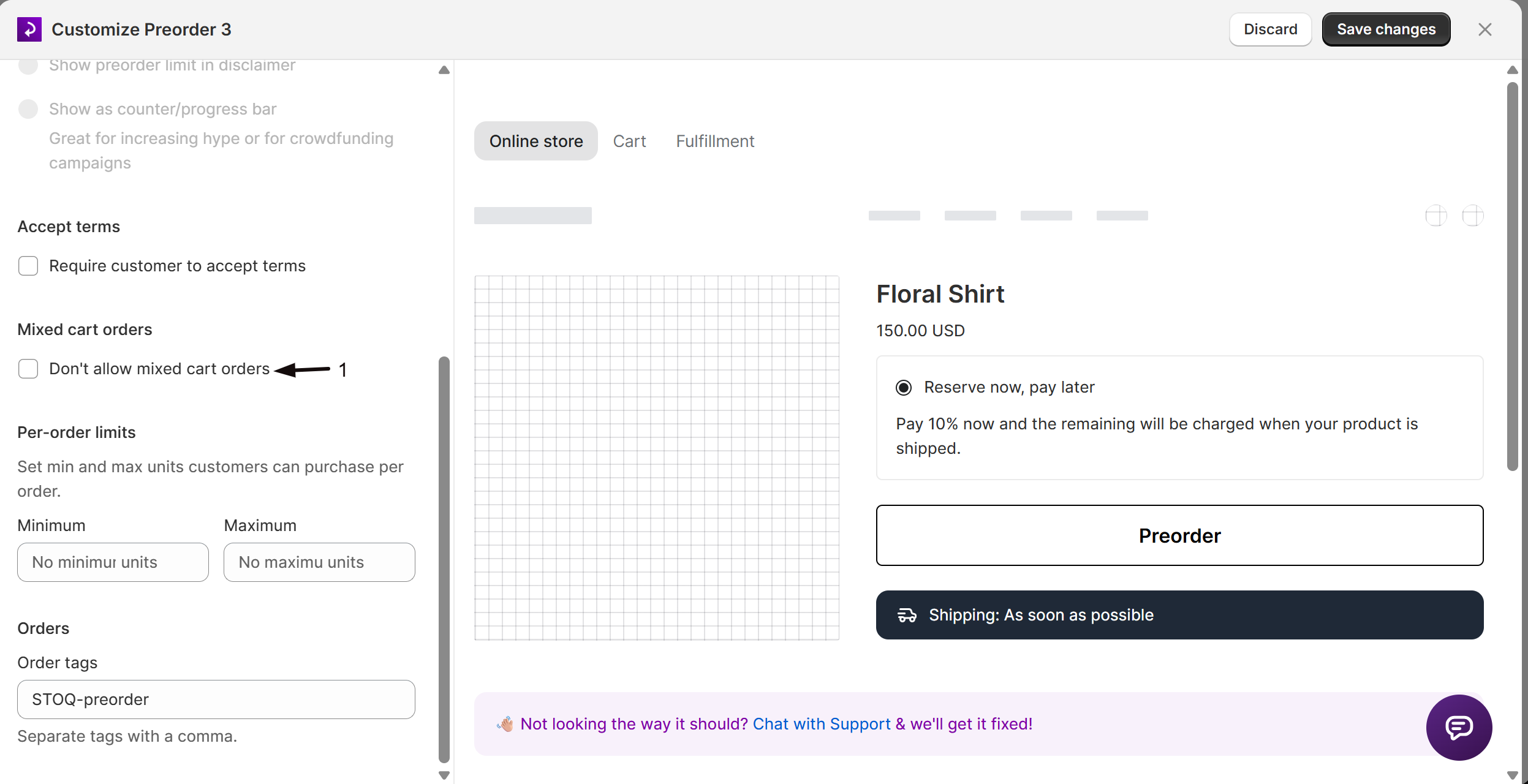
Under Mixed cart orders, enable Don't allow mixed cart orders.
When enabled, customers who try to add this preorder item to a cart that already has non-preorder products will see an error message.
Customize the error message
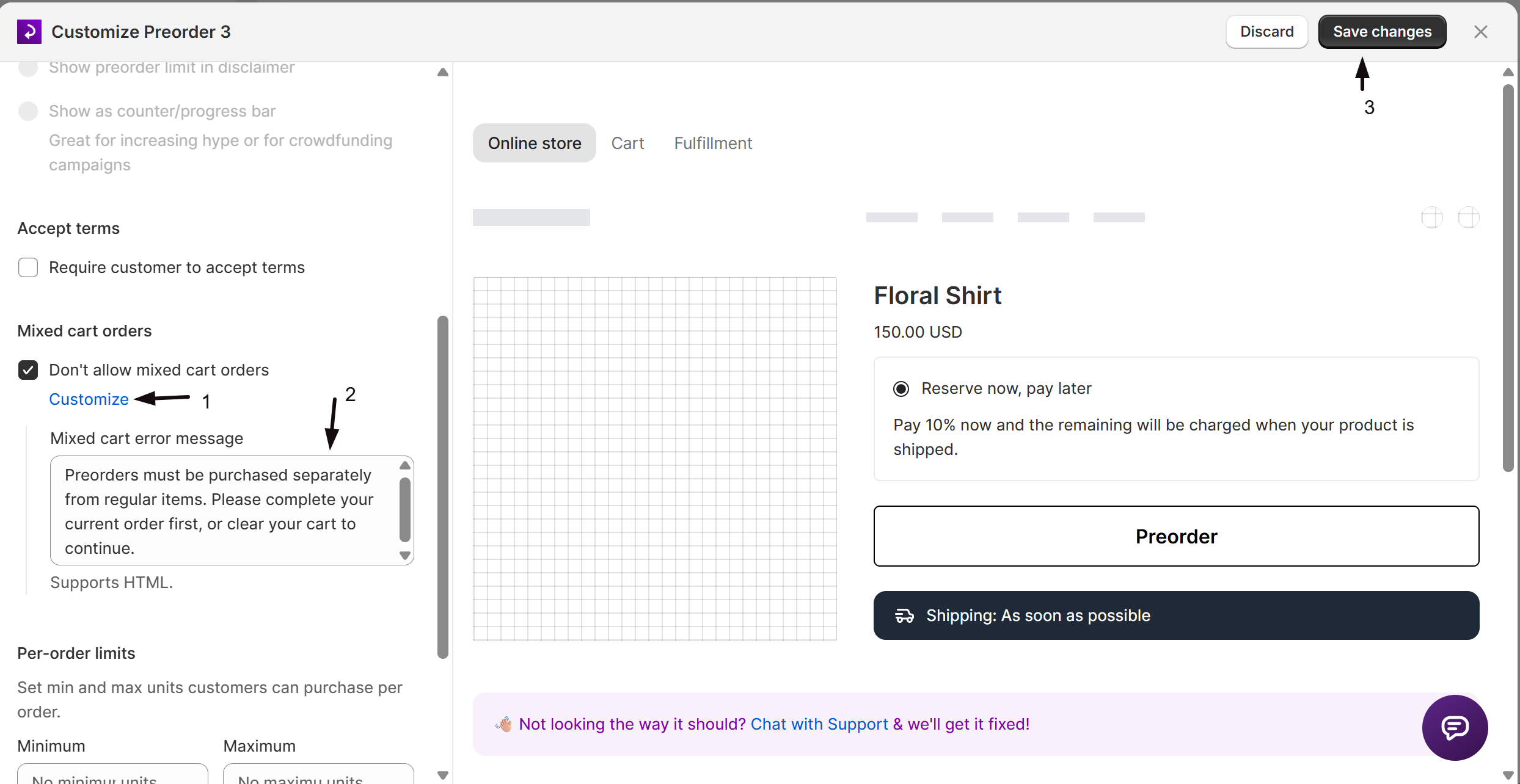
Click Customize to edit the Mixed cart error message shown to the customer. Supports HTML.
Set per-order limits
Per-order limits control the minimum and maximum number of units a single customer can purchase in a single order. This is separate from the total variant cap in Set preorder quantity limits.
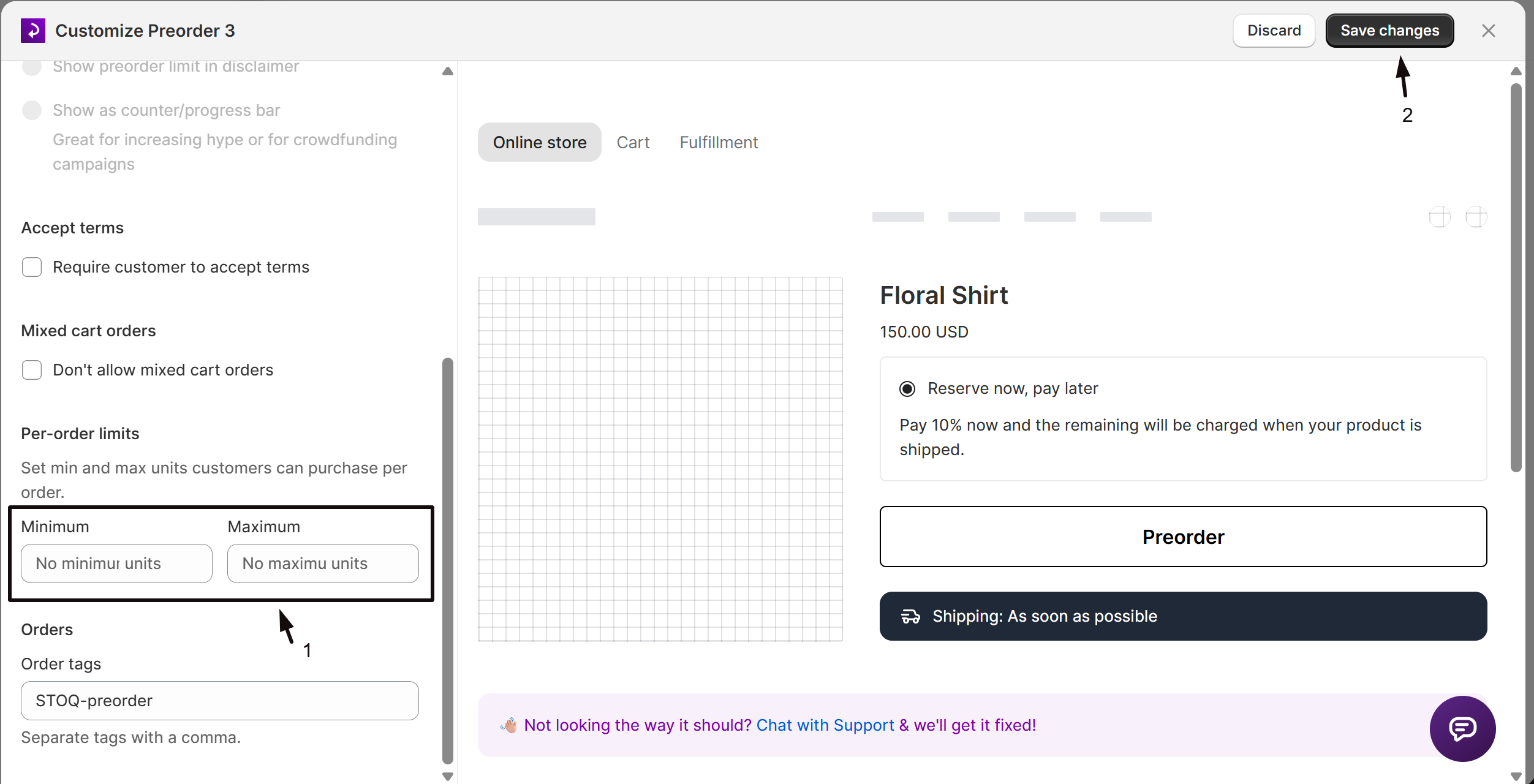
Set minimum and maximum units
Under Per-order limits, enter unit values in the Minimum and Maximum fields. Both accept positive integers only.
- Leave a field blank for no minimum or no maximum.
- If you set both, the minimum cannot exceed the maximum (validated on save).
Add order tags
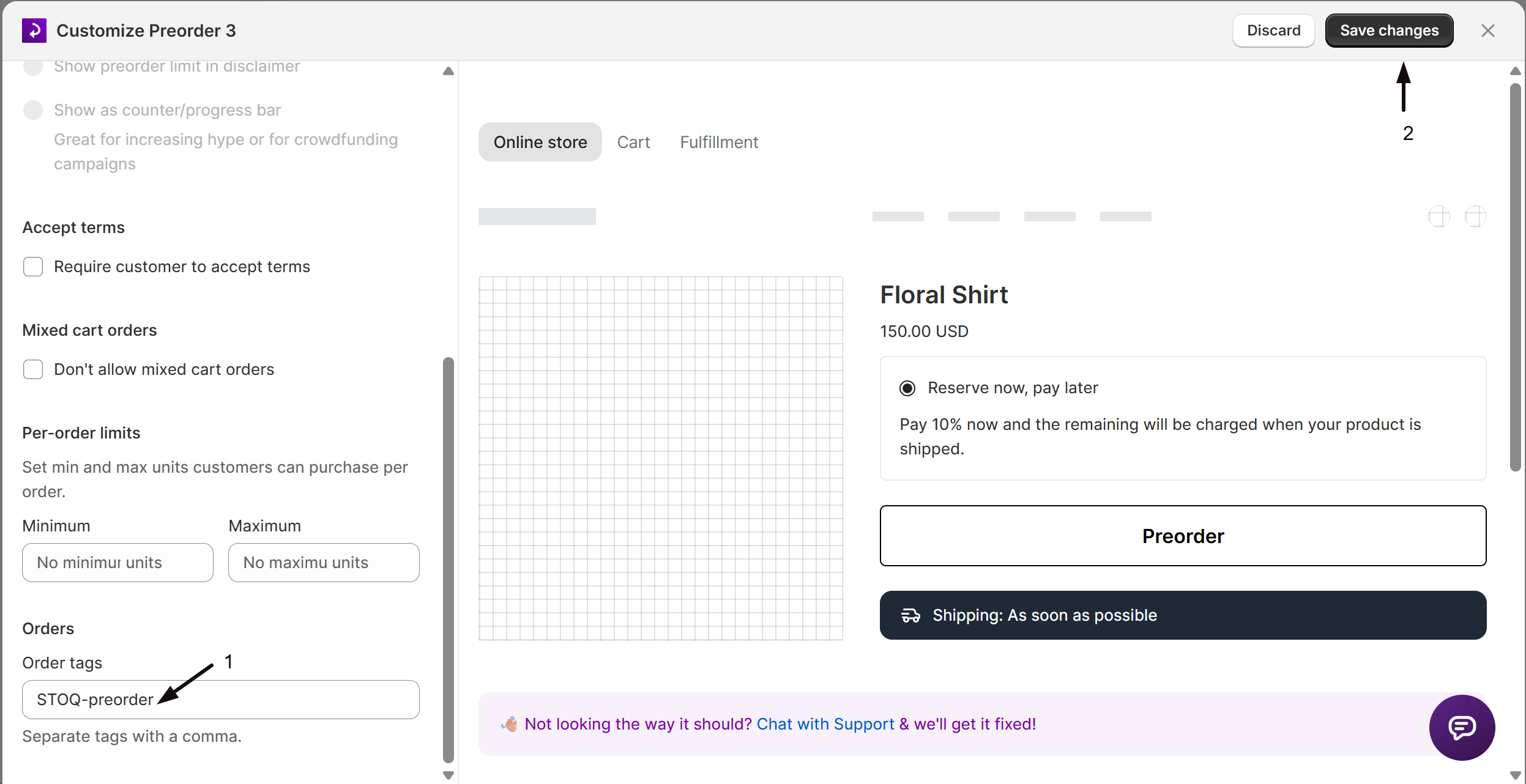
Under the Orders section at the bottom of Limits & terms, enter comma-separated tags in Order tags. Every preorder order placed through this offer will receive these tags in Shopify admin.
Check your setup
- Visit a product page linked to this offer. If Require customer to accept terms is on, confirm the checkbox appears above the Preorder button.
- Set a per-order minimum or maximum, then try to add fewer or more than allowed and confirm the widget holds you to the limit.
- If you enabled the mixed-cart block, add a non-preorder product, then try to add this preorder item, and confirm your error message shows.
Troubleshooting
Saving Per-order limits fails
The minimum can't exceed the maximum. Lower the minimum or raise the maximum.
A customer says per-order limits didn't apply at checkout
Per-order limits are enforced by the STOQ widget on the product page only. A customer who reaches checkout via a direct cart link bypasses them, since Shopify's native quantity selector and checkout don't enforce STOQ-specific limits.
The mixed-cart error isn't showing
Confirm Don't allow mixed cart orders is enabled on this specific offer. The restriction is per offer, not global; a variant linked to another offer without the restriction can still be mixed.
FAQ
Does changing these rules affect orders already placed?
No. Terms, the mixed-cart block, and per-order limits only control what happens going forward. Orders placed before you changed a setting keep whatever terms and cart contents they had at checkout.
Does the per-order minimum/maximum affect Shopify's own quantity selector?
No. STOQ's per-order limits are enforced by the STOQ widget on the product page. Shopify's native quantity selector and checkout don't enforce STOQ-specific limits, so a customer who bypasses the widget, for example via a direct cart URL, isn't held to the per-order limits at checkout.
Where do I cap the total units a variant can preorder?
That's a separate setting, the per-variant quantity limit, which also controls when STOQ stops preorders. See Set preorder quantity limits.
Can the terms text be translated?
Yes. Use the Translate icon (globe icon) at the top of the Limits & terms section for structured multi-language support across all 24 locales. See Multi-language preorders.
Related guides
Add products to an offer
Link product variants to a preorder offer and manage per-variant settings.
Preorder inventory settings
Control how STOQ decides when to show the preorder button based on inventory levels.
Design preorder widget
Customize the preorder button, disclaimer text, colors, and more.
Preorder advanced settings
Configure order tags, acknowledgement, and other advanced offer-level options.
Multi-language preorders
Translate preorder button, disclaimer, and progress bar text across locales.
