
Choose which products show the button
Use this guide to control which products and variants show the 'Notify me' button, beyond the basic rule that the selected variant is out of stock. By the end, you'll be able to hide or show the button by product tag, and change how it behaves on preorder and multi-variant products.
This is a separate, shop-wide setting from the per-product Products tab on the Back in stock alerts page, which overrides button visibility, restock notes, and templates for individual products or variants. See Set up back in stock alerts.
Before you begin
| Requirement | Detail |
|---|---|
| The 'Notify me' widget is enabled | On the Back in stock alerts page, the 'Notify me' widget toggle must be on |
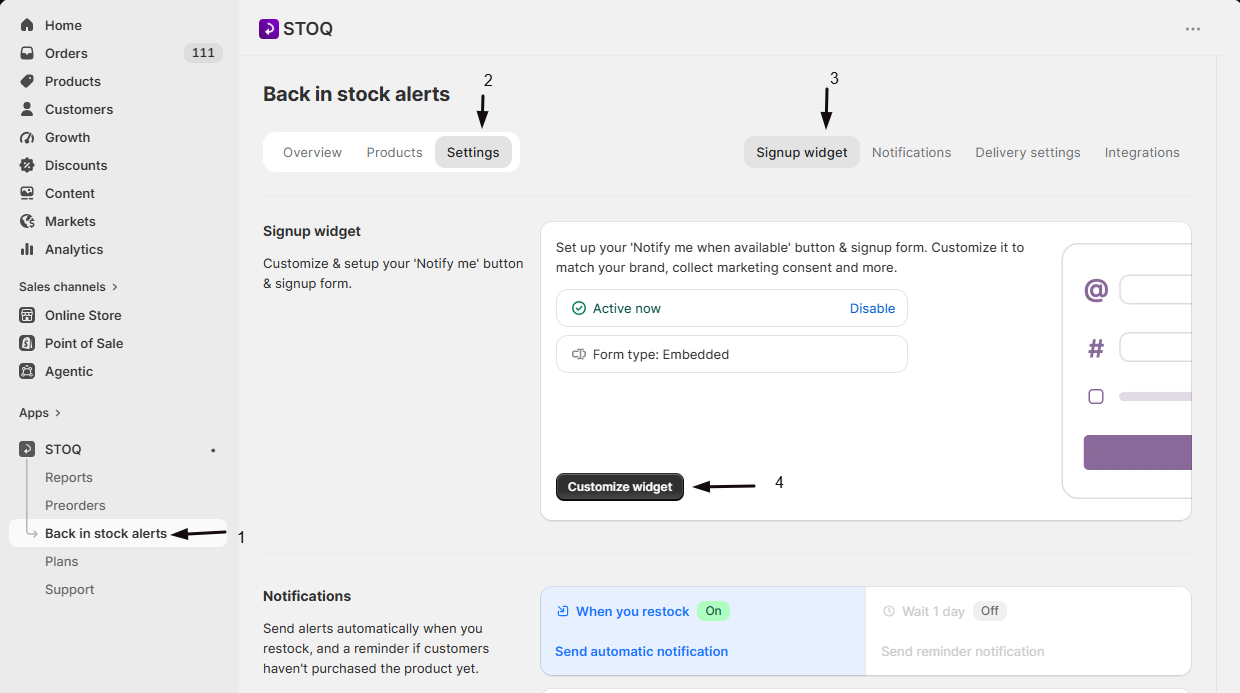
| Widget editor open | Open Back in stock alerts → Settings tab → Signup widget sub-tab → Customize widget |
Choose your setup
Beyond the basic out-of-stock check, three independent settings expand or restrict which products show the button:
- Product tags: choose All out of stock products (the default; the tag rule doesn't apply) or Specific products, which lets you either hide the button on tagged products or show it only on tagged products.
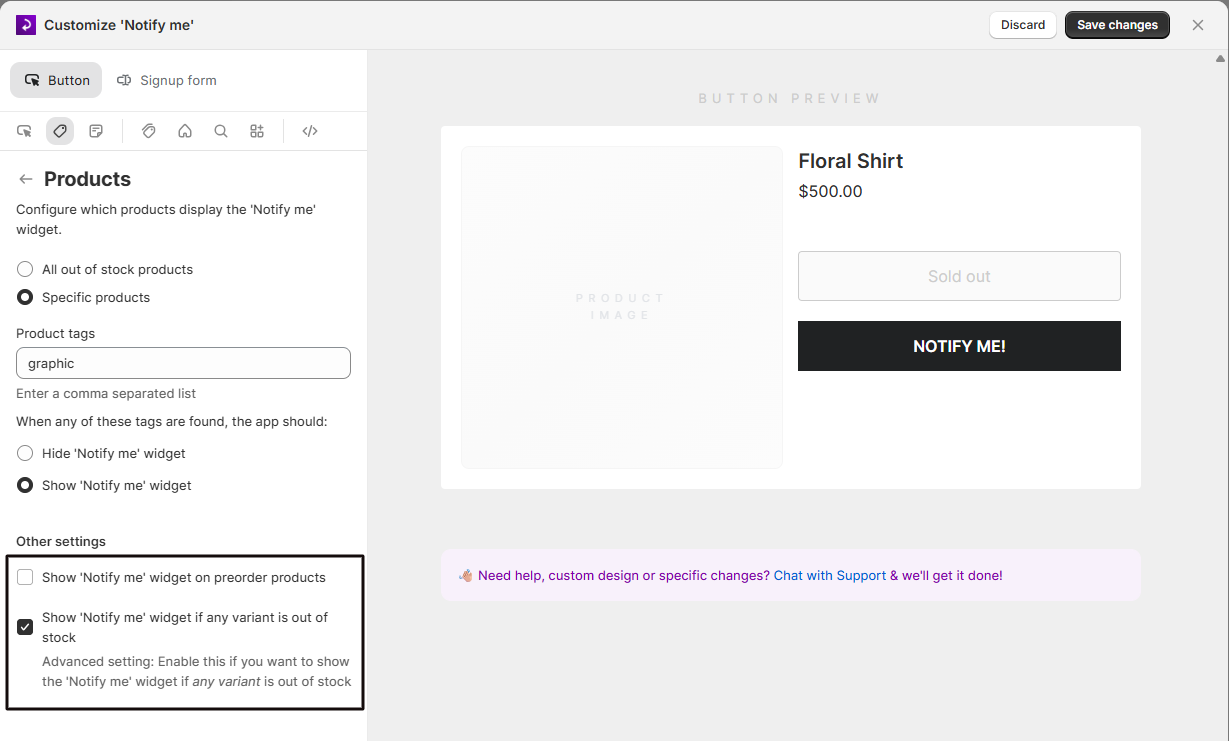
- Show 'Notify me' widget on preorder products (Off by default): also shows the button when the selected variant is in stock but set up as a preorder, meaning its "Continue selling when out of stock" inventory setting is on and inventory is at or below zero.
- Show 'Notify me' widget if any variant is out of stock (Off by default, labeled Advanced setting in the app): also shows the button when the selected variant is in stock, as long as at least one other variant of the same product is out of stock.
These settings are independent and combine together. For example, you could hide the button entirely on products tagged rocket-hide, while also showing it on preorder products and on any product with at least one out-of-stock variant.
What customers will see
On the storefront, STOQ evaluates these rules (in addition to the basic out-of-stock check) for the specific variant a customer has selected on the product page:
- The button shows if the selected variant is out of stock, unless a disable tag excludes the product.
- If Specific products is set to hide on tag match and the product carries a listed tag, the button never shows, even if the variant is out of stock.
- If Specific products is set to show only on tag match, the button only shows for tagged products.
- If Show on preorder products is on and the selected variant is in stock but marked as a preorder, the button shows.
- If Show if any variant is out of stock is on and the customer has a different (in-stock) variant selected, the button still shows as long as some variant of that product is out of stock.
Enabling Show if any variant is out of stock means customers can sign up while looking at an in-stock variant, which can be confusing without clear variant-level messaging or a restock note (see Notify me restock note).
Set it up
On a phone, this menu is collapsed. In the Shopify mobile app, tap the STOQ logo at the top of the screen to open it, then choose the section named below. There is no hamburger icon. See Finding the STOQ menu.
Open the widget editor
- In the left menu bar of the STOQ app, click Back in stock alerts.
- Click the Settings tab.
- Open the Signup widget sub-tab.
- Click Customize widget.
Open the Products section
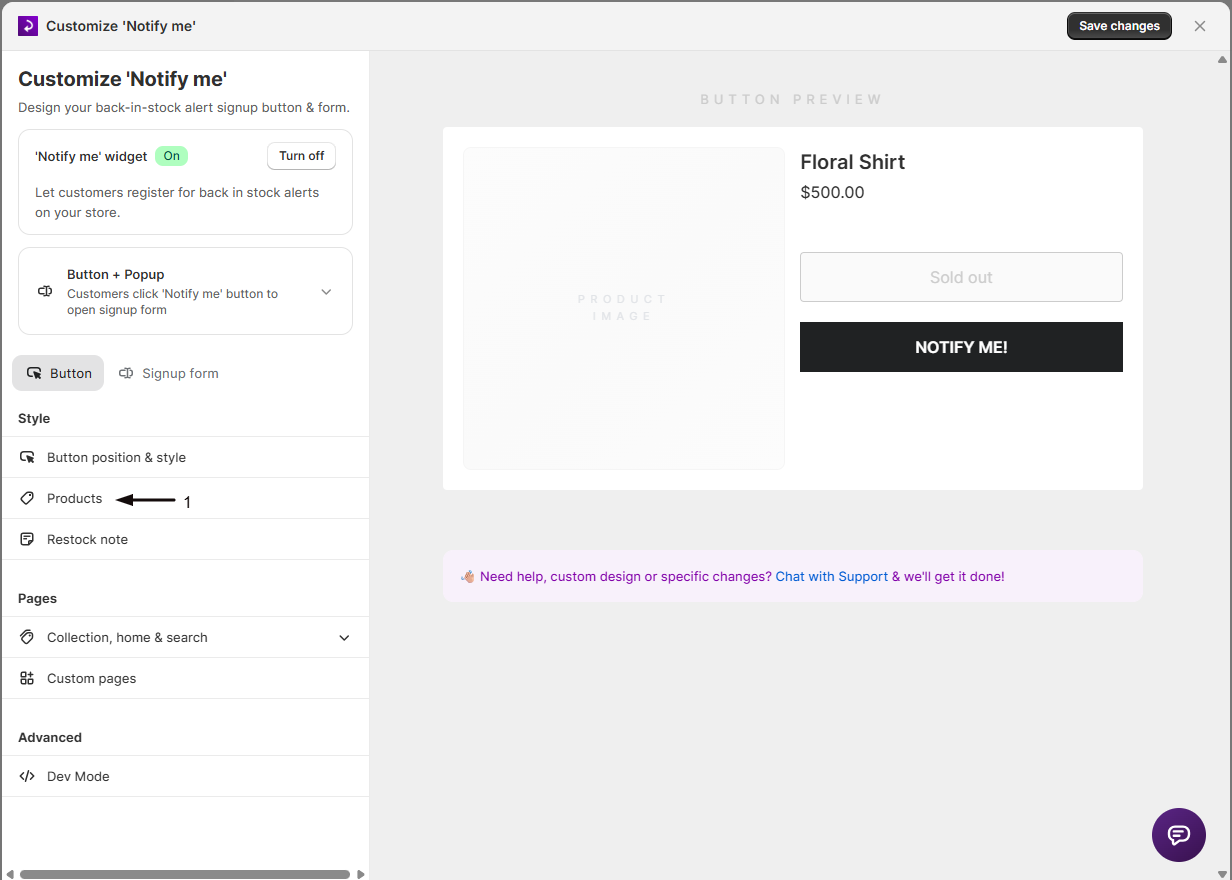
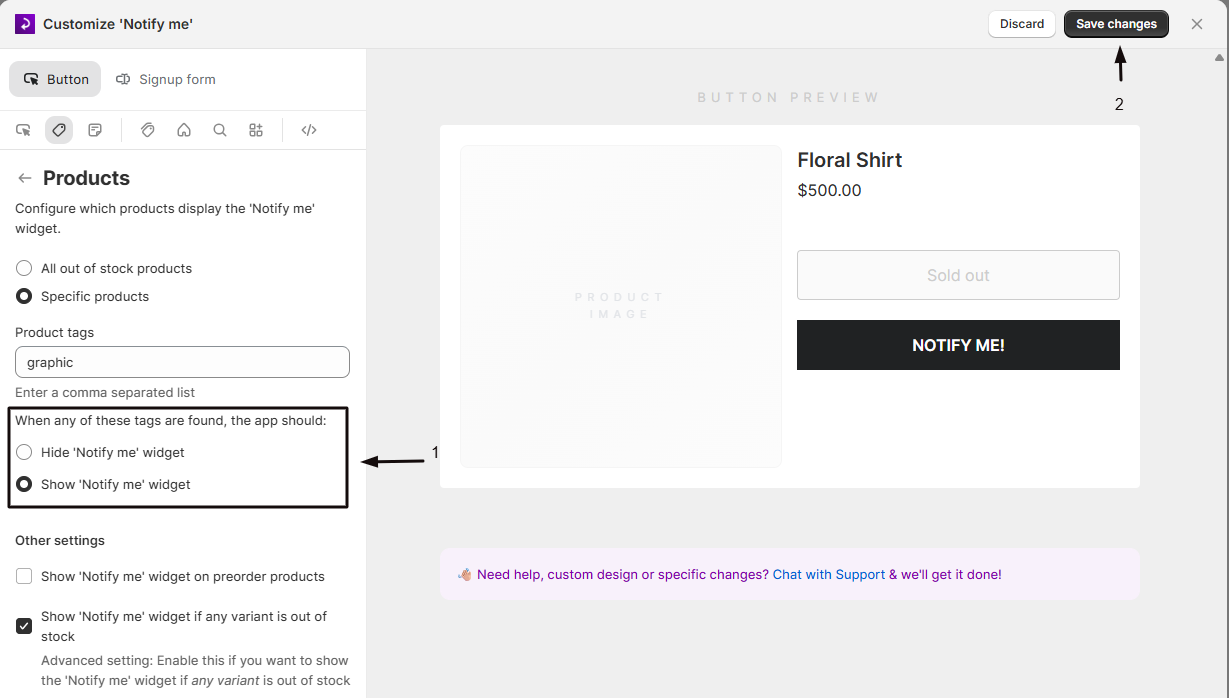
On the Button tab, click Products in the sidebar. The heading reads "Configure which products display the 'Notify me' widget."
Choose which products the rule applies to
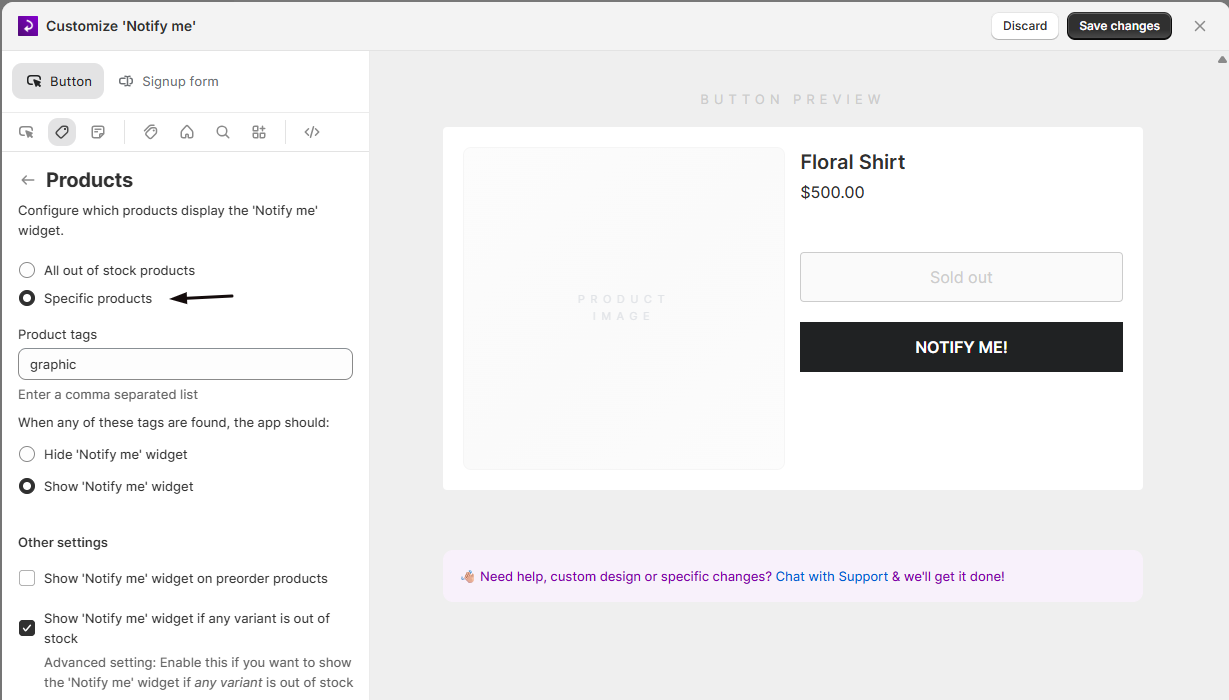
At the top of the section, select All out of stock products or Specific products. Selecting Specific products enables a Product tags field and a pair of radio buttons.
Enter product tags
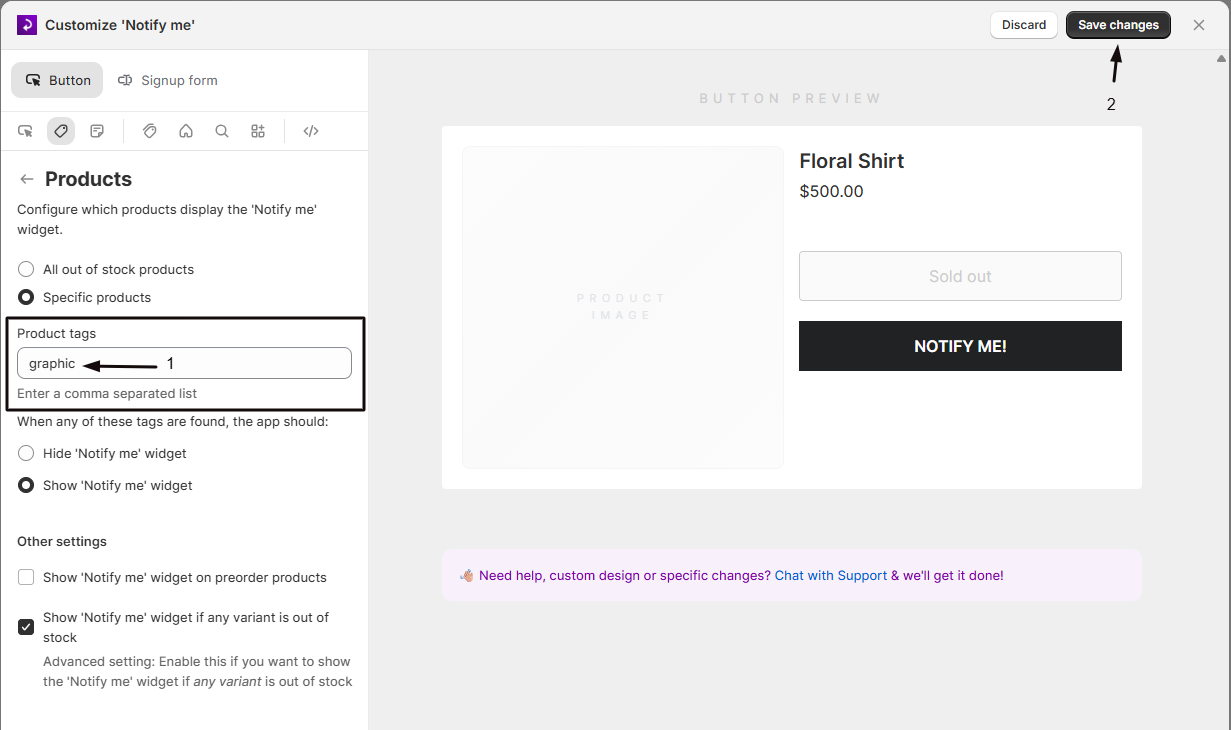
If you selected Specific products, enter a comma-separated list of tags in the Product tags field, for example hide-button,rocket-hide. These must match tags already applied to products in Shopify, spelled and cased exactly as they appear in Shopify admin: a typo means no products will match.
Choose what happens when a tag matches
Choose Hide 'Notify me' widget to hide the button on tagged products, or Show 'Notify me' widget to show the button only on tagged products.
(Optional) Turn on additional eligibility settings
Below the tag controls, turn on Show 'Notify me' widget on preorder products and/or Show 'Notify me' widget if any variant is out of stock, as needed. See Choose your setup above for what each does.
Save
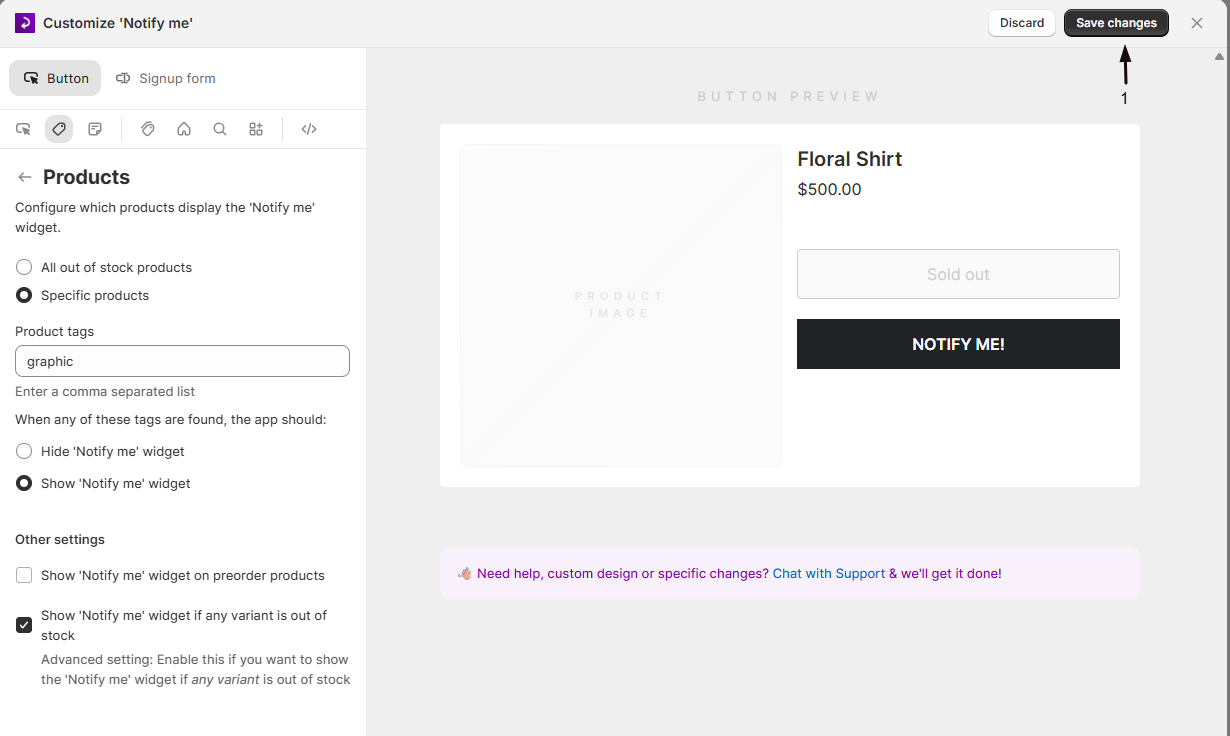
Save your changes in the widget editor.
Check your setup
Visit a product page on your live storefront for a product that matches, or doesn't match, your tag rule, and confirm the button shows or hides as expected.
- If you enabled Show if any variant is out of stock, switch between variants on a mixed-availability product and confirm the button remains visible.
- If you enabled Show on preorder products, check a preorder product page while an in-stock, continue-selling variant is selected.
Troubleshooting
You set Specific products to hide the button on a tag, but the button still shows
Check:
- The tag is spelled exactly as it appears in Shopify admin (tags are case-sensitive).
- You selected Hide 'Notify me' widget, not Show 'Notify me' widget.
- The product isn't set to "Always show" on the Products tab of the Back in stock alerts page: the shop-wide tag rule takes precedence, so the button won't show even with that per-product override.
Tagging products doesn't change what shows
Confirm Specific products is selected instead of All out of stock products. The tag rule only applies when Specific products is selected.
The button doesn't show on a preorder product
Confirm Show 'Notify me' widget on preorder products is on, and that the variant's Shopify inventory setting has "Continue selling when out of stock" enabled with inventory at or below zero.
The button disappears when a customer switches variants
Confirm Show 'Notify me' widget if any variant is out of stock is on, and that at least one variant of the product is actually out of stock.
Limitations
Tag matching is based on Shopify product tags, not variant-level tags.
FAQ
What's the difference between this Products section and the Products tab on the Back in stock alerts page?
This section (in the widget editor, reached via Settings tab → Signup widget sub-tab → Customize widget → Button tab → Products in the sidebar) sets shop-wide rules based on tags and multi-variant behavior. The Products tab on the Back in stock alerts page lets you override the button's visibility, restock note, and design template for one specific product or variant, independent of these shop-wide rules.
Can I use tags to only show the button on certain products instead of hiding it?
Yes. Choose Specific products, enter your tags, and select Show 'Notify me' widget instead of Hide 'Notify me' widget. Only products carrying one of the listed tags will be eligible.
What counts as a 'preorder product' for the 'Show on preorder products' setting?
A variant is treated as a preorder when its Shopify inventory setting allows continuing to sell when out of stock, and its available inventory is at or below zero. If those conditions aren't met, this setting has no effect on that variant.
Does 'Show if any variant is out of stock' apply to collection and other store pages too?
This exact toggle applies to product pages. Collection pages have their own separate "show if any variant is out of stock" setting, covered in Notify me button on store pages.
If a product has no tags at all, what happens?
If Specific products is set to hide on tag match, an untagged product is never excluded by the tag rule (the button behaves as if this section were off). If it's set to show only on tag match, an untagged product is always excluded from showing the button through this rule.
Does the Notify me button appear on draft or unpublished products?
Yes. The button isn't gated on a product's publish status, only on the STOQ app embed being active and the variant being eligible (out of stock, and allowed by your button visibility and product rules). So it renders on a draft or unpublished product's page too, for example when you preview it, which is what lets customers join the waitlist before the product goes live. To notify those signups the moment you publish, see Alert when a product is published.
Related guides
Back in stock alerts overview
See how product eligibility fits into the full back-in-stock flow.
Design the 'Notify me' button
Style the button that appears on eligible product pages.
'Notify me' button on store pages
Add the button to collection, home, search, and custom pages, with their own eligibility rules.
Notify me restock note
Show a note below the button when a restock date is set.
Set up back in stock alerts
Walk through the full setup flow, including widget configuration.
