Articles on: Signup popup

Collect customer name

STOQ allows you to collect customer names through your back-in-stock signup form, enabling you to send personalized notifications and seamlessly integrate customer data with marketing platforms. When customers provide their name during signup, you can use it to personalize email subject lines, greetings, and descriptions in your back-in-stock alerts. This feature is available exclusively to merchants on paid STOQ plans and helps create a more personal connection with your customers.

Access Customer Name Settings


To enable and configure customer name collection, follow these steps to access the Customer name settings.


Navigation Steps


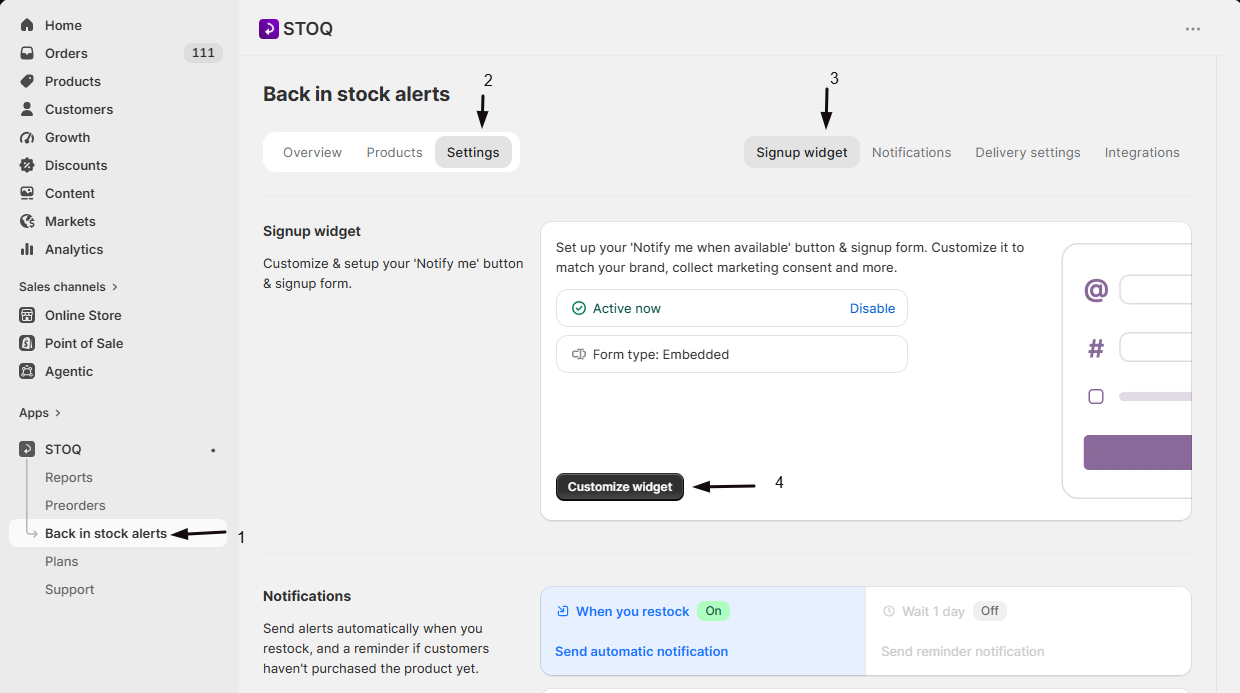
  1. Open the STOQ app from your Shopify admin
  2. Click Back in stock alerts from the left navigation menu
  3. Under the Signup Widget section, click Customize widget
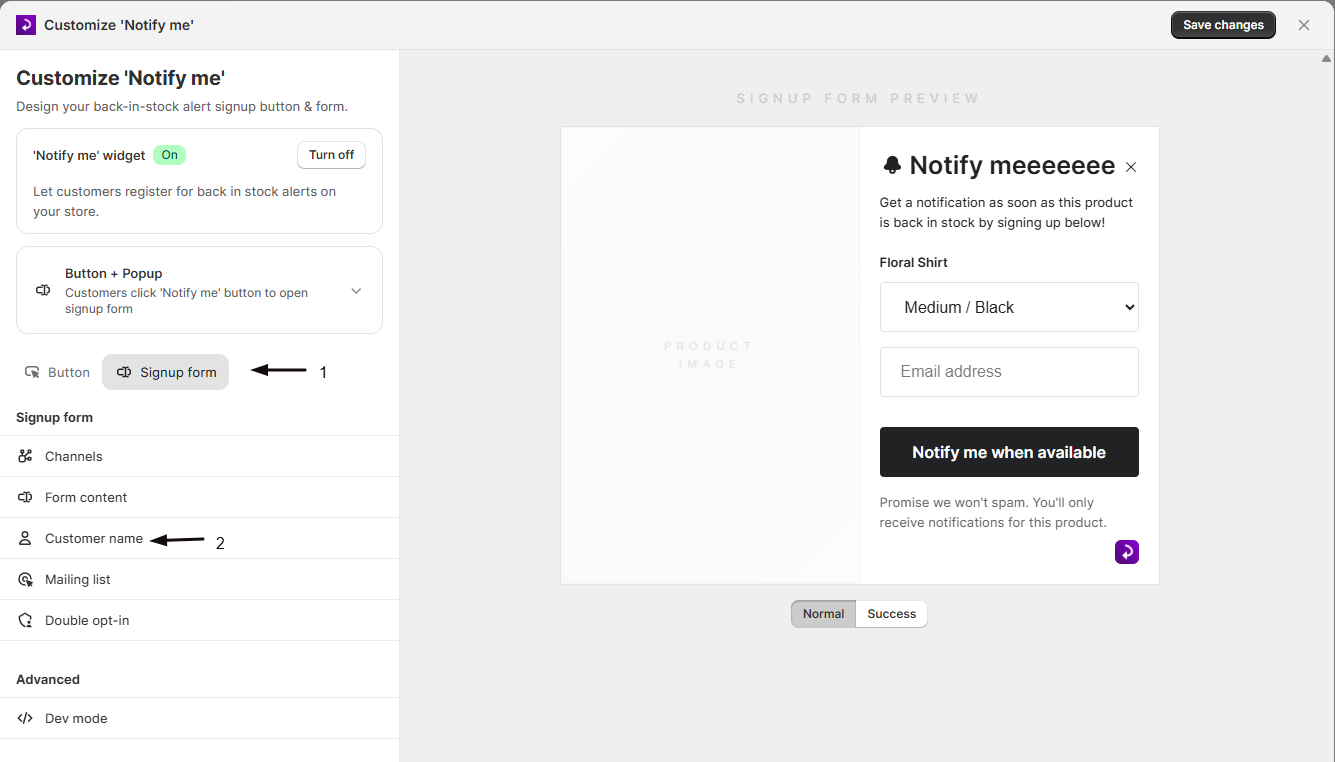
  4. You'll see a preview of your button and form on the right side
  5. Click the Form tab at the top of the customization panel
  6. Click Customer name from the menu options


You'll now see all the settings for collecting customer names in your signup form.


Enable Customer Name Collection


The first step is to enable the customer name field in your signup form.


Activating the Feature


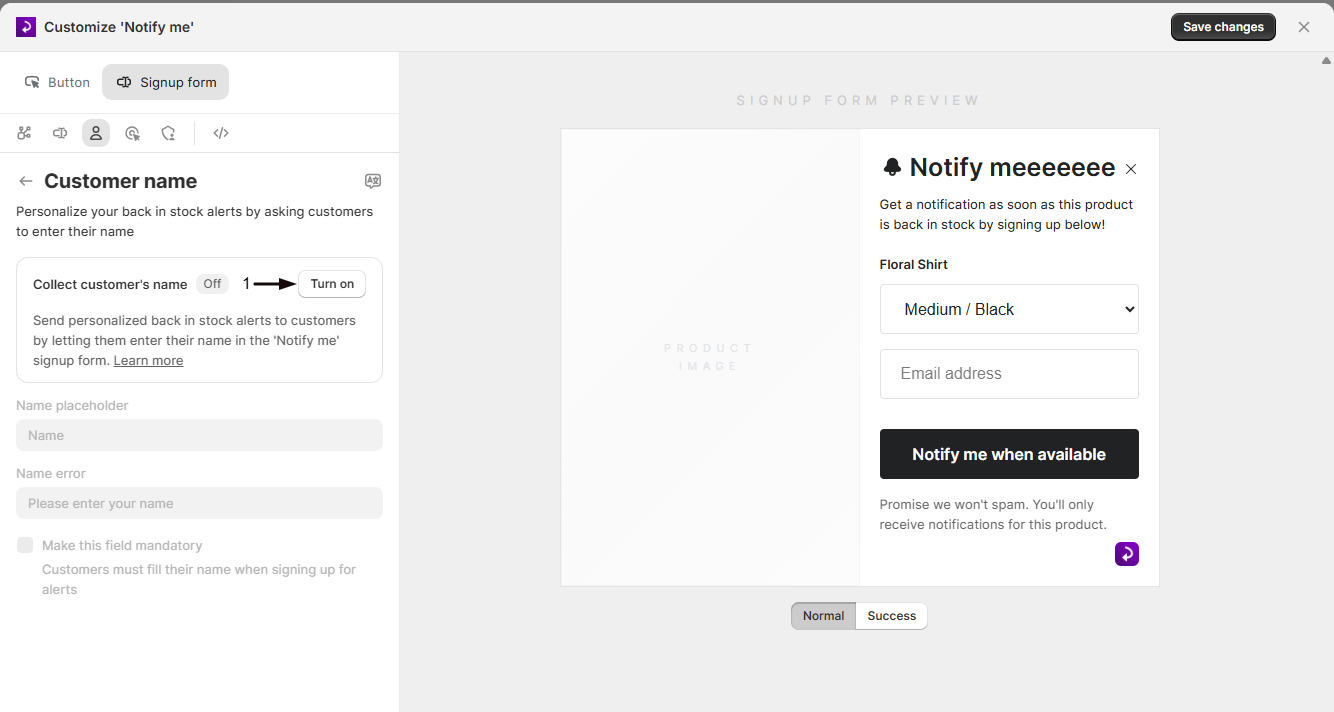
  1. Find the Collect customer's name toggle at the top of the Customer name settings
  2. Click the toggle to enable customer name collection
  3. The toggle will turn on and the name field will appear in your signup form preview
  4. Additional customization options will become available once enabled


Requirements:

  • This feature requires a paid STOQ plan (Standard or above)
  • If you're on a free plan, you'll see an upgrade prompt


What happens when enabled:

  • A name input field appears in your signup form above the email/SMS fields
  • Customers can enter their first name, last name, or full name
  • The name is saved with their notification signup
  • The name becomes available for use in email personalization


Tip: Enable this feature before customizing the placeholder and error messages to see how they appear in the live preview.


Customize Name Field Placeholder


The placeholder text appears inside the name input field before customers start typing.


Setting the Placeholder


Default placeholder: "Name"

Field label: Name placeholder


When to customize:

  • To be more specific (e.g., "Your name", "First name", "Full name")
  • To match your form's language and tone
  • To translate to another language
  • To provide guidance (e.g., "Enter your first name")


Examples:

  • "First name"
  • "Your name"
  • "Full name"
  • "What should we call you?"


How to change:

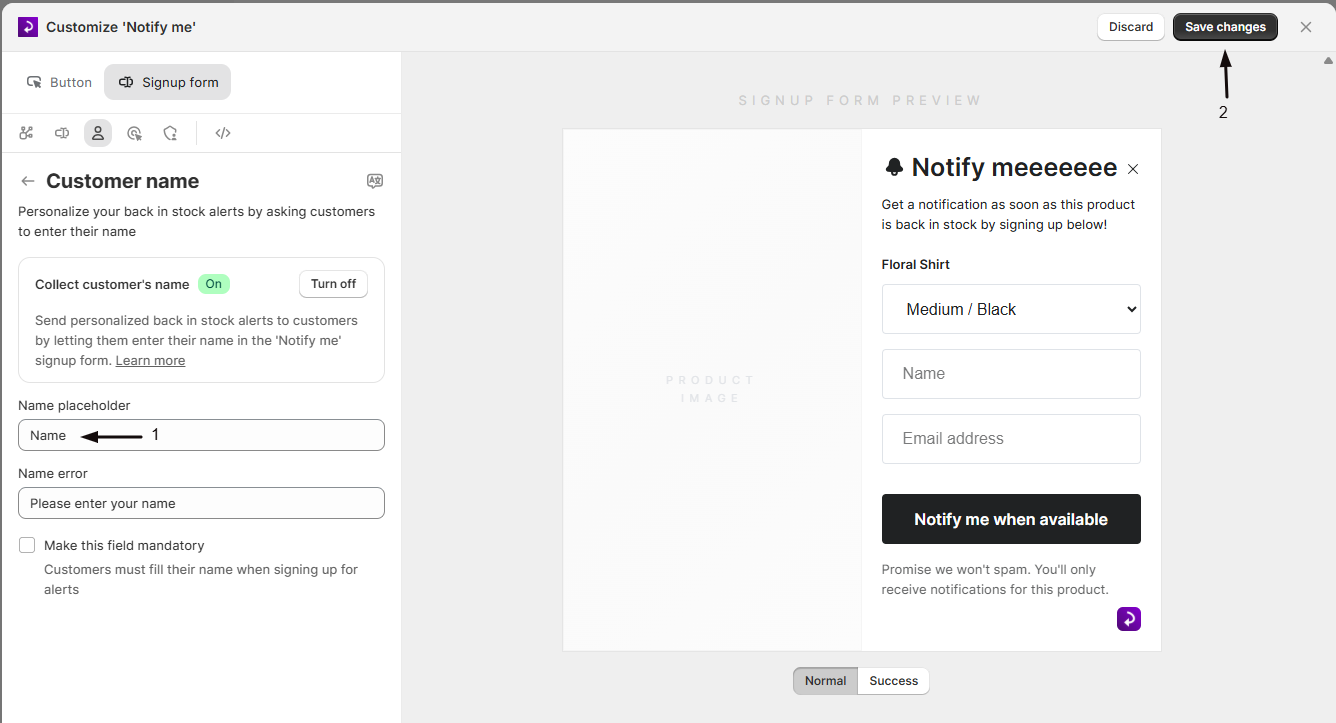
  1. Find the Name placeholder text field
  2. Enter your preferred placeholder text
  3. Check the preview on the right to see how it looks
  4. The placeholder disappears when customers start typing


Note: Keep the placeholder short (1-3 words) to ensure it displays properly on mobile devices.


Customize Name Error Message


The error message appears when the name field is marked as mandatory and a customer tries to submit the form without entering their name.


Setting the Error Message


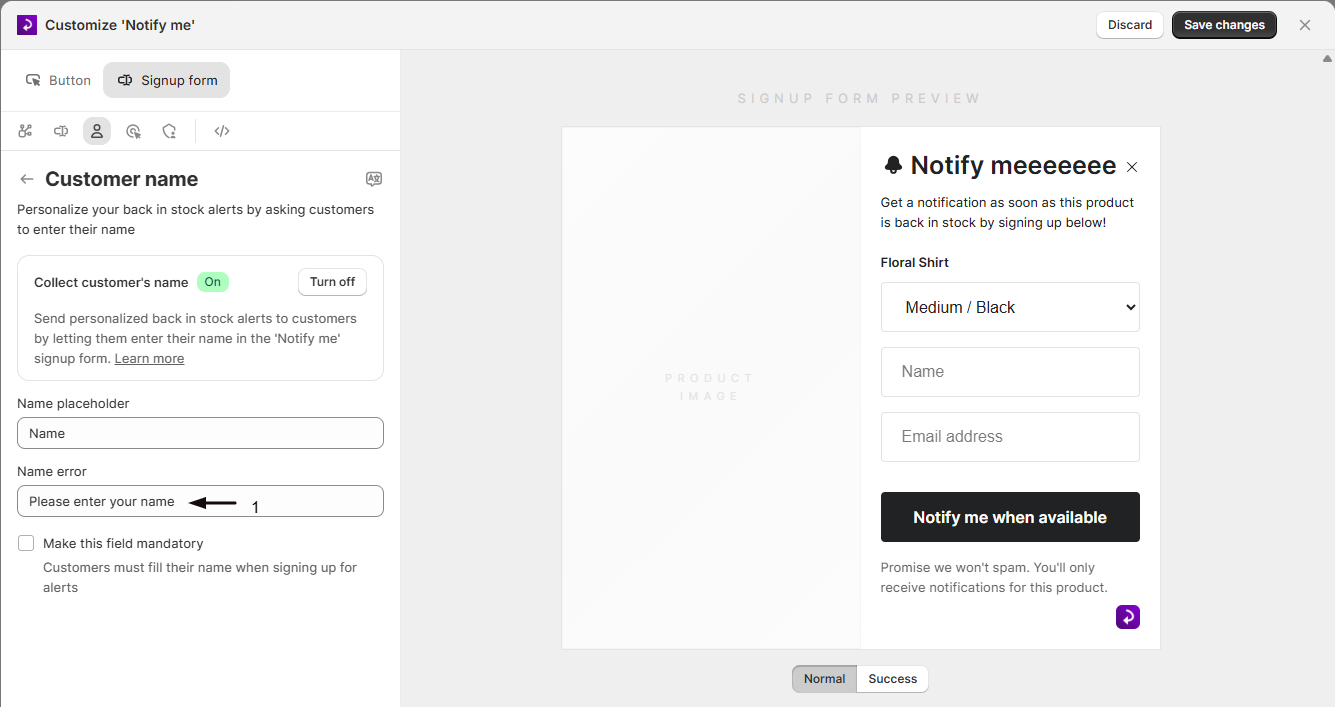
Default error message: "Please enter your name"


Field label: Name error


When to customize:

  • To be more helpful or specific
  • To match your error message style
  • To translate to another language
  • To add brand personality


Examples:

  • "Oops! We need your name to personalize your alert"
  • "Please tell us your name"
  • "Name is required"
  • "Don't forget to add your name!"


How to change:

  1. Find the Name error text field
  2. Enter your preferred error message
  3. The error only appears if the field is marked as mandatory (see next section)
  4. Test by trying to submit the form without a name to see the error


Important: The error message only displays when the "Make this field mandatory" checkbox is enabled.


Make Name Field Mandatory or Optional


You can choose whether customers must provide their name or if it's optional.


Mandatory vs. Optional


Mandatory (Required):

  • Customers must enter their name to complete signup
  • The form won't submit without a name
  • The error message appears if they try to submit without a name
  • Use this when personalization is critical to your strategy


Optional:

  • Customers can choose whether to provide their name
  • The form submits successfully with or without a name
  • No error message appears if the name is left blank
  • Use this to reduce friction in the signup process


Setting the Field as Mandatory


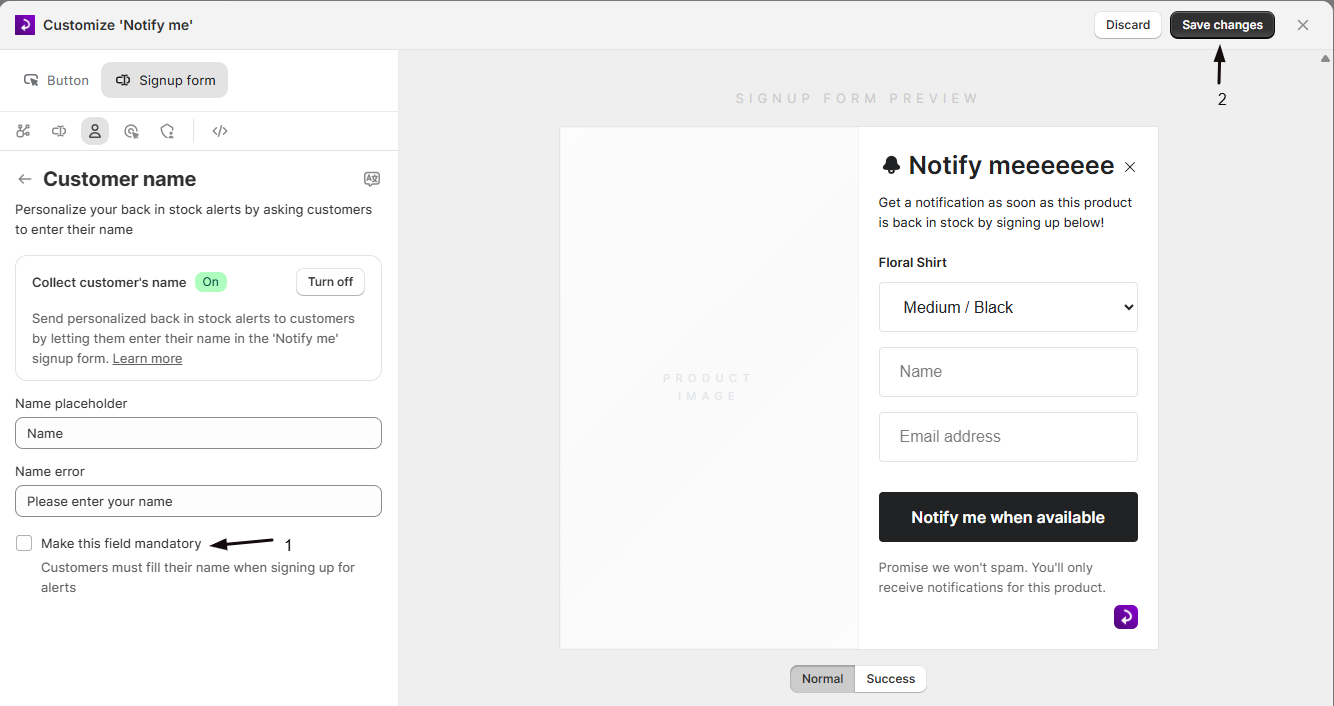
  1. Find the Make this field mandatory checkbox
  2. Check the box to make the name field required
  3. Uncheck the box to make the name field optional
  4. Save your changes


Checkbox label: Make this field mandatory


Help text: "Customers must fill their name when signing up for alerts"


When to make it mandatory:

  • You want to personalize all back-in-stock emails with customer names
  • Your marketing strategy relies on personal connections
  • You're syncing to marketing platforms that require names
  • You're willing to accept slightly lower signup rates for better data quality


When to make it optional:

  • You want to maximize signup conversion rates
  • You're okay with some customers not providing names
  • You want to reduce friction in the signup process
  • You're testing whether name collection affects conversion rates


Best Practice: Start with the field as optional and monitor your signup rates. If most customers provide their name voluntarily, you can consider making it mandatory later.


Use Customer Names in Back in Stock Emails


After collecting customer names, you can personalize your back-in-stock email notifications by including the customer's name in the subject line, heading, or body text.


Adding Names to Email Templates


  1. Navigate to Back in stock alerts from the left menu
  2. Click Customize email under the Notifications section
  3. Use the variable {{customer.name}} anywhere in your email template
  4. The variable will be replaced with the actual customer name when the email is sent


Where to use the variable:

  • Subject line: "Hey {{customer.name}}, it's back in stock!"
  • Email heading: "Good news, {{customer.name}}!"
  • Email body: "Hi {{customer.name}}, the product you wanted is available again"
  • Call-to-action: "Shop now, {{customer.name}}"


Variable Format


Variable syntax: {{customer.name}}


What it displays:

  • If the customer provided their name: Shows the exact name they entered
  • If the customer didn't provide a name: Shows nothing (blank)
  • If the field was optional and left empty: Shows nothing (blank)


Examples:


Customer Input

Email Display

"Sarah"

"Hi Sarah, it's back in stock!"

"John Smith"

"Hi John Smith, it's back in stock!"

(left blank)

"Hi , it's back in stock!"


Important: If you make the name field optional, some customers won't provide their name. Consider using a fallback greeting like "Hi there" or "Hello" for customers without names, or use conditional logic in your email template.


Preview Email with Names


  1. After adding the {{customer.name}} variable to your email template
  2. Check the preview panel on the right side
  3. The preview shows how the email will look with a sample customer name
  4. Click Save changes to apply your email template updates


Sync Customer Names to Marketing Platforms


Customer names collected through STOQ are automatically synced to your connected marketing platforms, allowing you to use this data for segmentation and personalization across your marketing campaigns.


Supported Platforms


STOQ automatically syncs customer names to the following platforms when you have the integration enabled:


Shopify:

  • Customer names sync to Shopify customer records
  • Creates or updates customer profiles with name data
  • Available in Shopify admin under Customers


Klaviyo:

  • Names sync as customer properties
  • Available for segmentation and personalization
  • Appears in Klaviyo customer profiles


Mailchimp:

  • Names sync to subscriber records
  • Available as merge tags for email personalization
  • Appears in Mailchimp audience data


Omnisend:

  • Names sync to contact records
  • Available for automation and segmentation
  • Appears in Omnisend contact profiles

How Syncing Works


  1. Customer signs up for back-in-stock alerts and provides their name
  2. STOQ automatically sends the name data to your connected platforms
  3. The name is added to the customer's profile or record
  4. You can use the name for personalization in campaigns sent from those platforms
  5. Updates happen in real-time when customers sign up


What gets synced:

  • Customer name (as entered in the signup form)
  • Email address
  • Phone number (if provided)
  • Product interest
  • Signup date and time
  • Variant information


Note: You must have the Shopify, Klaviyo, Mailchimp, or Omnisend integration enabled in STOQ for name syncing to work. Configure integrations in the STOQ app settings.


View Customer Names in Reports


Customer names appear in all STOQ reports, allowing you to see which customers have signed up for notifications and export this data for analysis.


Where Names Appear


Notifications Report:

  • Shows all customers who signed up for back-in-stock alerts
  • Displays customer name in the Name column
  • Sortable and filterable by name


Products Report:

  • Shows which products customers are interested in
  • Includes customer names for each signup
  • Helps identify popular products by customer segment


Exports:

  • All reports can be exported to CSV
  • Customer names are included in the export
  • Use for analysis in Excel, Google Sheets, or other tools


Exporting Customer Name Data


  1. Navigate to any report in STOQ (Notifications, Products, etc.)
  2. Click the Export CSV button at the top of the report
  3. The CSV file will include a column for customer names
  4. Open the file in your preferred spreadsheet application
  5. Use the data for analysis, segmentation, or importing to other systems


CSV columns include:

  • Customer name
  • Email address
  • Phone number (if provided)
  • Product name
  • Variant details
  • Signup date
  • Notification status

Tip: Export customer name data regularly to track trends in who's signing up for your back-in-stock alerts and identify your most engaged customers.


Multi-Language Support


If you serve customers in multiple languages, you can translate the name field placeholder and error message using STOQ's built-in translation system.


Translating Name Field Text


  1. From the Customer name settings page, click the Languages link in the top-right corner
  2. You'll be taken to the translation management page
  3. Select the language you want to translate
  4. Find the name field translations:
  • Name placeholder
  • Name error message
  1. Enter translations for each field
  2. Save your changes


Example translations:


Language

Placeholder

Error Message

English

"Name"

"Please enter your name"

Spanish

"Nombre"

"Por favor ingrese su nombre"

French

"Nom"

"Veuillez entrer votre nom"

German

"Name"

"Bitte geben Sie Ihren Namen ein"


Note: Translations are automatically detected based on your customer's browser language or your store's language settings.


Best Practices


Follow these best practices to maximize the effectiveness of customer name collection while maintaining high signup conversion rates.


Start with Optional


  • Make the name field optional when you first enable it
  • Monitor signup rates and name collection rates
  • If most customers provide names voluntarily, consider making it mandatory
  • Test the impact on conversion rates before making permanent changes


Keep Placeholders Simple


  • Use short, clear placeholder text (1-3 words)
  • Avoid lengthy instructions in the placeholder
  • Test on mobile devices to ensure readability
  • Use familiar language that matches your brand


Write Helpful Error Messages


  • Be polite and friendly in error messages
  • Explain why the name is needed if it's mandatory
  • Keep error messages short and actionable
  • Test the error message display on mobile devices


Personalize Thoughtfully


  • Use customer names naturally in email subject lines and greetings
  • Don't overuse the name variable (once or twice per email is enough)
  • Have a fallback greeting for customers who don't provide names
  • Test emails with and without names to ensure they read well


Monitor Collection Rates


  • Track what percentage of customers provide their name
  • Compare signup rates before and after enabling name collection
  • Adjust mandatory/optional setting based on data
  • Export reports regularly to analyze trends


Sync to Marketing Platforms


  • Enable integrations with Klaviyo, Mailchimp, or Omnisend
  • Use collected names for segmentation and personalization
  • Create targeted campaigns based on customer data
  • Maintain data consistency across platforms


Known Limitations


While STOQ's customer name collection feature is powerful, there are some constraints to be aware of.


  • Customer name collection requires a paid STOQ plan (Standard or above) - free plans cannot enable this feature
  • The name field collects a single text input - you cannot separate first name and last name into different fields
  • Name validation is minimal - customers can enter any text, including numbers or special characters
  • The {{customer.name}} variable shows nothing (blank) if the customer didn't provide a name - there's no automatic fallback text
  • Name field customization is limited to placeholder and error message - you cannot change the field label or add help text
  • The name field always appears above email/SMS fields - positioning cannot be customized
  • Character limits apply to ensure proper display on mobile devices (typically 50-100 characters)
  • Names are stored as entered - no automatic formatting or capitalization is applied


Troubleshooting


Common issues when collecting customer names and how to resolve them.


Symptom

Likely Cause

Fix

Name field doesn't appear in form

Feature not enabled or free plan

Enable the "Collect customer's name" toggle and ensure you're on a paid plan

Can't enable name collection

Free plan limitation

Upgrade to a paid STOQ plan (Standard or above)

Error message doesn't appear

Field not marked as mandatory

Enable the "Make this field mandatory" checkbox

Names not appearing in emails

Variable not added to template

Add {{customer.name}} to your email template

Names not syncing to Klaviyo/Mailchimp

Integration not enabled

Enable the integration in STOQ app settings

Blank names in email greetings

Field was optional and customer didn't provide name

Make field mandatory or use fallback greeting in email template

Name field appears in wrong language

Translation not configured

Add translations for your target languages in the Languages section

Changes don't appear on storefront

Browser or CDN caching

Wait 10-15 minutes, clear browser cache, test in incognito mode


FAQs


Q: Is customer name collection available on the free plan?

A: No, customer name collection is a premium feature available exclusively to merchants on paid STOQ plans (Standard and above). You'll need to upgrade your plan to enable this feature.


Q: Can I collect first name and last name separately?

A: No, STOQ provides a single name field that collects the customer's name as one text input. Customers can enter their first name, full name, or any name they prefer. You cannot separate first and last names into different fields.


Q: What happens if a customer doesn't provide their name?

A: If the name field is optional and a customer doesn't provide their name, the signup still succeeds. In your back-in-stock emails, the {{customer.name}} variable will display as blank. If the field is mandatory, customers cannot submit the form without entering a name.

Q: Can I use customer names in SMS notifications?

A: Yes, if you're sending SMS notifications through STOQ, you can personalize them with customer names. However, SMS templates have character limits, so use names sparingly to avoid truncation.


Q: How do I handle customers who enter fake names?

A: STOQ doesn't validate whether names are "real" - customers can enter any text. If this is a concern, you can make the field optional to reduce friction, or add a note in your terms message explaining why you're collecting names.


Q: Will names sync to Shopify customer records?

A: Yes, if you have the Shopify sync enabled in STOQ, customer names will be added to or updated in Shopify customer records. This helps maintain consistent customer data across your store.


Q: Can I make the name field mandatory for some products but optional for others?

A: No, the mandatory/optional setting applies to all products in your store. You cannot configure different name field requirements for different products.


Q: What if a customer enters their name in all caps or lowercase?

A: STOQ stores names exactly as customers enter them without automatic formatting or capitalization. If you want consistent formatting, you'll need to handle this in your email template or marketing platform.


Q: Can I collect additional information like company name or title?

A: No, STOQ's customer name feature only collects a single name field. For additional custom fields, contact STOQ support to discuss custom development options.


Q: How do I test the name collection feature before enabling it for customers?

A: Enable the feature and test it yourself by visiting a product page in an incognito window, clicking the 'Notify me' button, and submitting the form with and without a name. Check that emails are personalized correctly and names appear in reports.


Updated on: 19/02/2026

Was this article helpful?

Share your feedback

Cancel

Thank you!